
Paint Layer
The basic layer where you paint channel values directly with the brush, shape, and gradient tools.
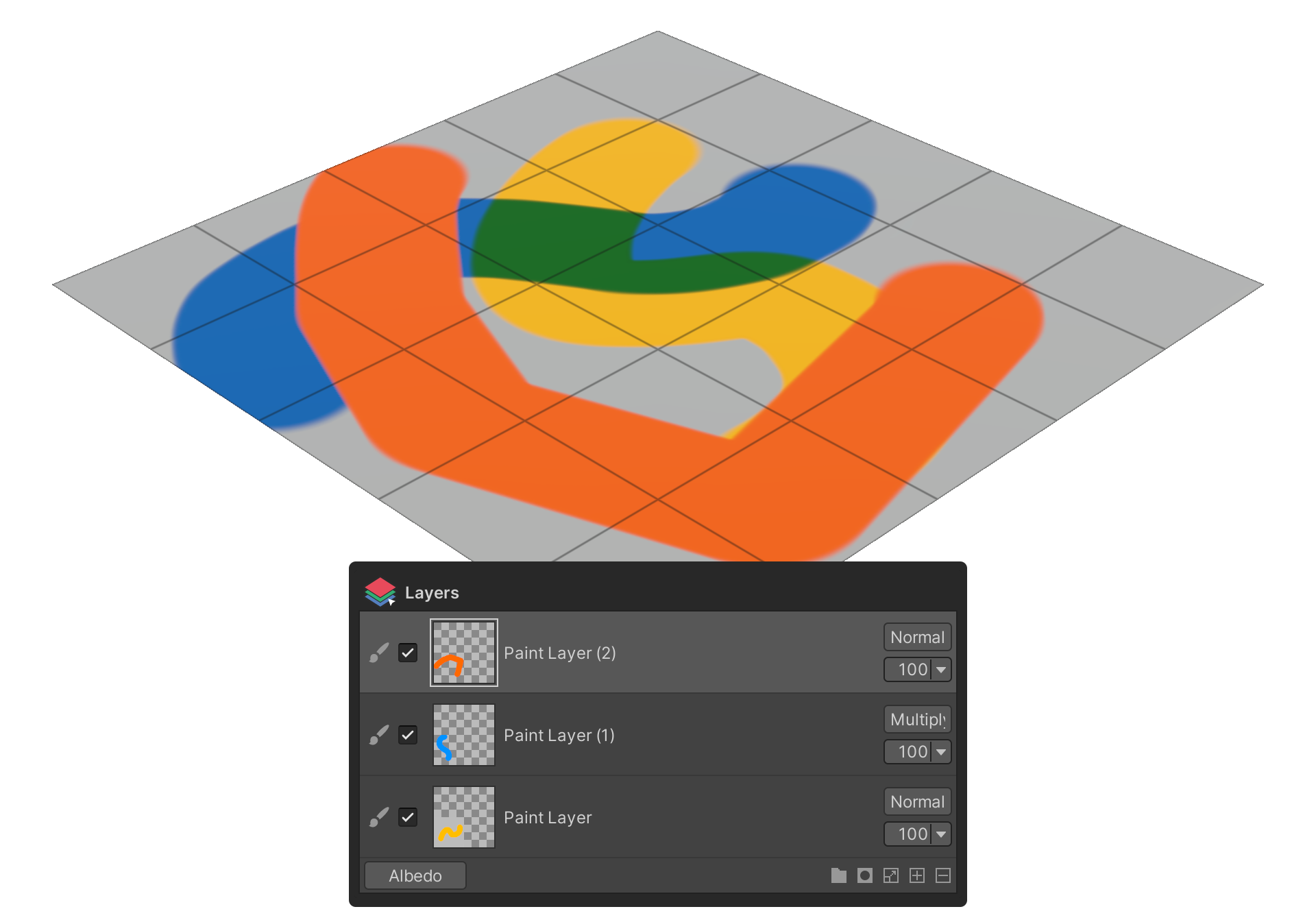
A Paint layer is the basic layer where you paint values into active channels with the brush, shape, and gradient tools. Most of the work in Painting 3D happens on Paint layers.
How to use
- Click the
+button on the layer panel's status bar. - Pick Paint Layer from the context menu.
- An empty Paint layer is added at the current selection, ready for any of the Tools-group tools to paint into.
Tool Behavior on a Paint Layer
With a Paint layer selected, the tools in the Tools group write directly into the active channel's pixels. Activate multiple channels and a single stroke is applied to all of them at once (see Channels Group). For each tool's general properties and usage, see the Tools Group page.
Brush
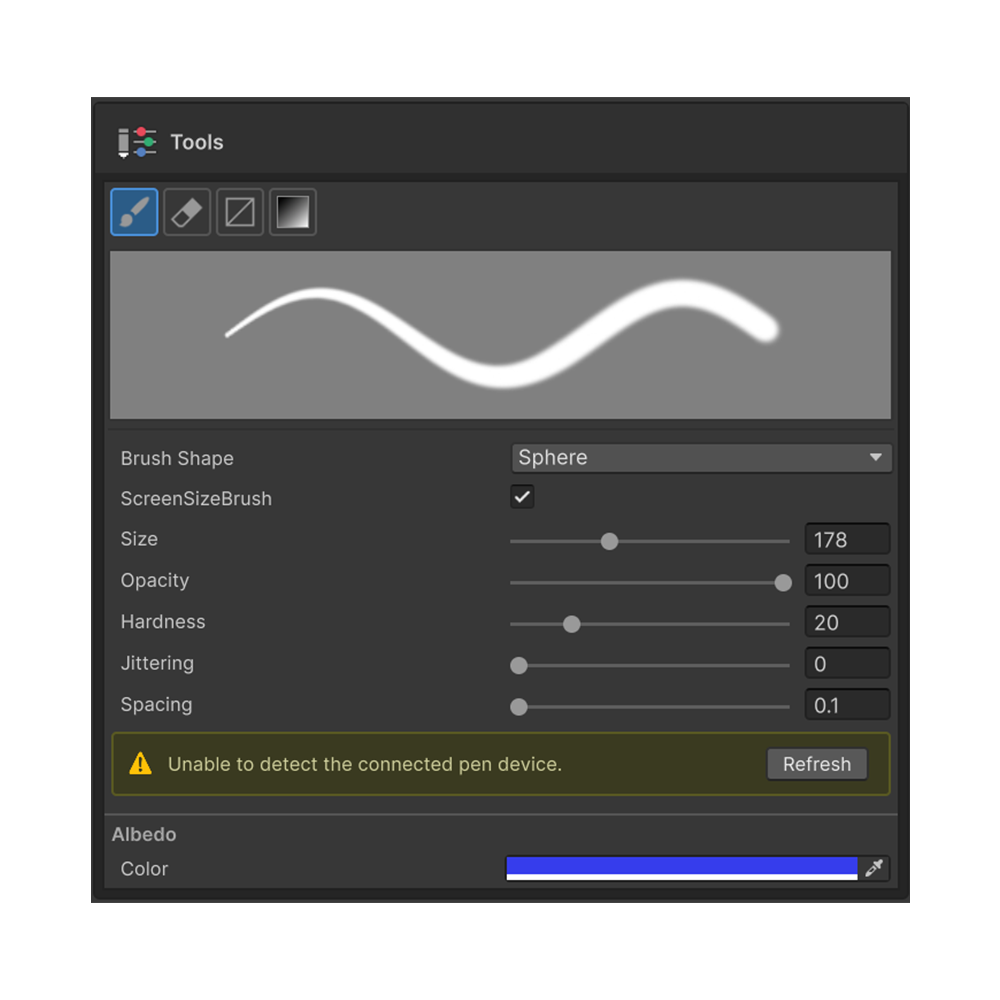
Paints directly into the active channel. Size, Hardness, Opacity, Spacing, Jittering, and pen-pressure options are documented in Brush Tool.
Erase
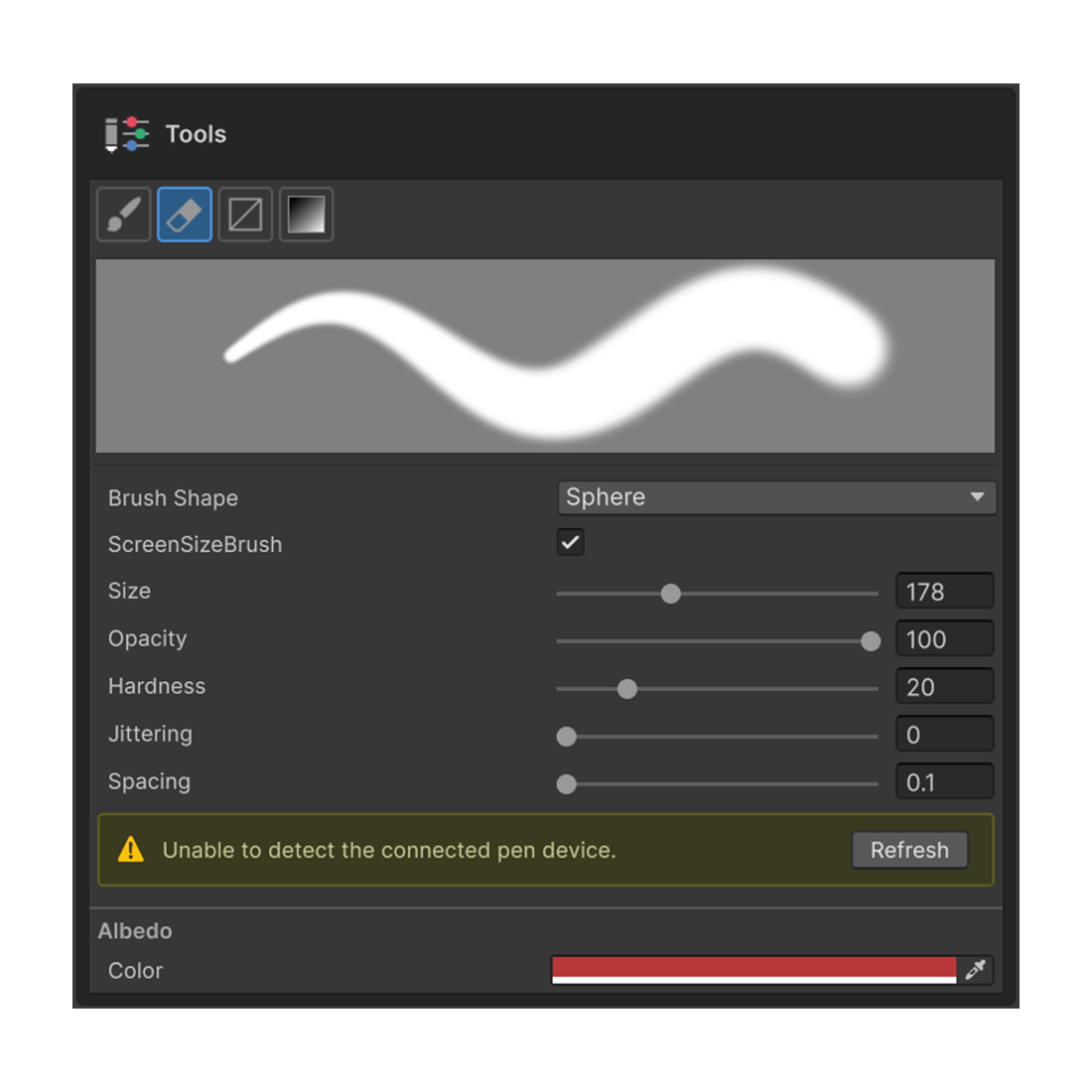
Removes already-painted pixels along with their alpha. Properties match Brush. See Erase Tool for details.
Gradient
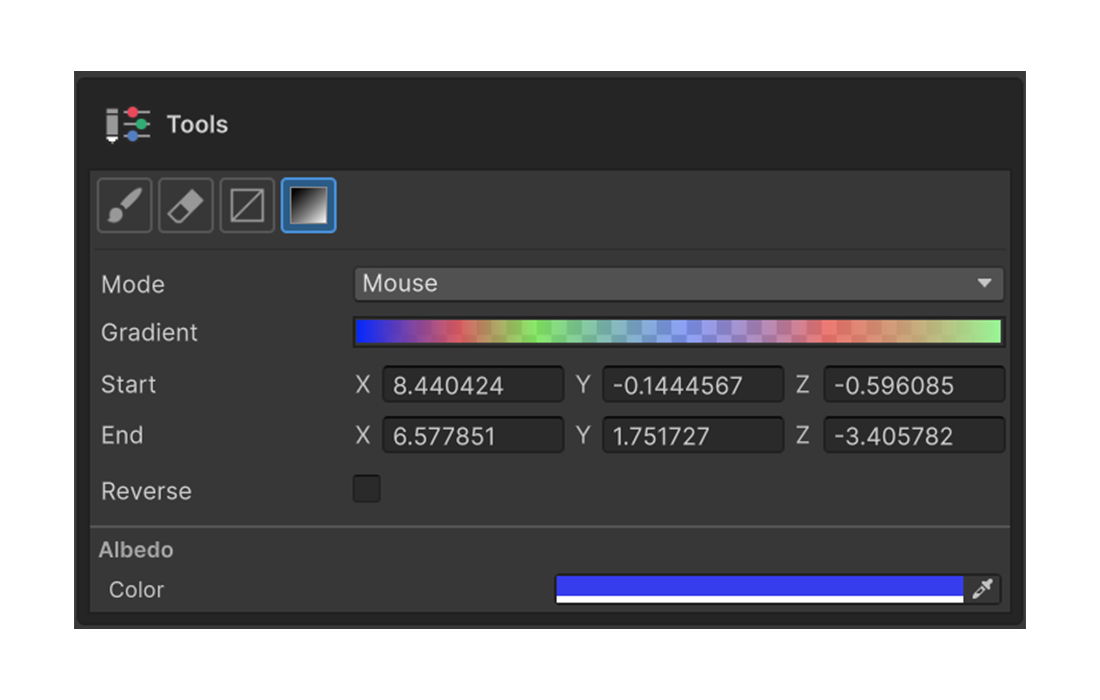
Paints a smooth gradient between two or more colors into the active channel. Supports Mouse / Axis / CurveMesh modes — including gradients that follow a curve mesh surface. See Gradient Tool for full mode details.
Rect Fill
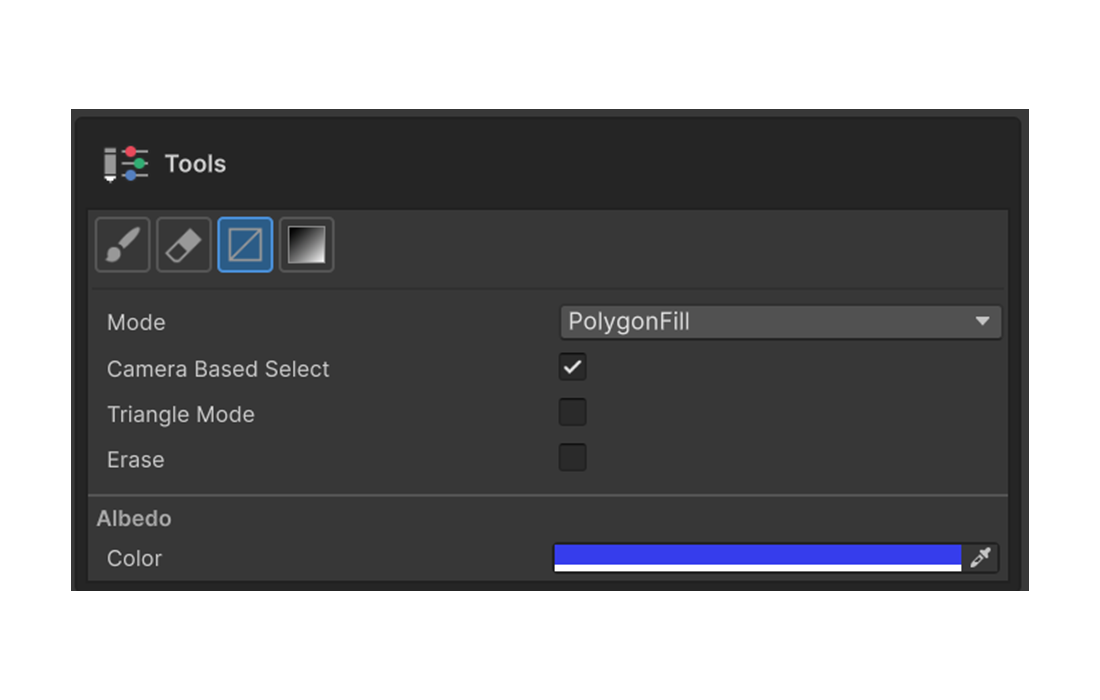
Fills regions in a single input — by polygon, rectangle, lasso, UV island, or mesh-connected part. Toggle Erase Mode to erase instead of fill. All five modes and options are covered on the Rect Fill Tool page.