
영역 채우기 툴 (Rect Fill Tool)
페이스·다각형·UV 아일랜드 등 영역 단위로 한 번의 입력으로 채우는 도구입니다.
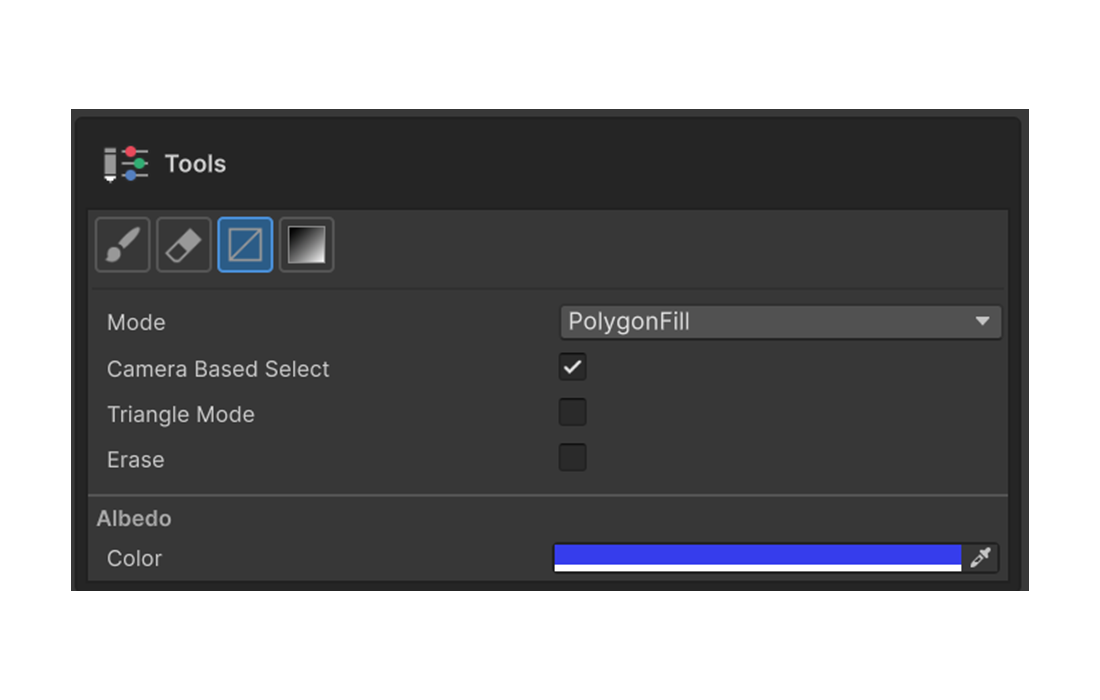
브러시처럼 스트로크로 칠하지 않고, 영역 단위로 한 번에 채우는 도구입니다. 큰 면을 빠르게 채우거나 면별로 깔끔하게 색을 분리할 때 사용합니다. 다섯 가지 채우기 모드를 제공하며 모두 같은 도구에서 모드 드롭다운으로 전환합니다.
단축키
F — Painting 3D 도구 팔레트의 Rect Fill Tool 활성화.
채우기 모드
Mode 드롭다운에서 채우는 단위와 방식이 결정됩니다.
Polygon Fill
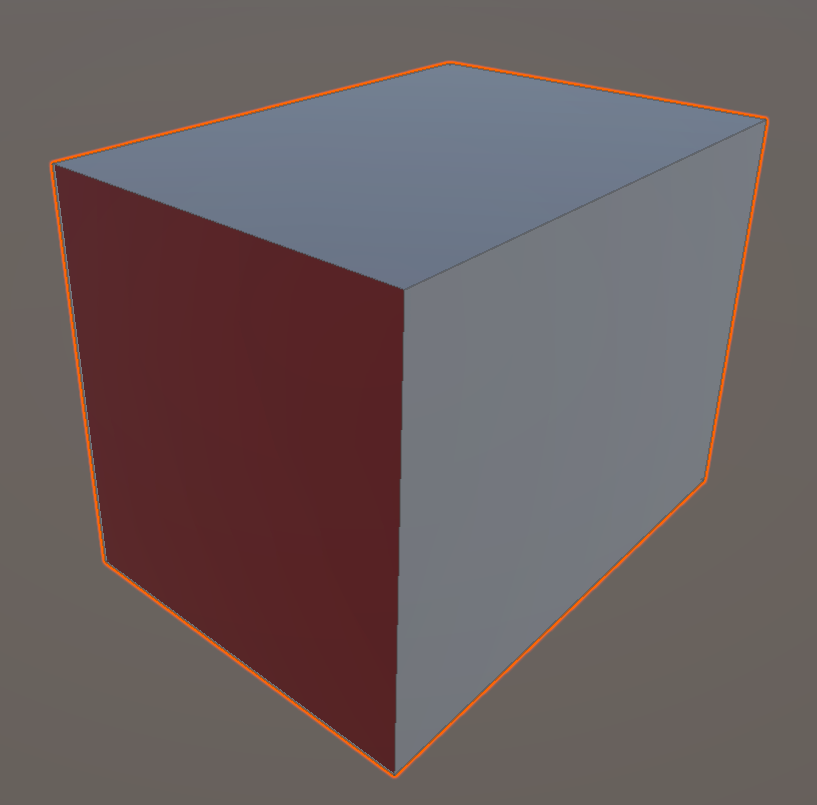
기본 모드. 클릭한 페이스 하나 를 즉시 채웁니다.
- 마우스를 메쉬 위에 올리면 커서 아래의 페이스가 강조 표시됩니다.
- 좌클릭으로 그 페이스에 채우기가 적용됩니다.
- 드래그는 사용하지 않고, 클릭 한 번에 즉시 채워집니다.
- 큐브의 한 면, 평면형 모델의 분할된 페이스 등을 빠르게 칠할 때 적합합니다.
Rect Fill
좌클릭 드래그로 화면상의 직사각형 을 그리고, 그 안에 들어오는 모든 페이스 를 한 번에 채웁니다.
- 클릭한 위치에서 드래그를 시작하면 흰/검 깜빡임의 미리보기 사각형이 표시됩니다.
- 마우스를 떼는 순간 사각형이 확정되고, 사각형 영역에 부분이라도 포함된 페이스에 채우기가 적용됩니다.
- 카메라 시점 기준이므로 시점을 바꾸면 같은 페이스라도 포함 여부가 달라집니다.
- 넓은 영역을 한 번에 칠하거나, 화면 단위로 빠르게 처리할 때 사용합니다.
Polygonal Lasso Fill
좌클릭으로 다각형 영역의 꼭짓점 을 차례로 찍어 자유 형태의 영역을 만든 뒤, 그 안의 페이스를 채웁니다.
- 좌클릭마다 폴리곤에 점이 하나씩 추가됩니다.
- 폴리곤을 확정해 채우는 방법은 다음 두 가지입니다 (둘 다 3점 이상 찍힌 상태에서 동작).
- 시작점 근처에서 좌클릭 — 마지막 클릭이 시작점 5px 이내에 들어오면 폴리곤이 자동으로 닫힙니다. 미리보기 선이 노란색으로 바뀌어 닫힘 가능 상태를 알려줍니다.
- 우클릭 또는
Enter— 그동안 찍은 점들로 폴리곤을 닫고 즉시 채웁니다.
Esc키로 진행 중인 폴리곤을 취소할 수 있습니다.- Rect Fill 보다 더 정밀하게 임의 형태의 영역을 잡고 싶을 때 사용합니다.
Island Fill
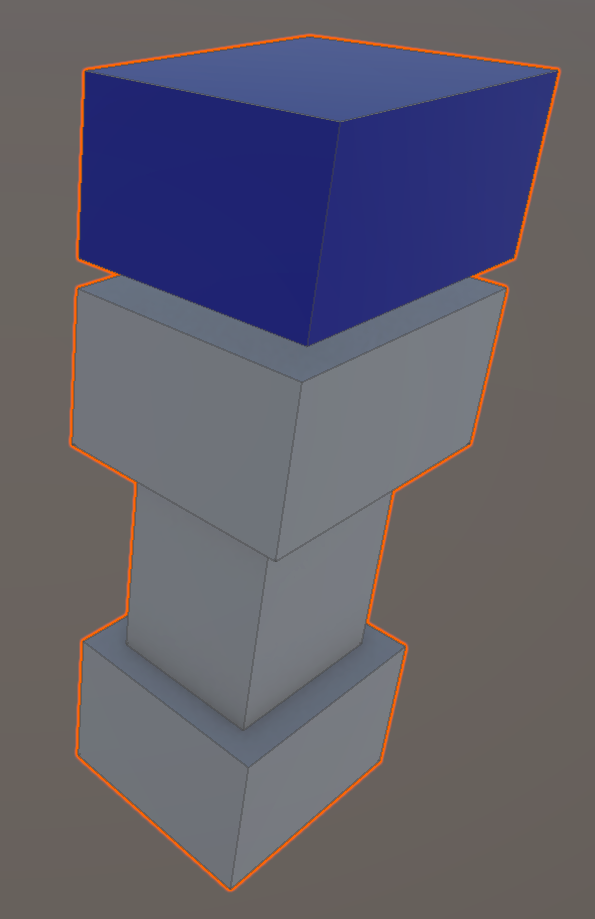
클릭한 페이스가 속한 UV 아일랜드 전체 를 한 번에 채웁니다.
- "UV 아일랜드" 는 UV 상에서 끊김 없이 연결된 페이스 묶음입니다 (UV Seam 으로 분리됨).
- 캐릭터 옷의 한 부분, 부품의 한 단위 등 텍스쳐 상에서 묶여 있는 영역을 통째로 칠할 때 가장 효과적입니다.
- 같은 메쉬여도 UV Seam 으로 끊겨 있으면 다른 아일랜드로 취급되어 함께 채워지지 않습니다.
Isolation Fill
클릭한 페이스와 메쉬 토폴로지로 연결된 모든 페이스 를 한 번에 채웁니다.
- Island Fill 과 비슷하지만 기준이 다릅니다. Island Fill 은 UV 상의 연결성, Isolation Fill 은 3D 메쉬의 연결성 을 기준으로 합니다.
- UV 가 여러 아일랜드로 나뉘어 있어도 3D 상에서 한 덩어리면 한 번에 채워집니다.
- 머리·몸·팔처럼 분리된 메쉬 파트 중 하나만 골라 칠하고 싶을 때 사용합니다.
모드 공통 옵션
모든 모드에 함께 적용되는 옵션들입니다.
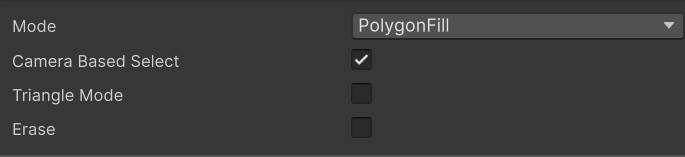
Triangle Mode
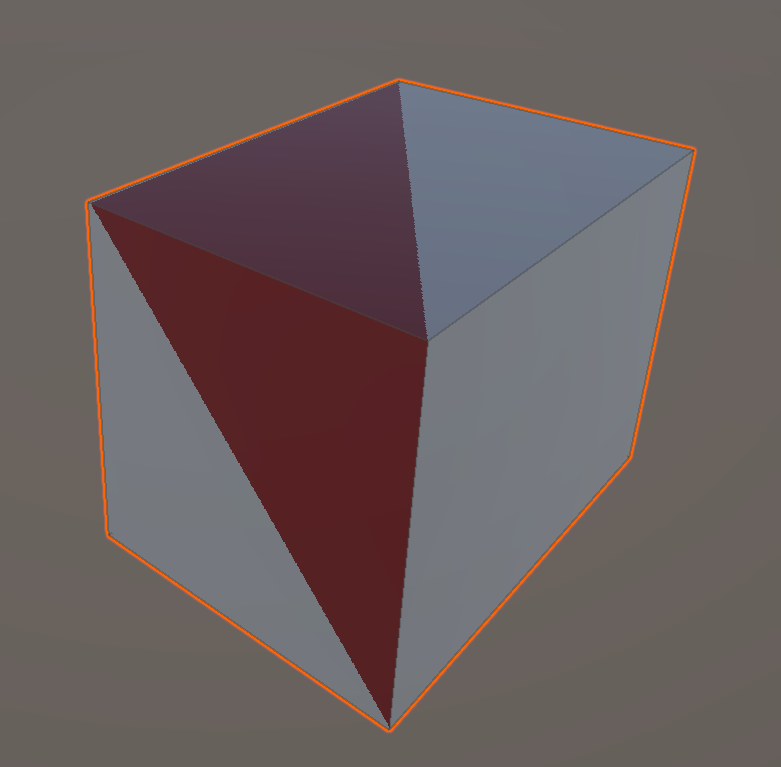
토글을 켜면 채우기 단위가 폴리곤(여러 삼각형으로 구성된 평면 면)에서 개별 삼각형으로 바뀝니다.
- 한 페이스가 여러 삼각형으로 분할된 경우, 클릭/사각형/폴리곤 안에 들어오는 삼각형 하나하나만 채워집니다.
- Polygon / Rect / Lasso Fill 모드에서 의미가 있습니다.
- 토폴로지가 보이는 거친 느낌의 채우기를 의도하거나, 같은 페이스의 일부만 다른 색으로 칠하고 싶을 때 사용합니다.
Erase Mode
켜면 채우는 대신 같은 영역의 칠해진 픽셀을 지웁니다. 영역 단위로 한 번에 페인트를 제거할 때 사용합니다.
Fill Camera Based
켜면 현재 카메라에서 보이는 페이스만 채우기 대상으로 잡습니다. 반대편이나 가려진 페이스는 채우지 않습니다.
- Polygon Fill 같이 클릭 한 번에 결정되는 모드에서도 적용됩니다.
- 모델 뒤편이 함께 칠해지는 것을 막거나, 화면에 보이는 영역만 빠르게 작업할 때 사용합니다.
Mask Value
마스크 편집 모드에서 채워질 마스크 값(0 ~ 1).
키보드 단축
| 단축키 | 동작 |
|---|---|
F | Rect Fill Tool 활성화 |
Esc | Lasso 진행 취소 |
Enter 또는 우클릭 | Lasso 확정 — 찍은 점들로 폴리곤을 닫고 채움 (3점 이상 찍힌 상태부터 동작) |
| 시작점 5px 이내 좌클릭 | Lasso 자동 닫기 — 미리보기 선이 노란색일 때 클릭 |
0 / 1 | Mask Value 를 0 또는 1 로 설정 (마스크 편집 시) |
Preferences → Shortcuts 에서 다음 항목에 키를 직접 할당할 수 있습니다.
- Switch Fill Mode — 다음 채우기 모드로 순환 전환
- Toggle Triangle Mode — Triangle Mode 켜고 끄기
- Toggle Erase Mode — Erase Mode 켜고 끄기
활용 예
- Polygon Fill + Triangle Mode OFF — 분할된 박스 면 하나를 한 번에 채움.
- Polygon Fill + Triangle Mode ON — 토폴로지가 보이는 표면 패턴을 칠할 때.
- Rect Fill — 캐릭터 몸의 한 영역을 시점에 따라 빠르게 칠할 때.
- Polygonal Lasso Fill — 임의 형태의 패치를 정확히 잡아 칠할 때.
- Island Fill — UV 상에서 묶인 부품 (옷, 모자) 전체를 한 번에 칠할 때.
- Isolation Fill — 메쉬 파트 (머리 / 몸 / 팔) 단위로 한 번에 칠할 때.