
그라디언트 툴 (Gradient Tool)
3D 메쉬의 표면에 그라디언트를 직접 칠하는 전용 도구입니다.
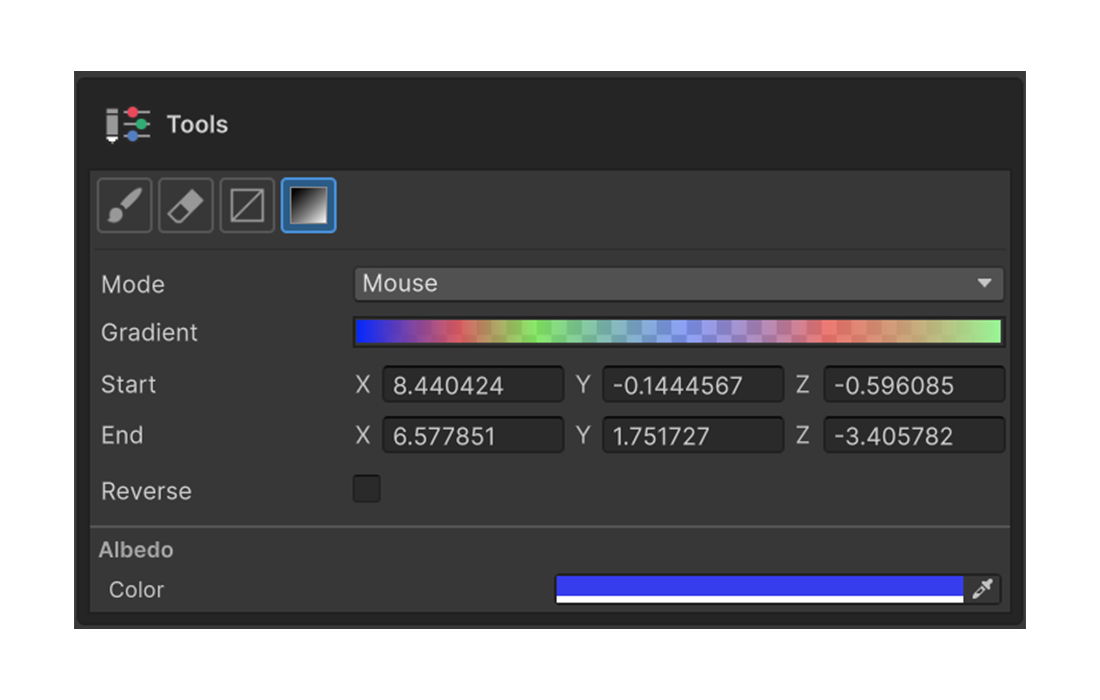
3D 메쉬 표면에 그라디언트를 직접 칠하는 전용 도구입니다.
단축키
G — Painting 3D 도구 팔레트의 Gradient Tool 활성화.
적용 모드
| 모드 | 동작 |
|---|---|
| Mouse | 화면에서 마우스 드래그로 시작점과 끝점을 정의 |
| Axis | X / Y / Z 축을 기준으로 적용 (방향 역전 가능) |
| CurveMesh | Curve Mesh 오브젝트를 따라 그라디언트 적용 |
Mouse 모드
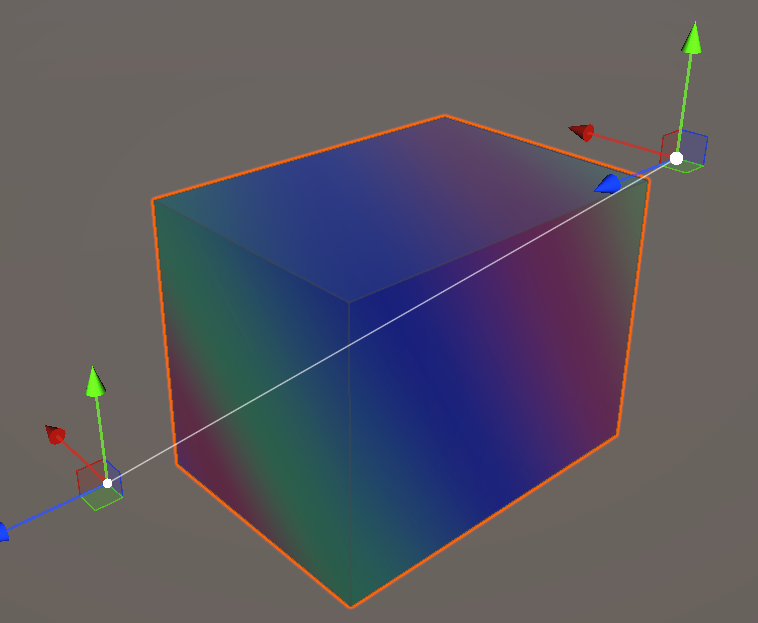
메쉬 표면을 드래그하면 드래그 방향을 따라 그라디언트가 칠해집니다. 시작점이 그라디언트의 0% 위치, 끝점이 100% 위치가 됩니다.
Axis 모드
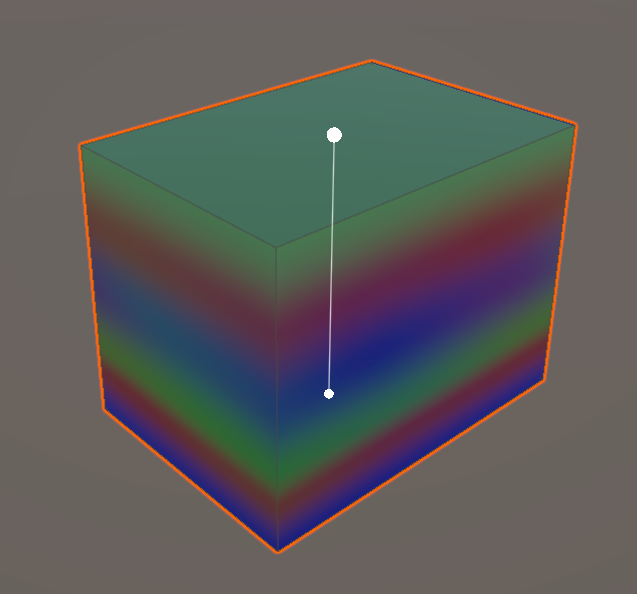
X / Y / Z 축 중 하나를 기준으로 메쉬 전체에 그라디언트가 자동 적용됩니다. Reverse Direction 옵션으로 방향을 반전할 수 있습니다.
CurveMesh 모드
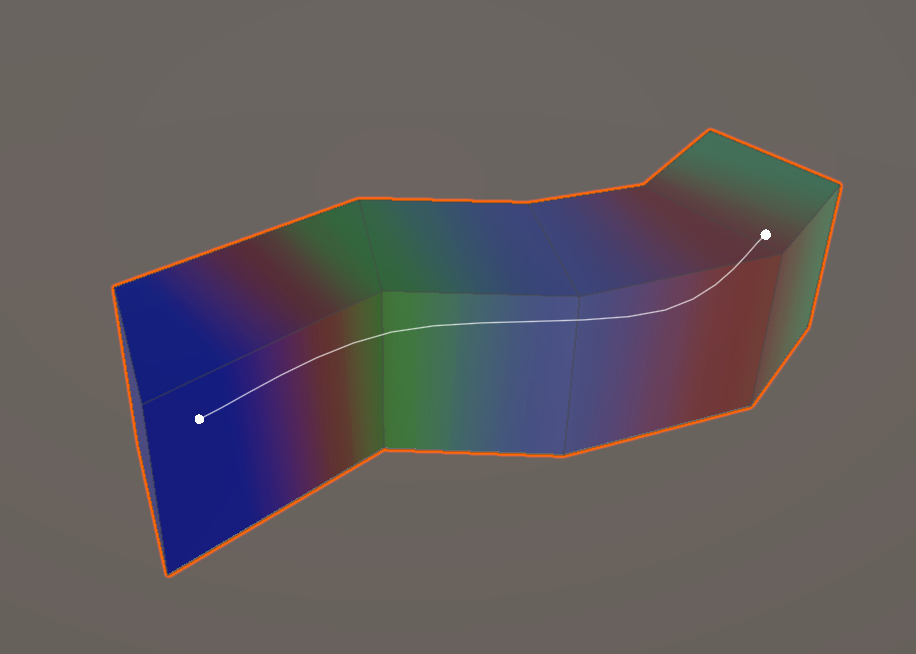
Curve Mesh 오브젝트를 지정하면 곡선의 진행 방향을 따라 그라디언트가 그려집니다. 직선이 아닌 곡선 경로를 따라가는 그라디언트가 필요할 때 사용합니다.
속성
Gradient
색상 스톱(colorKeys)과 알파 스톱(alphaKeys)을 직접 편집합니다. 도구가 활성화된 상태에서 Gradient 를 수정하면 즉시 프리뷰가 갱신되므로, 결과를 보면서 색을 맞출 수 있습니다.
Shape Mode
위 표의 세 모드 중 하나를 선택합니다.
Axis
Shape Mode = Axis 일 때만 표시. X / Y / Z 중 기준 축을 선택합니다.
Reverse Direction
그라디언트의 방향을 반전합니다.
마스크와의 동작
마스크 레이어가 활성화된 경우 그라디언트는 마스크 영역에만 적용됩니다. 마스크와 결합해 특정 부위에만 그라디언트를 칠하는 방식으로 자주 활용됩니다.
사용법
- 도구 팔레트에서 Gradient Tool 을 선택하거나
G를 누릅니다. - 적용 모드(Mouse / Axis / CurveMesh)를 선택합니다.
- Gradient 속성에서 원하는 색상 스톱을 구성합니다.
- 선택한 모드에 따라:
- Mouse — 메쉬 표면을 드래그.
- Axis — 축 선택만 하면 자동 적용. 필요 시 Reverse 토글.
- CurveMesh — Curve Mesh 오브젝트를 지정.
- 결과를 보면서 Gradient 의 색상 스톱을 미세 조정합니다.