
브러시 툴 (Brush Tool)
3D 메쉬 표면에 자유롭게 색을 칠하는 가장 기본적인 페인팅 도구입니다.
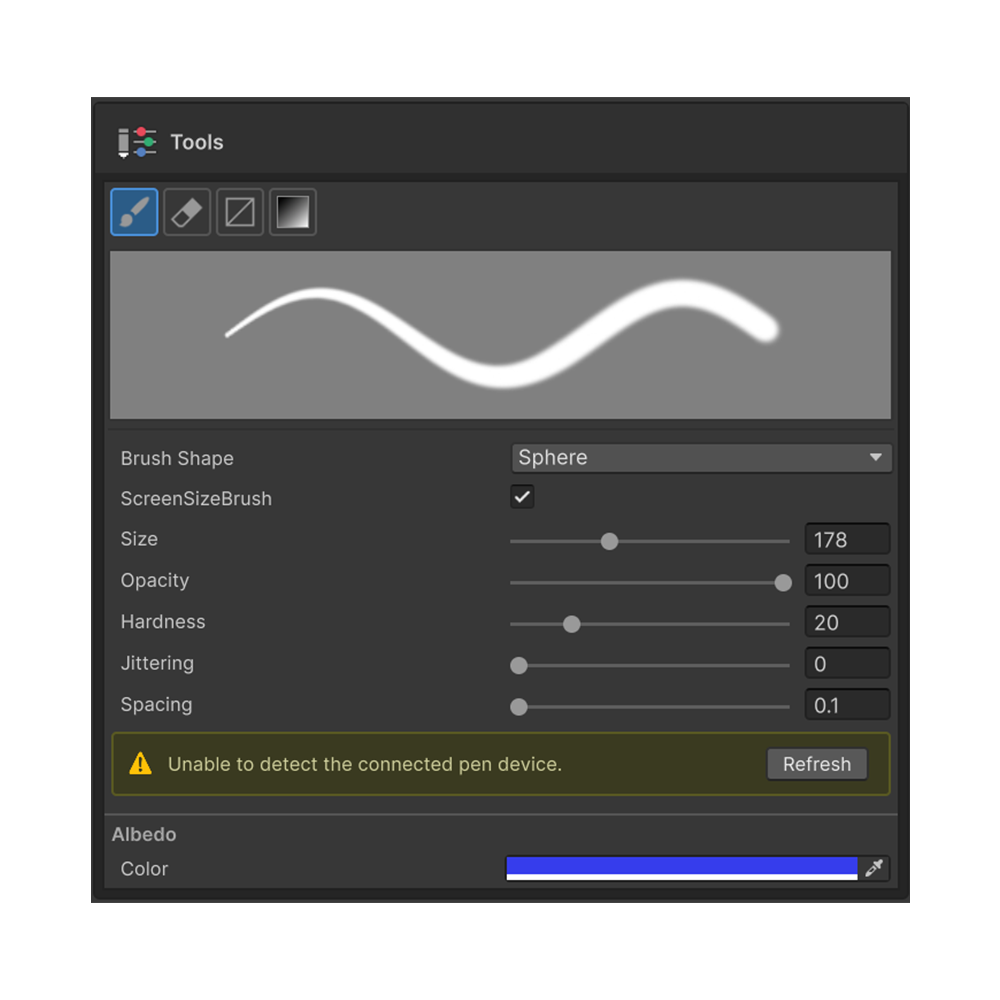
3D 메쉬의 표면에 자유롭게 색을 칠하는 가장 기본 도구입니다. Painting 3D 작업의 대부분은 이 도구로 진행됩니다.
단축키
B — Painting 3D 도구 팔레트의 Brush Tool 활성화.
속성
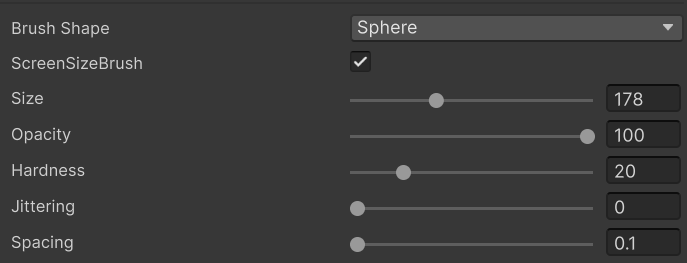
Shape
브러시 스탬프의 모양을 선택합니다.
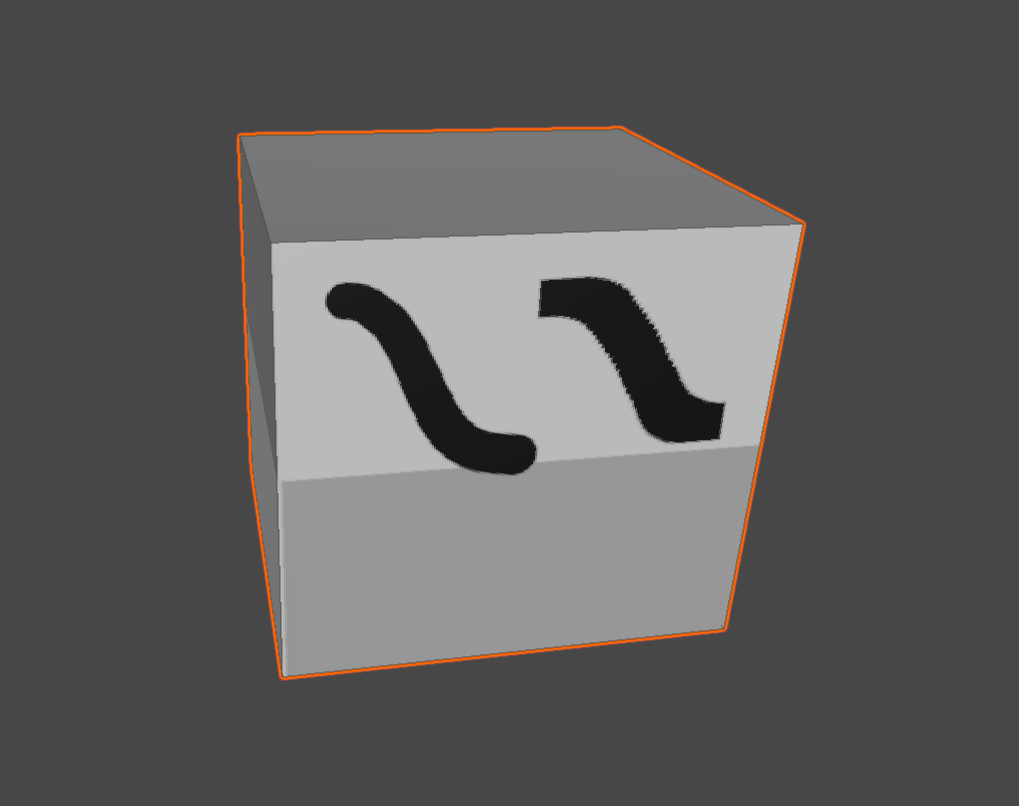
- Circle — 원형 스탬프 (기본)
- Square — 사각형 스탬프
Size
브러시 크기. 픽셀 단위로 직접 입력하거나 슬라이더로 조정합니다.
Hardness
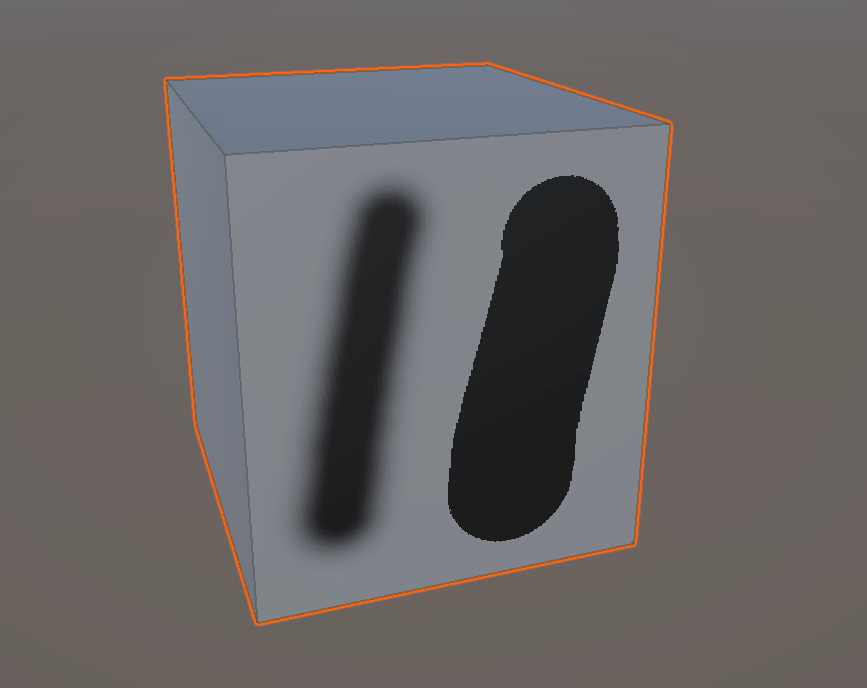
스탬프 가장자리의 경도. 값이 낮을수록 가장자리가 부드럽게 번지고, 높을수록 또렷한 경계가 됩니다.
Opacity
브러시 한 번의 스탬프 불투명도. 동일 영역을 여러 번 칠하면 누적되어 진해집니다.
Spacing
스탬프 간격. 값이 낮을수록 촘촘하게 찍히며, 높을수록 띄엄띄엄 찍힙니다.
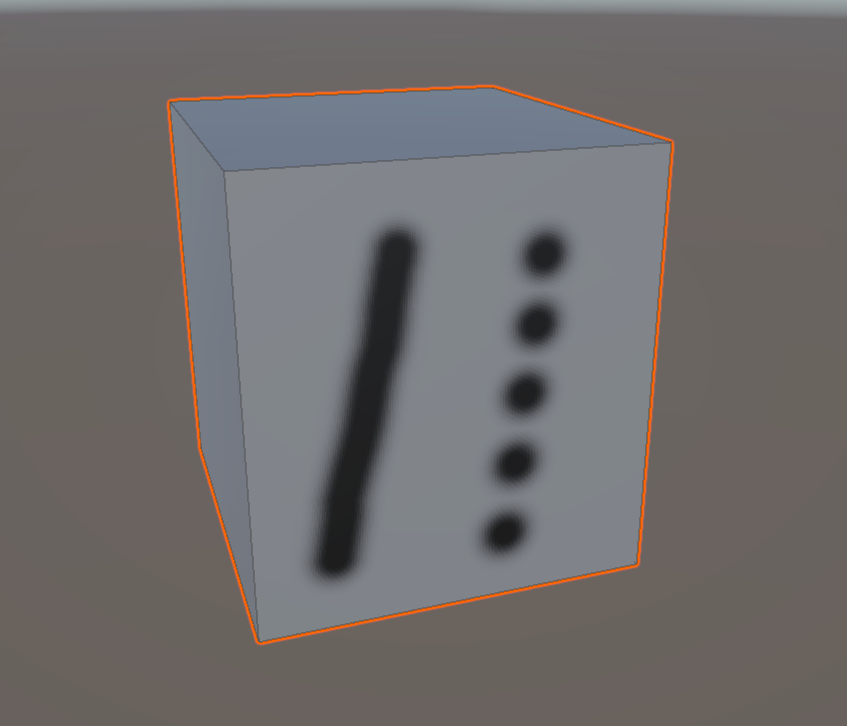
Jittering
스탬프 위치 지터. 거친 질감·노이즈 효과를 낼 때 사용합니다.
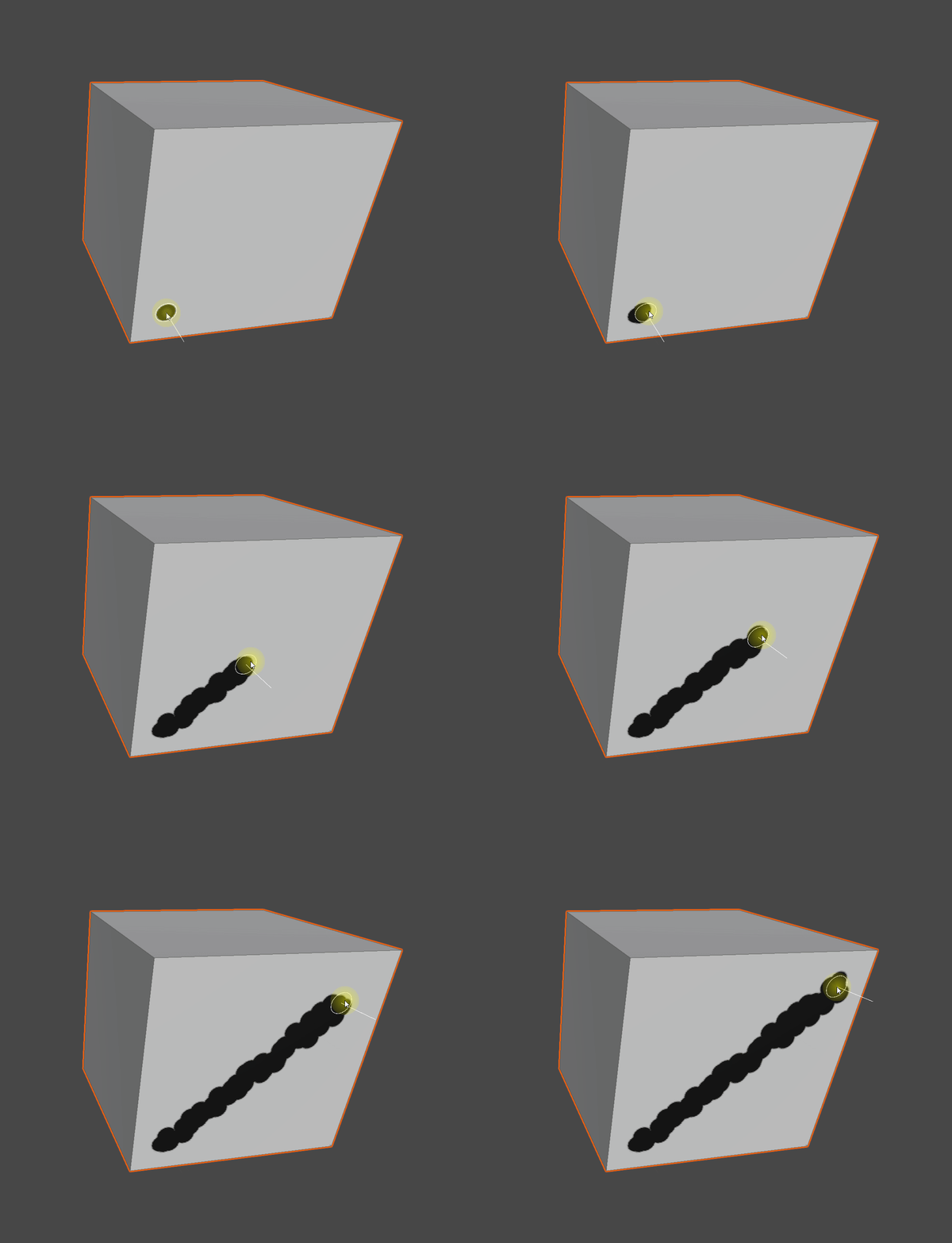
Mask Value
브러시가 마스크 채널에 칠하는 값(0 ~ 1). 마스크 편집 모드에서만 의미가 있습니다.
펜 필압
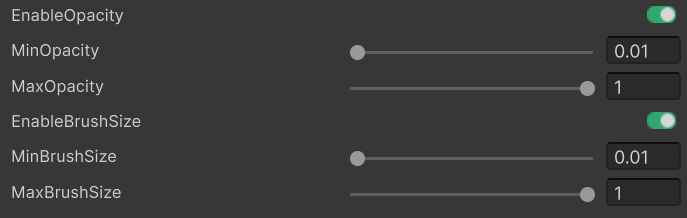
Wintab 펜이 감지되면 다음 옵션이 자동으로 표시됩니다.
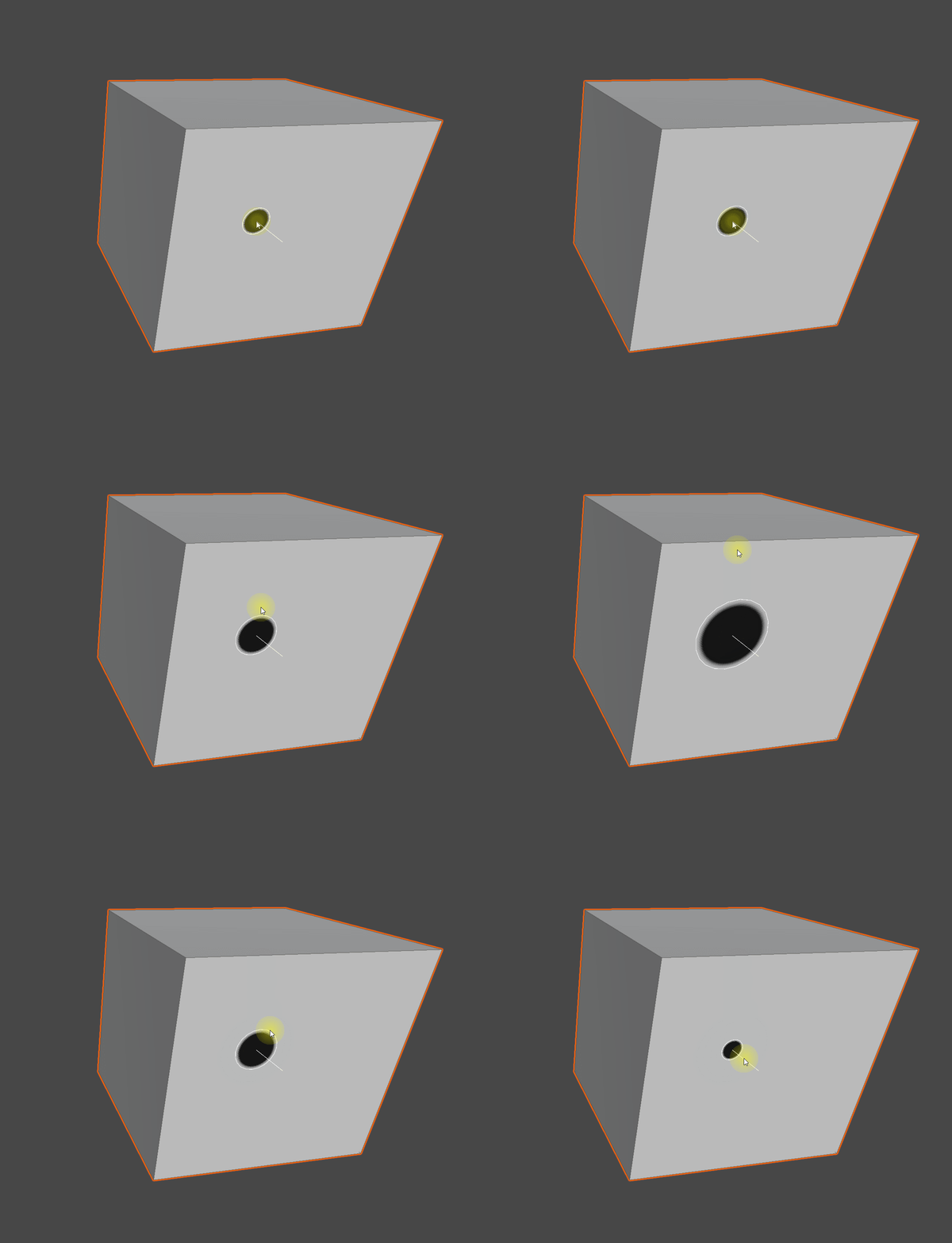
- Enable Size Pressure — 펜 압력으로 브러시 크기를 조절.
Min / Max Brush Size로 압력 0 ~ 1 구간의 크기 범위를 지정. - Enable Strength Pressure — 펜 압력으로 불투명도를 조절.
Min / Max Opacity로 압력 0 ~ 1 구간의 불투명도 범위를 지정.
펜이 연결되지 않은 환경에서는 해당 옵션이 숨겨지며 압력 계수는 항상 1.0 으로 처리됩니다.
브러시 프리뷰
Tools 섹션에는 현재 설정이 반영된 도장 모양 미리보기가 표시됩니다. Size · Hardness · Spacing 등 값을 바꿀 때마다 즉시 갱신되어, 칠하기 전에 결과를 확인할 수 있습니다.
활성 채널 컬러
여러 채널을 동시에 활성화한 상태에서 칠하면, 각 채널이 보유한 자체 색으로 그려집니다. 채널 컬러를 빠르게 바꾸려면 Shift + Alt + 우클릭 으로 빠른 색상 팔레트 HUD 를 호출하세요.
활용
- 자유로운 텍스쳐링과 디테일 작업의 기본.
- 마스크 편집 모드에서 마스크 영역을 칠하거나 지우는 용도로도 사용.
- 펜 필압을 활용하면 자연스러운 강약 표현이 가능.