
Tools Group
The work panel that gathers the tool palette, brush preview, tool-specific properties, and the active channel color.
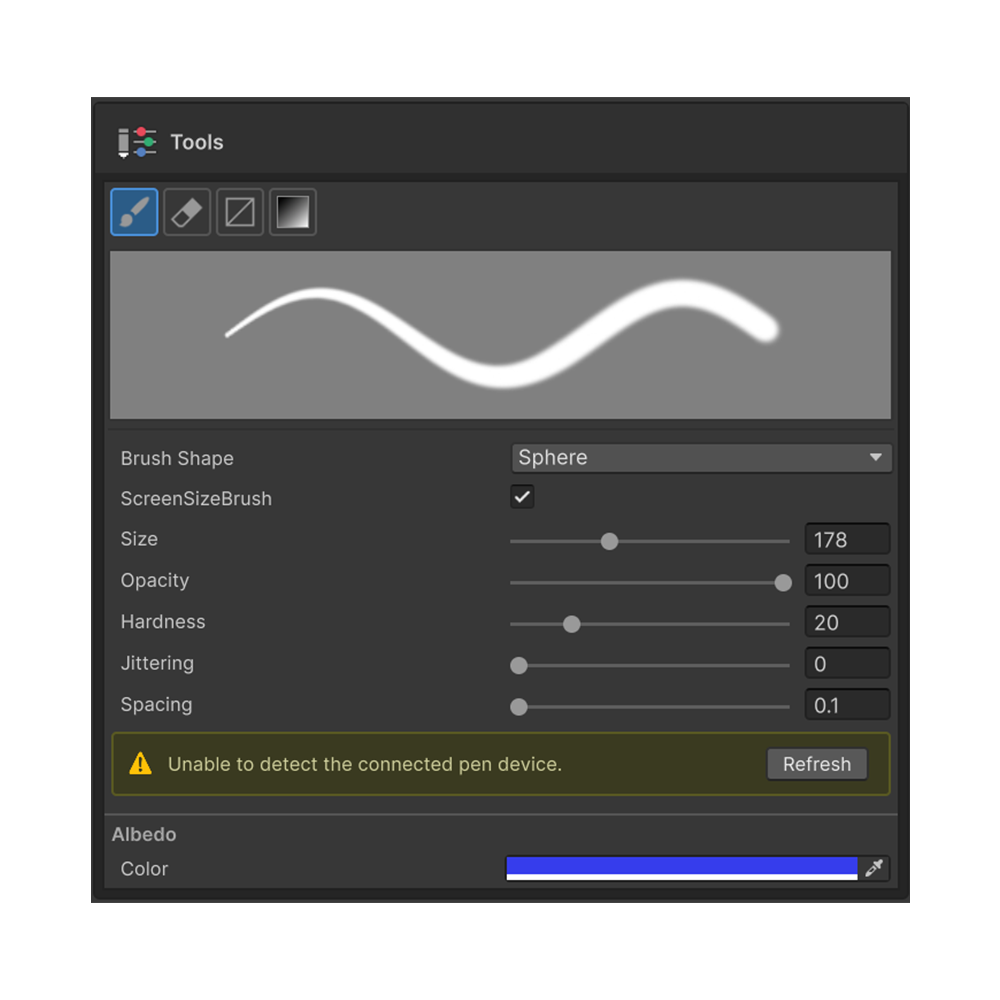
The Tools section is where you pick the active tool and adjust its properties. It sits at the very bottom of the inspector and automatically swaps in the properties of whichever tool is active.
Tool Palette
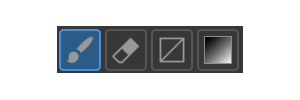
| Shortcut | Tool | Purpose | Page |
|---|---|---|---|
| B | Brush | Freehand painting | Brush Tool |
| E | Erase | Remove paint | Erase Tool |
| G | Gradient | Gradient painting (Mouse / Axis / CurveMesh) | Gradient Tool |
| F | Rect Fill | Fill by triangle / polygon / island in one click | Rect Fill Tool |
Click a tool icon or press its shortcut to switch tools — the property pane and preview update to match.
Brush Preview
Shown only when Brush or Erase is active. The preview reflects the current size, hardness, spacing, and pressure settings so you can see the stamp shape before you paint.
Tool-Specific Properties
The active tool's property fields render automatically. See the individual tool pages above for what each tool exposes.
Active Channel Color
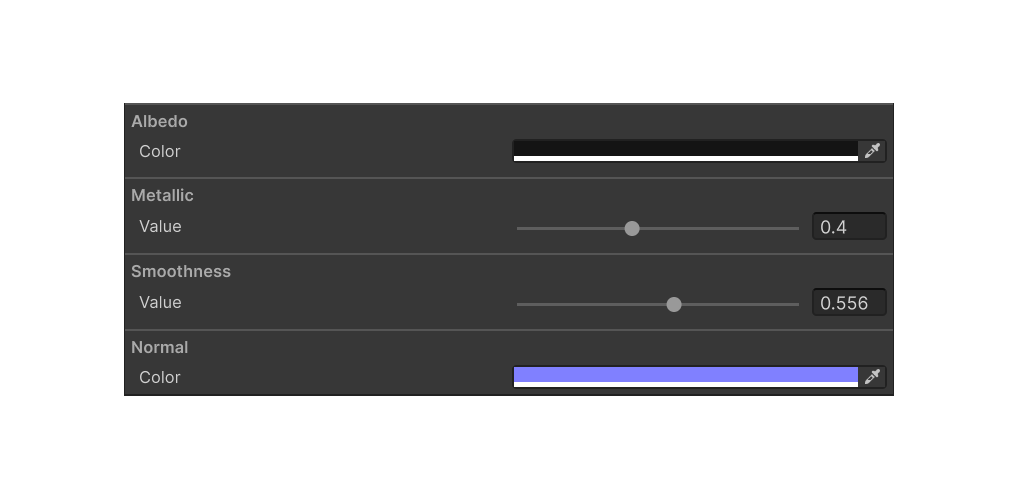
Each active channel keeps its own brush color. Click the color box to open the color picker, or press Shift + Alt + Right-click to open the Quick Color Palette HUD.
| Channel | Meaning |
|---|---|
| Albedo | Diffuse color |
| Metallic | Metallic strength (grayscale) |
| Roughness | Roughness (grayscale) |
| Normal | Special — interpreted against the normal base |
| Mask | Black / white |
Per-channel colors persist across window sessions, so the last color you used is preserved next time.