
Layers Group
Layer list, blending, masks, groups, effects, Solo, and the channel badge.
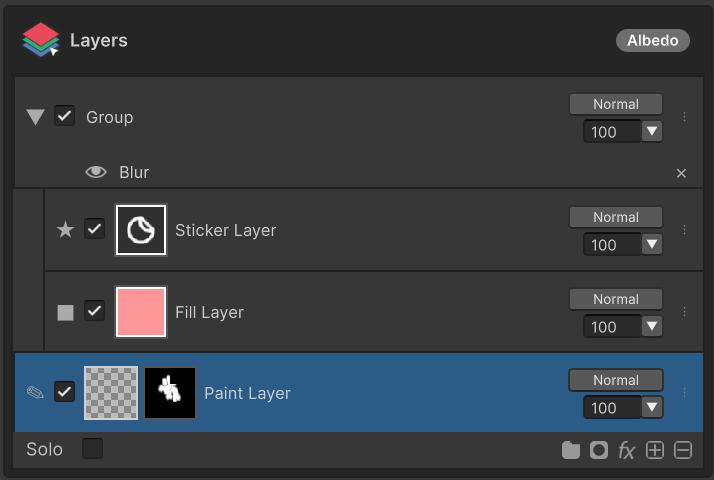
The Layers section is where painting builds up non-destructively. Visibility, order, opacity, blend mode, masks, and effects are all managed here.
Header
- Layers label — Section header. Click it to collapse / expand.
- Channel badge (right side) — Shows the currently selected channel's name. Switching channels refreshes the layer list to that channel.
Solo
The status bar's Solo toggle displays only the selected layer on the canvas, isolating it from the rest of the composition. Turn it off to return to the full composite.
Layer Row
Each layer row, from left to right:
| Element | Behavior |
|---|---|
| Type icon | Paint(✎) / Fill(■) / Sticker(★) / Group(▶/▼) |
| Visibility toggle | Include / exclude this layer from the composite |
| Thumbnail | 64px preview. While editing a mask, clicking the thumbnail returns you to the layer body |
| Mask thumbnail | Shown only when a mask exists. Click to enter mask edit mode |
| Name | Double-click to rename inline |
| 3-dot menu | Exposes the same actions as the right-click menu |
Layer Types
- Paint Layer — Painted directly with the brush
- Fill Layer — Solid layer covering the whole model
- Sticker Layer — Decal-style image applied to the surface
- Group Layer — Organizes multiple layers as a single unit
Masks
Attach a mask to a layer to reveal / hide specific regions. See Layer Mask.
Blend Mode / Opacity
The selected layer's blend mode and opacity are adjusted just below the header.
- Blend mode dropdown — Normal / Multiply / Add / Screen / … Mouse-wheel over the dropdown to cycle modes.
- Opacity — 0 – 100 slider plus direct input field. Slider and field always stay in sync.
Status Bar
The status bar at the bottom of the layer list:
| Button | Action |
|---|---|
| Solo toggle | Show only the selected layer (see above) |
| Group | Add group layer / ungroup / merge group |
| Mask | Add black or white mask, or remove the current mask |
| fx | Open the effect menu — see Effects |
| + | Add a new layer (Paint / Fill / Sticker) |
| − | Delete the selected layer |
Right-Click Menu
Right-clicking a layer exposes:
- Rename — Same as the inline editor
- Duplicate — Duplicate directly above in the same group
- Delete
- Merge — Merge Down / Group, depending on context
- Add Effect — Same menu as the
fxbutton - Add / Remove Mask
Next
- Painting Mode Group — Apply / Auto Apply behavior
- Channels Group — Channel activation and multi-channel painting
- Effects · Filter — Levels · Brightness/Contrast · Hue/Saturation/Lightness · Blur · Stroke and the Filter section behavior