
Painting Mode Group
The top inspector section — material selection, View Mode, and Apply behavior.
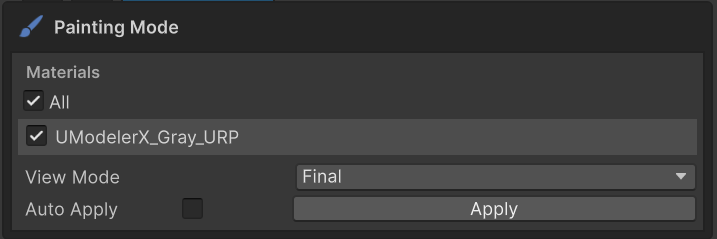
The Painting Mode section sits at the top of the inspector. It controls which material slot you paint and how the result is committed back to the material.
Materials List
Every material slot of the object is listed from top to bottom.
- Per-slot toggle — Enables or disables painting for that slot. Disabled slots are hidden from the Channels / Layers sections and receive no paint commands.
- All toggle — Flips every slot on or off at once.
- Click a slot to select it — The Channels / Layers / Tools sections below refresh to reflect the chosen material.
View Mode
Choose which channel to preview on the mesh surface. This only changes the visualization — it does not change which channels are being painted.
| Option | Visibility |
|---|---|
| Final / Composite / UV / Mask | Always shown |
| Albedo / Metallic / Roughness / Normal / … | Only when the channel exists |
Apply / Auto Apply
Painting results are kept in memory by default. To write them to the material's texture asset (.png) you need to Apply.
- Apply — Flushes the current material's dirty channel render textures to PNG and wires them into the material slot.
- Auto Apply — Runs Apply automatically when you leave painting mode or save the scene.
Auto Apply is enough for most workflows. Press Apply manually whenever you want the result on disk immediately.