
Effects · Filter
Non-destructive layer effects, added from the Layers panel and edited in the Filter section.
A non-destructive system for applying color and outline effects to a layer. You add an effect from the layer panel, and edit its parameters in the Filter section.
Adding an Effect
Use the fx button on the layer panel status bar to open the effect menu.
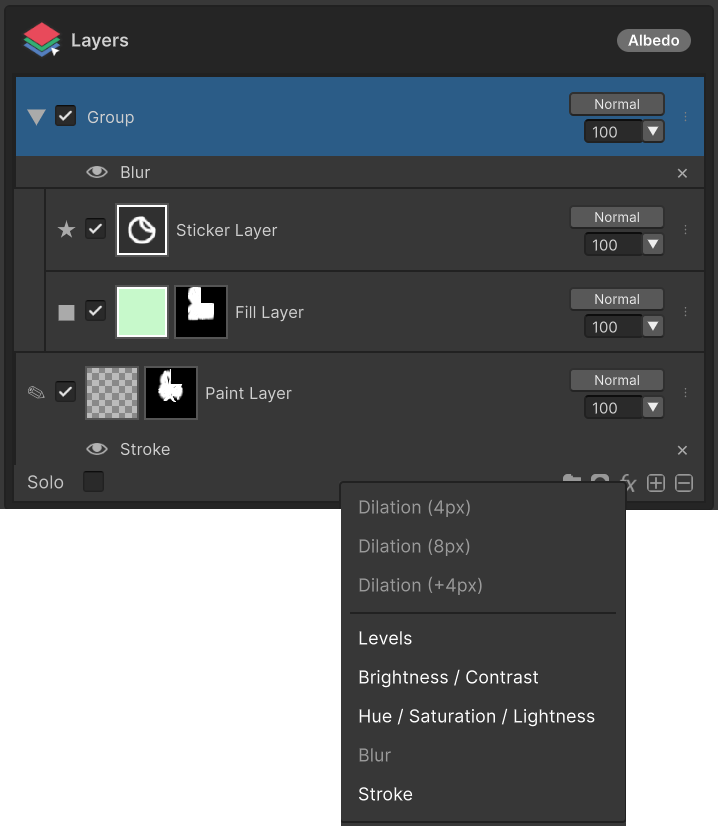
Added effects appear as items underneath the layer.

- The same effect cannot be added twice to a single layer.
- Added items appear under the layer and can be toggled with the eye icon or removed with the X button.
- Clicking an effect item reveals its parameter panel in the Filter section described below.
Filter Section
The Filter section is the fourth section of the inspector and acts as the parameter panel for whatever you have selected. It appears automatically in the following two cases and disappears when nothing is selected.
When a Layer Effect is Selected
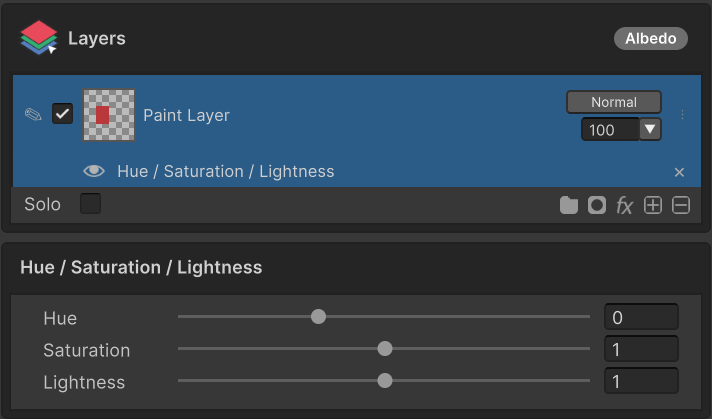
Clicking an added effect under a layer reveals that effect's parameters (e.g. Levels' input/output sliders and histogram, Stroke's thickness and color) in the Filter section for direct editing.
When a Group Layer is Selected
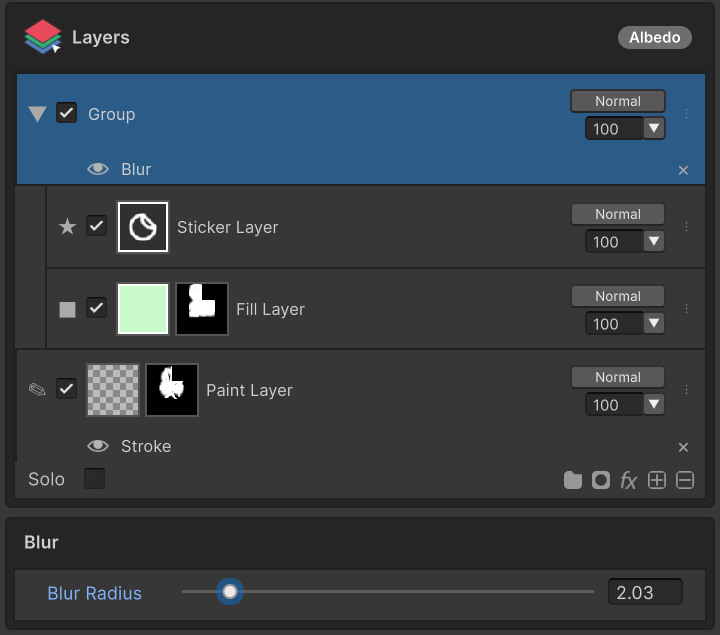
Group-level options like blending mode, opacity, and mask are exposed in the Filter section. See Group Layer for details.
Effect List
| Item | Description |
|---|---|
| Dilation | Extend painted pixels past UV boundaries (applied immediately) |
| Levels | Adjust input/output levels on combined RGB or per R/G/B channel. A histogram visualizes the distribution as you work |
| Brightness / Contrast | Brightness and contrast correction |
| Hue / Saturation / Lightness | Hue, saturation, and lightness correction |
| Blur | Blur |
| Stroke | Outline the layer with a stroke |
Dilation
Extends the painted pixels of the selected Paint layer past UV island boundaries so texture filtering near the seam does not show black gaps (seam bleeding).
Unlike the other effects, Dilation is a one-shot command applied immediately — no entry is added under the layer. The menu offers three options:
| Menu | Behavior |
|---|---|
| Dilation (4px) | Extend painted values 4 pixels past UV boundaries |
| Dilation (8px) | Extend by 8 pixels |
| Dilation (+4px) | Add another 4 pixels on top of the current state (cumulative) |
Original pixels are preserved — only the empty regions are filled — and the action can be undone if the result is undesirable.
Only available on Paint layers. Disabled for Group / Fill / Sticker layers.
Levels
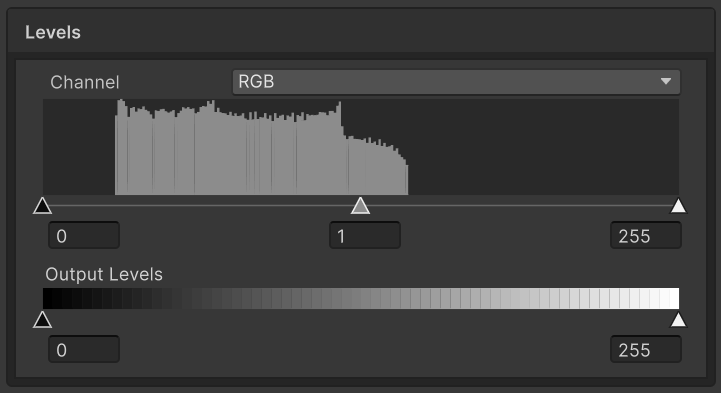
Adjust input and output levels while watching the histogram.
- Input levels — Shift the shadows / midtones / highlights anchors to remap contrast.
- Output levels — Compress the black / white range to limit the result's tonal span.
- Channel selector — Operate on the combined
RGBor onR/G/Bindependently. - Histogram — Visualizes the pixel luminance distribution so you can spot under/over-exposed regions at a glance.
Brightness / Contrast
Adjust the layer's overall brightness and contrast. The simplest tonal correction — drag the sliders while watching the result.
Hue / Saturation / Lightness
- Hue — Color rotation
- Saturation — Saturation (
0= grayscale) - Lightness — Lightness
Use for global color changes, monochrome conversion, or boosting saturation.
Blur
Blurs the layer. Useful for soft shadows or smoothing painting edges.
Stroke
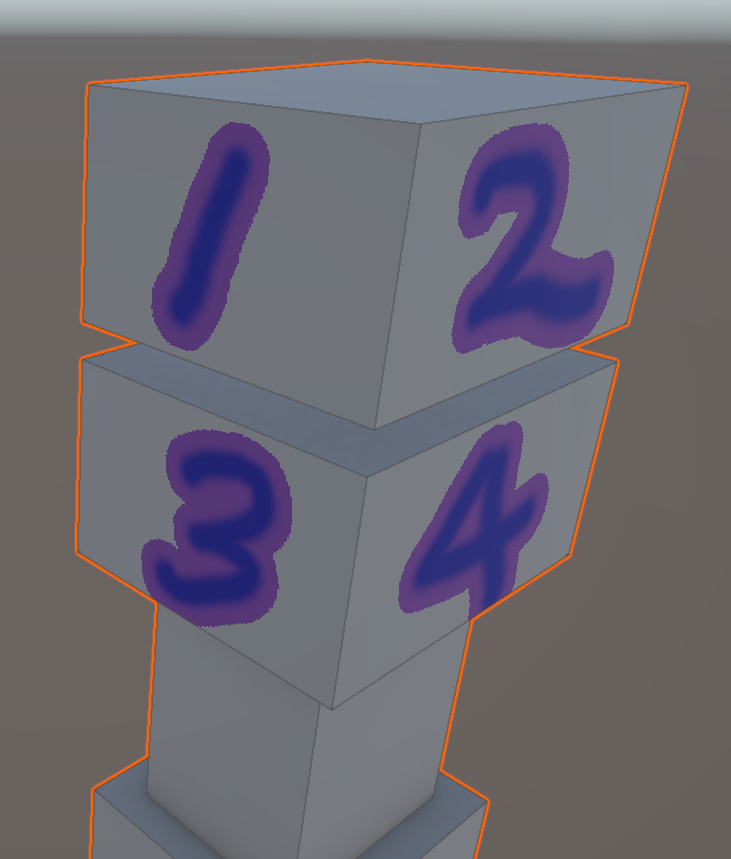
Outlines the layer's silhouette with a solid color or a gradient.
| Property | Values | Default |
|---|---|---|
| Size | Stroke width (pixels) | 4 |
| Position | Outside / Inside / Center | Outside |
| Blend Mode | Full blend-mode list | Normal |
| Opacity | 0.0 – 1.0 | 1.0 |
| Fill Type | Color / Gradient | Color |
| Color · Gradient | Fill color or gradient | Black |
Internally the layer's alpha is dilated / eroded to derive the outline region, so the stroke follows the pixel silhouette cleanly.
Workflow
- Select the target layer.
- Press
fxon the layer panel status bar and pick an effect. - Click the newly added effect entry under the layer.
- Adjust the parameters that appear in the Filter section.
- Leave it as-is to keep the result, or press the
Xon the entry to remove it.