
Move Tool
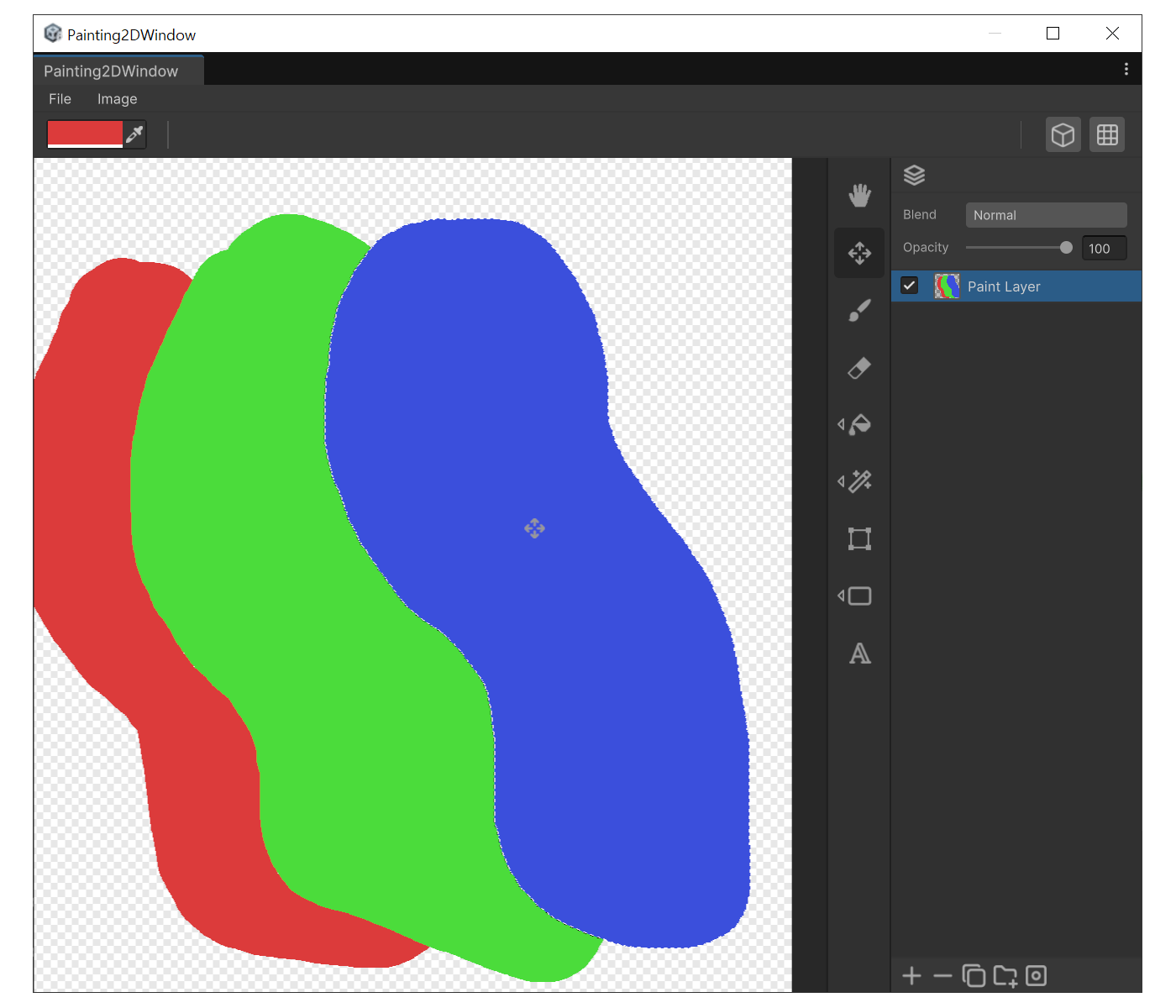
When to use
- To move the pixels inside a selection.
- To move parametric layers(Text / Shape) to a new position.
How to use
- Select Move, or hold 'Ctrl' while another tool is active and drag.
- If a Selection is active, only the pixels inside the selection move.
Example
Auto Bounding-Box Detection
While the Move Tool is active, hovering over the canvas automatically highlights the bounding box of the layer under the cursor. Left-clicking selects that layer, and dragging from there starts the move.
- Even when a higher z-order layer is currently active, a smaller layer beneath it can be picked up preferentially if it sits under the cursor.
- The move starts only after the cursor moves at least 5 pixels; smaller movements are treated as a selection change.
Arrow-Key Nudge
| Shortcut | Behavior |
|---|---|
| Arrow keys | Move 1px |
Shift + arrow keys | Move 10px |
| (Grid Snap ON) arrow keys | Move by grid spacing (Shift acceleration ignored) |
Consecutive arrow-key presses are merged into a single Undo step.