
Features
There are features in Painting 2D that operate across the entire window.
Canvas
Pan
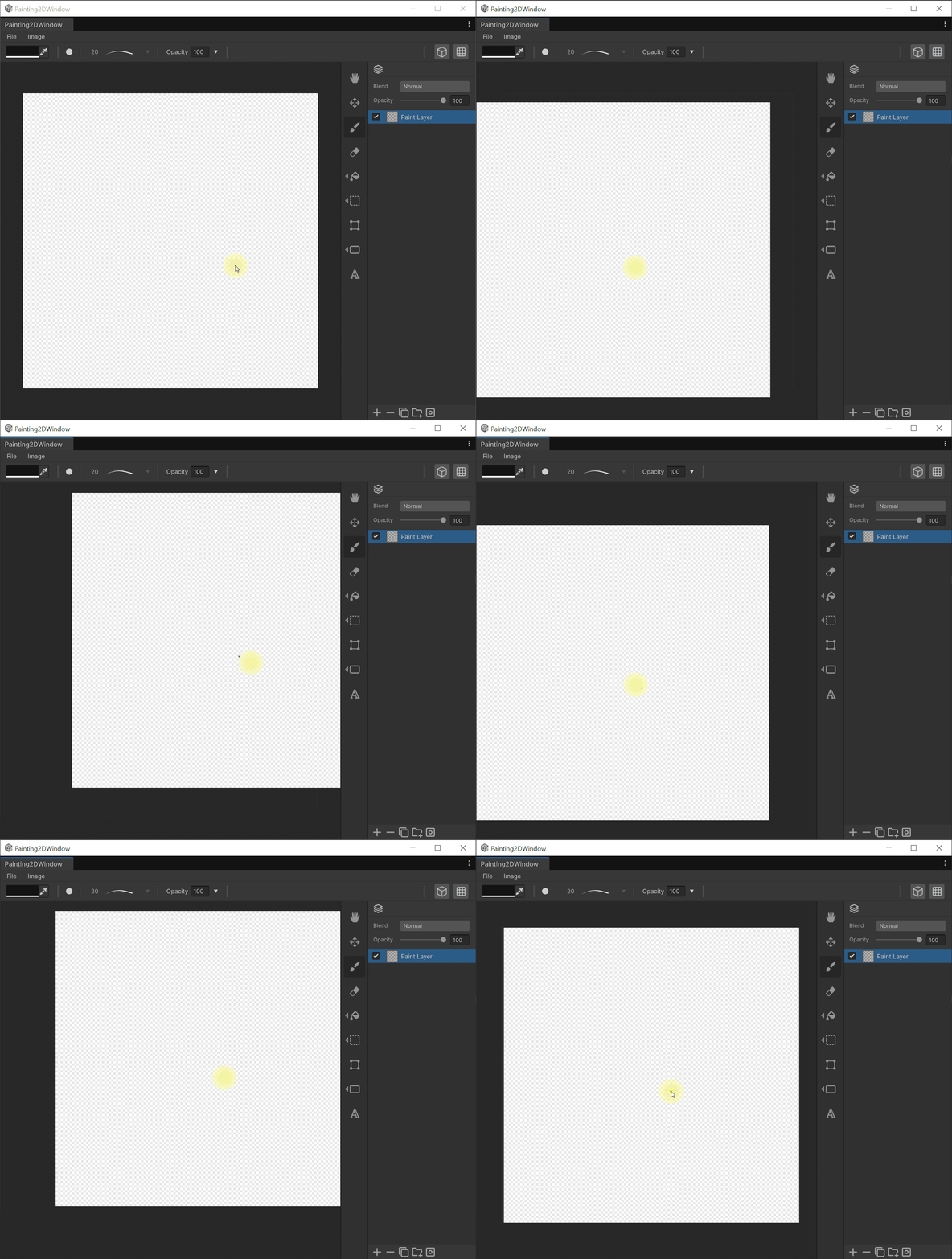
Hold 'space' and drag to pan. (or use hand tool.)
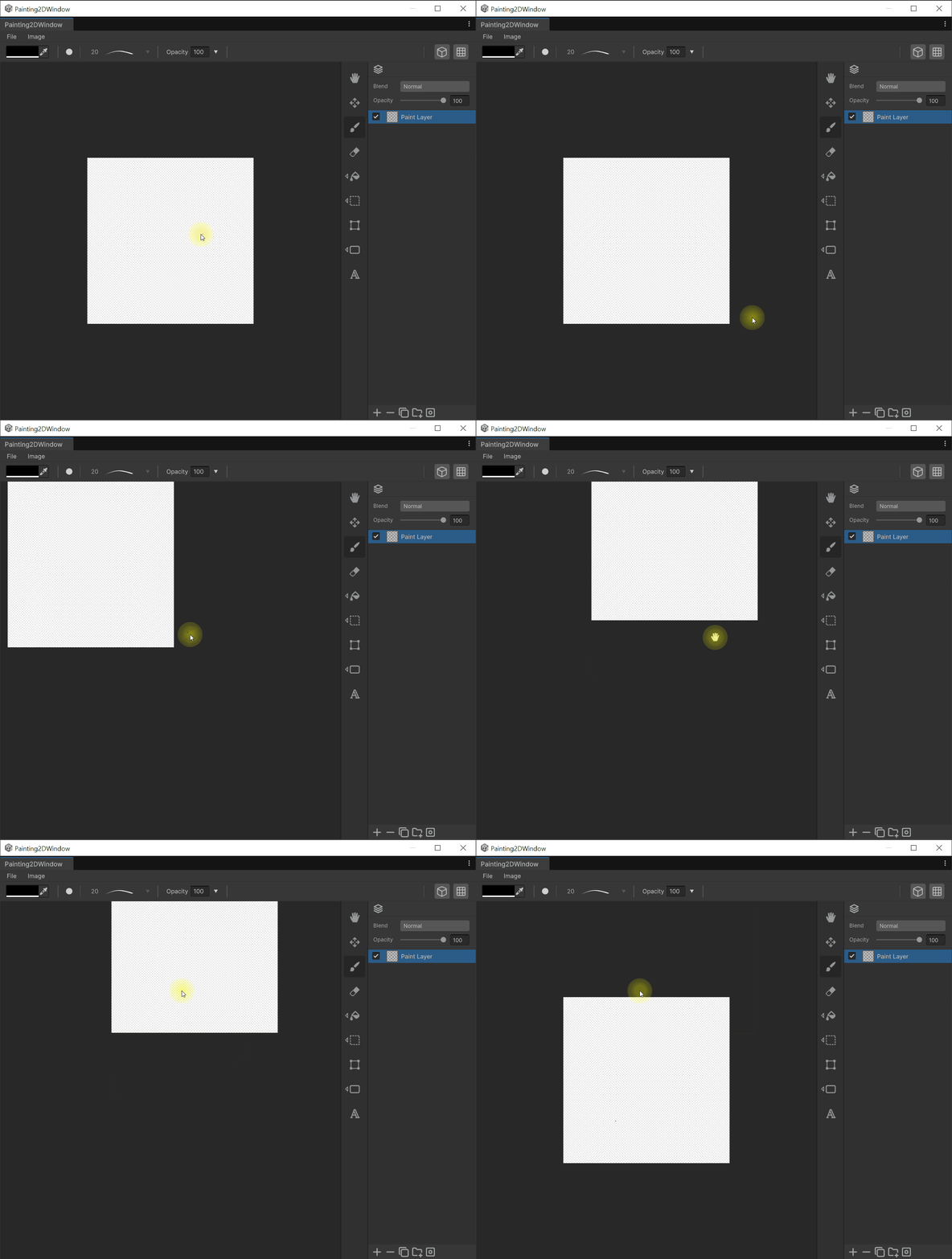
Press 'A' to reset.
Zoom
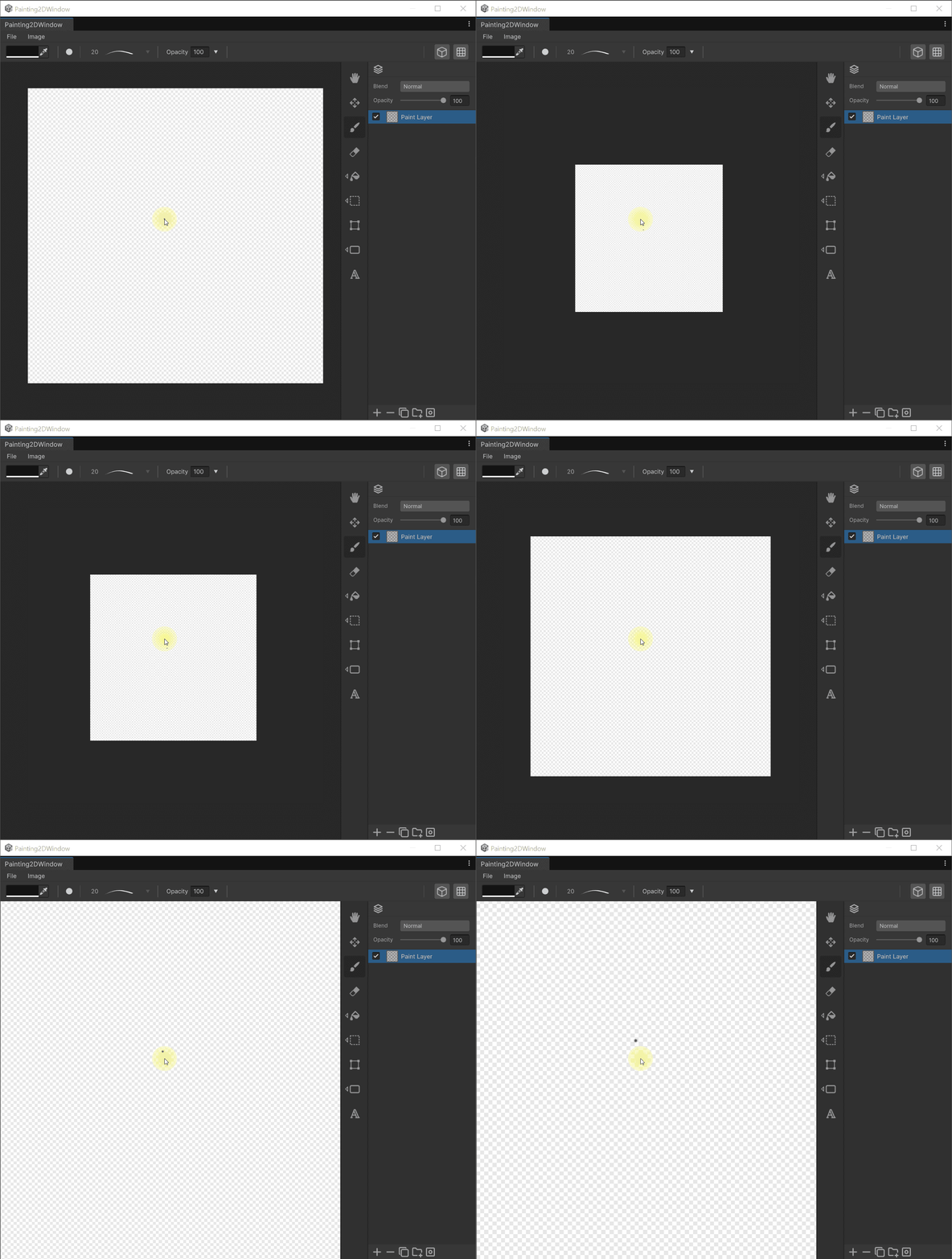
Use the mouse 'wheel' to zoom in or out.
Rotate
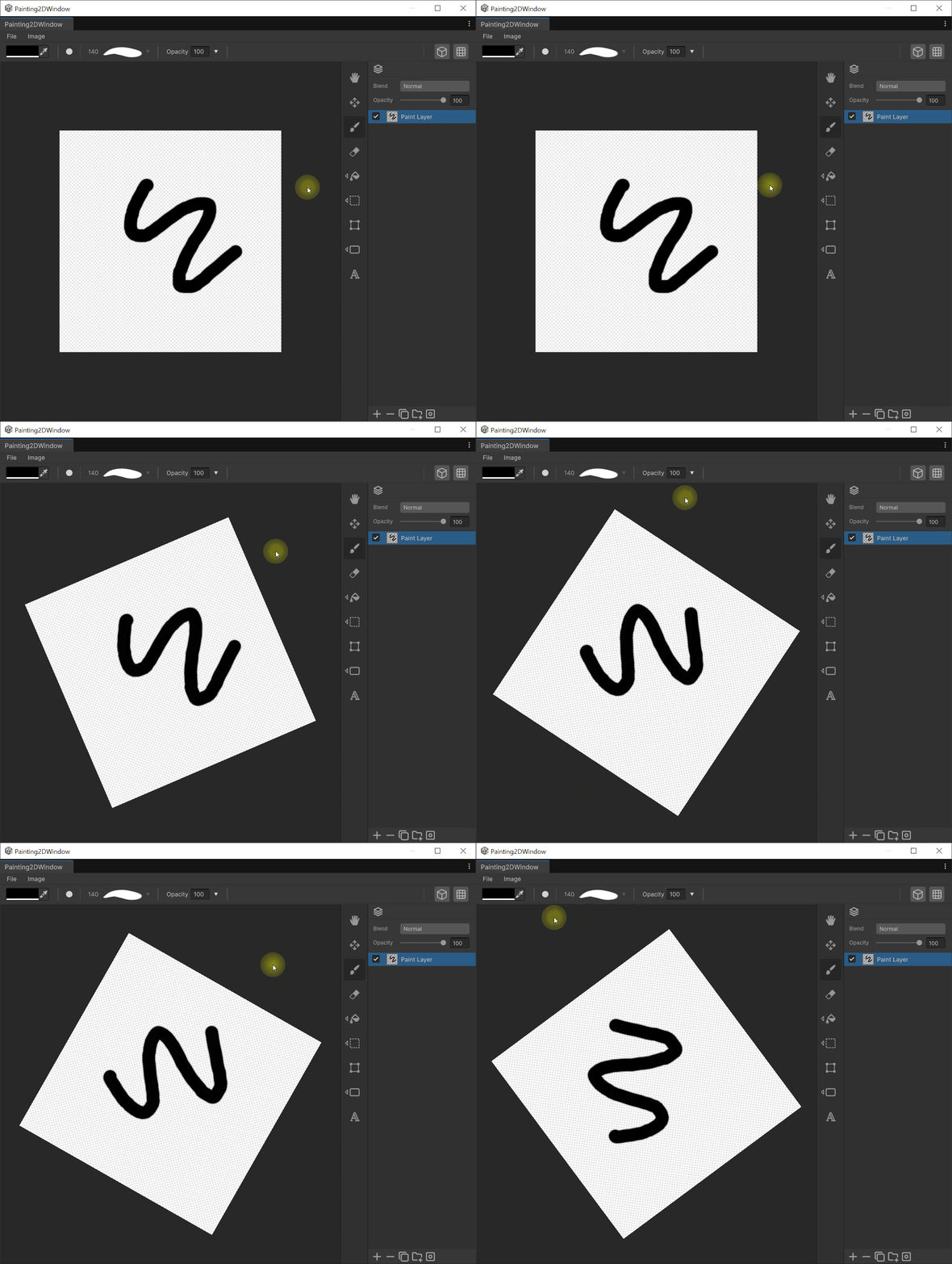
Use the mouse 'right-click' and drag to rotate.
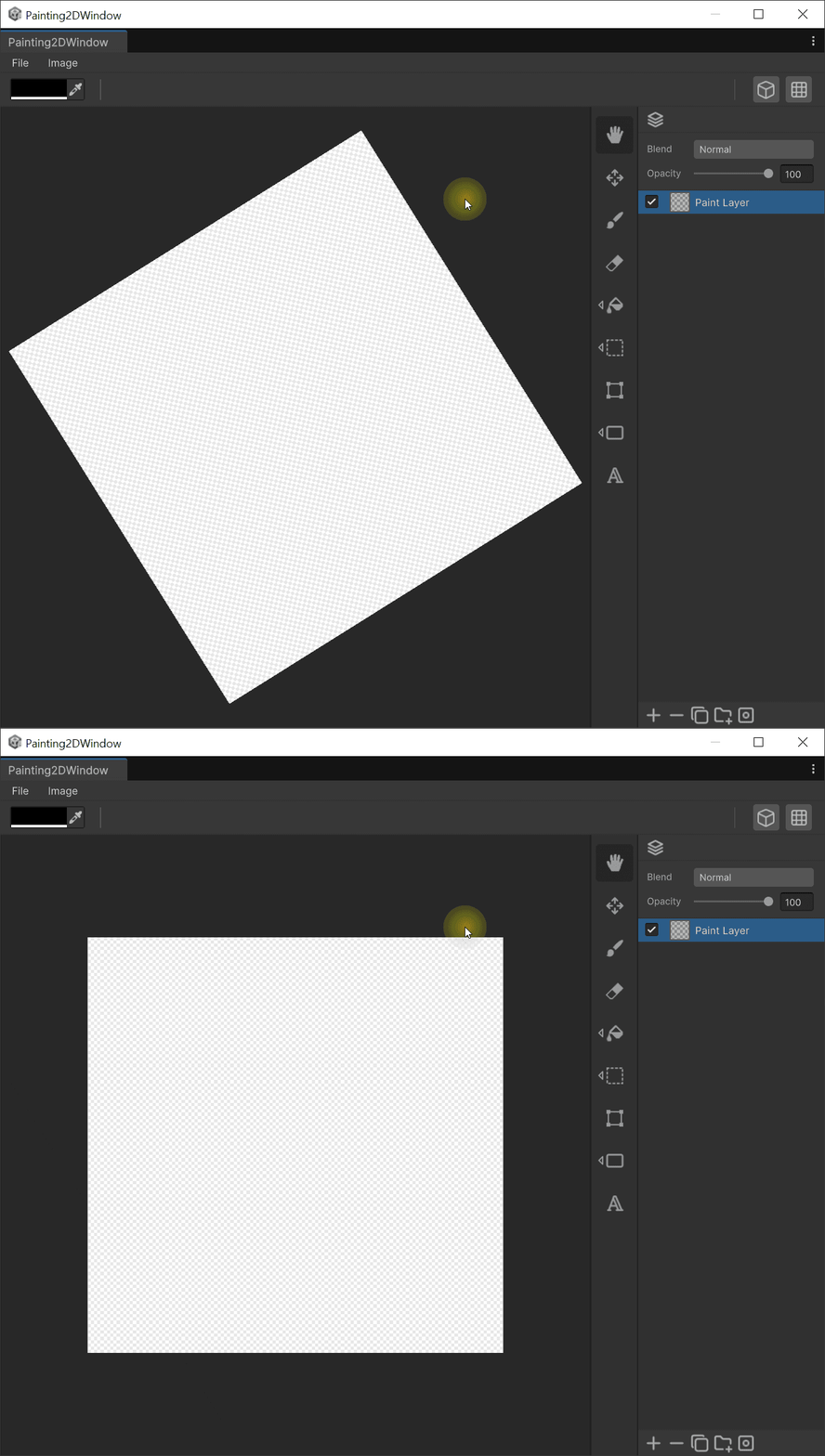
Press 'Q' to reset rotation.
Selection
Select All
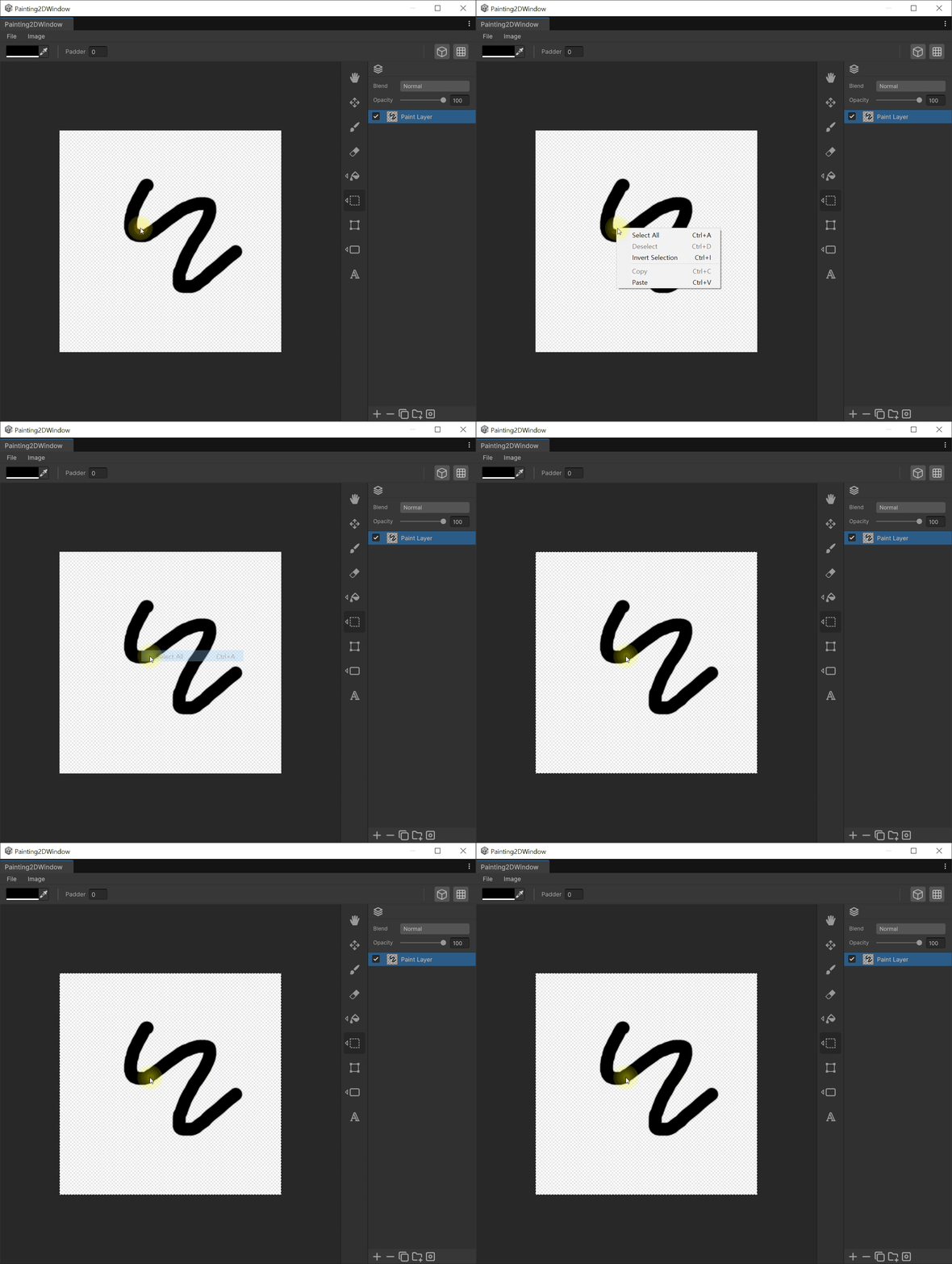
Press 'Ctrl(Cmd) + A' to select all.
Deselect
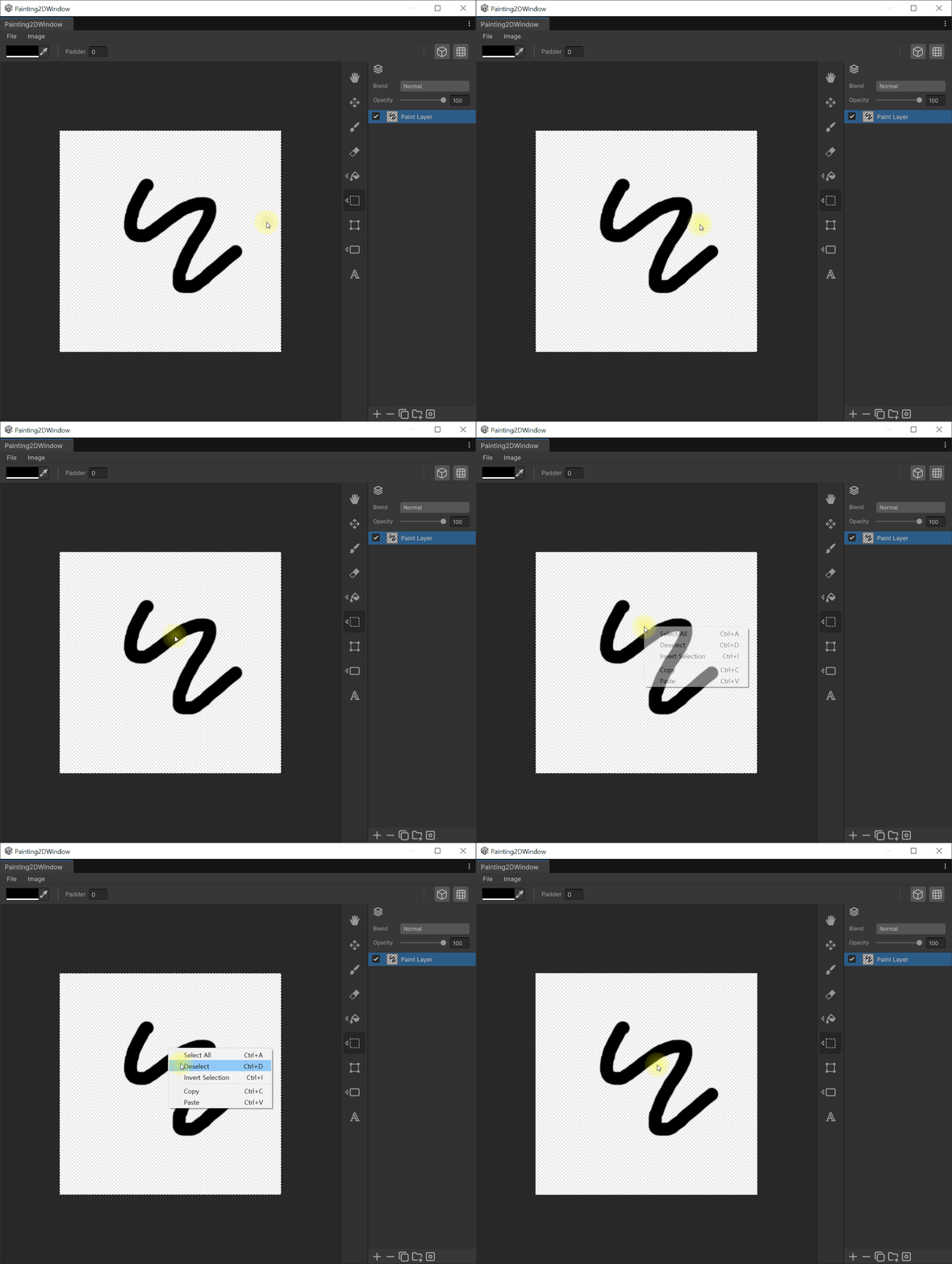
Press 'Ctrl(Cmd) + D' to deselect.
Invert Selection
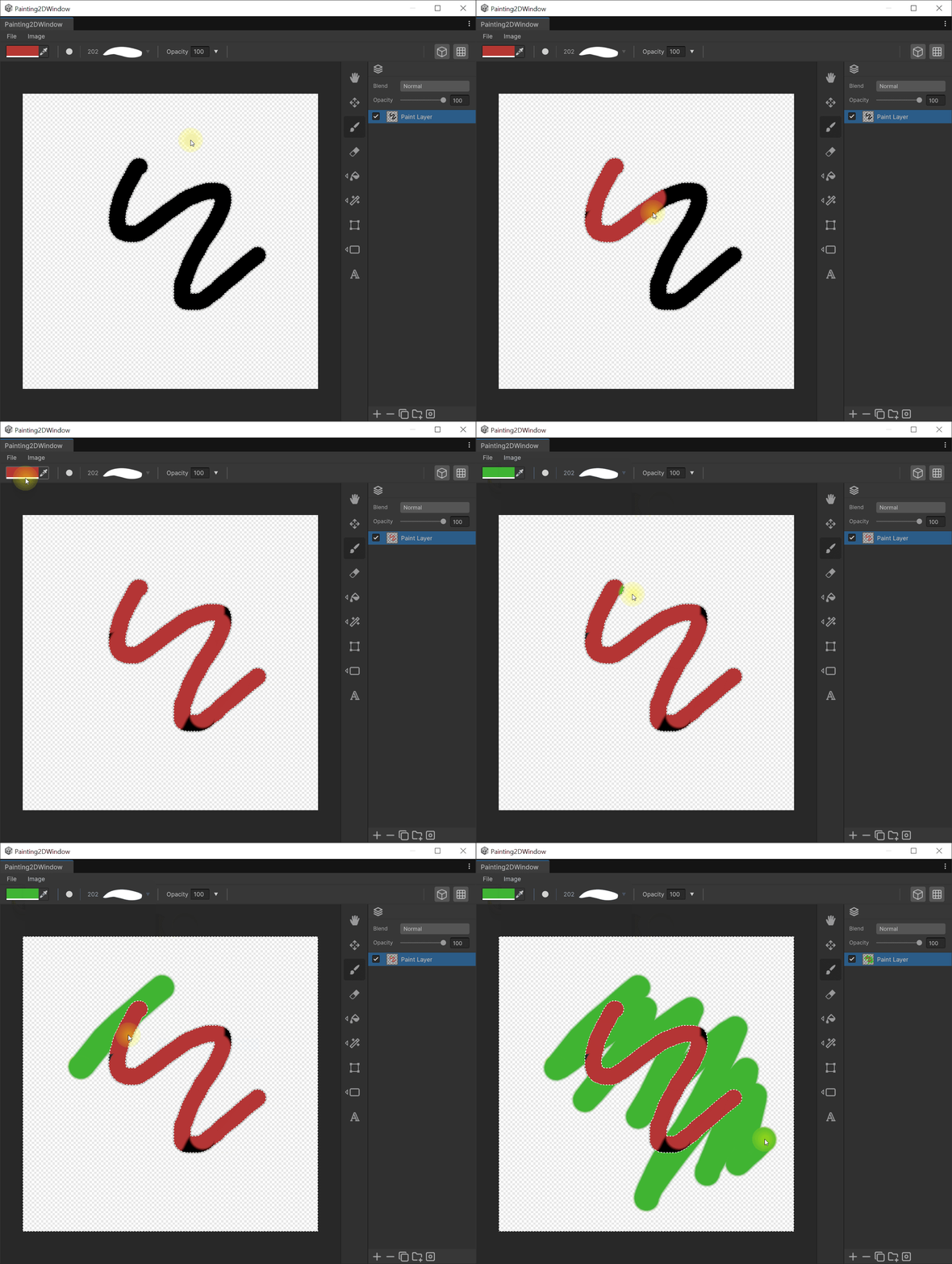
Press 'Ctrl(Cmd) + I' to invert selection.
Erase Selection
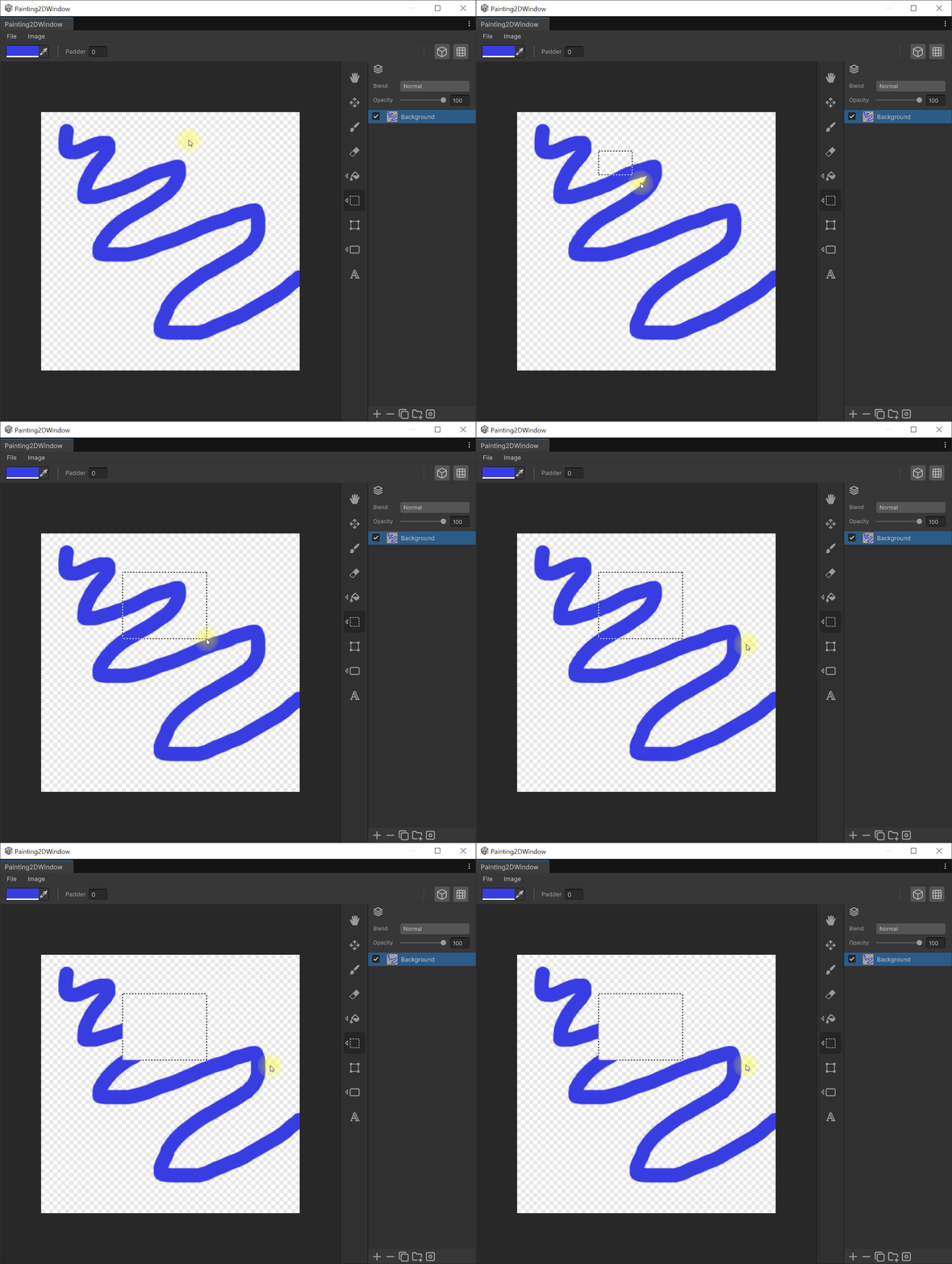
Press 'Delete' to erase selected texture.
ClipBoard
Copy
Press 'Ctrl(Cmd) + C' to copy selection texture.
Cut
Press 'Ctrl(Cmd) + X' to cut selection texture.
Paste
Press 'Ctrl(Cmd) + V' to paste texture.
Eye Dropper
Pick color
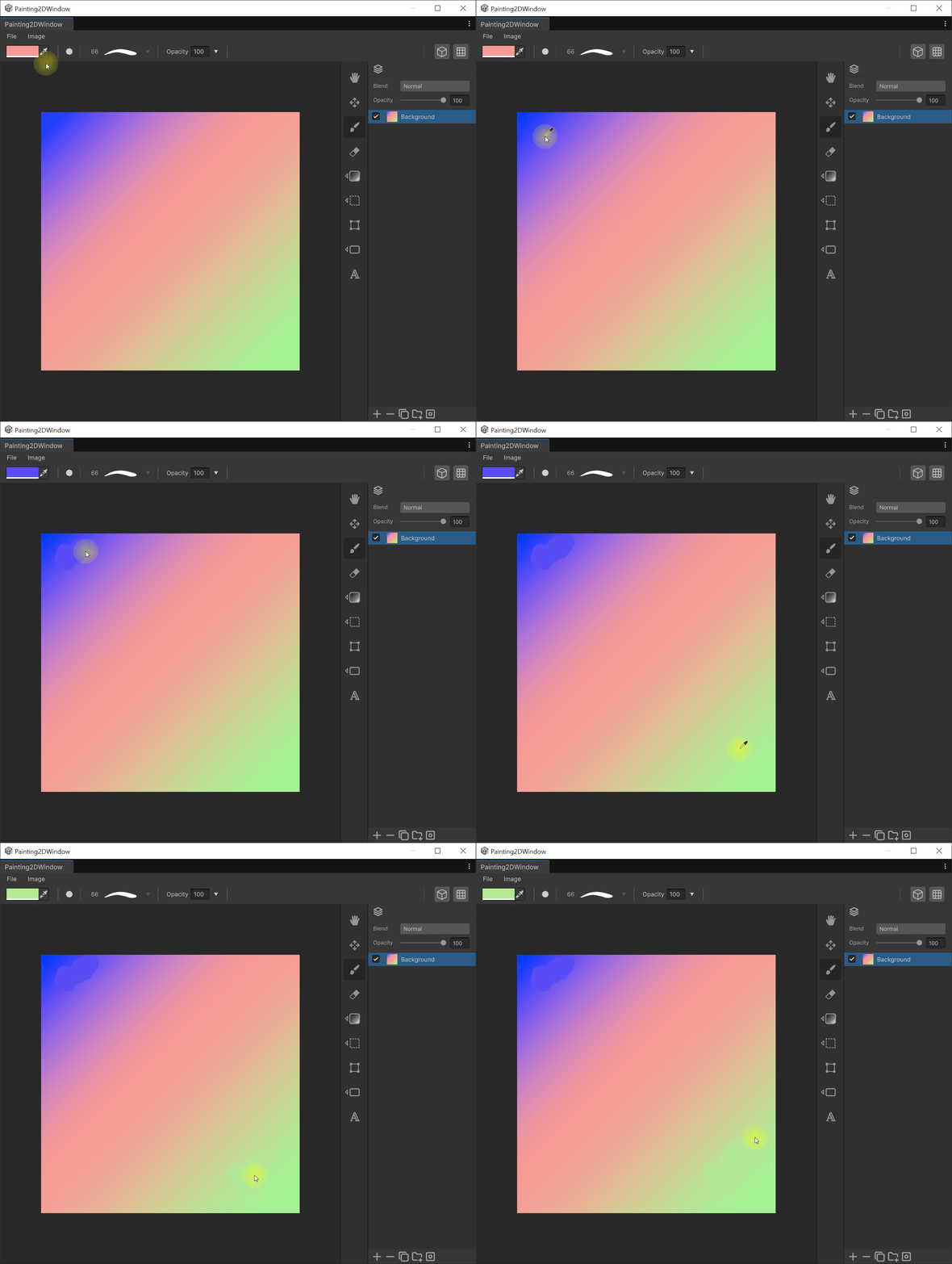
You can activate the Eye Dropper by clicking the button at the top right or by holding the Alt(option) key. Click any location to set your color.
Grid / Snap
Two toggle buttons are available at the right side of the Painting 2D top toolbar.
- Grid — Shows a grid overlay on the canvas.
- Snap — Cycles between three modes:
- Off — No snapping
- Grid Snap — Shapes, Free Transform, Shape groups, and arrow-key nudges snap to the grid
- UV Vertex Snap — Snaps to UV vertices (applies to shape/line drawing and Free Transform)
The active state of each button is highlighted with a border, so you can tell at a glance which mode is enabled.