
자유 변형 툴 (Free Transfrom Tool)
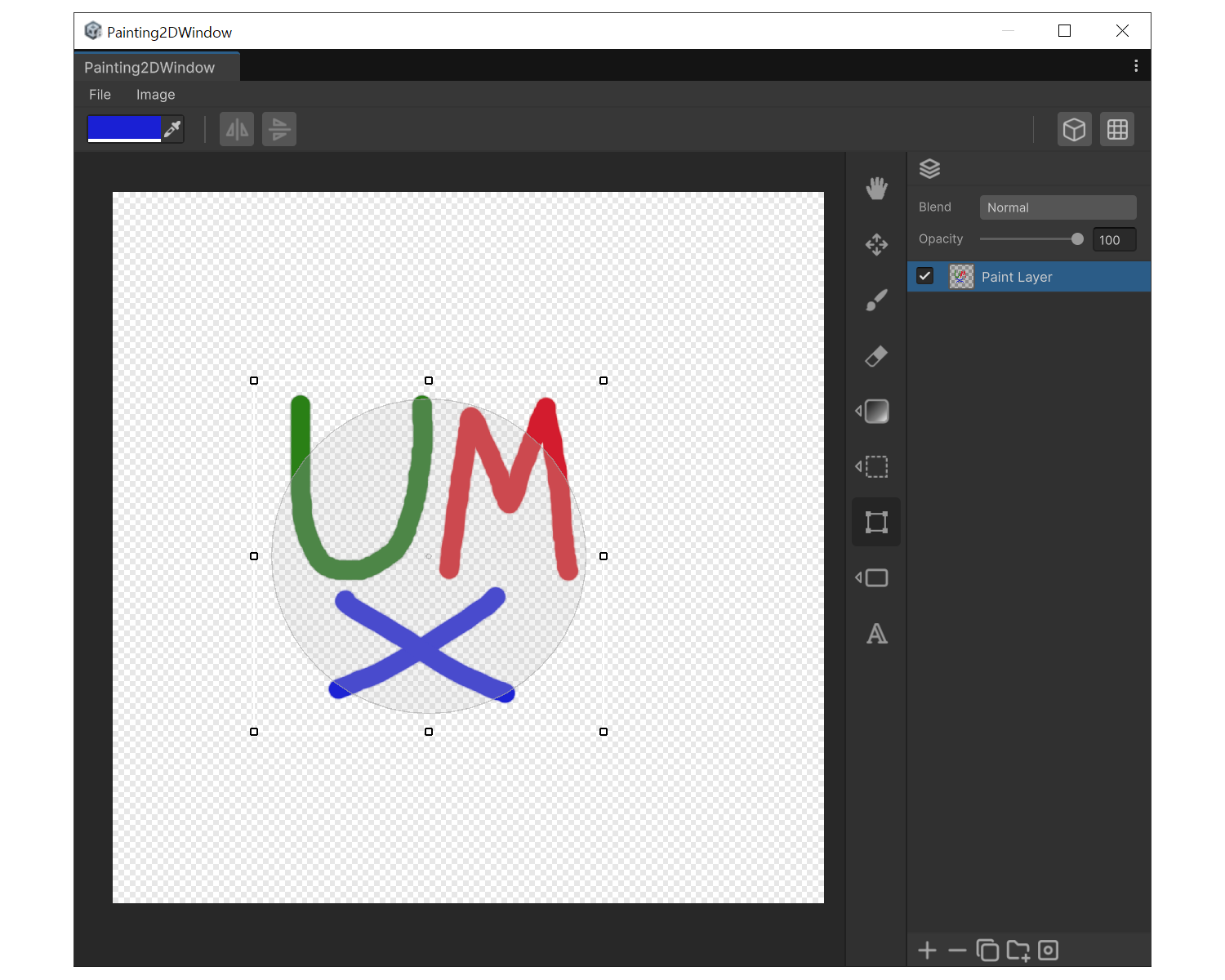
용도
선택 영역이나 파라메트릭 레이어(Text/Shape)의 크기·회전·비대칭 변형이 필요할 때
Drag actions
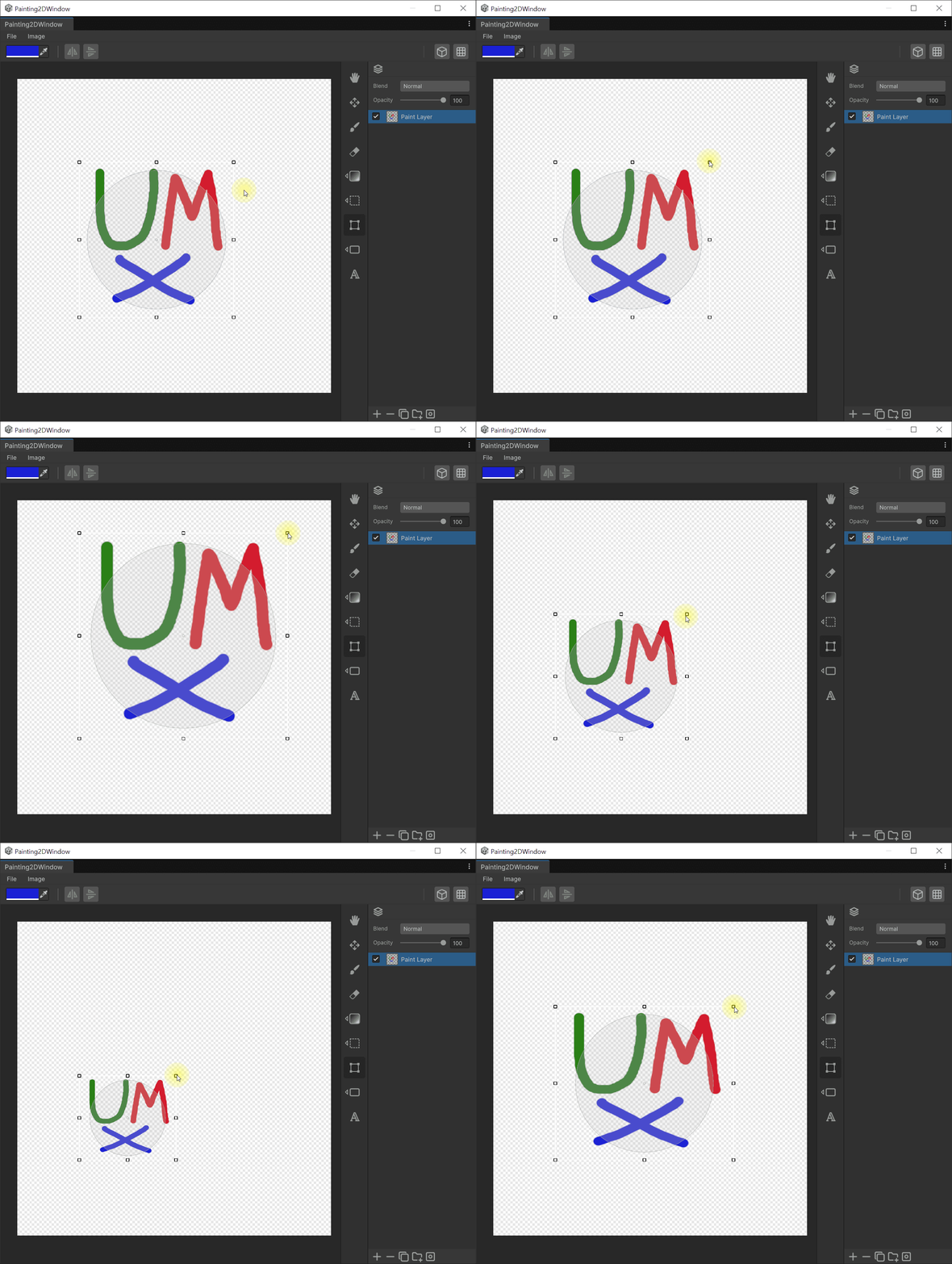
- 크기 조절 : 모서리 핸들 드래그.
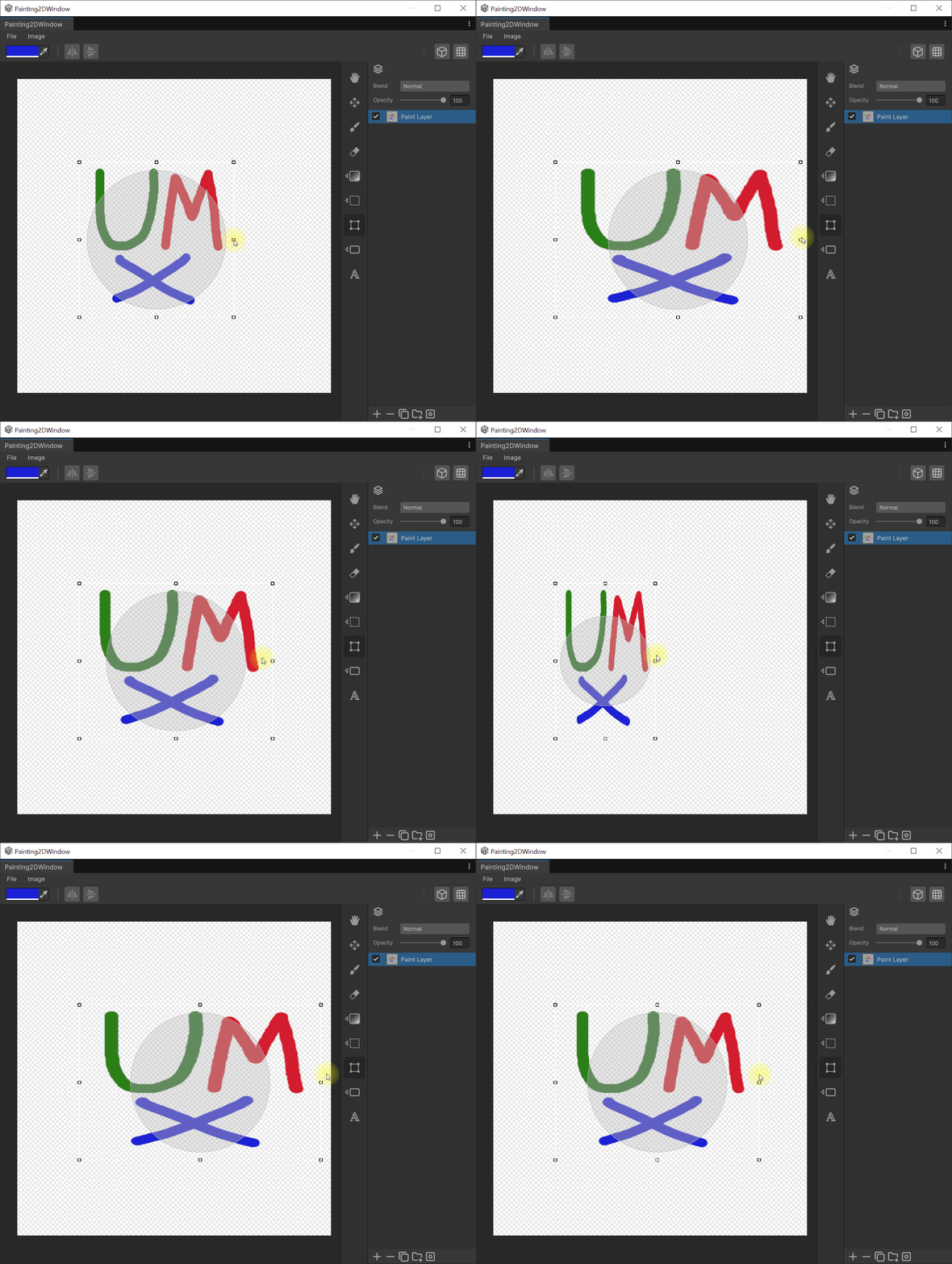
- 한 축 크기 조절 : 변 핸들 드래그.
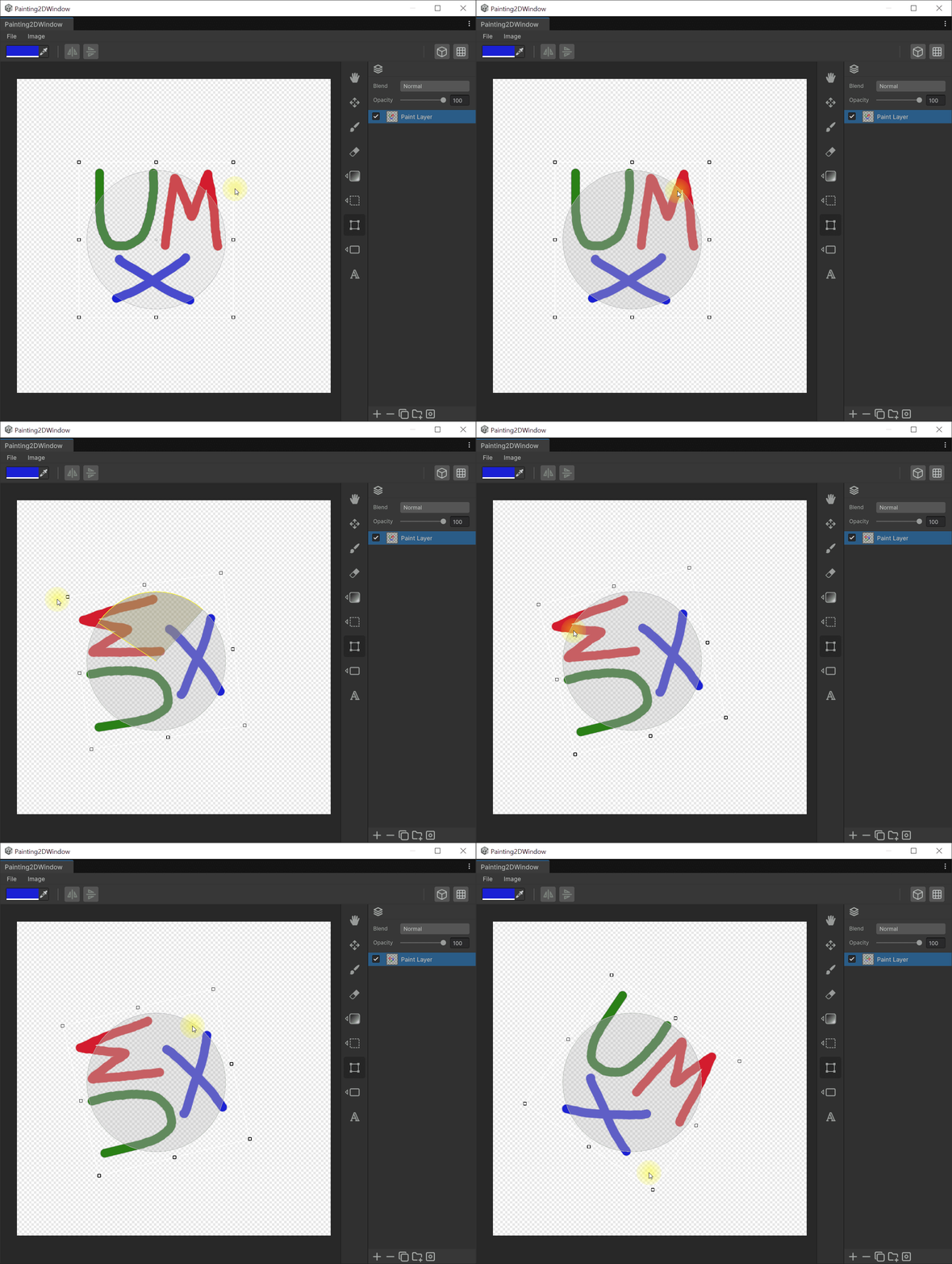
- 회전 : 바운딩 박스 바깥의 원판 드래그.
- 기울임 : 'Ctrl' + 변 핸들
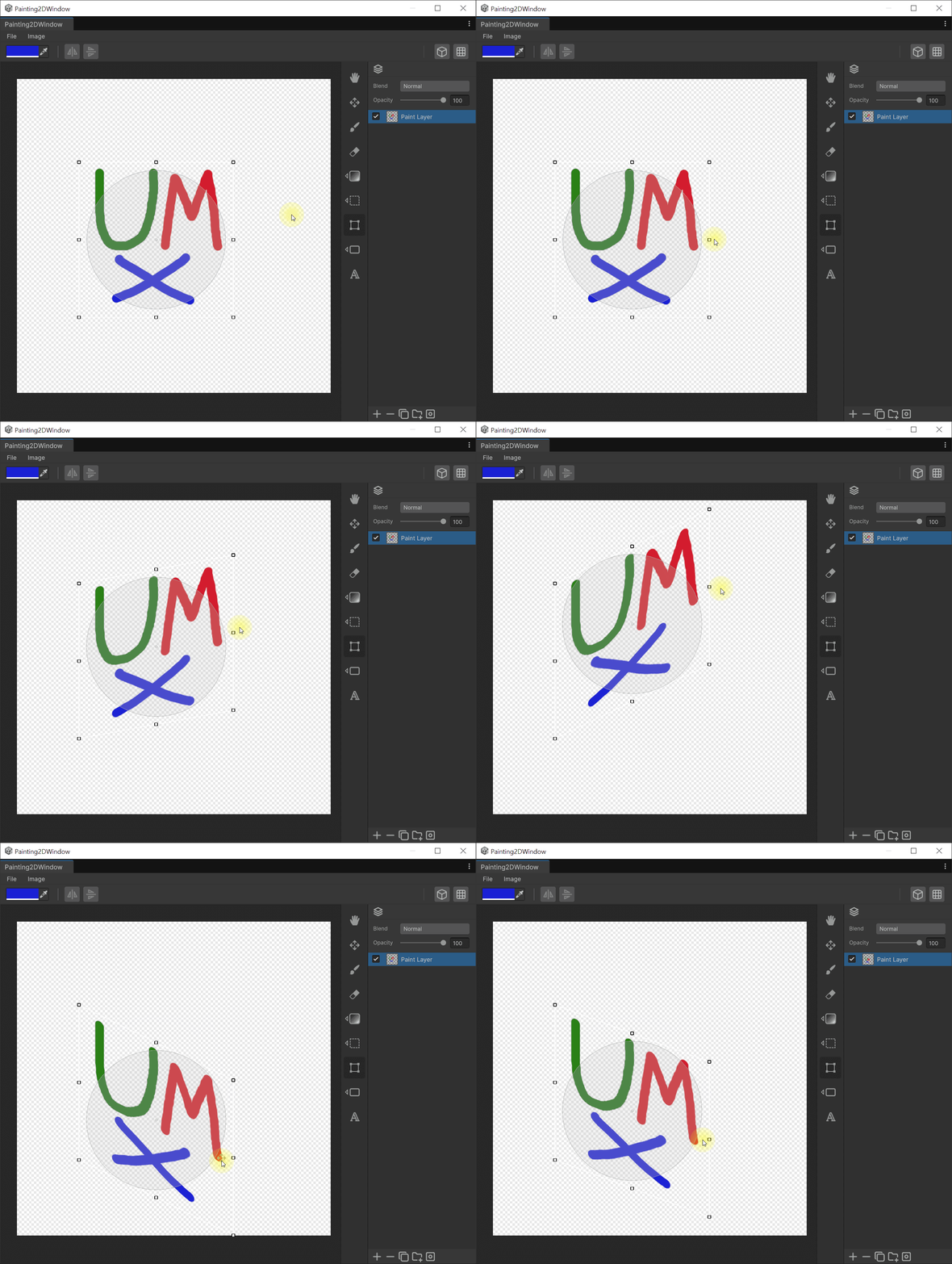
- 왜곡 : 'Ctrl' + 모서리 핸들.
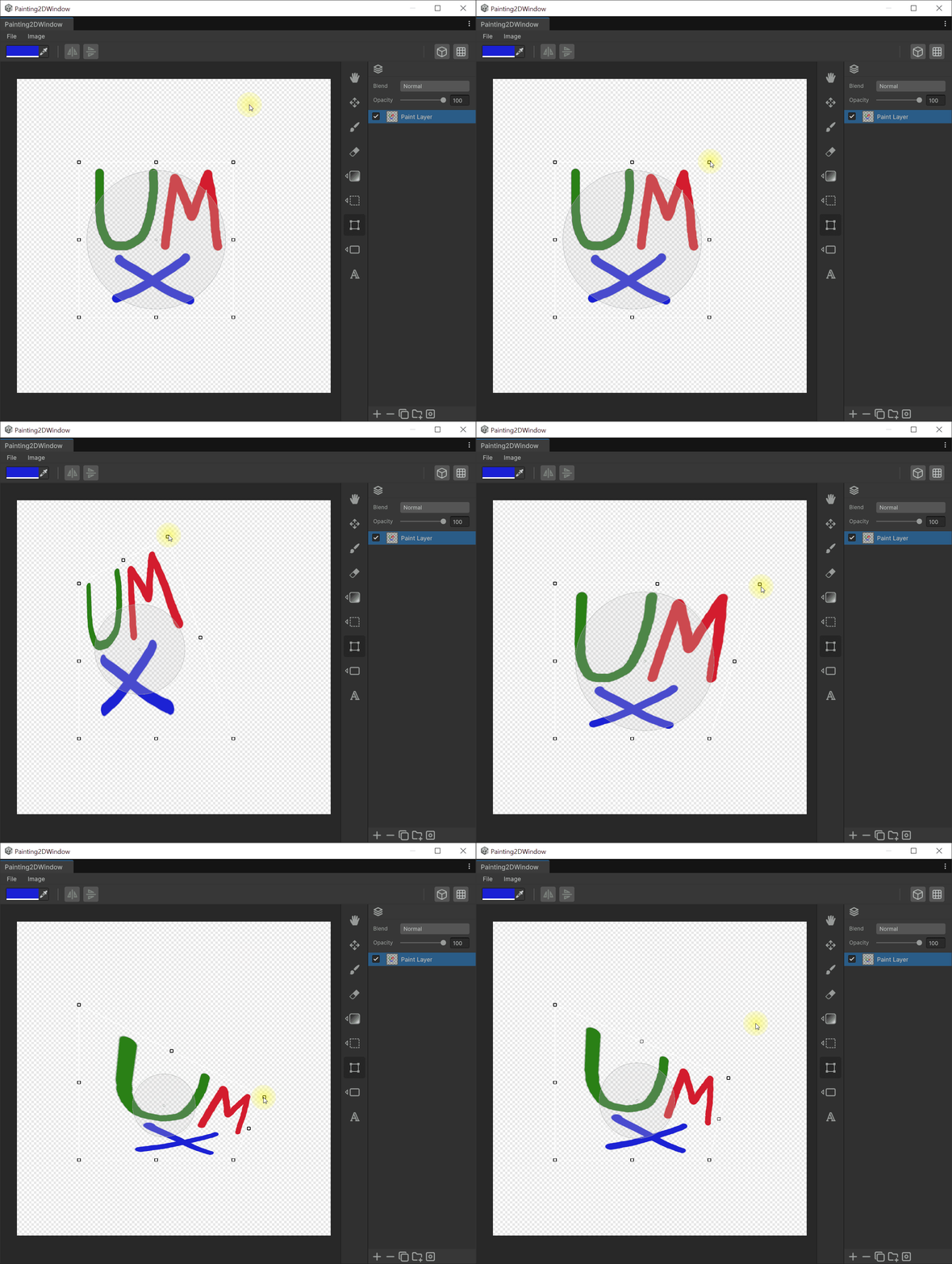
- 원근 변형 : 'Ctrl' + 'Shift' + 모서리 핸들.
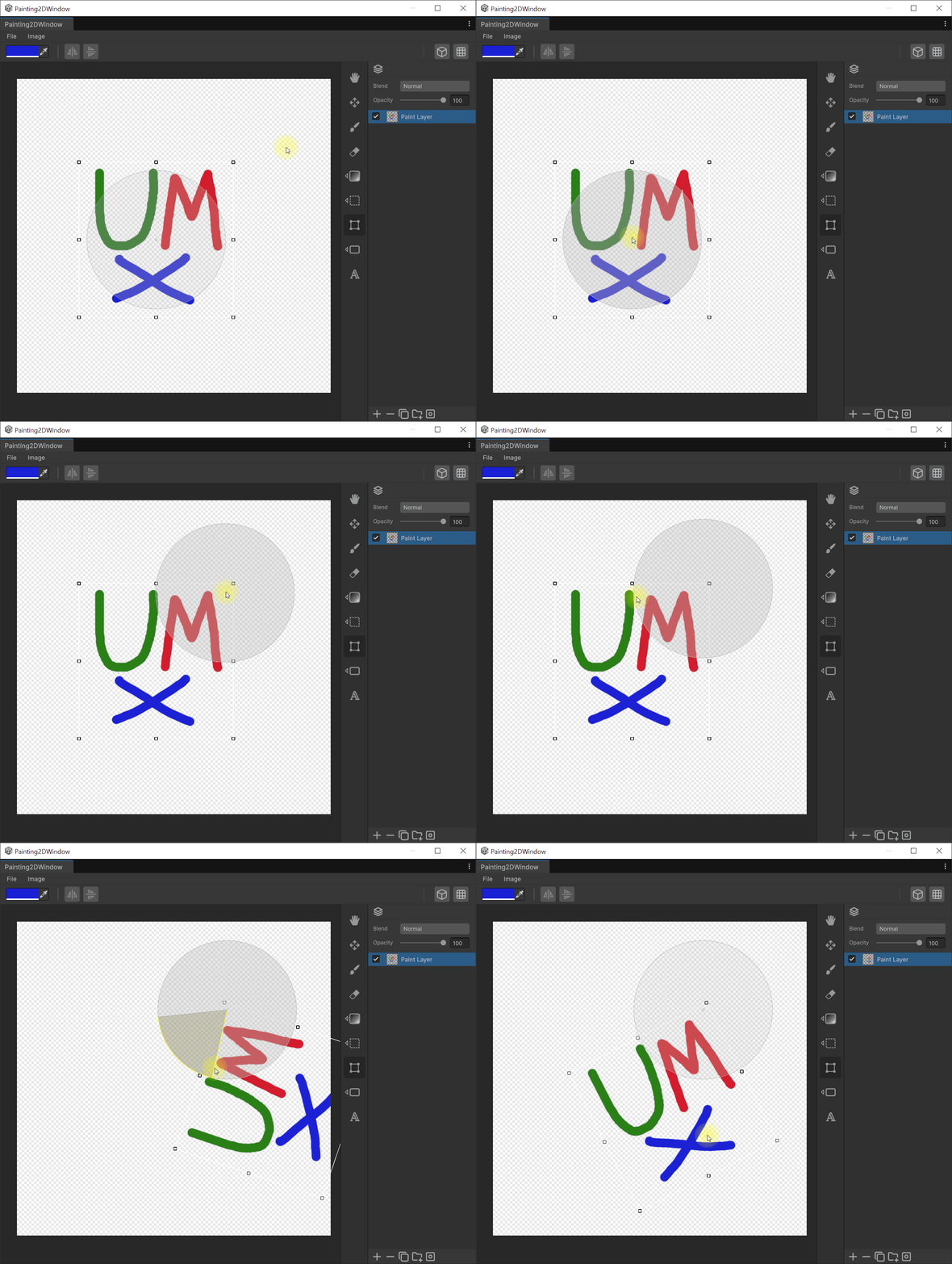
- 회전 중심점 이동 : 회전 중심 드래그.
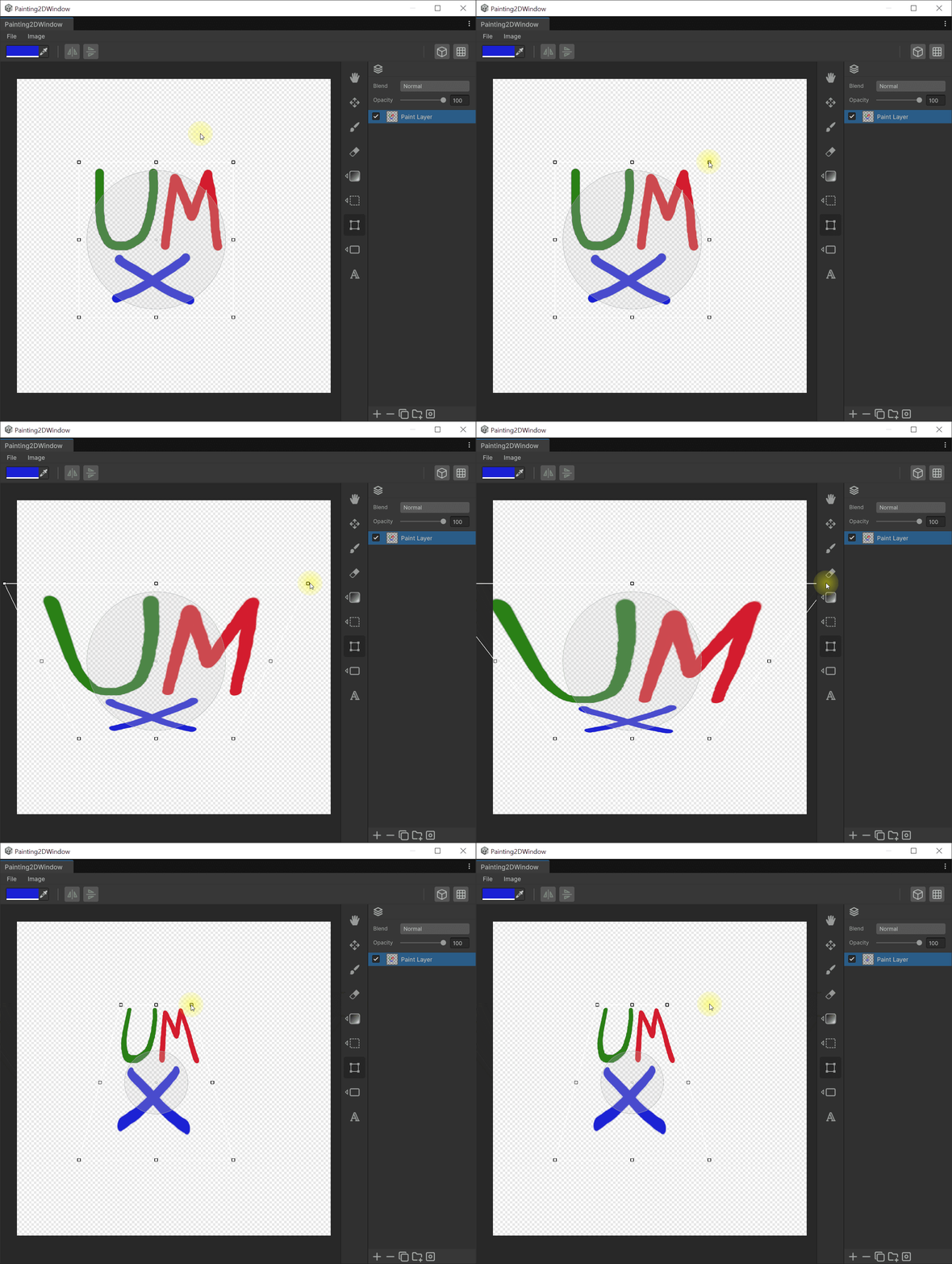
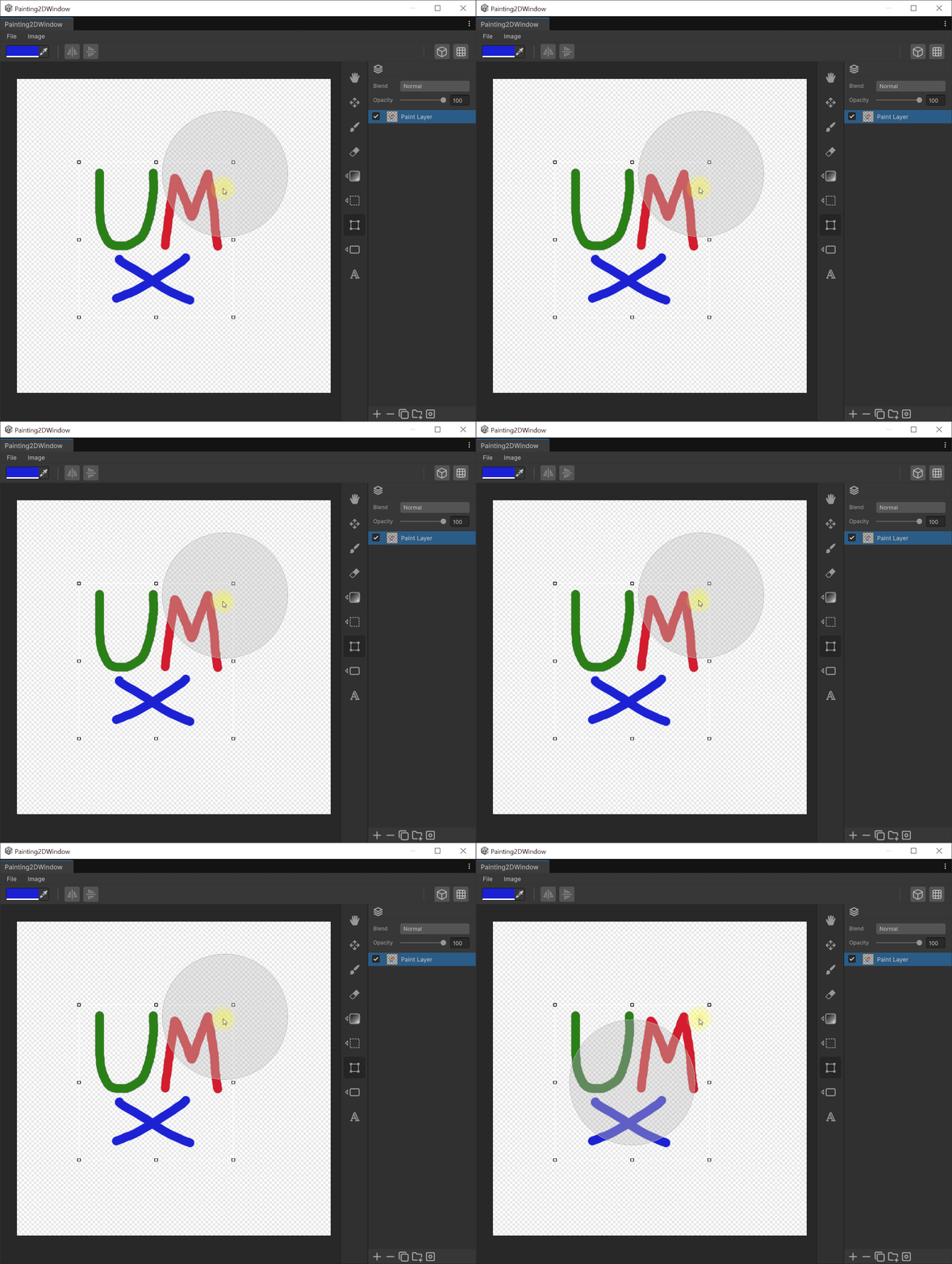
- 회전 핸들 크게 : Page Up 키.
- 회전 핸들 작게 : Page Down 키.
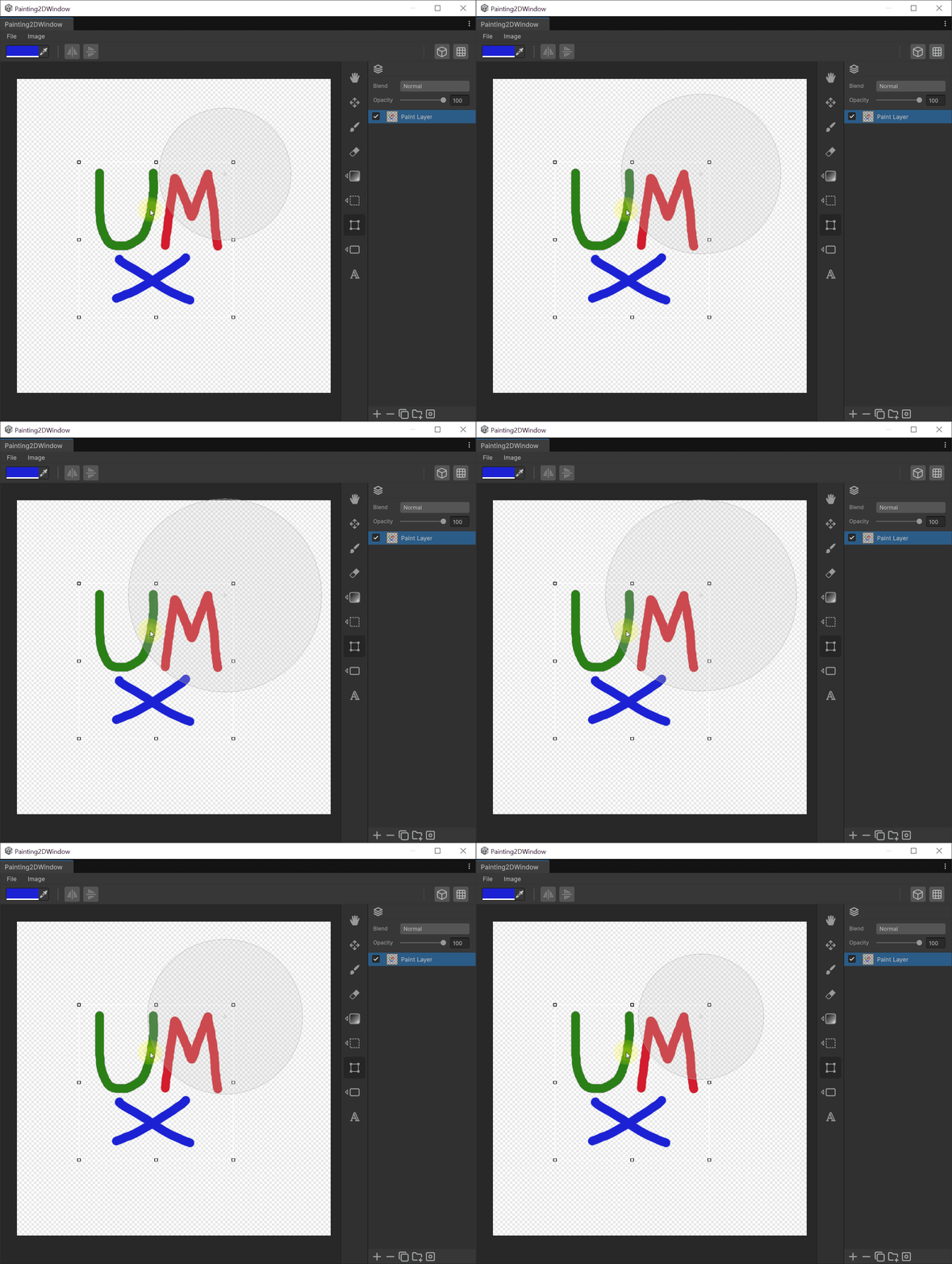
- 회전 중심점 초기화 : 중심점 더블클릭.
사용법
- 선택 영역을 만들거나 Text/Shape 레이어를 선택합니다.
- `Ctrl+T`로 Free Transform을 선택합니다. Text/Shape 레이어에서는 툴을 선택하지 않고사용합니다.
- 바운딩 박스와 회전 원판이 나타나면 원하는 핸들을 드래그합니다.
수치 입력 (위치 · 크기 · 회전)
Free Transform 상태가 되면 툴바 영역에 선택 영역의 중심 좌표(X, Y) · 크기(W, H) · 회전각(°) 이 표시됩니다. 각 필드를 키보드로 직접 입력해 정밀하게 조정할 수 있으며, 입력값도 Undo 히스토리에 포함됩니다.
방향키 단축키
| 단축키 | 동작 |
|---|---|
| 방향키 | 1px 이동 (Grid Snap ON 시 그리드 간격) |
Shift + 방향키 | 10px 이동 |
Ctrl + 방향키 | 중심 기준 quad-local 스케일 |
Page Up / Page Down | 회전 중심(Disc) 반경 조정 |
연속해서 누르는 방향키는 하나의 Undo 단위로 병합됩니다.
바운딩 박스 자동 감지
Move Tool 과 동일하게, 캔버스 위로 마우스를 움직이면 호버한 레이어의 바운딩 박스가 자동으로 표시되며 좌클릭으로 해당 레이어를 변형 대상으로 전환할 수 있습니다.