
UModeler X Manual
UModeler X is a powerful 3D content creation solution available for use in the Unity editor.
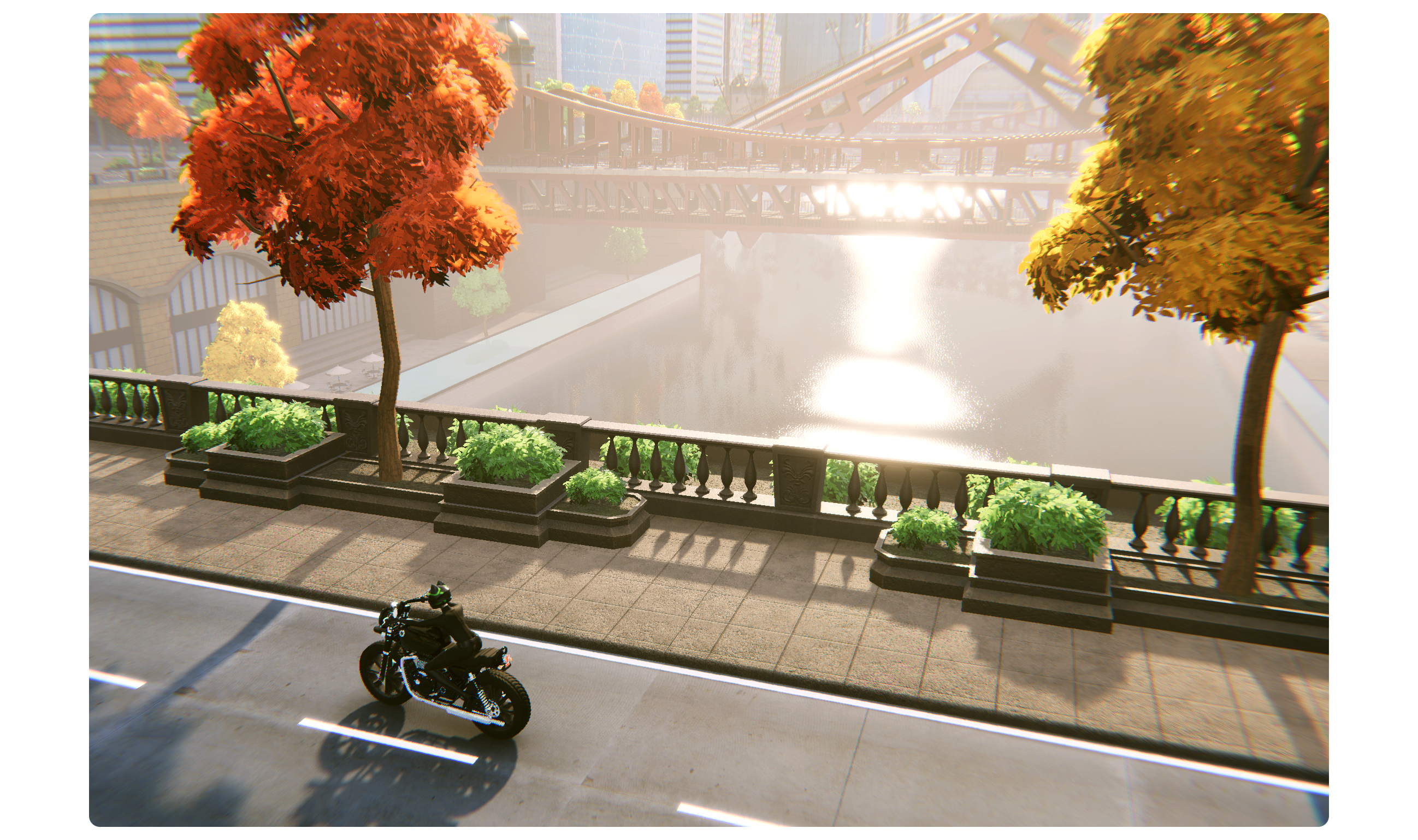
UModeler X is a powerful 3D content creation solution available for use in the Unity editor. It is designed with an easy-to-understand interface that allows everyone from beginners to experts to easily use functions such as modeling, UV unwrapping, rigging, painting within the Unity editor.
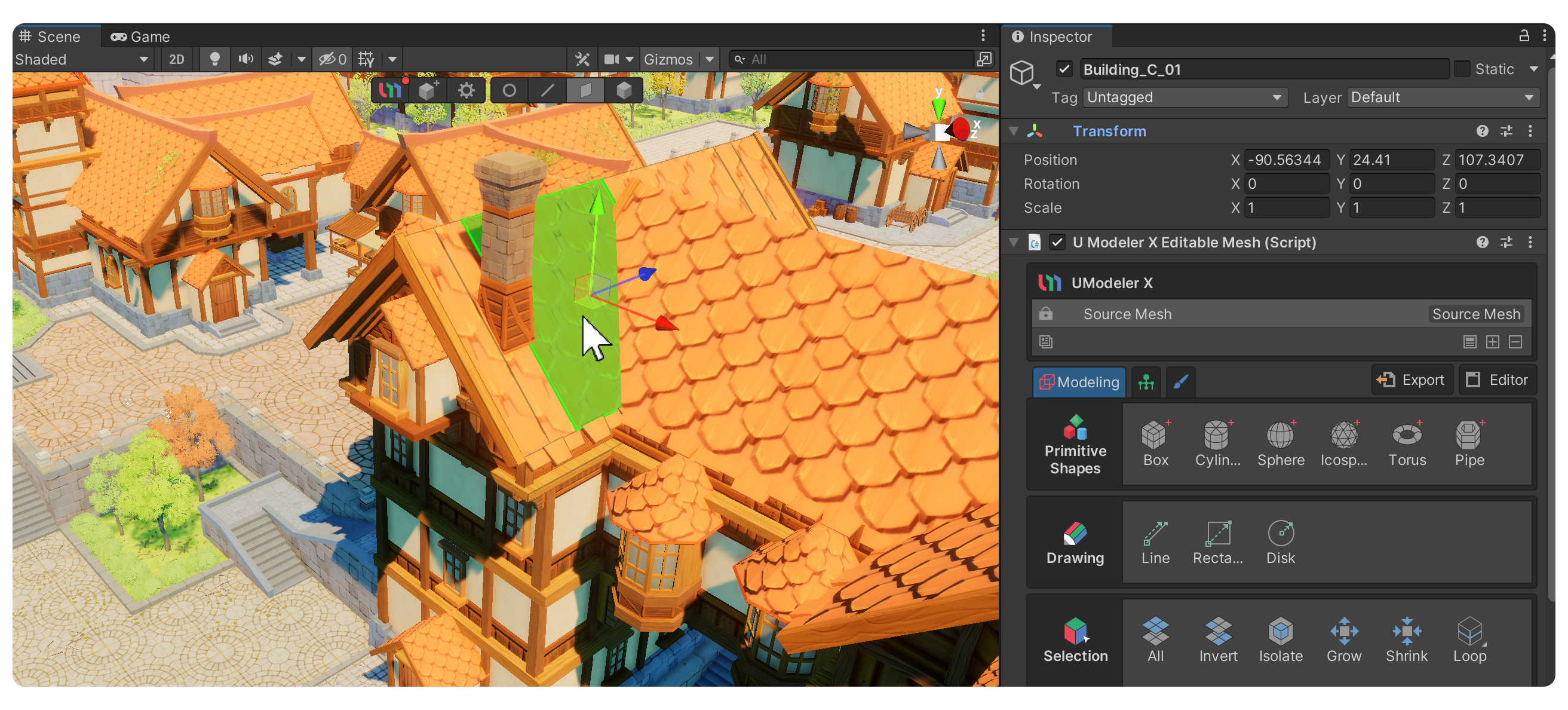
UModeler X provides a complete 3D content creation pipeline within the Unity environment, allowing users to perform all 3D content creation tasks within Unity without the need for separate external 3D programs.
Below are the main categories of this manual and a brief description of each category.
1. Getting Started
This is a guide for first-time users of UModeler X. You can check step by step, from how to install it to basic usage methods.
Installation Guide
Download UModeler X for free, install it from the Asset Store, and start creating — no sign-up required.
Getting Started with 3D Modeling
A beginner’s guide to getting started with 3D modeling using UModeler X.
UModeler X Overview Course (with Unity Learn)
From initial concept to final asset production, UModeler X enables Unity creators to realize their ideas quickly through a unified 3D creation pipeline.
2. Video Tutorial
This is a video tutorial that explains the various features of UModeler X step by step.
Basics Tutorial
This tutorial is designed for beginners to give you an overview of the features and basic usage of UModeler X.
Zepeto Item Guidebook
This page contains a walkthrough video that explores the features of UModeler X by creating a simple model.
3. Editable Mesh
You can see a detailed description of Editable Mesh, which is a core feature of UModeler X.
Modeling Mode
Modeling mode is the default mode for editable meshes, and its primary function is mesh editing.
Modifier System
The Modifier system can deform the original model in a non-destructive way.
UV Editor
The UV Editor can create and edit UV elements (UV Vertex, UV Edge, and UV Face).
Rigging Mode
Rigging Mode is for animating your model, allowing you to assign weights to meshes and edit weights.
Painting Mode
Painting Mode is for painting colors on the model, where you can use layers and brushes to express colors and create textures.
4. Curve Mesh
Generate and edit meshes along a curve. Style, edit, and utility tools let you freely shape curve-based geometry.
Curve Mesh Overview
Learn the core concepts and usage of Curve Mesh.
Style Group
Set the shape and thickness of the curve mesh with the Type and Volume tools.
Edit Group
Add and remove curve points with the Insert and Delete tools.
Utility Group
Clean up the curve mesh with the Pivot and Reset X Form tools.
5. Mesh Ops
A collection of mesh operations for working with UModeler X objects — from converting general meshes to combining, separating, and adjusting pivots.
Mesh Ops Overview
Explore the full set of features Mesh Ops provides.
UModelerize
Convert a general mesh into a UModeler X mesh.
Combine
Merge multiple UModeler X objects into one.
6. PicoBerry AI
An AI-powered tool that generates game-ready 3D assets from text or images.
Getting Started with PicoBerry AI
Learn the PicoBerry AI workflow and how to create your first asset.
Workspace
Use core tools like Text to Image, Image to 3D, Remesh, and AI Texturing.
Unity Plugin
Import generated assets into your Unity project.