
Painting 3D 에디터
페인팅 모드는 모델에 색을 입히는 데 사용하며, 레이어와 브러시를 통해 색을 표현하고 텍스처를 만들 수 있습니다.
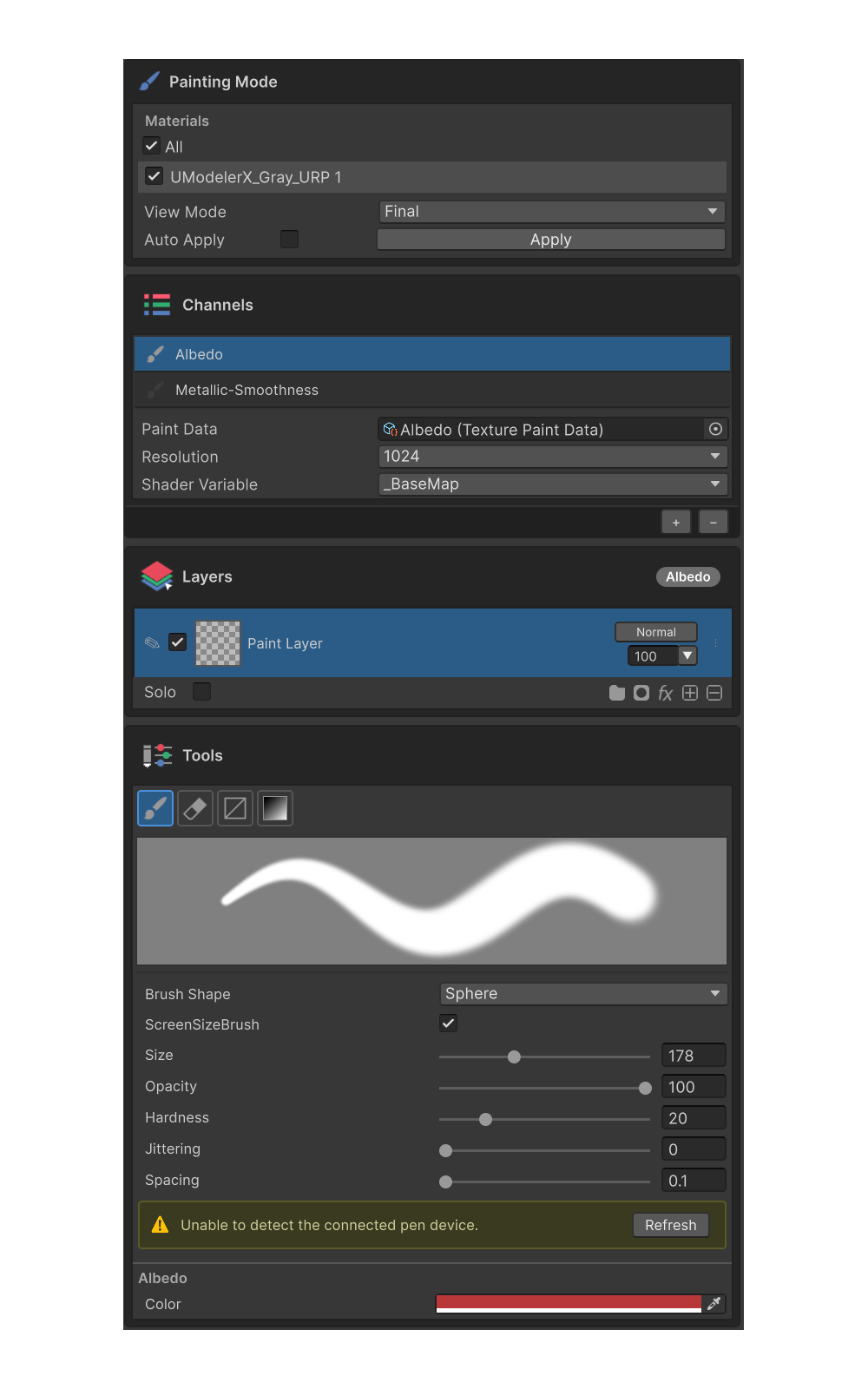
Painting 3D 에디터는 3D 메쉬의 머티리얼 슬롯별로 텍스쳐(채널)를 직접 칠해 PBR 결과를 만드는 작업 공간입니다. 레이어 기반 비파괴 편집을 지원하며, Albedo · Metallic · Roughness · Normal · Height · Emission 등 셰이더가 지원하는 모든 채널을 한 인터페이스에서 다룰 수 있습니다.
인스펙터 구성
페인팅 모드 인스펙터는 위에서 아래로 다음 다섯 섹션으로 구성됩니다.
| # | 섹션 | 역할 | 페이지 |
|---|---|---|---|
| 1 | Painting Mode | 머티리얼 슬롯 선택, View Mode, Apply | Painting Mode 그룹 |
| 2 | Channels | 채널 추가·활성화·해상도·다중 페인팅 | Channels 그룹 |
| 3 | Layers | 레이어 목록·블렌딩·마스크·이펙트 추가 | Layers 그룹 |
| 4 | Filter | 선택한 그룹·이펙트의 파라미터 패널 | 이펙트 · Filter |
| 5 | Tools | 도구 팔레트·브러시 프리뷰·도구 속성·활성 채널 컬러 | Tools 그룹 |
각 섹션 헤더를 클릭하면 접고 펼 수 있습니다.
데이터와 도구
- 페인팅 결과 저장 구조와 동기화 동작은 Painting 데이터와 채널 참조.
- 도구별 사용법은 Tools 그룹 의 각 도구 페이지(Brush / Erase / Gradient / Rect Fill) 참조.
- Scene View 위에 떠 있는 빠른 색상 선택 HUD 는 빠른 색상 팔레트 참조.
- 레이어에 비파괴 효과를 추가하려면 이펙트(Effect) 참조.