
Modifier
The modifier system allows for non-destructive transformations of the original model.
The modifier system allows for non-destructive transformations of the original model. This system enables efficient modeling as it allows modifications to be made while preserving the original model.
Interface
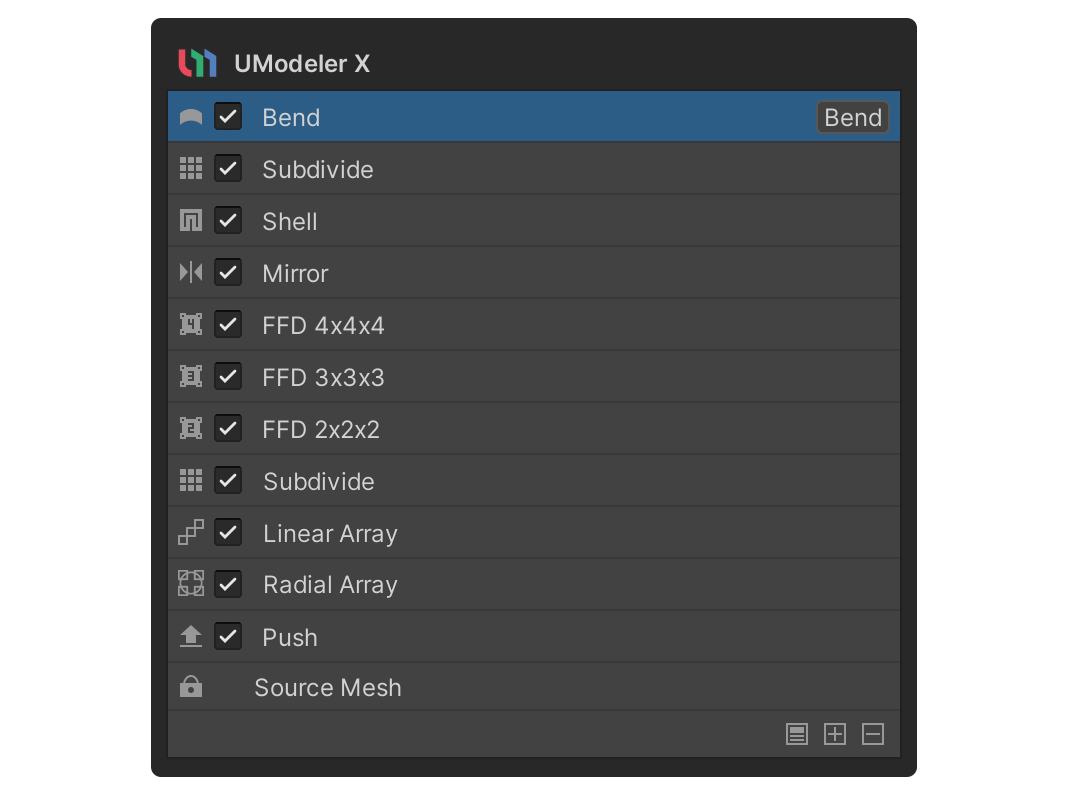
Modifier Stack
Modifiers can accumulate editing results through a history called a modifier stack, allowing for multiple modifiers to be applied sequentially. Also, specific modifiers can be toggled on and off.
Renaming Modifiers
The names of modifiers are determined at the time of creation based on their functions, and they can be changed to any desired name as needed.
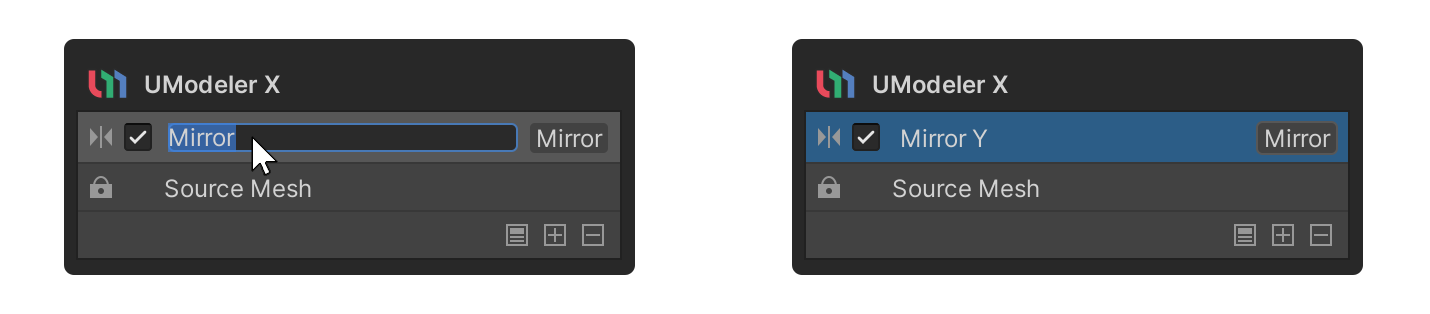
Double-click on the name part of the modifier to change it, then press Enter or click outside the text input area to complete the name change.
Modifier Deactivation
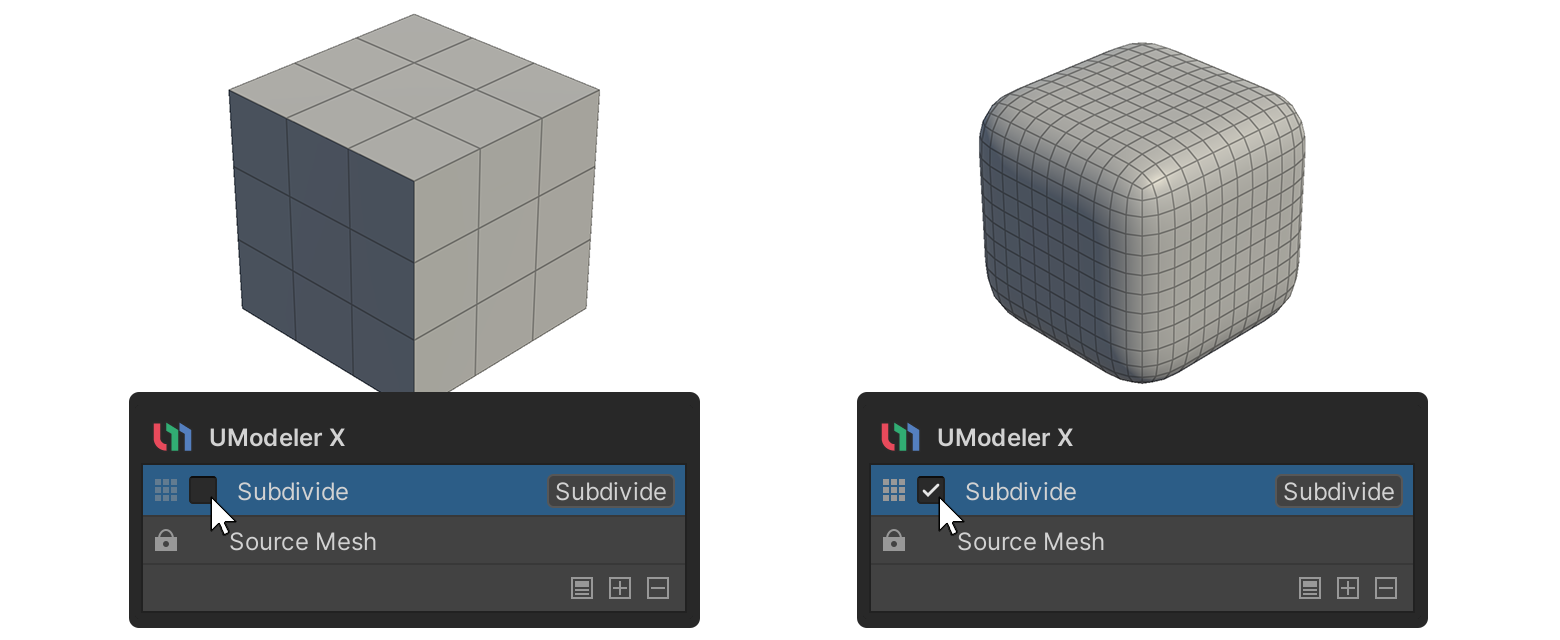
Modifiers are activated by default upon creation. To deactivate them, you can uncheck the checkbox next to the modifier name.
Change Modifier Position
You can change the position of a modifier by clicking and dragging it to the desired location.
Combine Modifiers

The Combine Modifiers button reflects the results of the currently applied modifiers into the original mesh. When combining, the modifiers below the selected one are merged together.
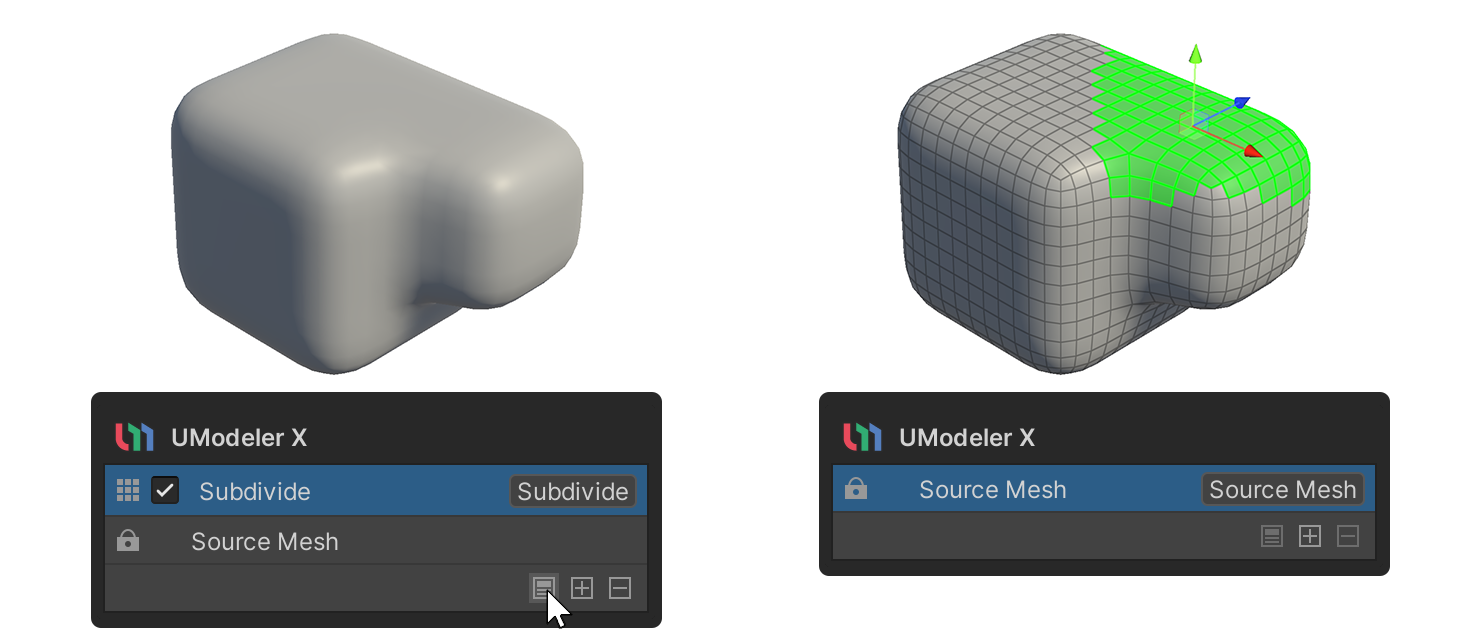
If you combine modifiers, the changes are applied to the source mesh, and the involved modifiers are removed.
Add a modifier

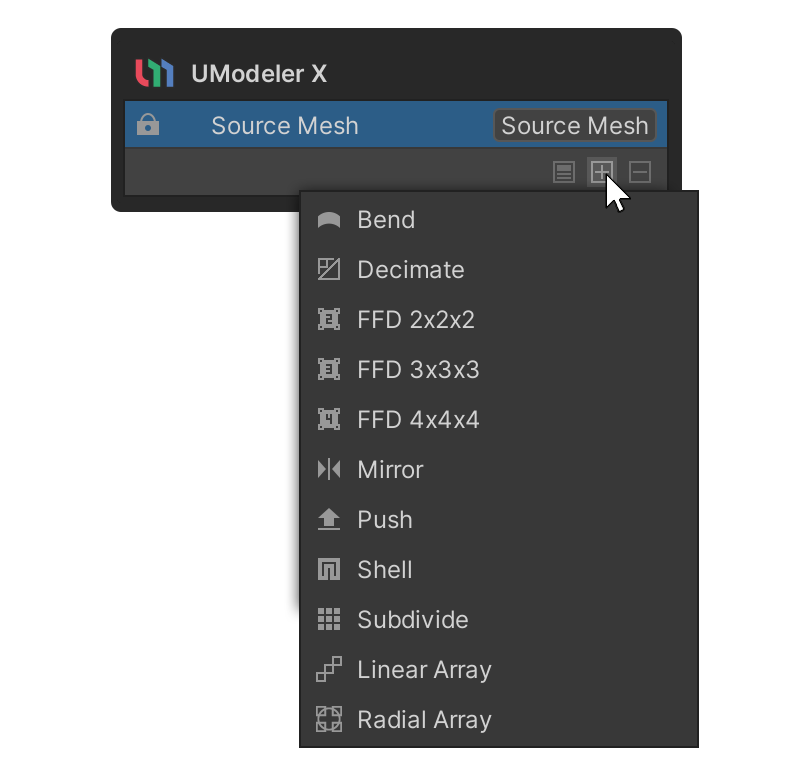
You can add the desired modifiers through theAdd Modifierbutton.
Delete Modifier

You can delete the selected modifier using the Delete Modifier button.
