움직임
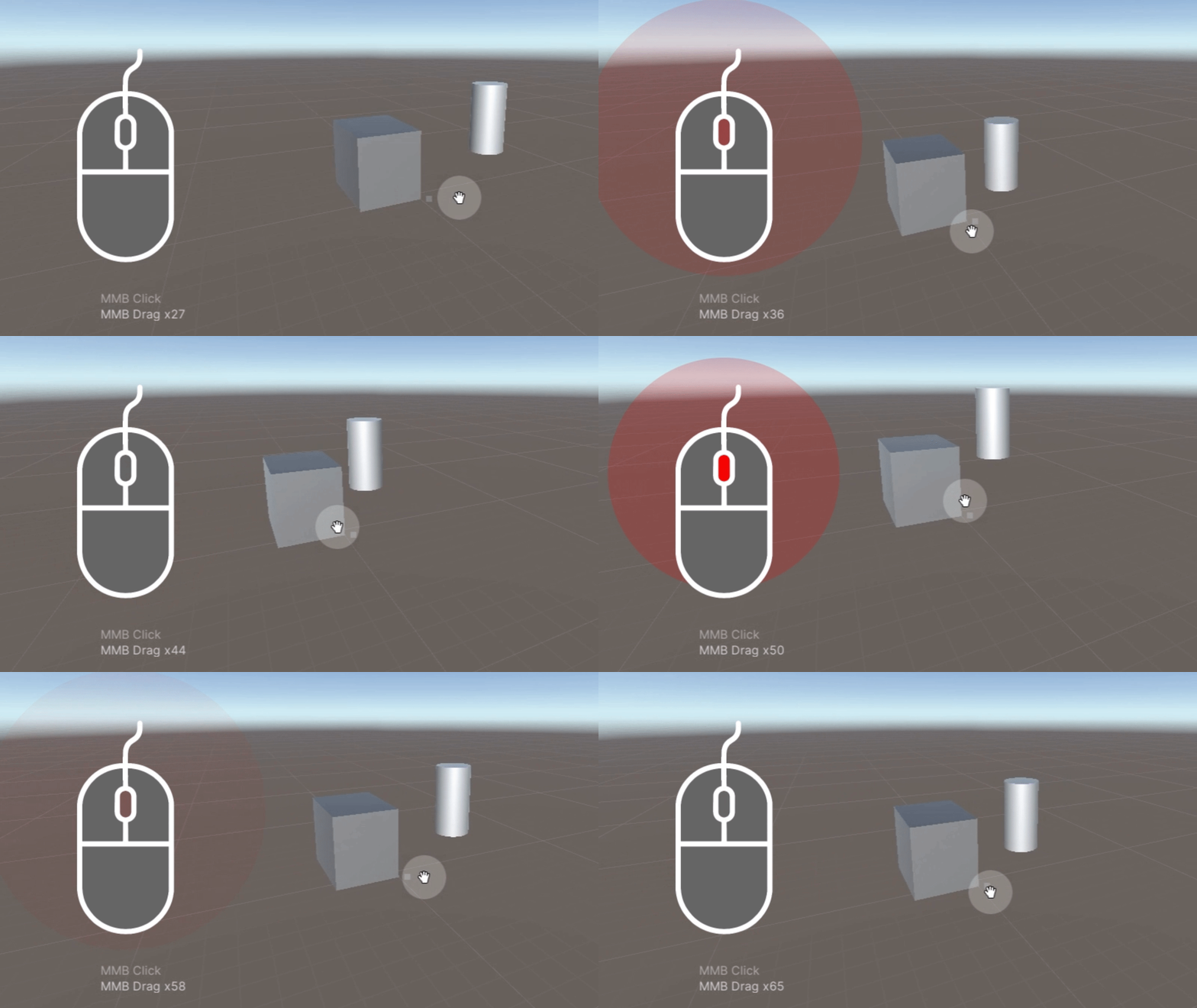
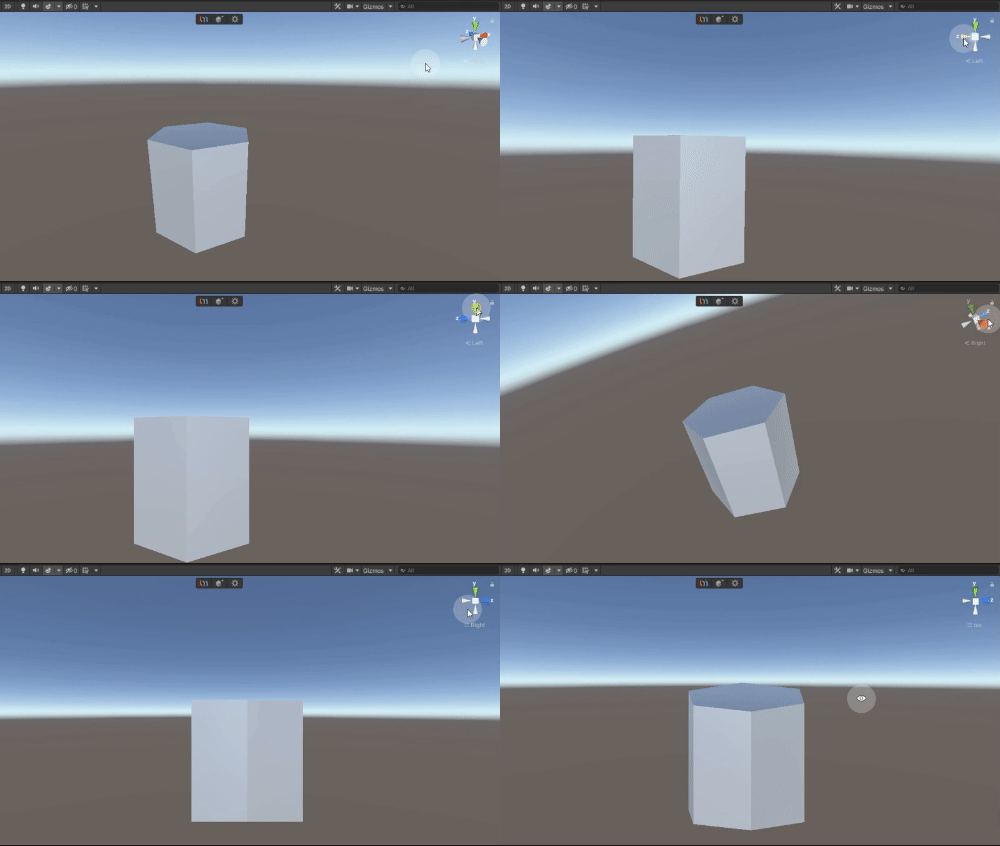
마우스를 움직이면서 마우스 가운데 버튼을 클릭하면 화면을 이동할 수 있습니다.
화면이동
Pan Around
마우스를 움직이면서 마우스 가운데 버튼을 클릭하면 화면을 이동할 수 있습니다.
Zoom
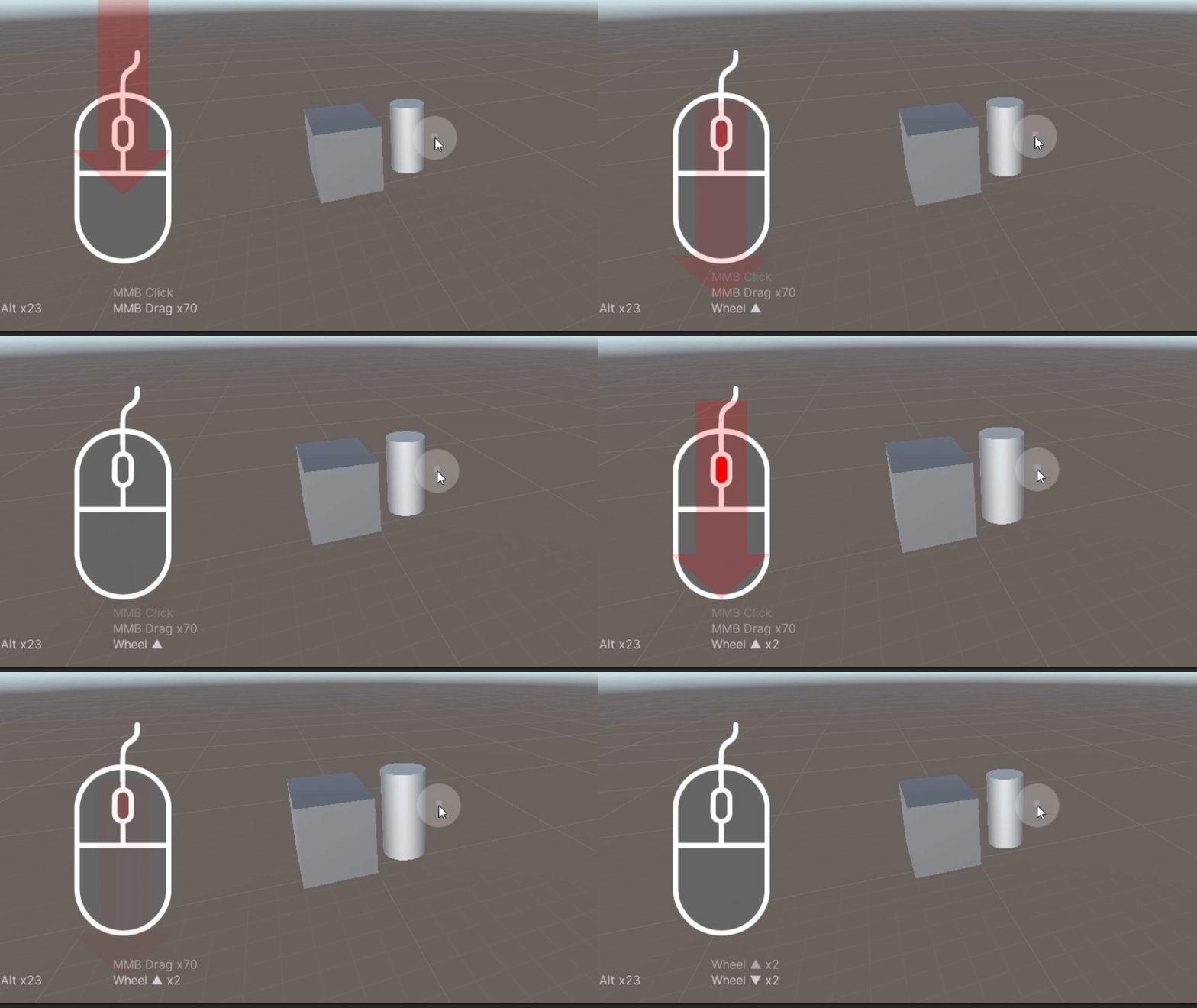
마우스 휠을 사용하거나 Alt 키를 누른 상태에서 오른쪽 마우스 버튼을 클릭하고 움직이면 화면을 확대하거나 축소할 수 있습니다.
Orbit
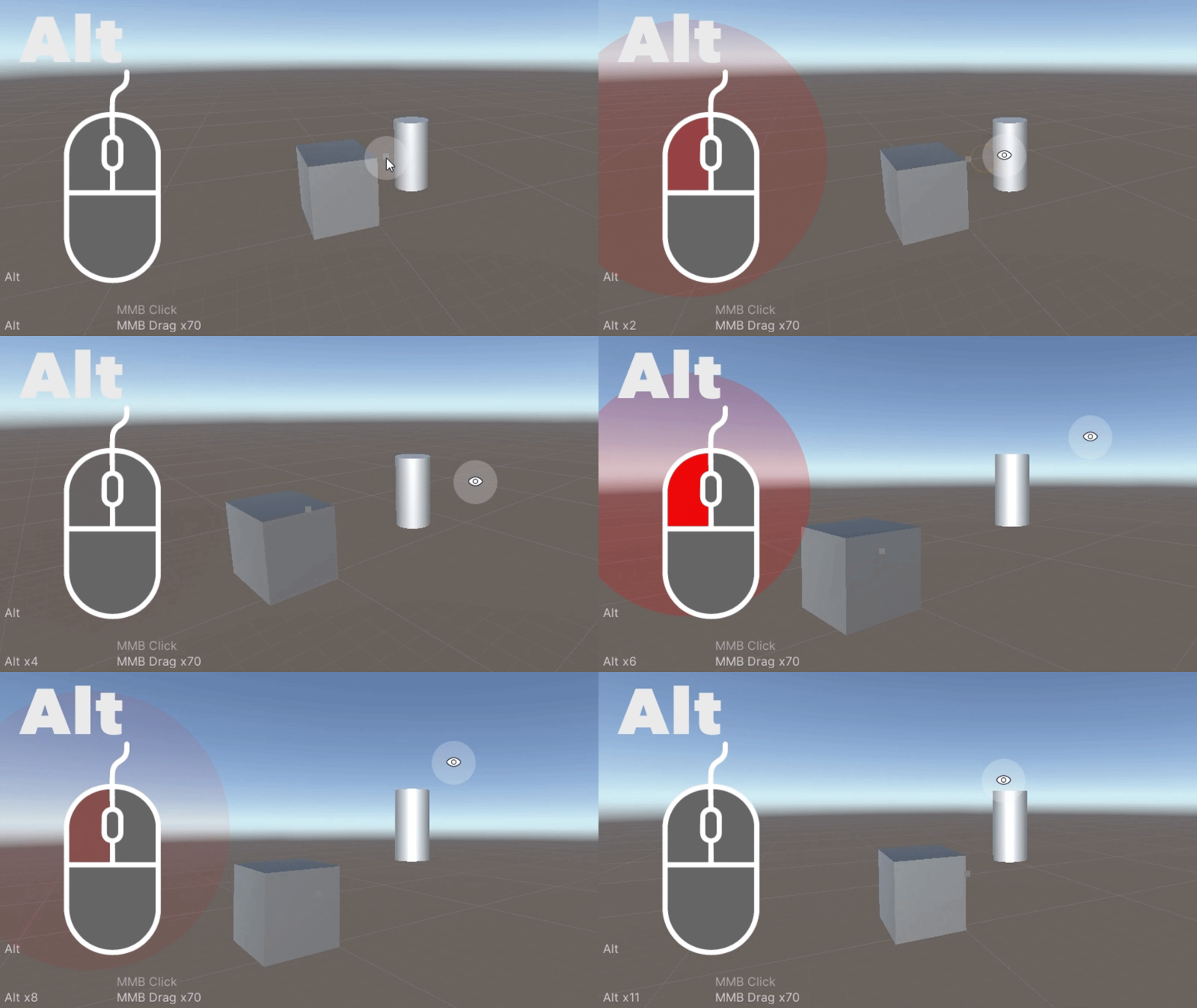
Alt 키를 누른 상태에서 왼쪽 마우스 버튼을 클릭하고 움직이면 화면을 회전시킬 수 있습니다.
Orientation Overlay
Scene View에서 Orientation overlay를 사용하여 Front, Side, Top View와 같은 고정된 뷰로 이동할 수 있으며, 필요에 따라 이를 고정할 수도 있습니다.
Game Object 움직임

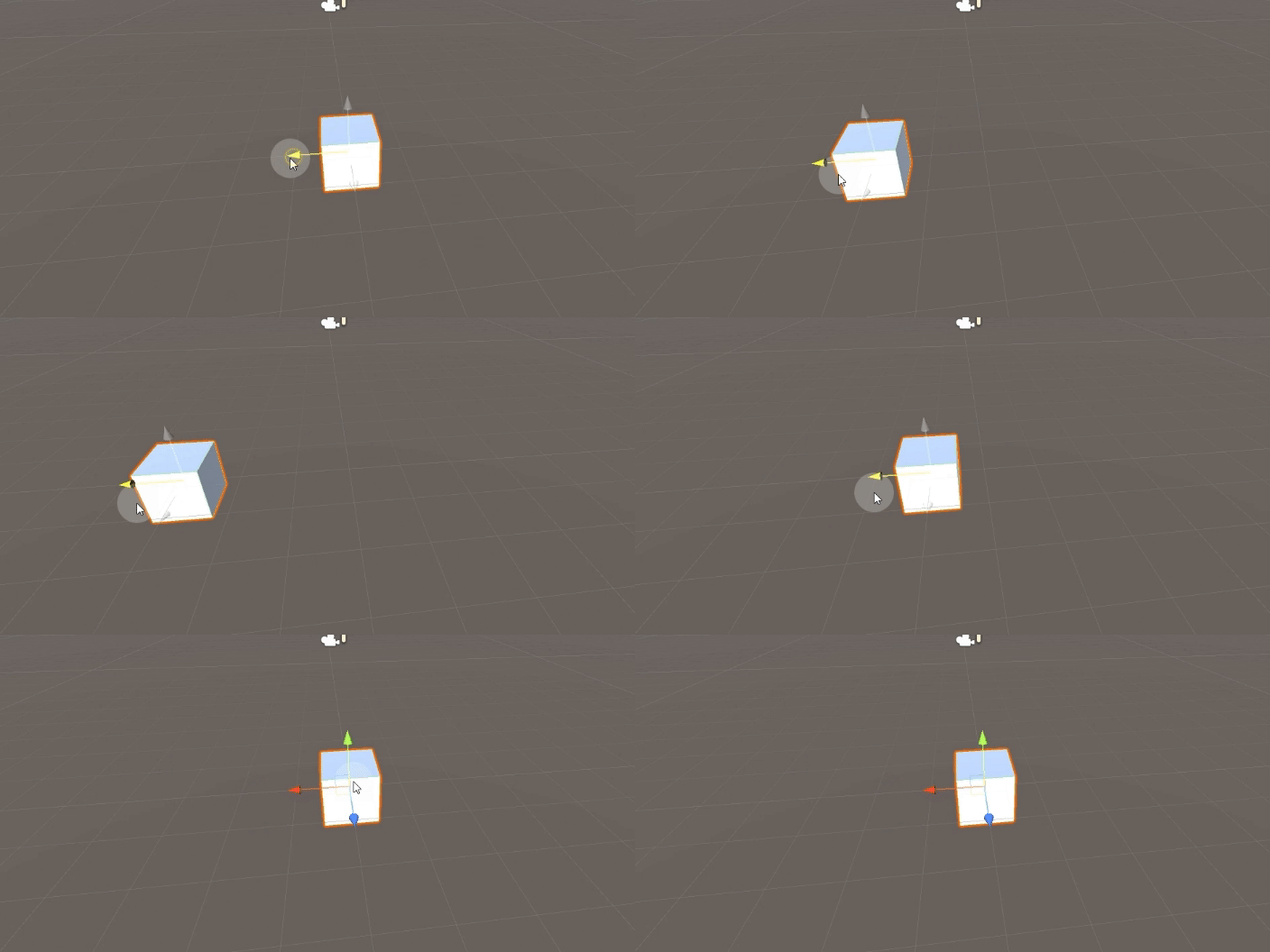
Move

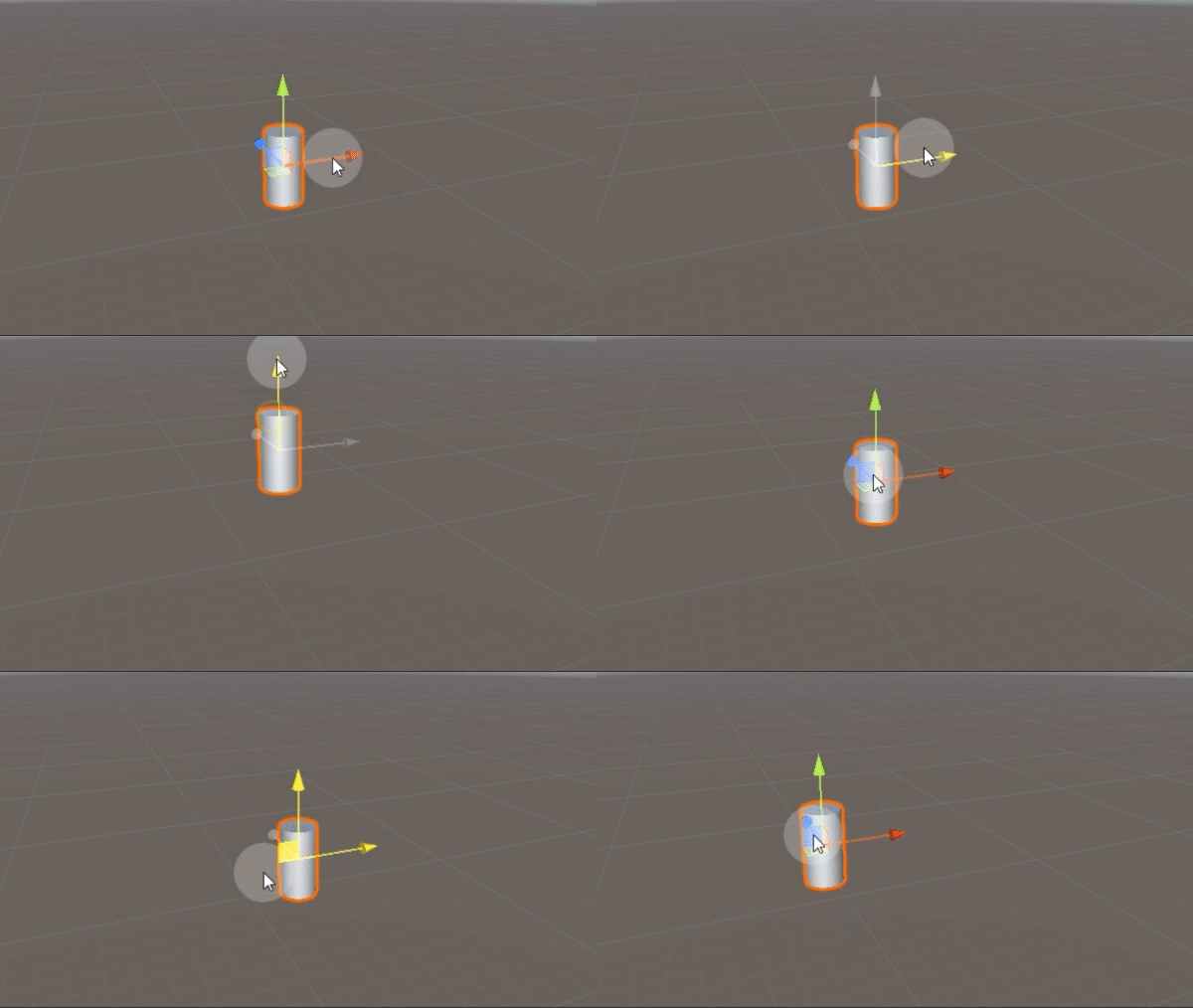
이동은 도구 모음의 Move를 누르거나 키보드의 W 키를 눌러 Move Gizmo를 활성화하여 수행할 수 있습니다.
화살표를 드래그하여 한 축을 따라 이동하거나 중앙 사각형을 클릭하여 두 축을 따라 이동할 수 있습니다.
Rotate

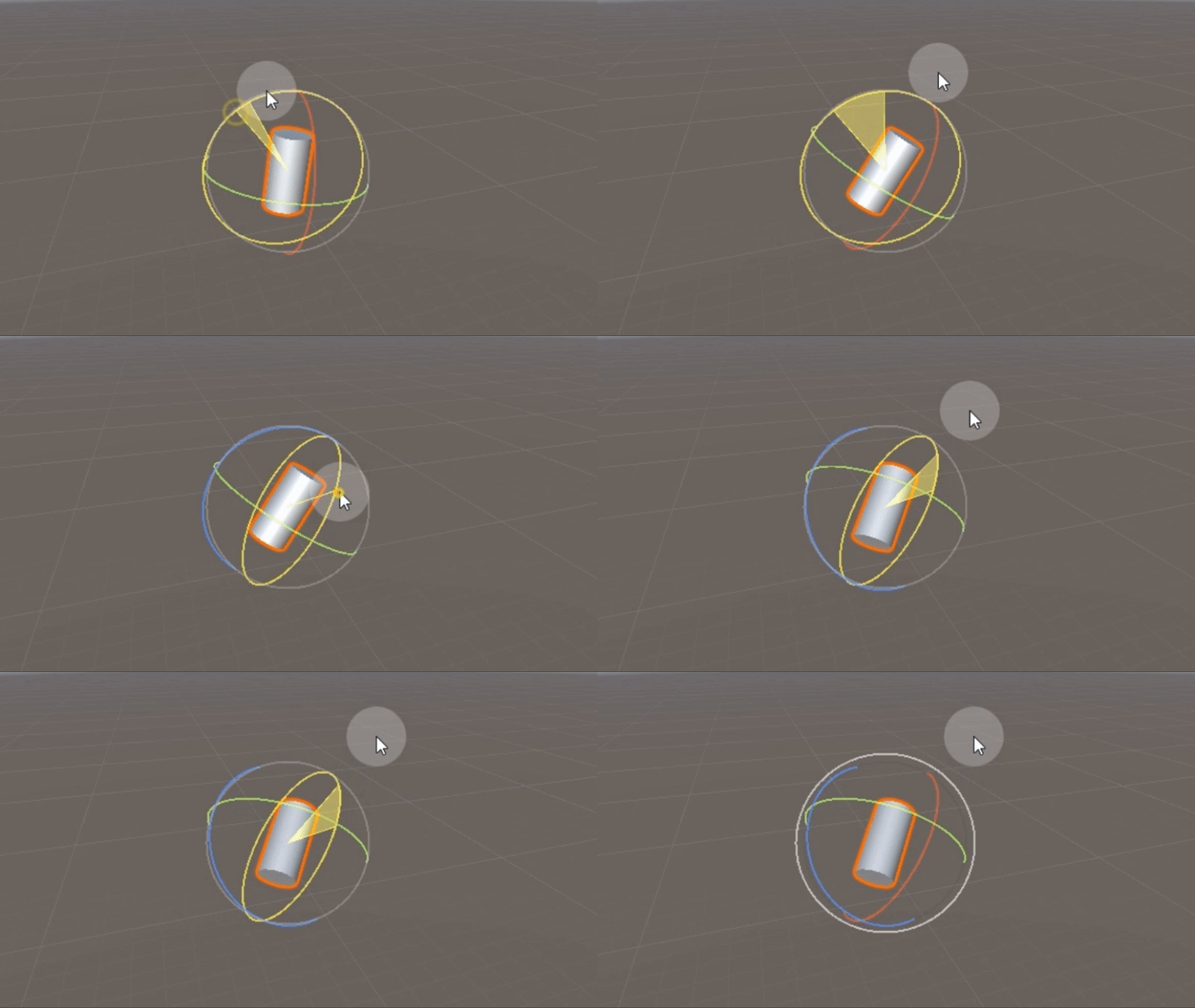
회전은 도구 모음의 Rotate를 누르거나 키보드의 E 키를 눌러 Rotate Gizmo를 활성화하여 수행할 수 있습니다.
GameObject 주변의 원을 드래그하여 회전할 수 있습니다.
Scale

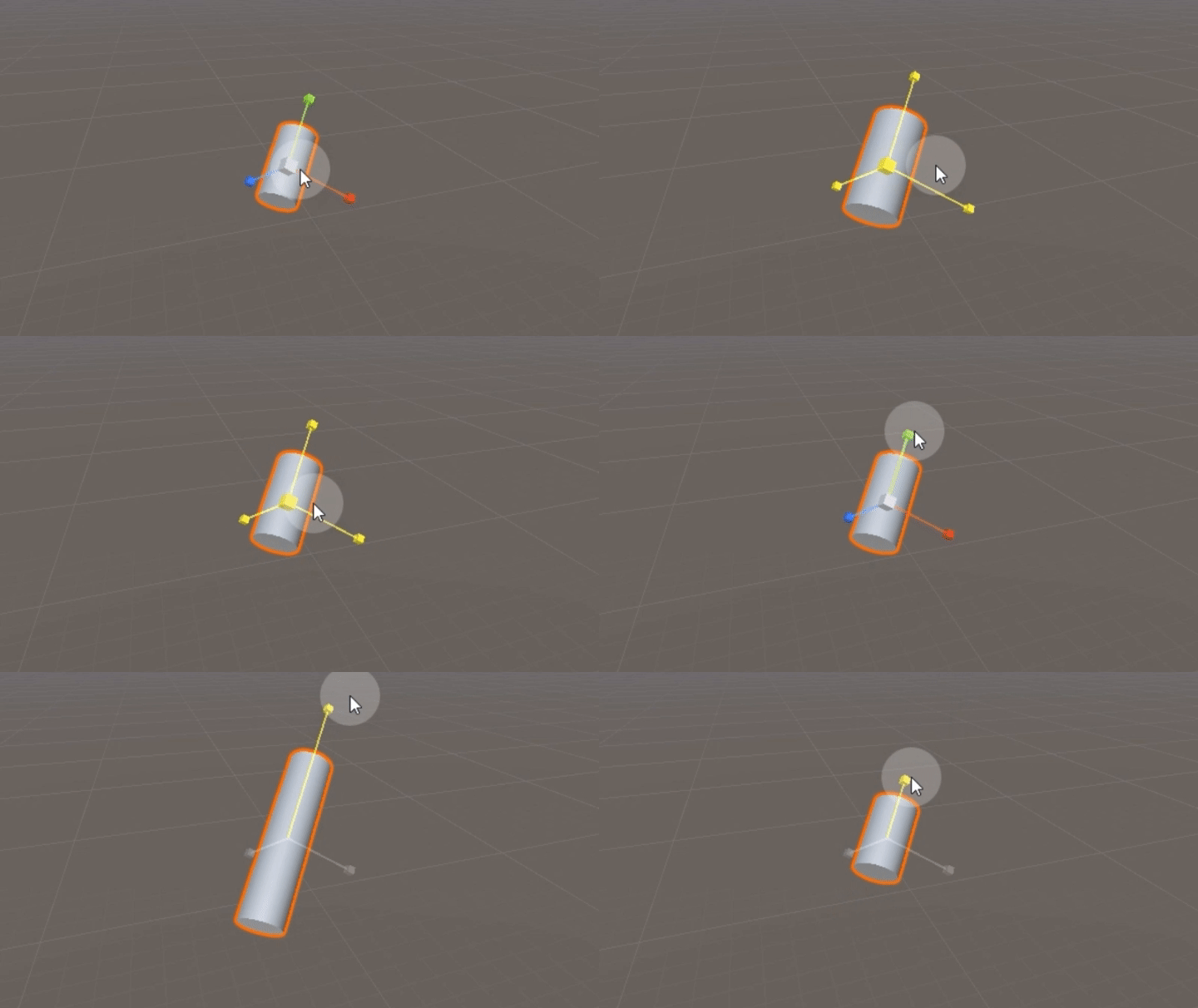
스케일링은 도구 모음의 Scale을 누르거나 키보드의 R 키를 눌러 Scale Gizmo를 활성화하여 수행할 수 있습니다.
중앙 큐브를 사용하여 한 방향으로 또는 세 축을 따라 비례적으로 스케일링할 수 있습니다.
Center/Pivot

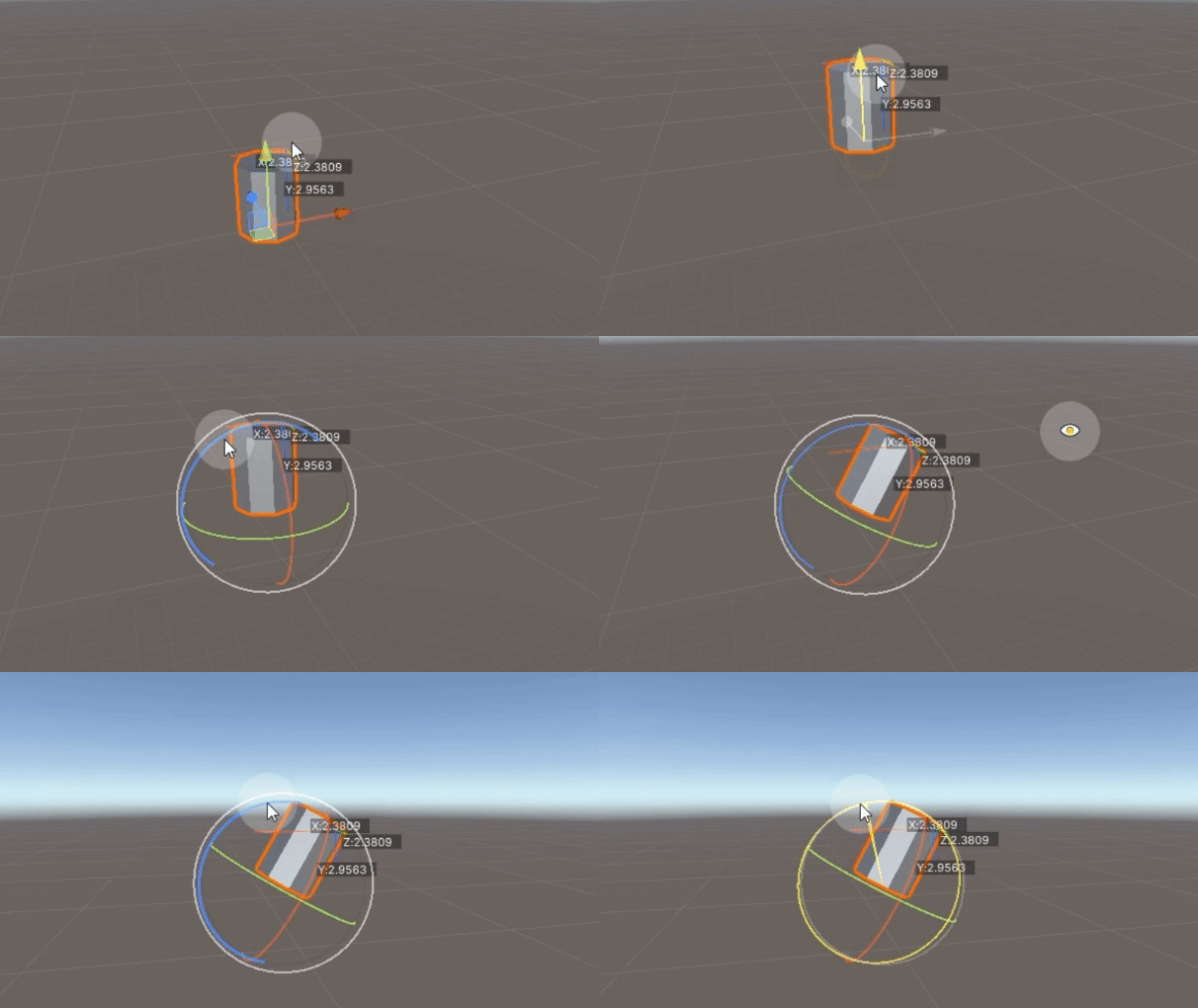
Center는 GameObject의 중심을 기준으로 회전 또는 크기 조정을 수행합니다.
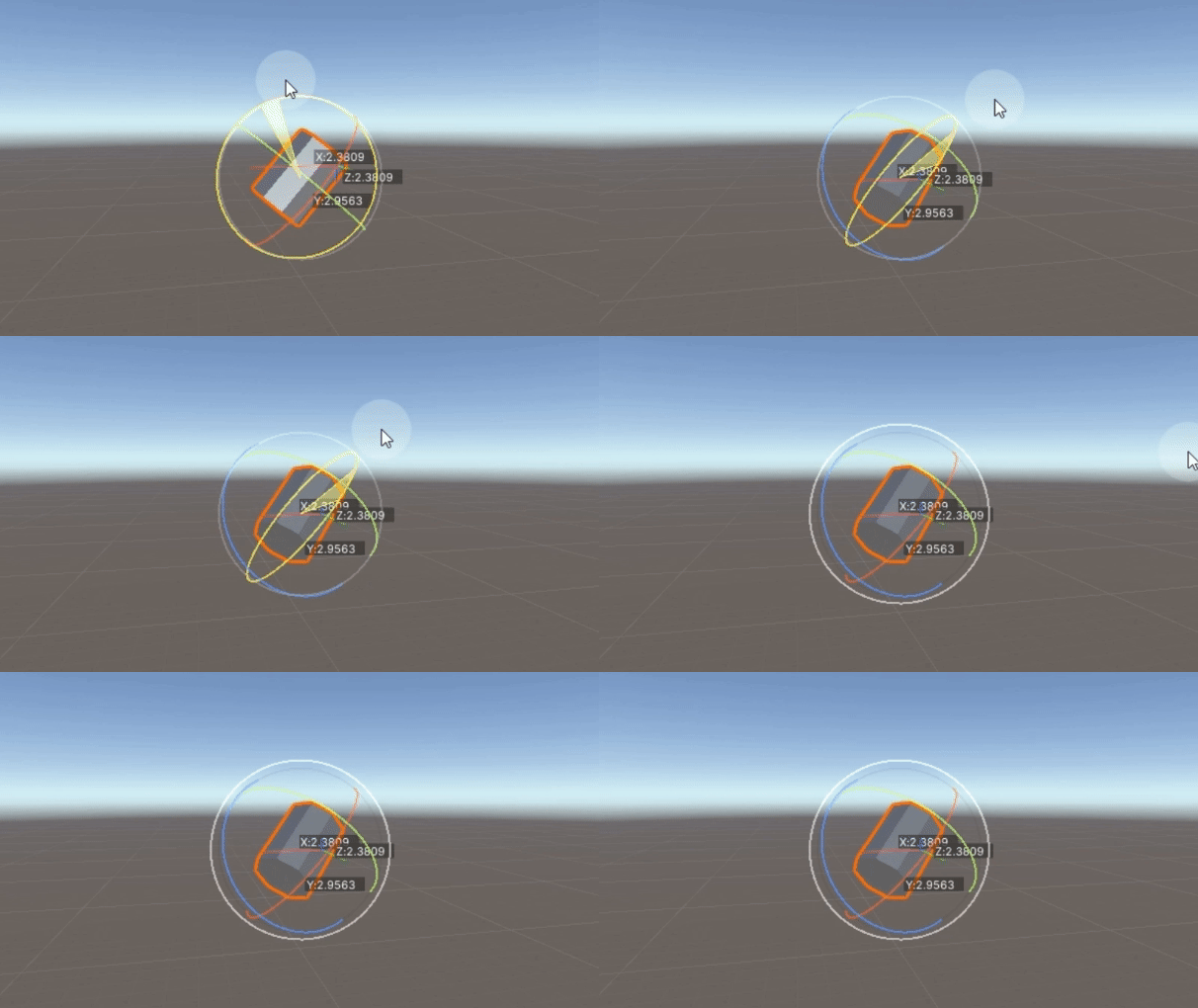

Pivot은 Gizmo의 위치를 기준으로 회전 또는 크기 조정을 수행하여 Gizmo의 위치를 중심으로 회전하거나 크기를 조정할 수 있습니다.
Global/Local

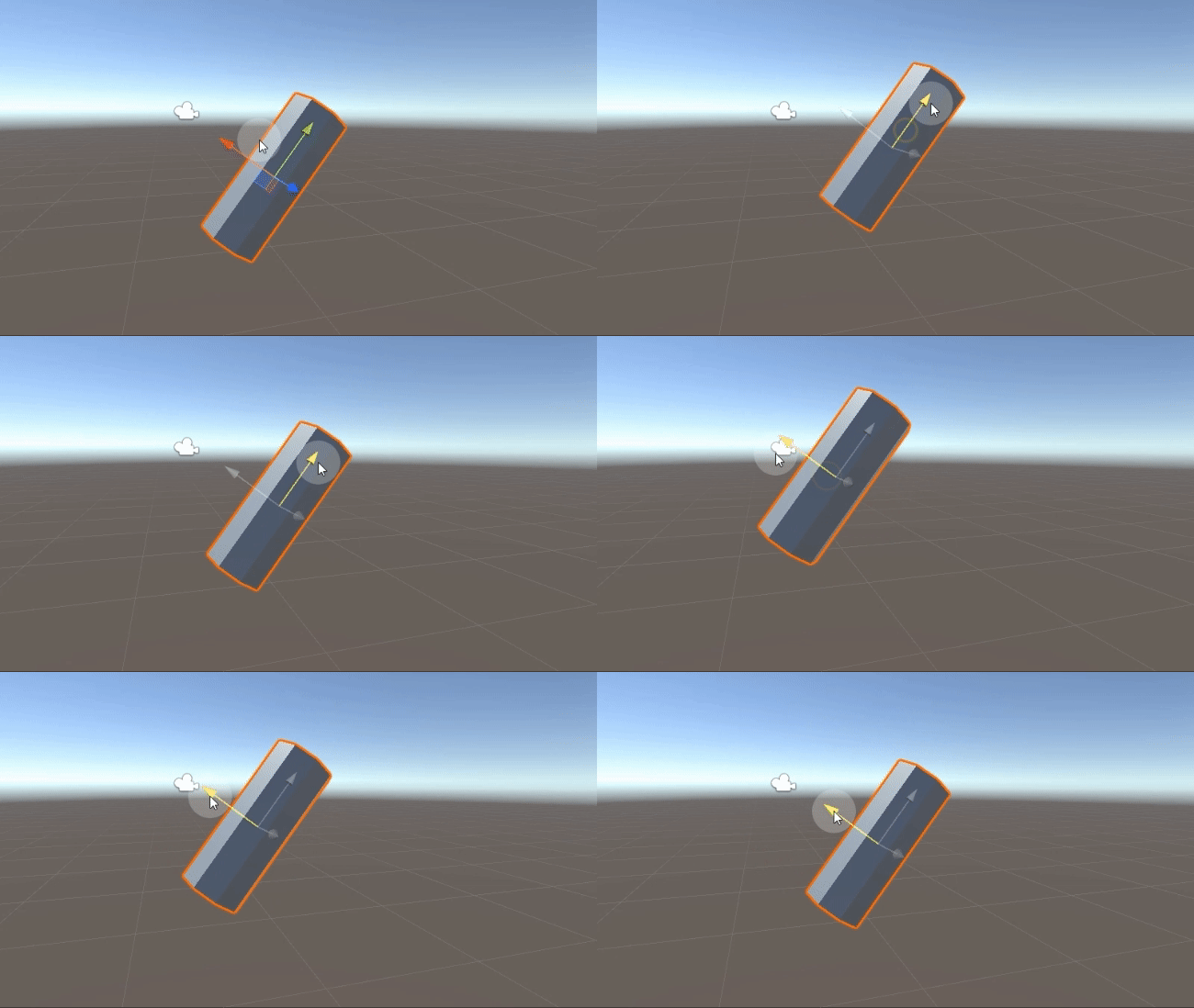
Global은 GameObject의 회전 또는 변형과 상관없이 항상 전역 축을 기준으로 Gizmo를 표시합니다.
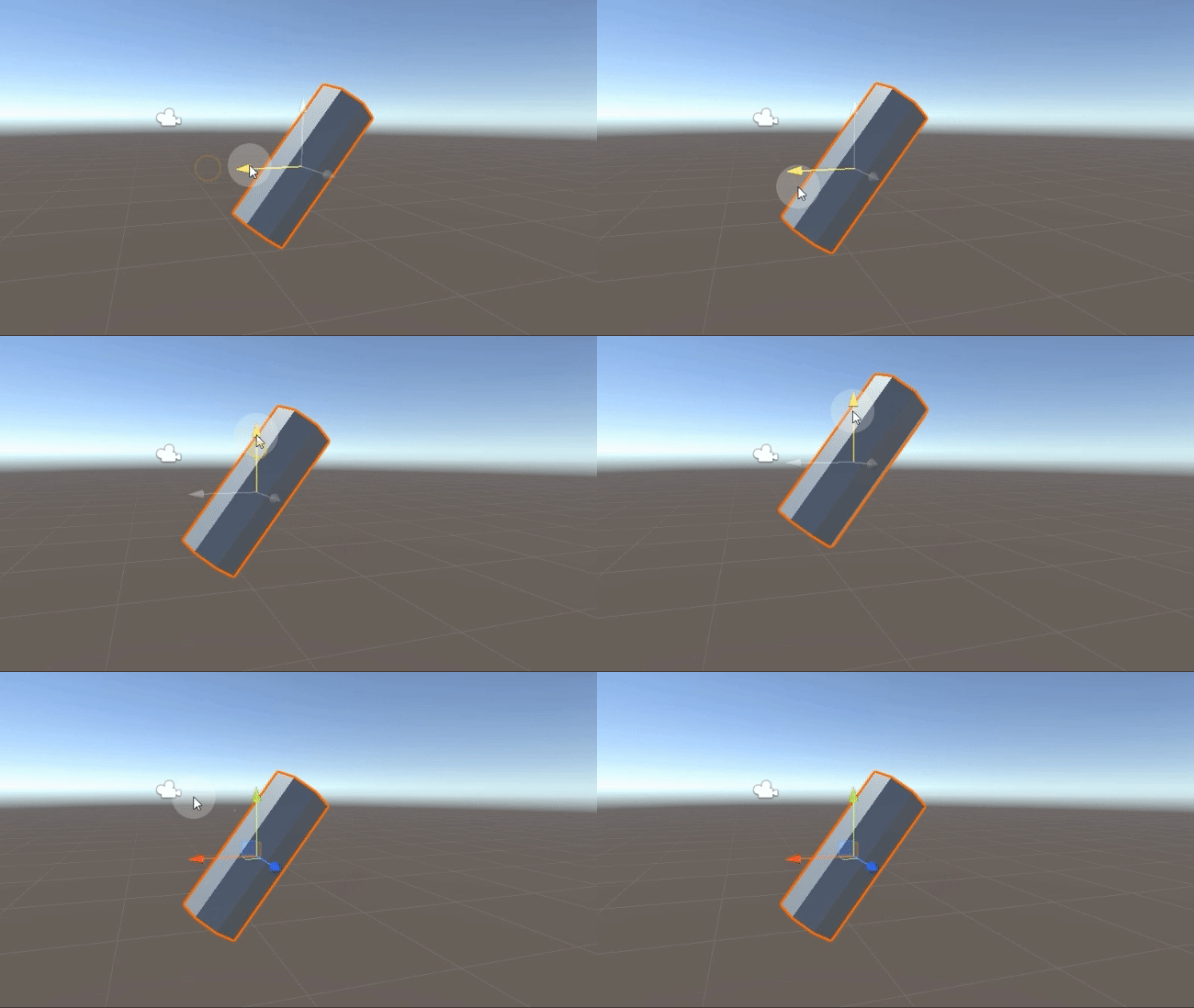

Local로 전환하면 GameObject의 회전된 방향을 기준으로 Gizmo가 표시됩니다.
Snap

Grid 스냅 옵션을 사용하면 이동 시 하단의 그리드 크기만큼 이동할 수 있습니다.
Scene View의 아이콘에서 축과 크기 변경을 조정할 수 있습니다.
Inspector Transform
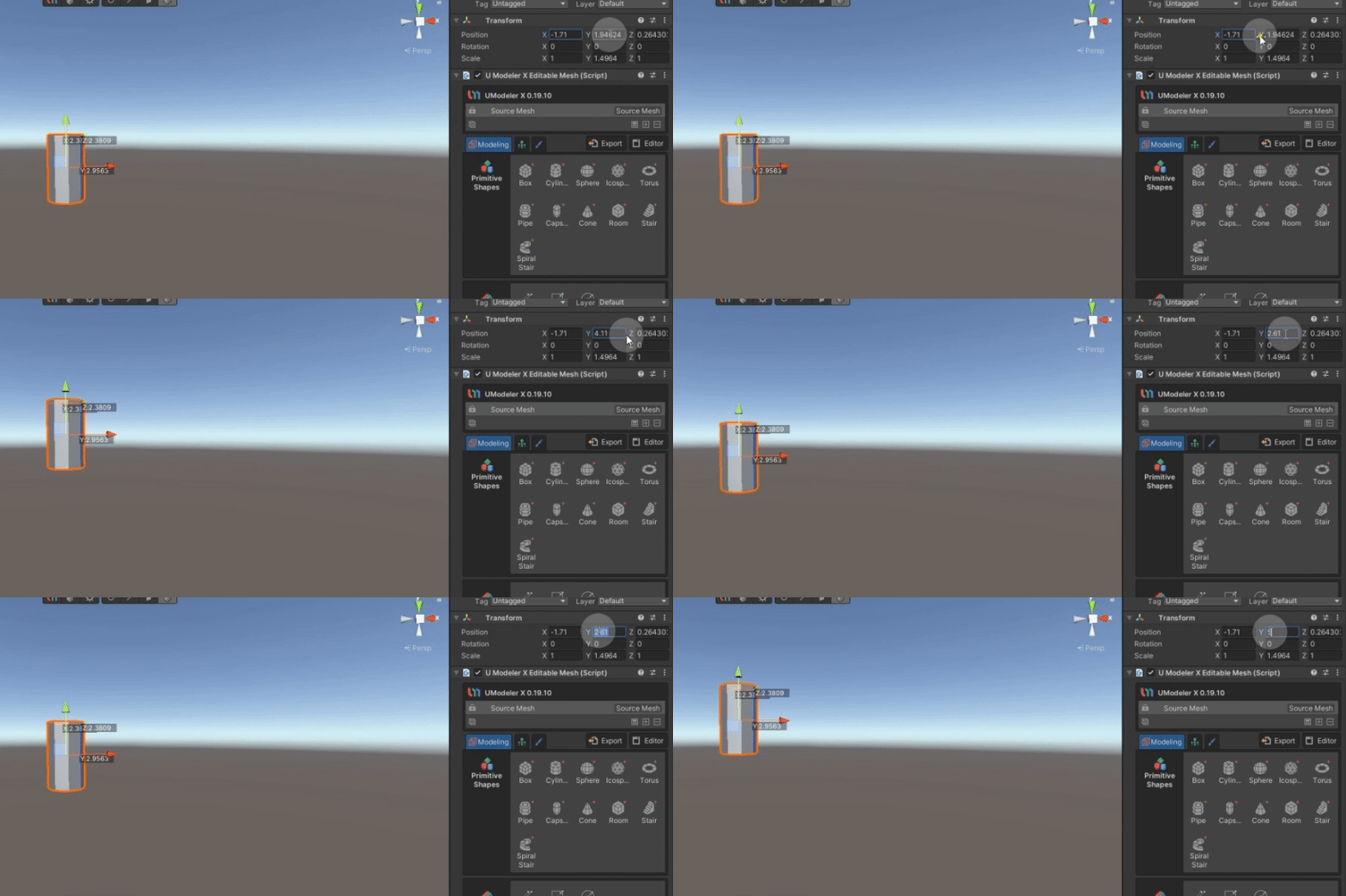
Inspector에서 변환 값을 변경하여 객체의 위치, 회전 및 크기를 조정할 수 있습니다.