Synty 스튜디오와 Mixamo
UModeler X를 활용하여 유니티 내에서 Synty 스튜디오의 다양한 3D 애셋과 Mixamo의 애니메이션을 함께 사용하는 것이 가능합니다.
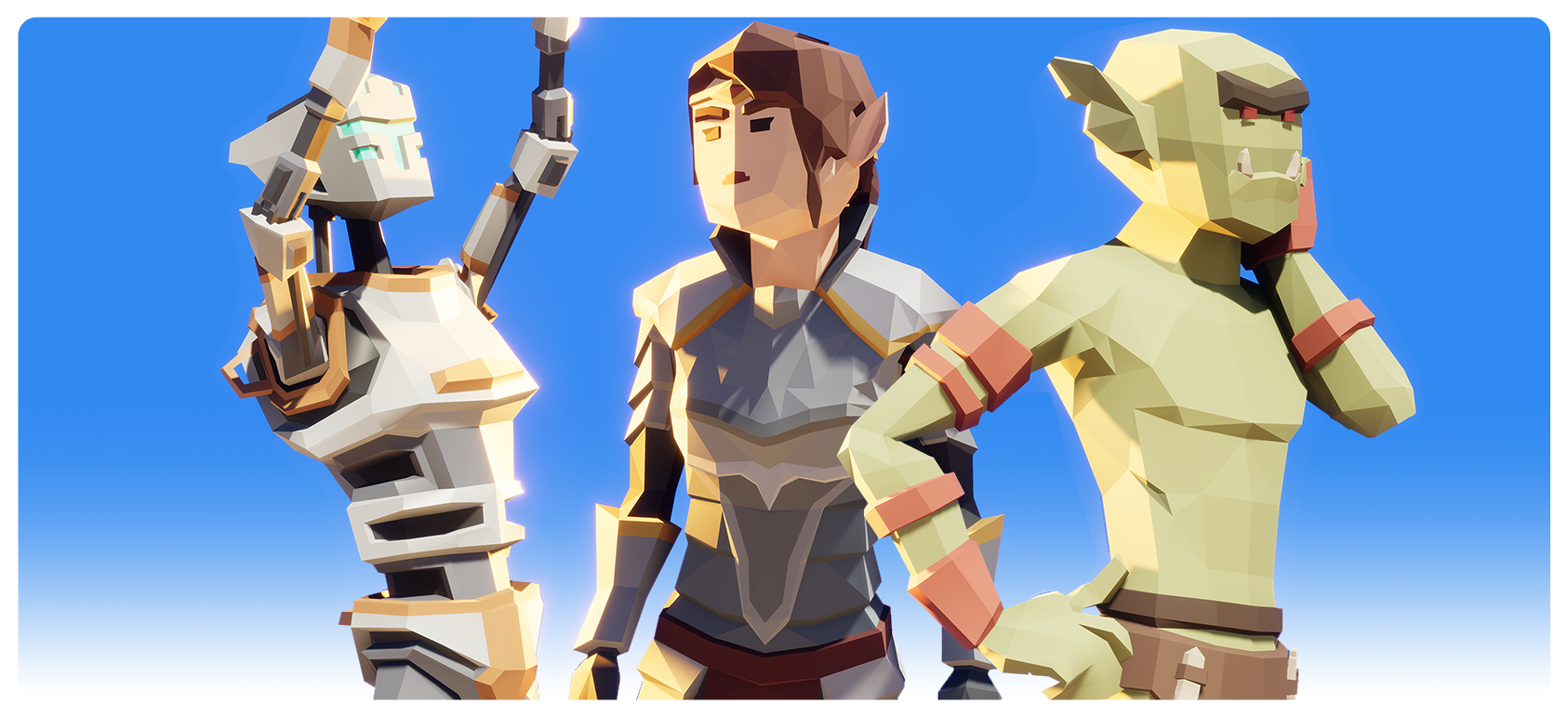
UModeler X를 활용하여 유니티 내에서 Synty 스튜디오의 다양한 3D 애셋과 Mixamo의 애니메이션을 함께 사용하는 것이 가능합니다.
그동안 Synty 스튜디오에서 만들어진 3D 캐릭터를 FBX 익스포터를 이용하여 익스포트 한 후, Mixamo로 업로드하고 애니메이션을 사용하는 과정을 거쳤다면, 이 가이드 문서를 통해 유니티를 벗어나지 않고 자유롭게 애니메이션을 적용해보세요.
전반적인 작업 순서는 아래와 같습니다.
- Synty 스튜디오 애셋을 선택하고 이를 UModeler X 오브젝트로 변환하는 과정을 진행합니다.
- 그 다음으로, Mixamo의 본 구조에 맞춰 리깅과 스키닝을 진행합니다.
- 이후 Mixamo 서비스에서 애니메이션을 다운로드하고 이를 유니티 프로젝트로 가져와 모델에 적용하게 됩니다.
1. Synty 스튜디오 애셋 변환
변환 과정의 첫 단계는 원하는 Synty 스튜디오 애셋을 UModeler X 오브젝트로 변환하는 것입니다.
1.유니티 프로젝트에 Synty 스튜디오 애셋을 임포트합니다. 임포트가 완료되면 Prefabs 폴더에 접근할 수 있습니다.
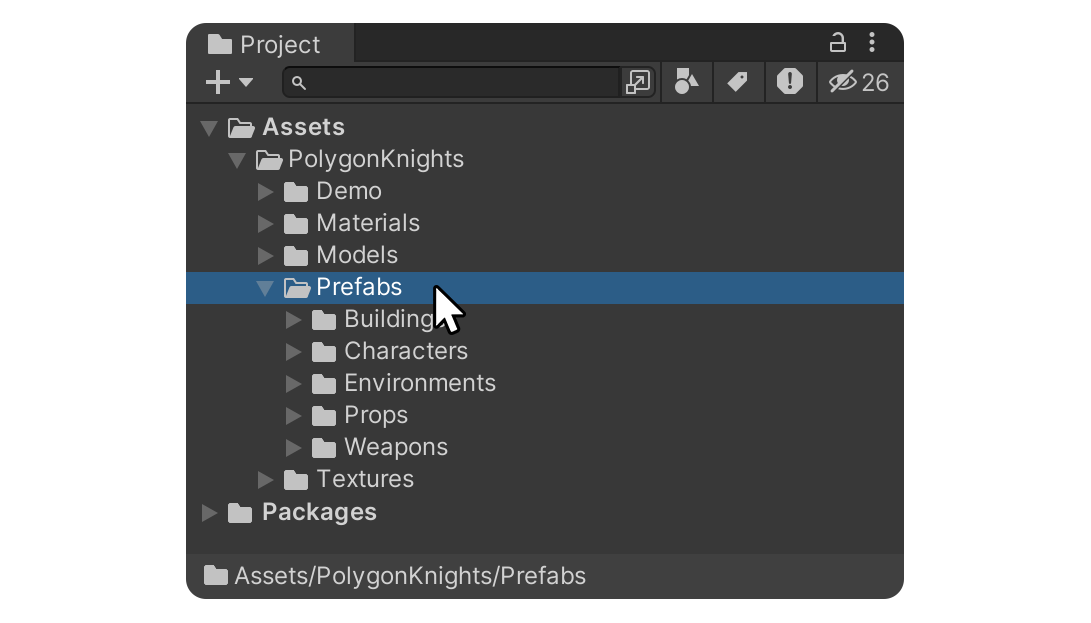
2.Prefabs 폴더에서 변환하고자 하는 캐릭터 프리팹을 찾아 씬으로 클릭드래그합니다.
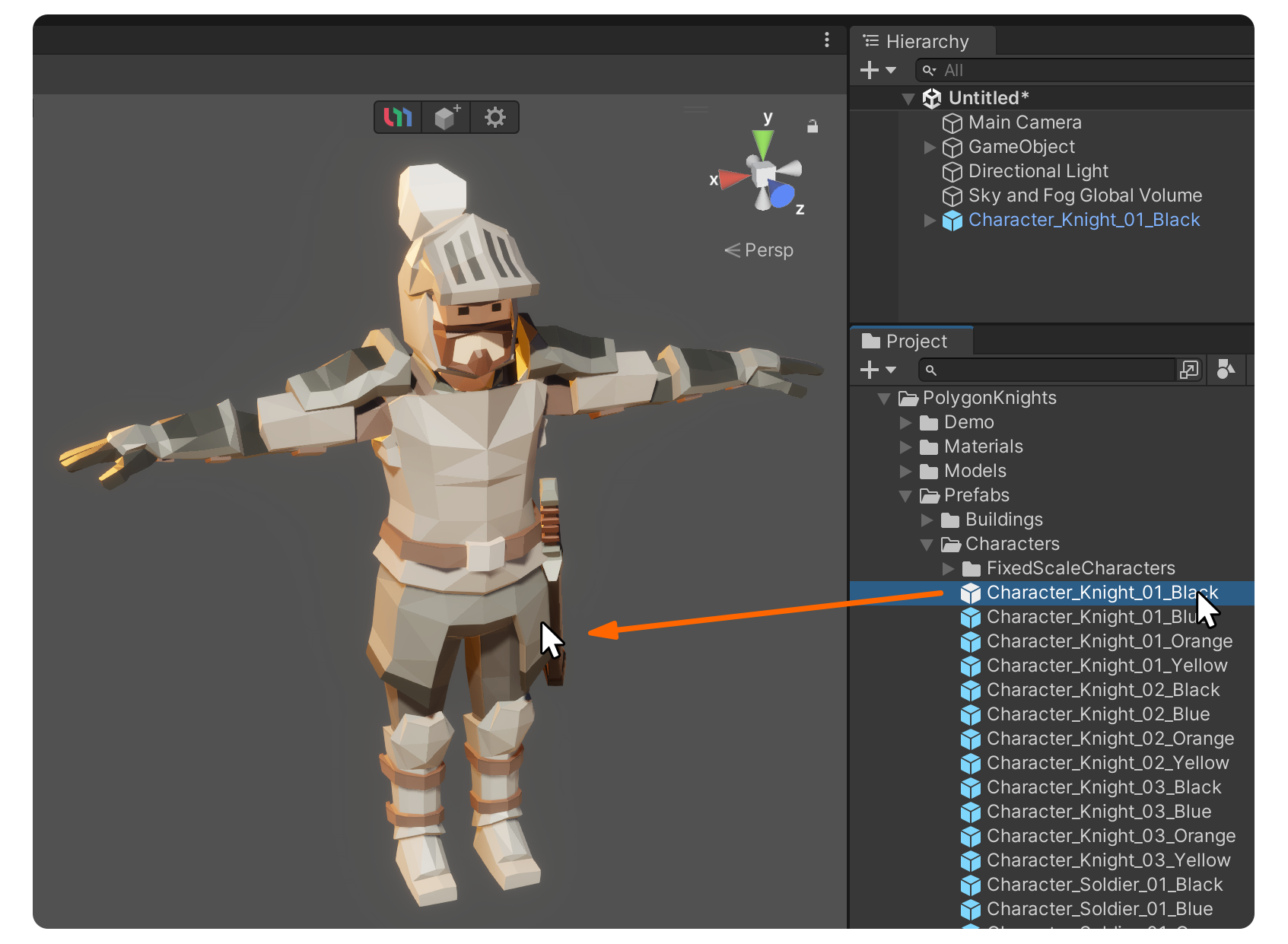
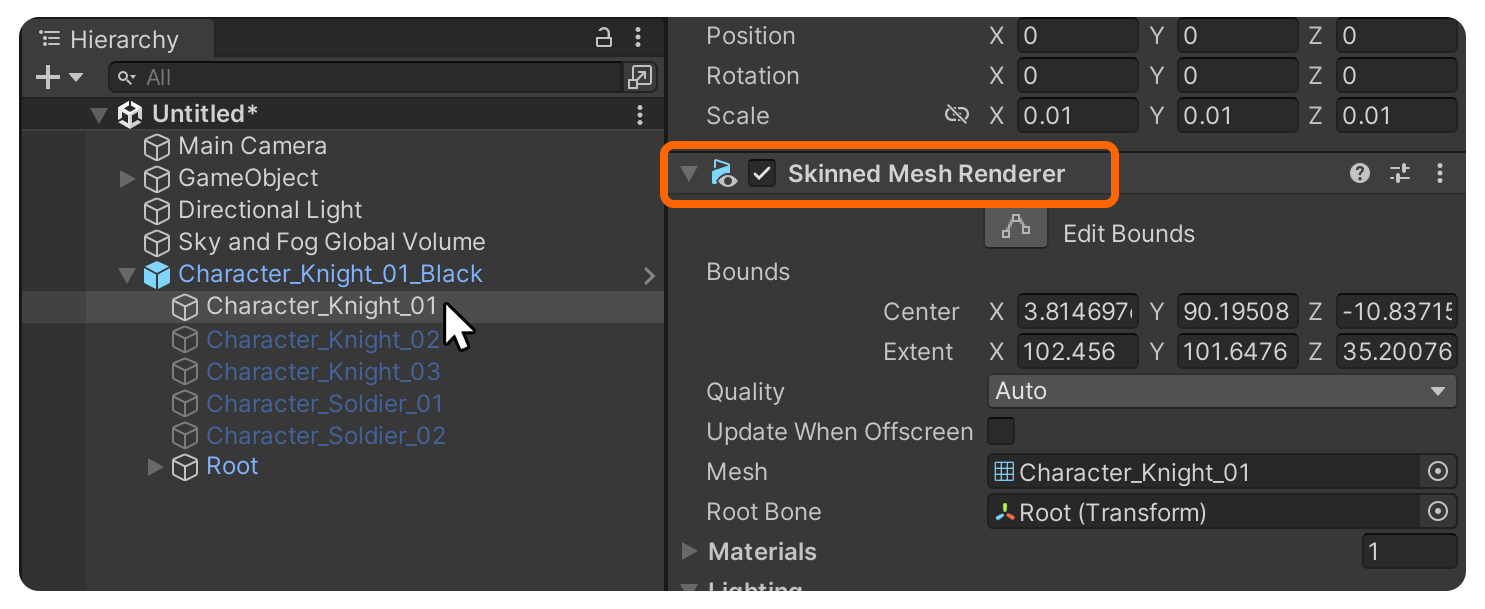
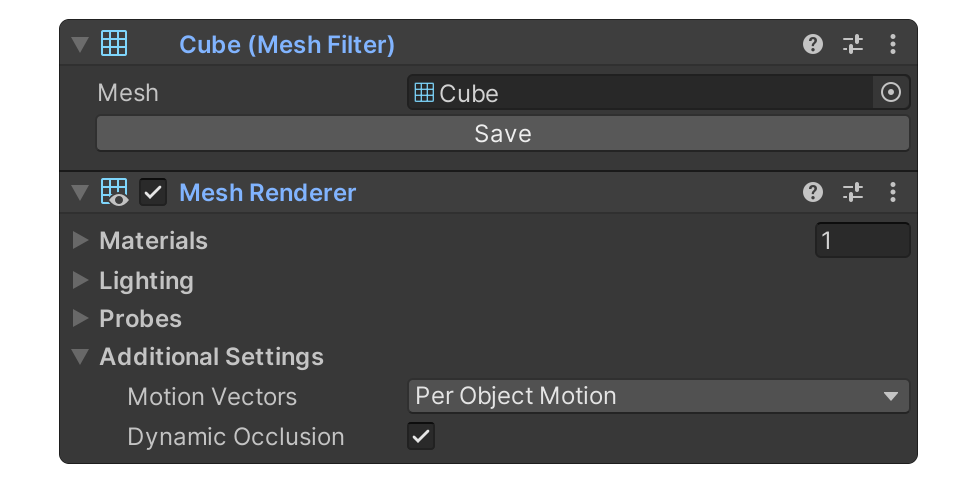
3.씬에 배치된 프리팹 내에서 Skinned Mesh Renderer 또는 Mesh Renderer 컴포넌트를 가진 오브젝트를 찾아 선택합니다. UModeler X는 메시를 가진 오브젝트만 변환할 수 있습니다.
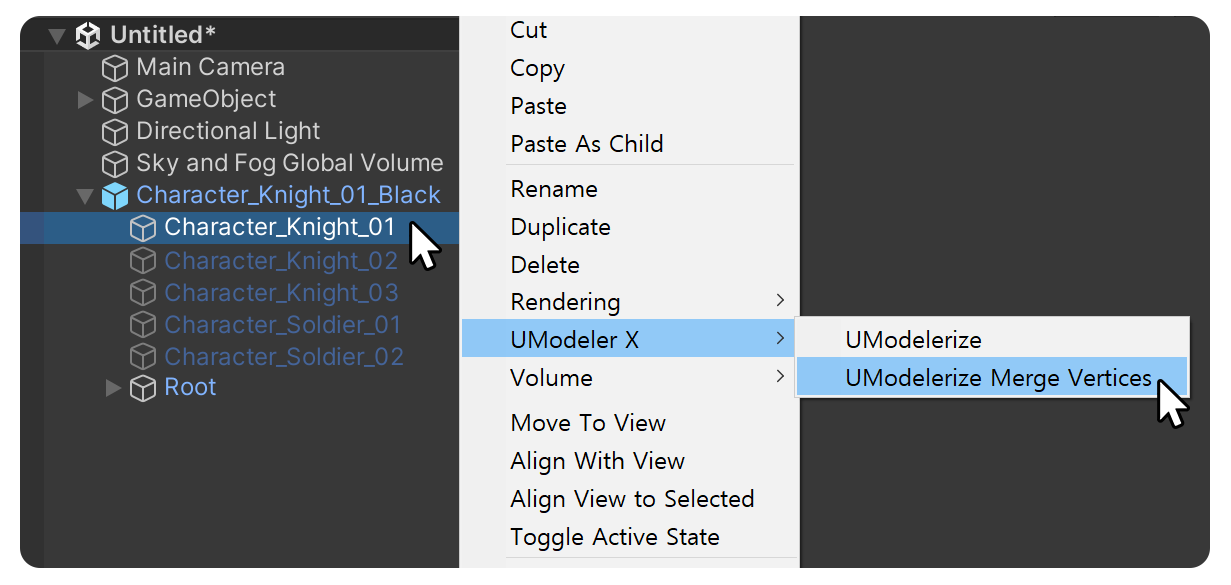
4.Hierarchy 탭에서 선택한 오브젝트를 우클릭하고, UModeler X > UModelerize Merge Vertices를 선택합니다.
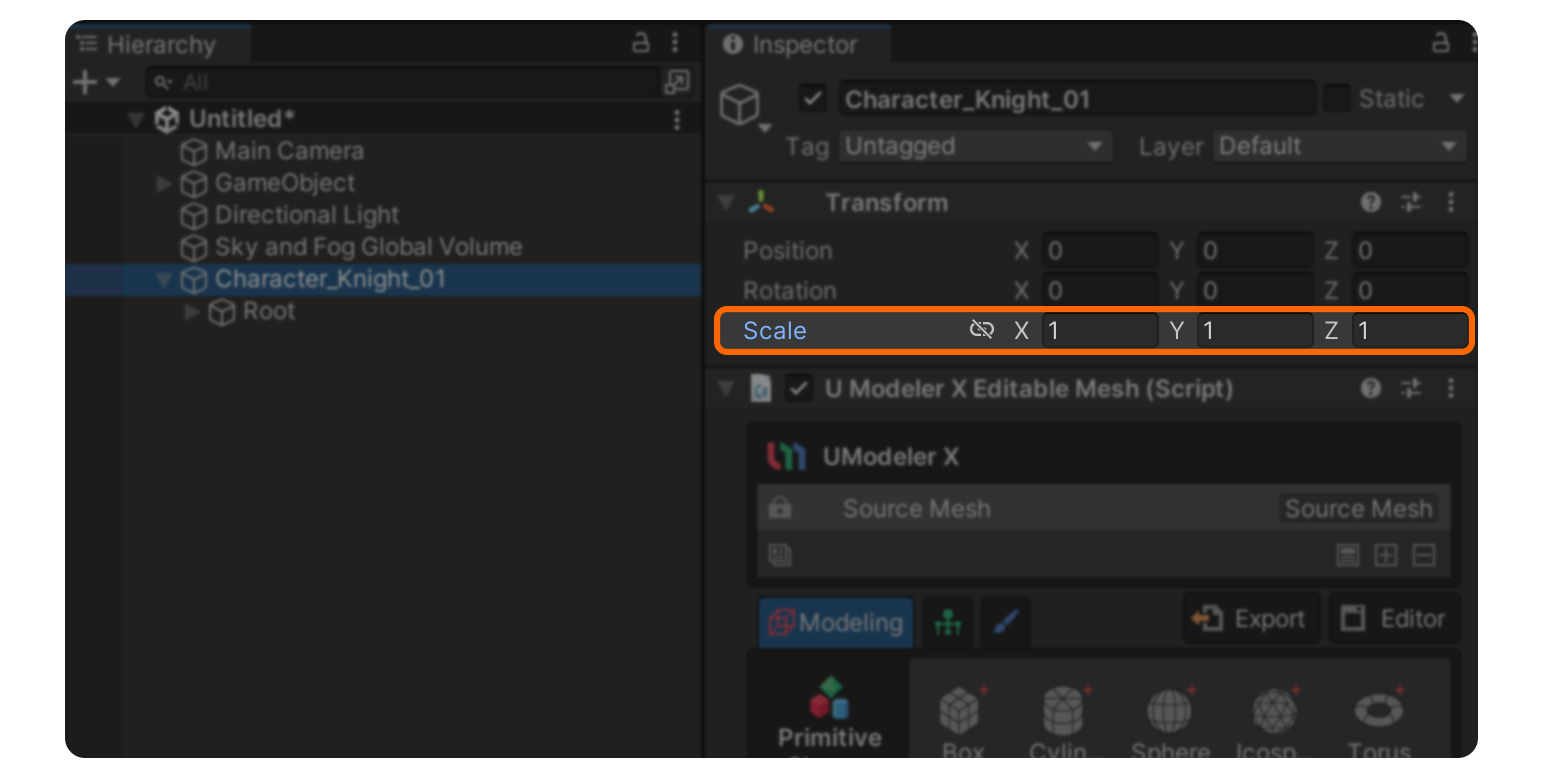
Reset X Form 툴
2. 모델링 및 텍스처 수정
UModelerize를 통해 UModeler X 오브젝트로 변환한 후, UModeler X의 다양한 모드와 에디터를 사용하여 편집을 진행할 수 있습니다.
모델링 모드
UModeler X의 모델링 모드를 활용하여 모델링 수정을 할 수 있습니다. 모델링 모드의 기능과 사용 방법에 대한 자세한 정보는 다음 매뉴얼을 참고하세요.
모델링 모드
UV 언랩과 페인팅 모드
텍스처 편집을 위해 페인팅 모드를 사용하기 전에 UV 언랩이 필요합니다. Synty 스튜디오의 애셋은 UV를 텍스처 전체에 쓰는게 아니라 색상이 구역마다 설정된 텍스처에 아주 작은 UV를 배치시키는 방식으로 구성되어 있기 때문에, 페인팅 모드에서 텍스처를 페인팅 하기 위해서는 먼저 UV를 펼쳐야 합니다.
UV 언랩을 진행하기 위해 UV 에디터를 사용하는 방법과 그 중요성에 대한 자세한 정보는 아래 가이드 문서를 참고하세요.
UV 에디터 가이드
UV 언랩이 완료되면, 텍스처 페인팅이 가능한 페인팅 모드로 전환하여 텍스처를 편집할 수 있습니다. 페인팅 모드의 기능과 사용 방법에 대한 자세한 정보는 다음 매뉴얼을 참고하세요.
페인팅 모드
3. Mixamo 본 구조 사용
Synty 스튜디오의 캐릭터 애셋에 Mixamo 애니메이션을 적용하기 위해서는 본 구조를 일치시켜야 합니다.
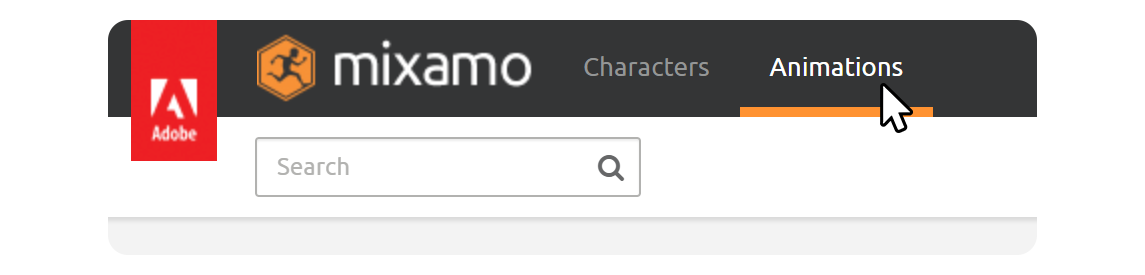
1.Mixamo 웹사이트에 접속한 후, 상단 카테고리에서 Animations를 선택합니다.
- Mixamo를 처음 사용하는 경우, T-포즈 상태의 애니메이션을 볼 수 있습니다.
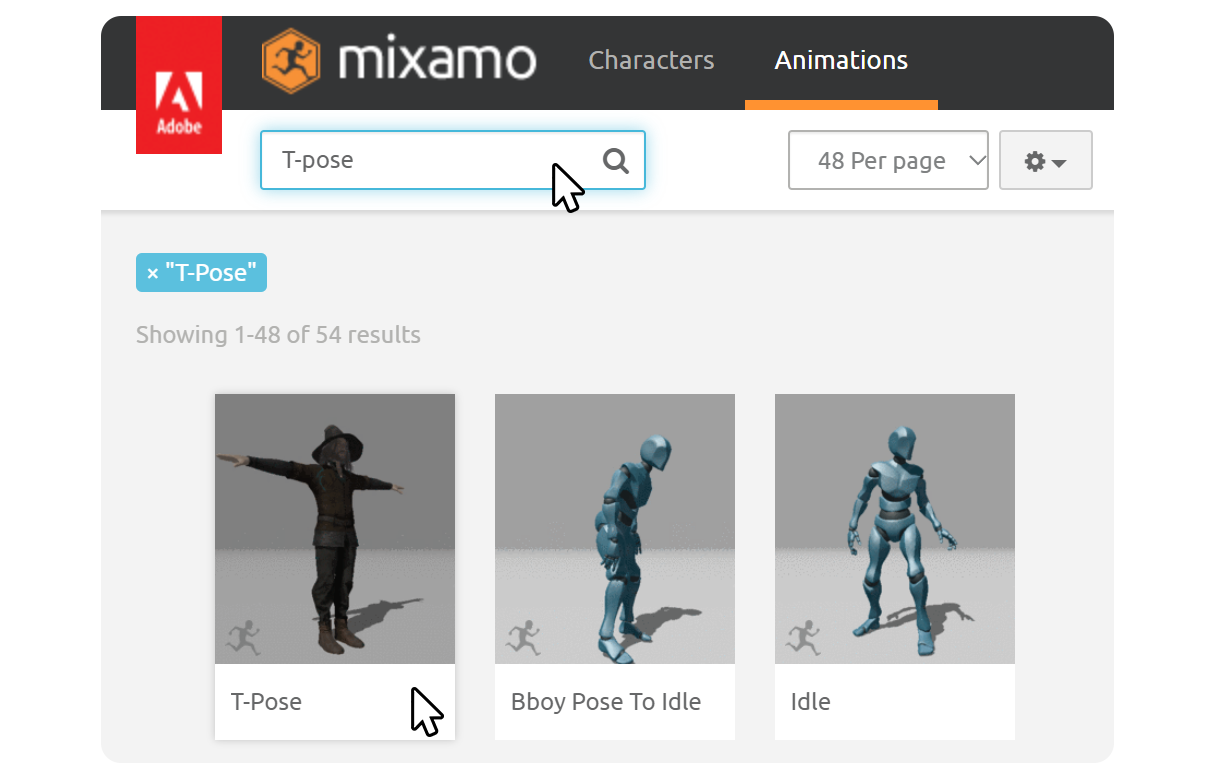
- 이미 Mixamo를 사용한 적이 있다면 검색창에 'T-pose' 라고 입력하여 T-Pose 애니메이션을 찾아 선택합니다.
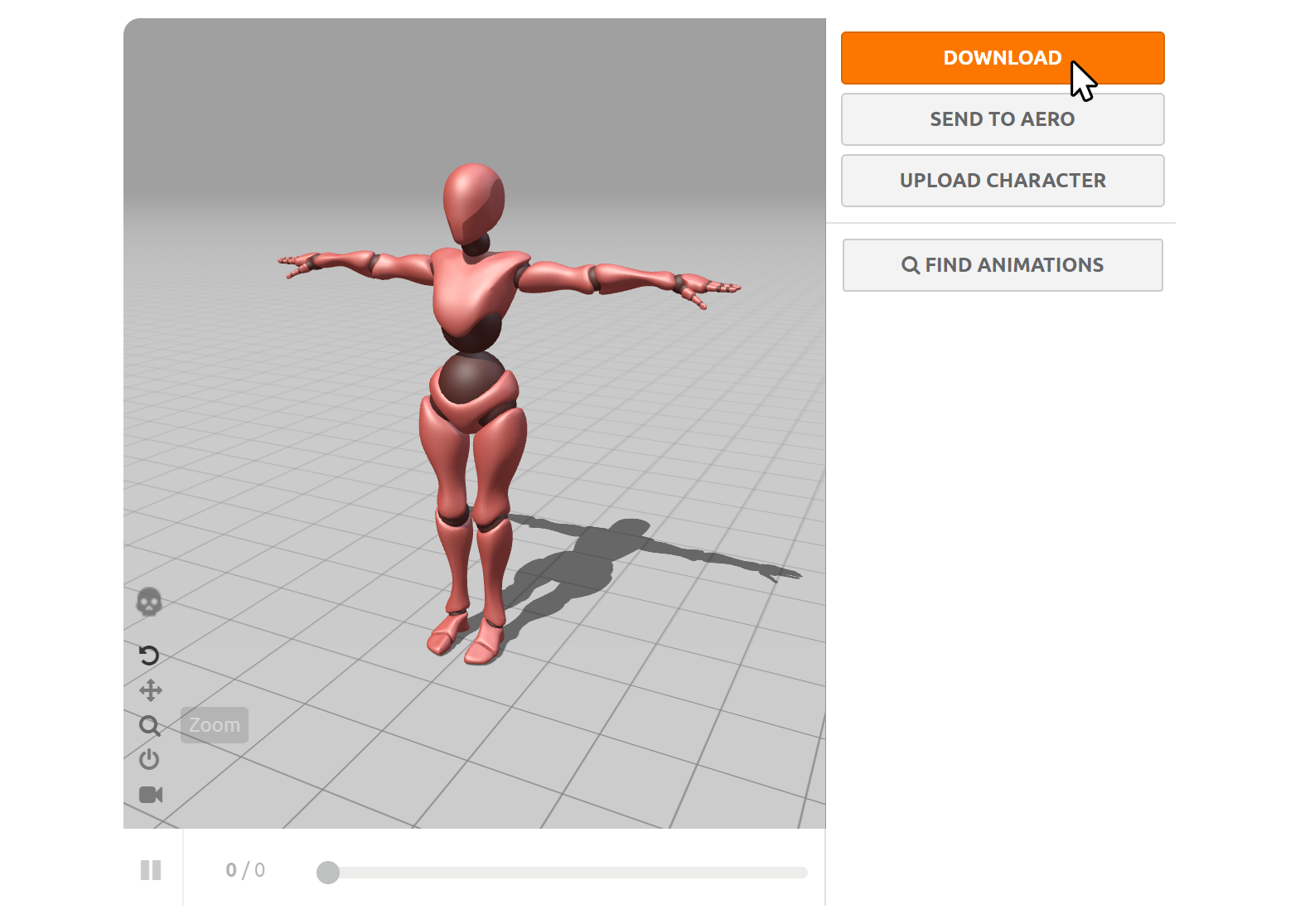
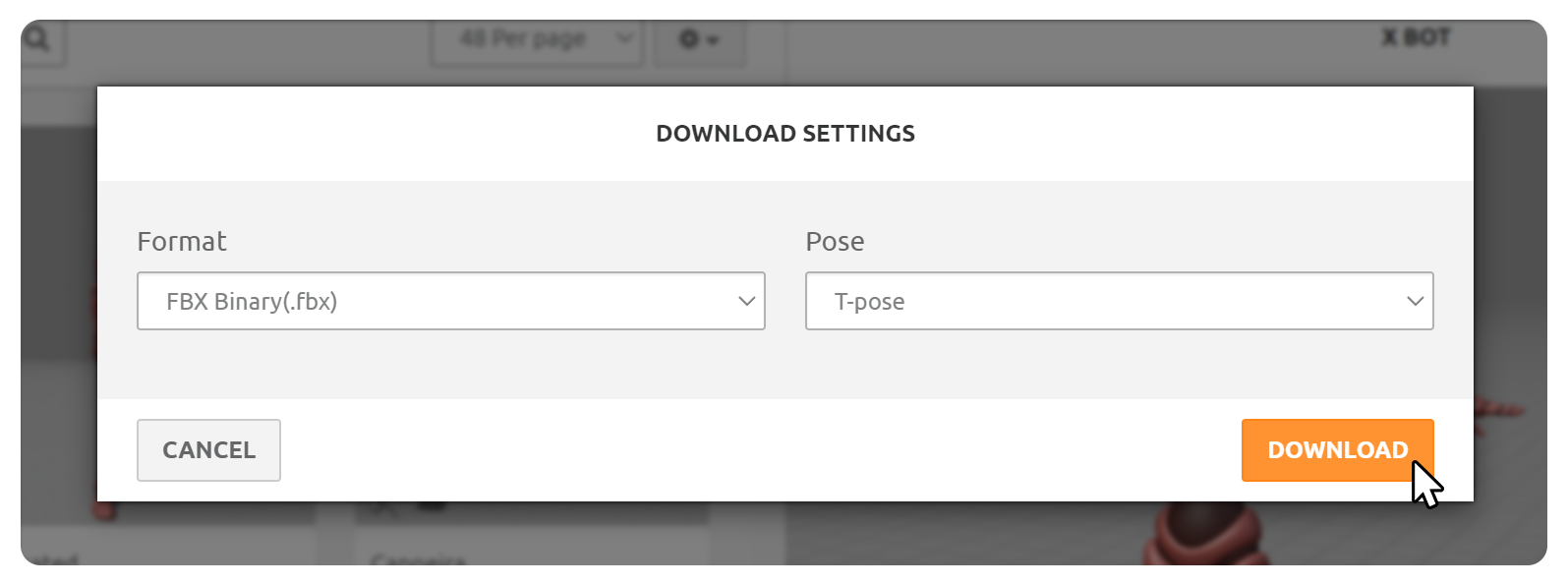
2.Download 버튼을 누른 후, 다운로드 옵션 화면에서 다시 Download 버튼을 눌러 애니메이션 파일을 다운로드합니다.
3.다운로드한 fbx 파일을 유니티 프로젝트에 임포트합니다.
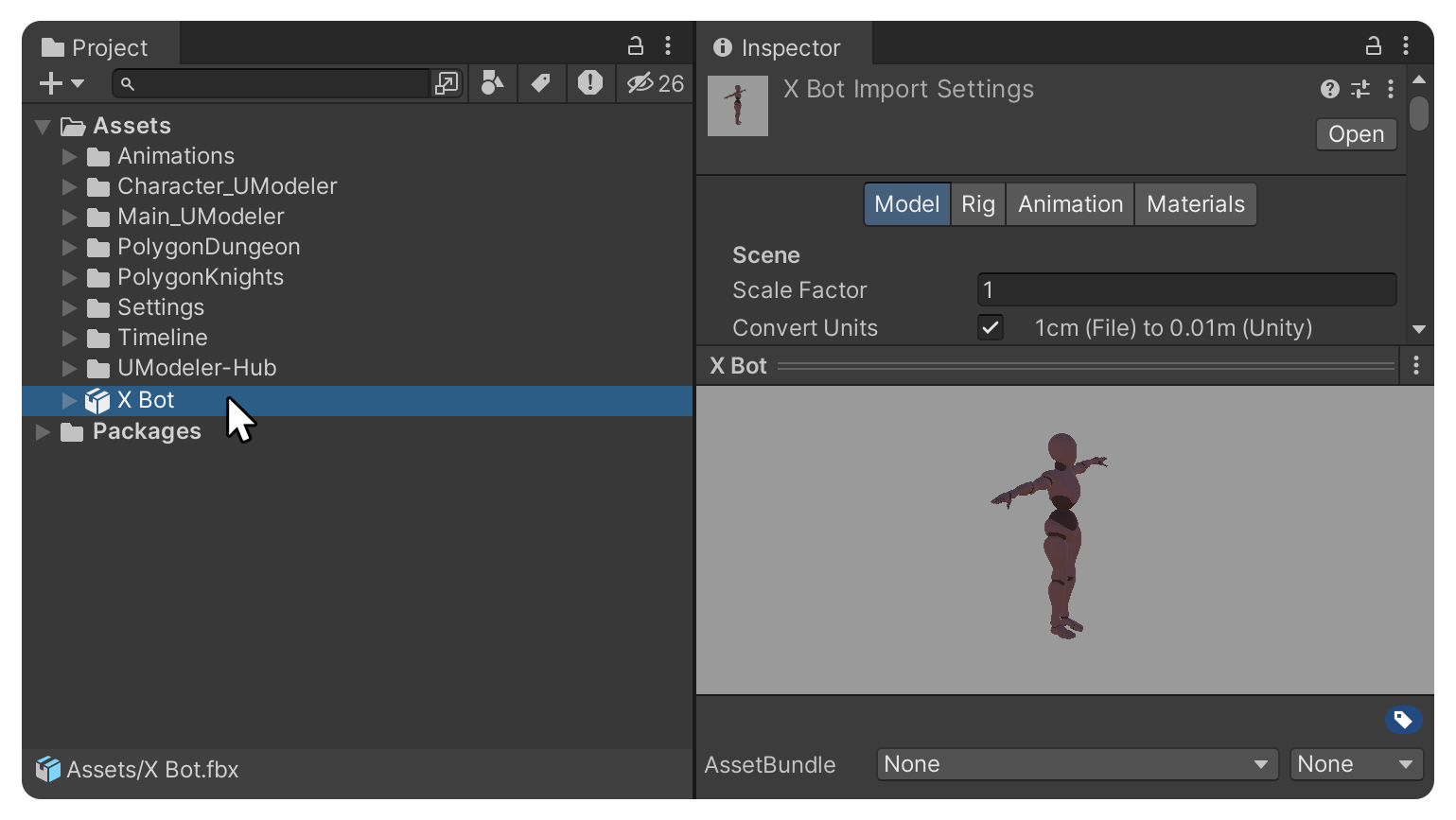
4.씬에 드래그하고, Hierarchy 탭에서 해당 오브젝트의 하위 오브젝트인 'mixamorig:Hips'를 복사하여 분리합니다.
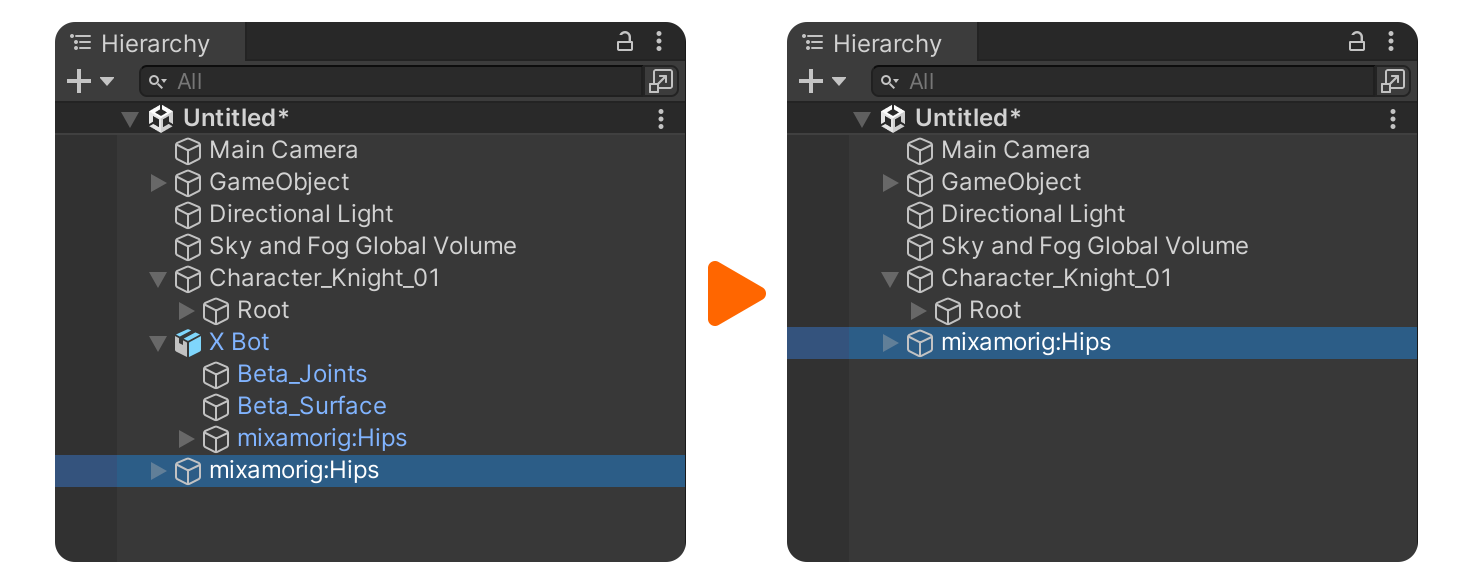
5.mixamorig:Hips 오브젝트를 별도로 분리한 후, 모델 오브젝트는 삭제합니다.
- 이 본 구조를 UModelerize한 Synty 스튜디오 캐릭터 애셋에 적용해야 합니다.
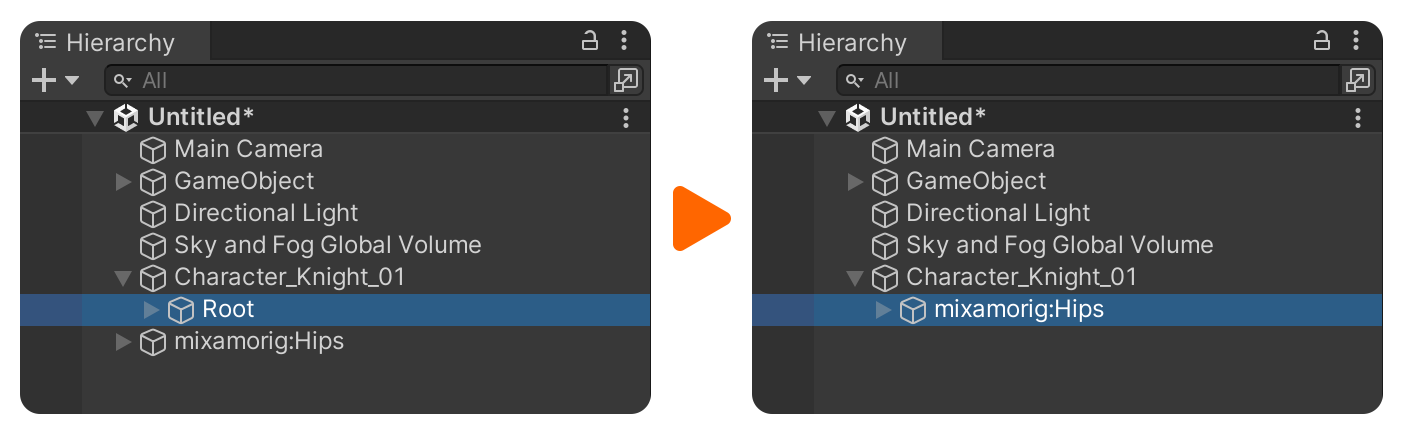
6.UModeler X 오브젝트의 하위 오브젝트로 본들을 등록합니다.
- 기존의 Root 오브젝트들을 삭제하고, mixamorig:Hips 오브젝트를 할당합니다.
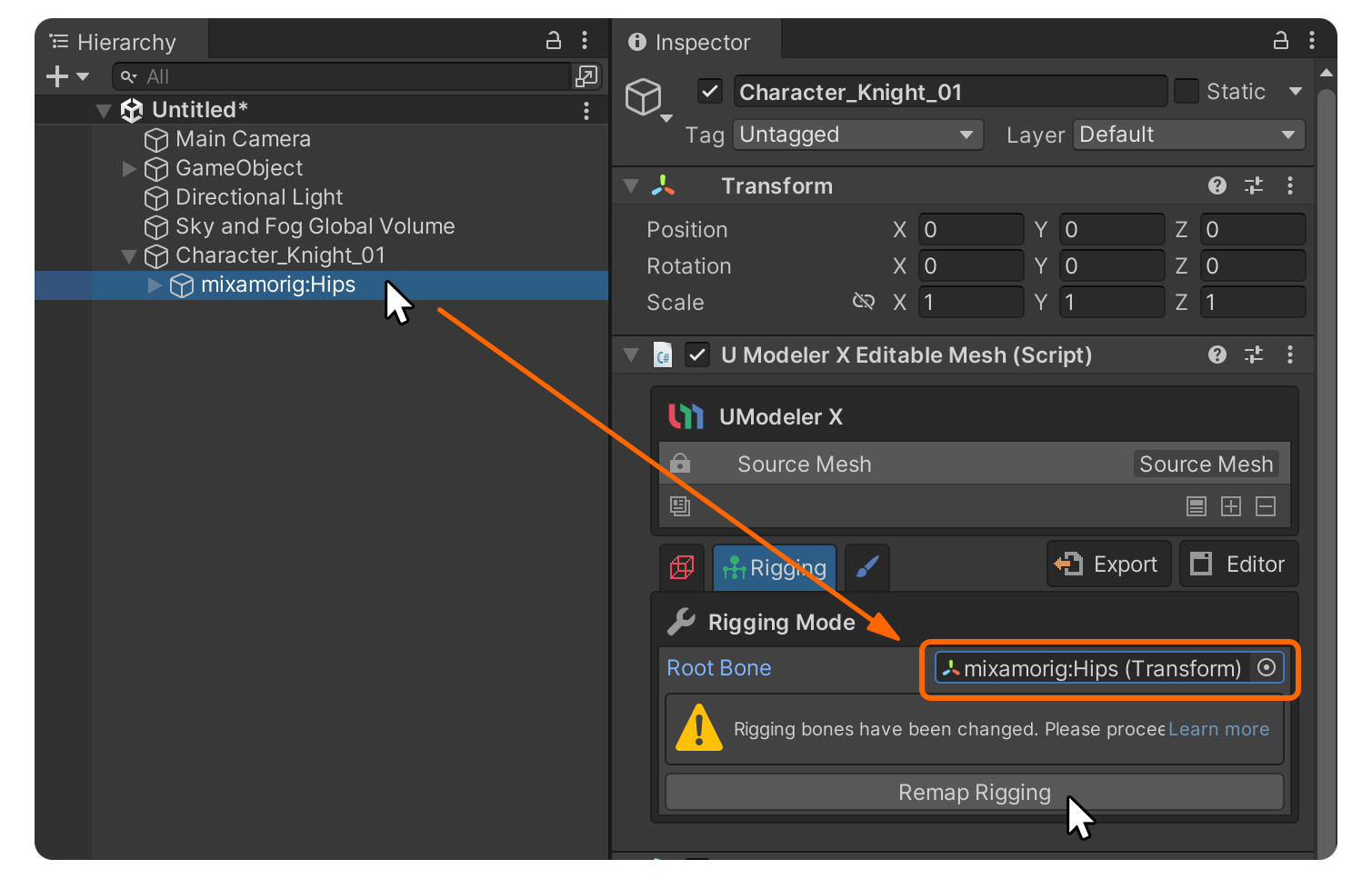
7.리깅 모드에서 Root Bone 슬롯에 mixamorig:Hips 오브젝트를 드래그하여 할당하고, Remap Rigging 버튼을 클릭하여 리깅을 진행합니다.
8.캐릭터에 따라 본의 위치를 조정해야 할 수 있습니다.
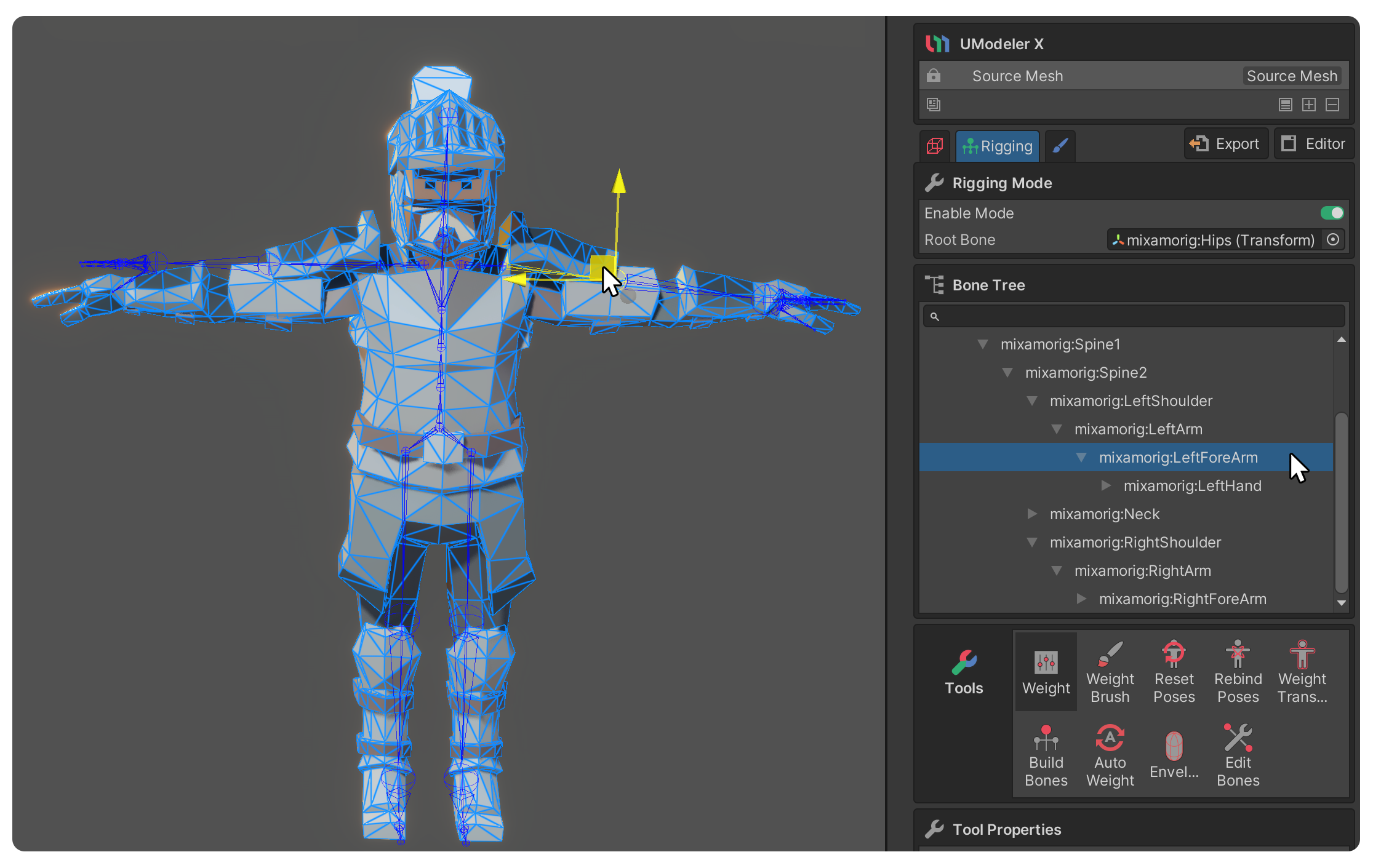
- 본은 리깅 모드의 Bone Tree 영역에서 선택하거나,
- Enable Clicking On Bones 속성이 활성화된 상태에서 씬에 있는 본을 Shift+클릭하여 직접 선택할 수 있습니다.
9.본과 폴리곤의 버텍스를 연결하는 스키닝 과정을 진행합니다.
- 본의 위치를 캐릭터의 형태에 맞게 수정했음에도 불구하고, 실제 버텍스와 본이 서로 연결되지 않은 상태입니다. 이 경우, 본이 움직여도 실제 버텍스가 따라가지 않으며, 이를 해결하기 위해 스키닝이라는 과정을 거쳐야 합니다.
- 스키닝은 본과 표면의 버텍스를 서로 연결하여, 본을 움직일 때 폴리곤이 함께 움직이게 하는 과정입니다. 간단하게 Auto Weight 툴을 사용할 수도 있고, 스키닝 관련 다른 툴을 사용할 수도 있습니다.
스키닝 관련 툴
- 웨이트 편집 툴을 이용하면 이 과정을 수행할 수 있습니다. 웨이트를 편집할 수 있는 툴은 아래와 같습니다.
Weight 툴
Weight Brush 툴
- 웨이트를 자동으로 할당하거나 빠르고 편하게 할당할 수 있는 툴은 아래와 같습니다.
Weight Transfer 툴
Auto Weight 툴
Envelope 툴
리깅 모드에 대한 전체적인 가이드 문서는 아래를 참고하세요.
리깅 모드 가이드
4. Mixamo 애니메이션 적용
리깅 모드를 통해 캐릭터의 본 설정과 스키닝 과정이 완료되면, 이제 애니메이션을 적용할 차례입니다.
1.Mixamo 웹사이트에 접속하여 원하는 애니메이션을 선택하고 Download 버튼을 클릭합니다.
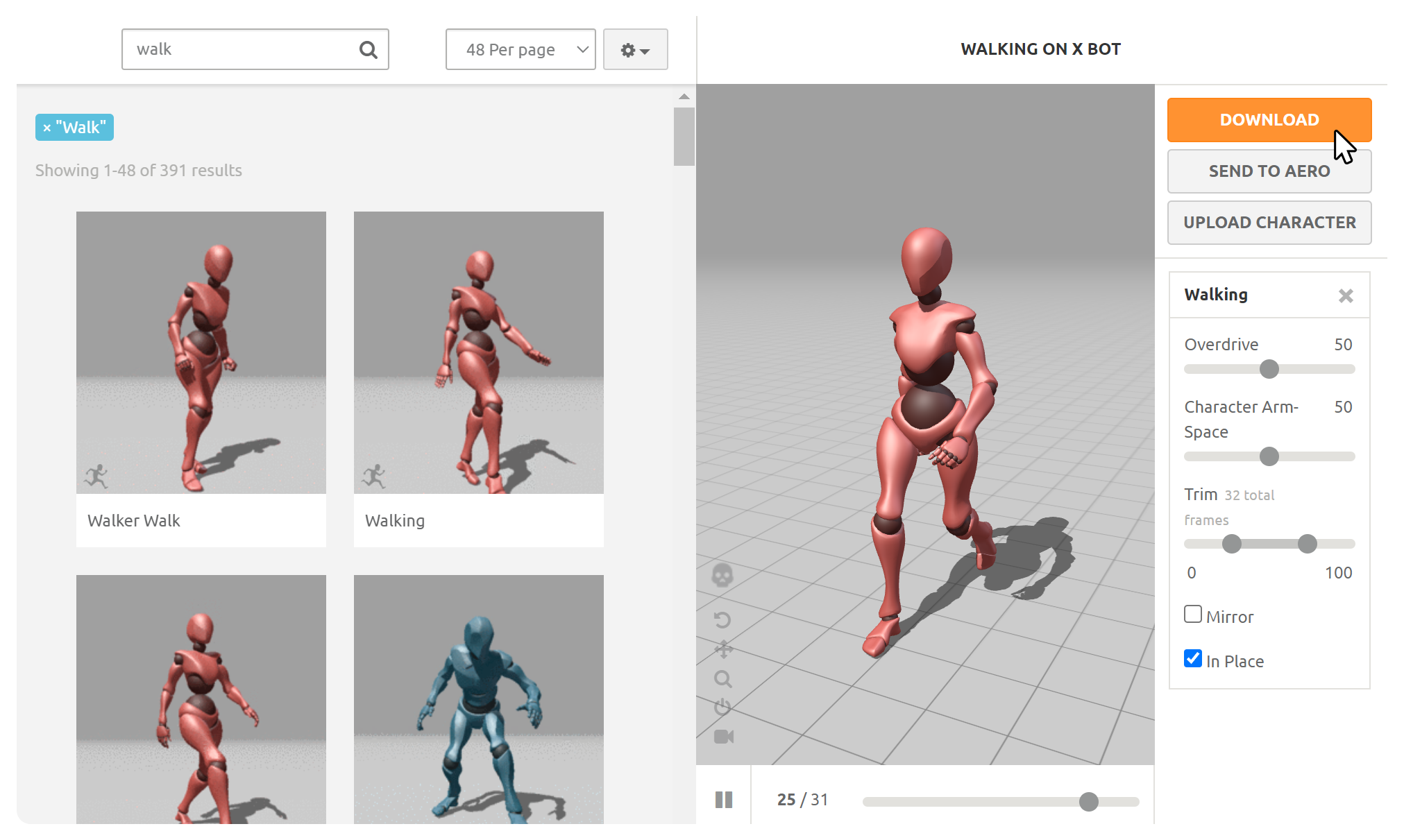
2.Download Settings 창에서 다음과 같은 설정을 조절합니다.
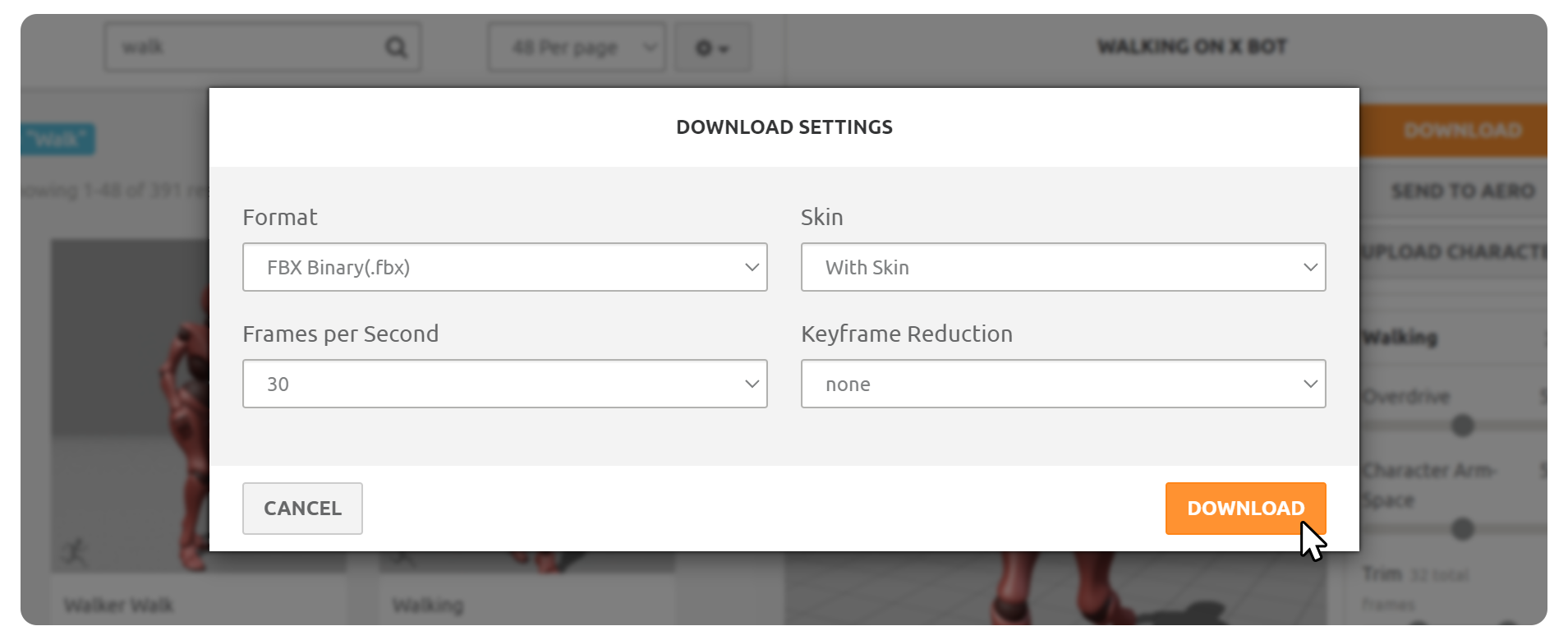
- Format: FBX Binary(.fbx) 형식으로 설정합니다.
- Skin: 'Without Skin'을 선택하여 애니메이션만 가져옵니다.
- UModeler X를 통해 이미 리깅이 완료되었으므로, 모델링은 필요하지 않습니다.
- Frames per Second: 초당 프레임 수를 의미하며, 일반적으로 30으로 설정합니다.
- Keyframe Reduction:
- Mixamo 서비스에서 제공되는 애니메이션들은 모션캡처 데이터로 구성되어 있기 때문에, 각 프레임별로 무수한 애니메이션 키 포인트를 포함하고 있습니다.
- Keyframe Reduction은 애니메이션에 포함된 키 포인트의 수를 줄여주는 기능으로, 데이터를 간소화하여 애니메이션을 더욱 관리하기 쉽게 만들어줍니다.
- 필요에 따라 키 프레임 수를 줄일 수 있으나, 간혹 애니메이션이 뒤틀릴 수 있습니다.
3.설정을 조절한 후 Download 버튼을 눌러 애니메이션 파일을 다운로드하고, 유니티 프로젝트로 임포트합니다.
4.캐릭터를 선택하고, Inspector 탭에서 Animation 컴포넌트를 추가합니다.
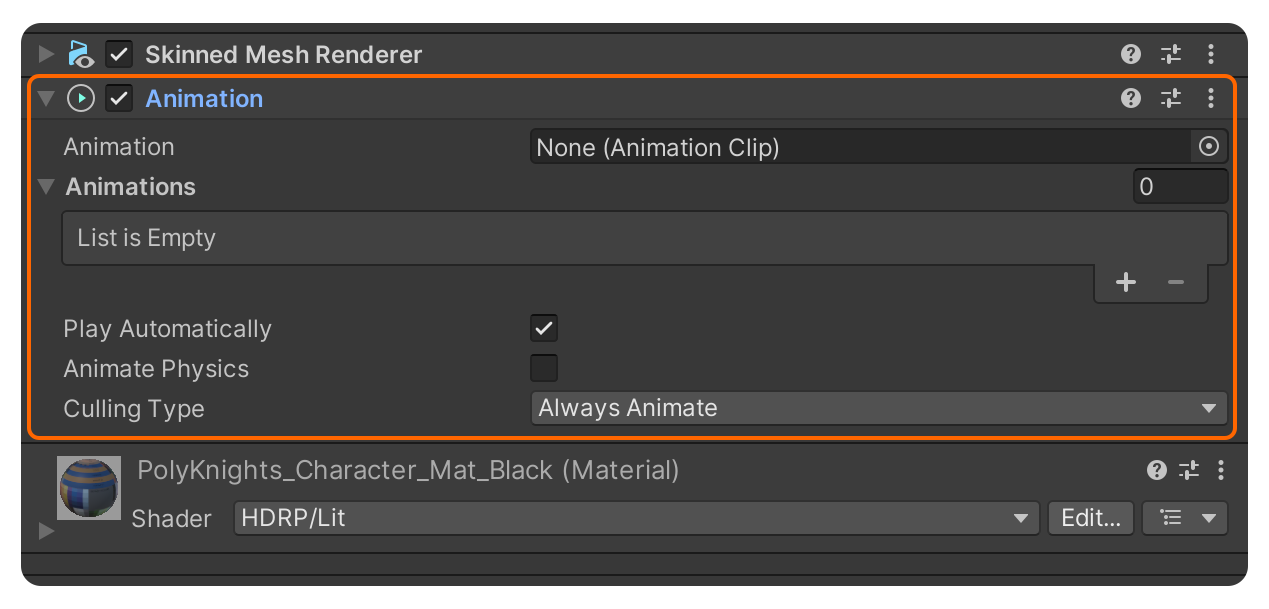
5.다운로드하여 임포트한 애니메이션 파일을 Animation 컴포넌트에 클릭드래그합니다.
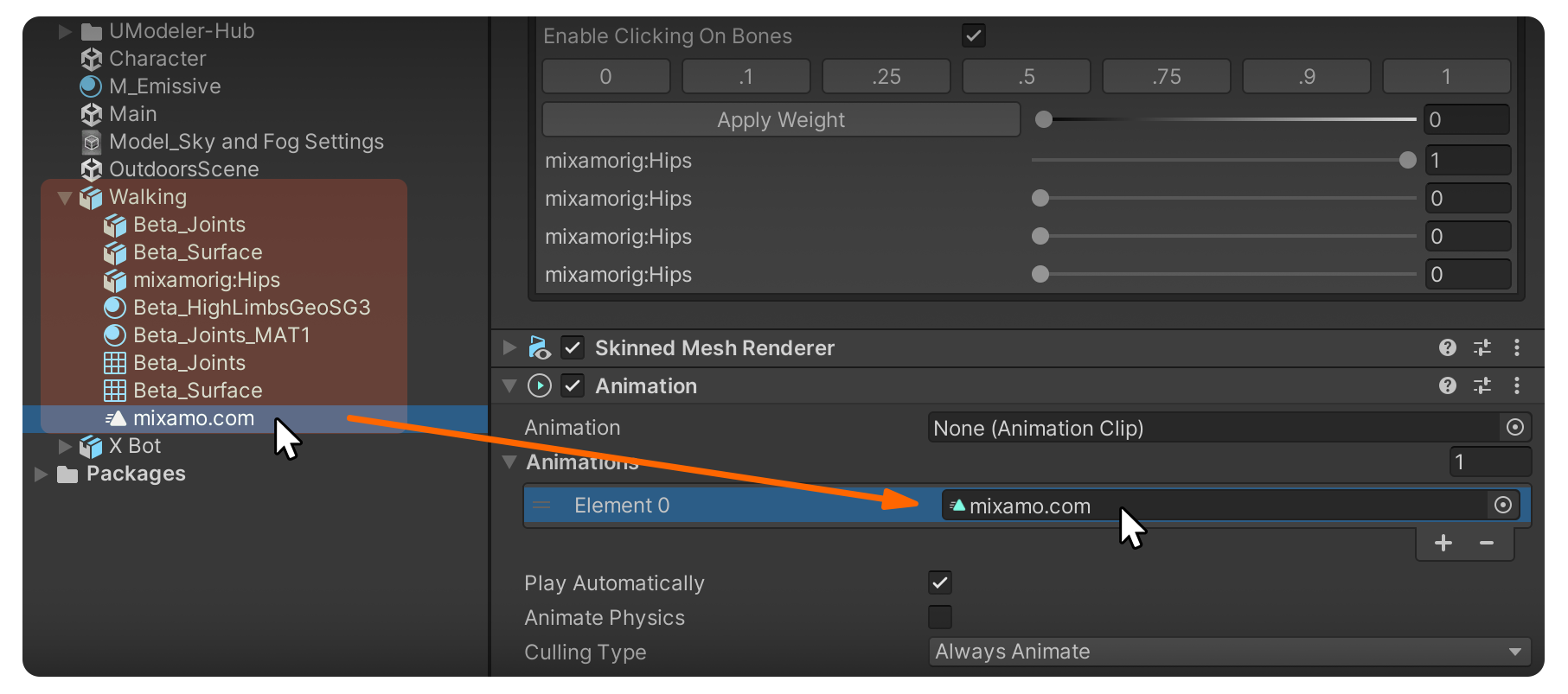
- 애니메이션 파일은 임포트 한 FBX의 하위에 'mixamo.com' 이라는 이름으로 생성되어 있습니다.
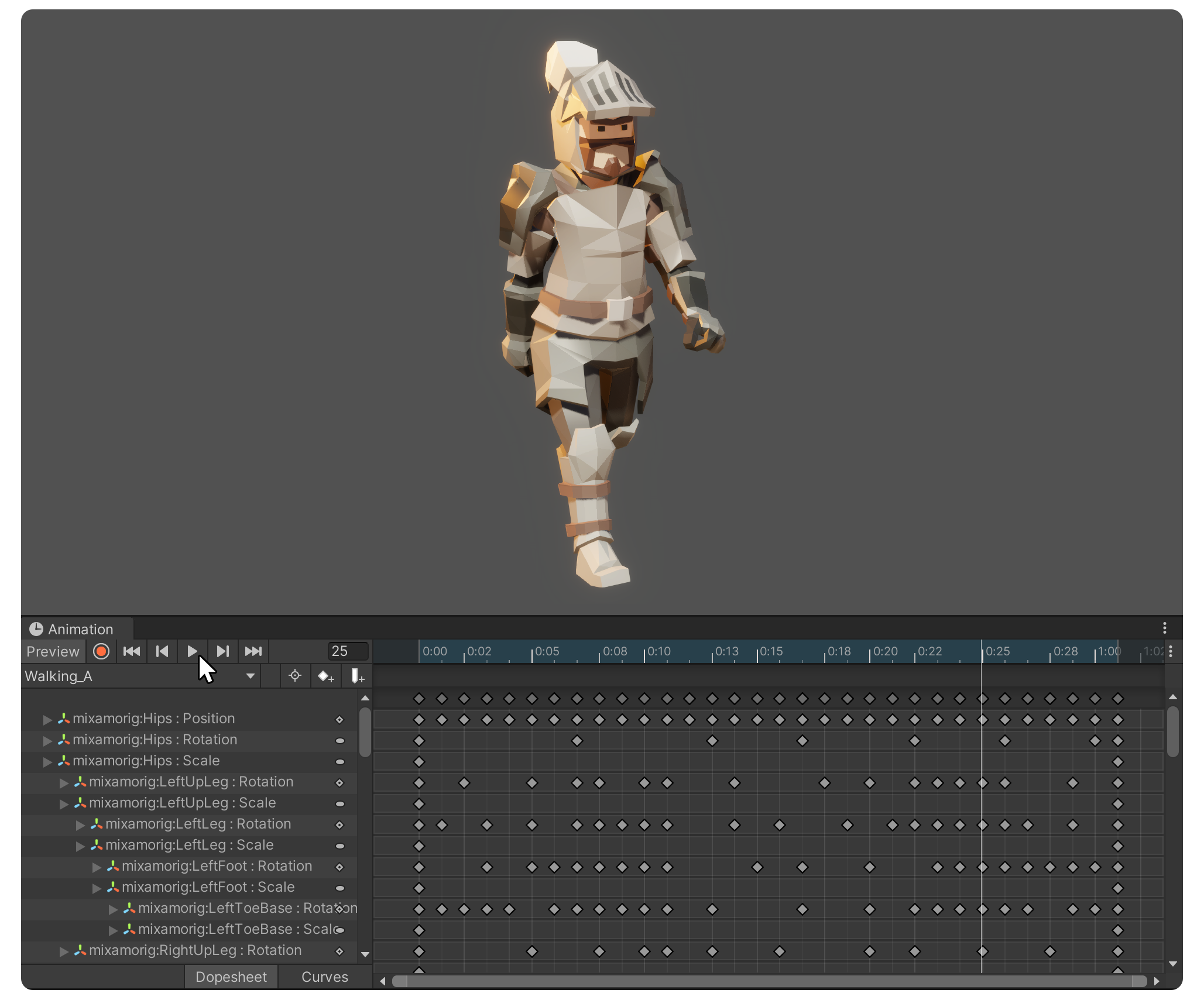
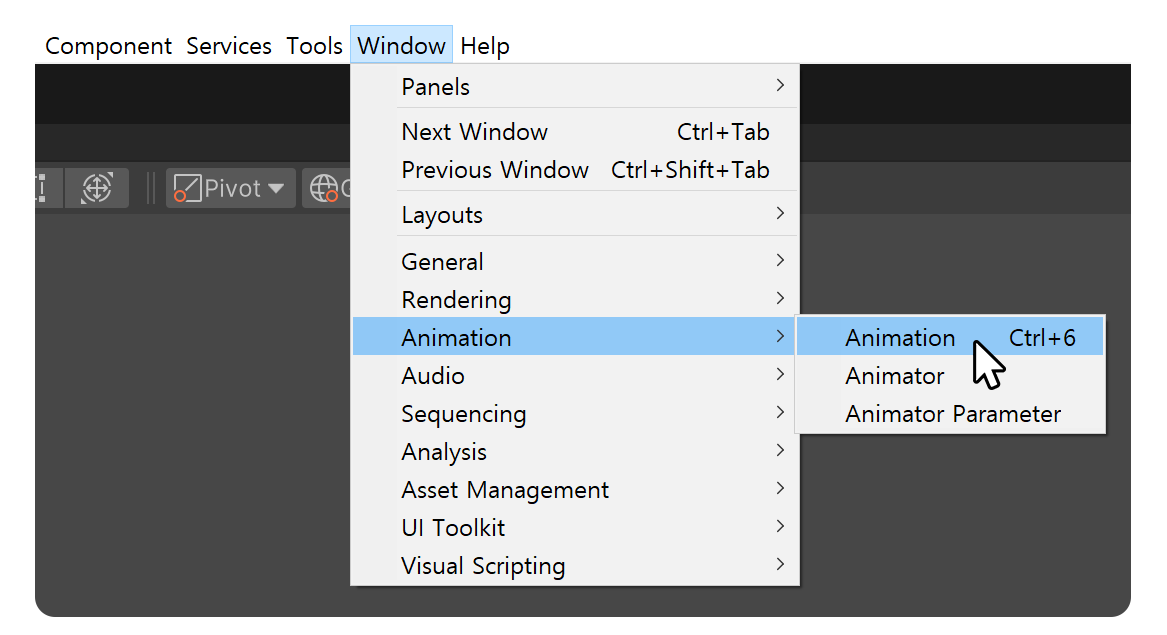
6.Window > Animation > Animation을 클릭하거나, Ctrl+6을 눌러 Animation 창을 엽니다.
7.Animation 창에 있는 재생 버튼을 누르면 애니메이션이 재생됩니다.