
단축키
UModeler X의 단축키는 Unity의 Shortcut Manager에서 설정할 수 있습니다.
UMX 단축키 1.1.33 |
UMX에서 사용하던 모든 단축키 설정은 Preference > UModeler X > Shortcuts 아래에서 동작하도록 변경되었습니다.
기존 Unity Shortcut UMX 프로필에 설정된 단축키는 그대로 유지됩니다.
툴 선택 및 액션 실행을 위한 단축키를 설정할 수 있습니다.
내부 툴 기능, 속성 설정, 단축키 프리셋 추가는 향후 지원될 예정입니다.
이전 버전:
UModeler X의 단축키는 Unity의 Shortcut Manager에서 설정할 수 있습니다. (Shortcut Manager)
Unity에서는 기본 프로필이 일반적인 용도로 단축키를 등록해 두지만, UModeler X 오브젝트가 선택되면 별도의 단축키 프로필을 사용합니다.
UModeler X를 프로젝트에 설치하면 두 가지 프로필이 생성됩니다:
- UMX-EdMesh-Edit : Edit Mode용 단축키 프로필.
- UMX-EdMesh-Obj : Object Mode용 단축키 프로필.
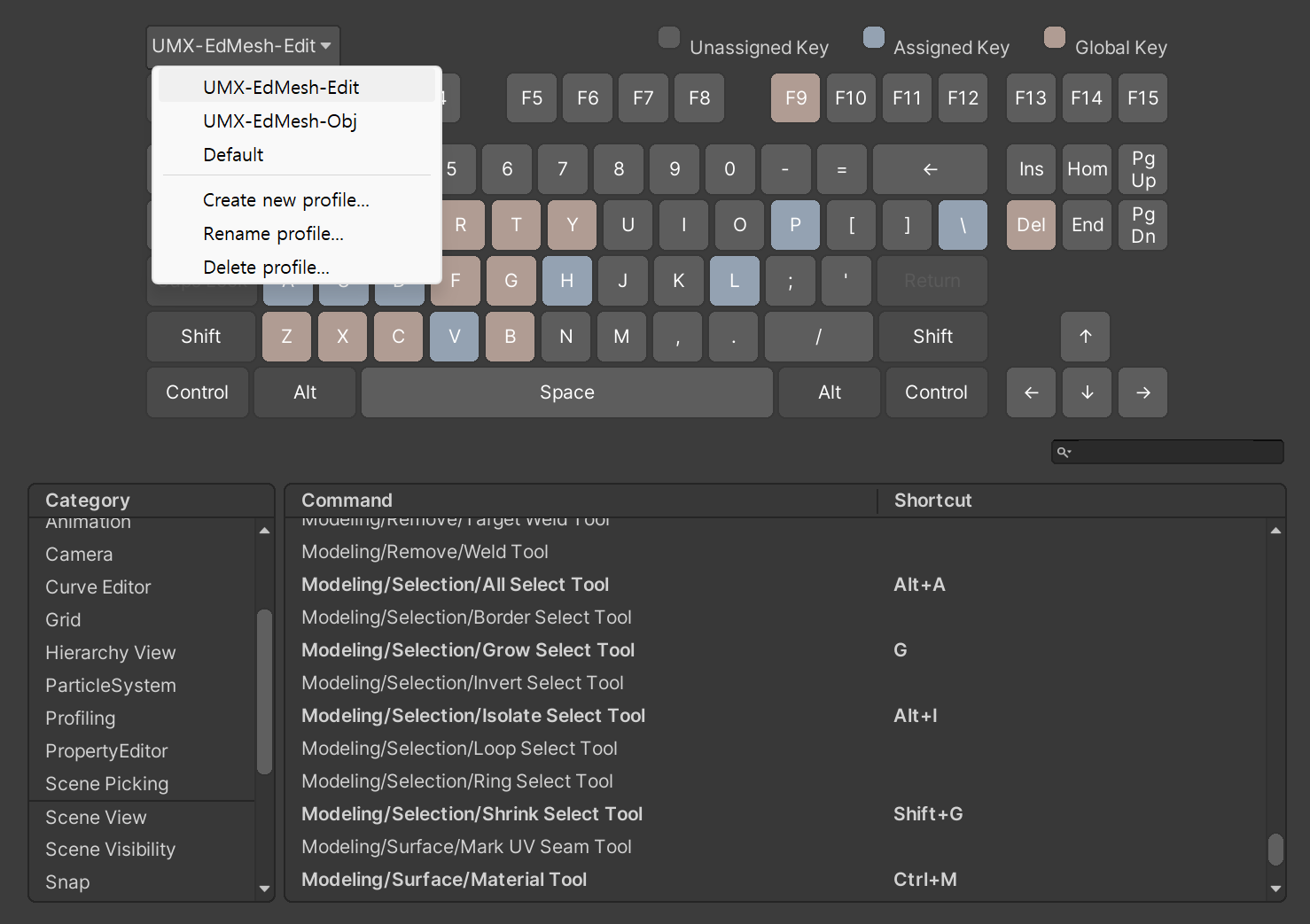
UModeler X는 Edit Mode 또는 Object Mode 상태에 따라 두 프로필을 자동으로 전환합니다. UModeler X 오브젝트가 선택되면 두 프로필 중 하나로 자동 변경됩니다.
사용자는 UMX-EdMesh-Edit 또는 UMX-EdMesh-Obj 프로필에서 단축키를 추가하거나 변경하여 추가 커스터마이즈할 수 있습니다. 한 프로필에서 변경한 내용은 다른 프로필에도 반영되므로 중복 할당이 필요 없습니다.
이러한 이중 프로필 시스템이 존재하는 이유는, 동일한 단축키가 모드에 따라 UModeler X 또는 Unity의 서로 다른 기능을 실행할 수 있기 때문입니다. 예를 들어, Duplicate 기능에 할당된 Ctrl+D 단축키는 Edit Mode와 Object Mode에서 다르게 동작합니다. Edit Mode에서는 선택된 버텍스/엣지/페이스를 복제하고, Object Mode에서는 Unity의 표준 복제 기능을 수행합니다.
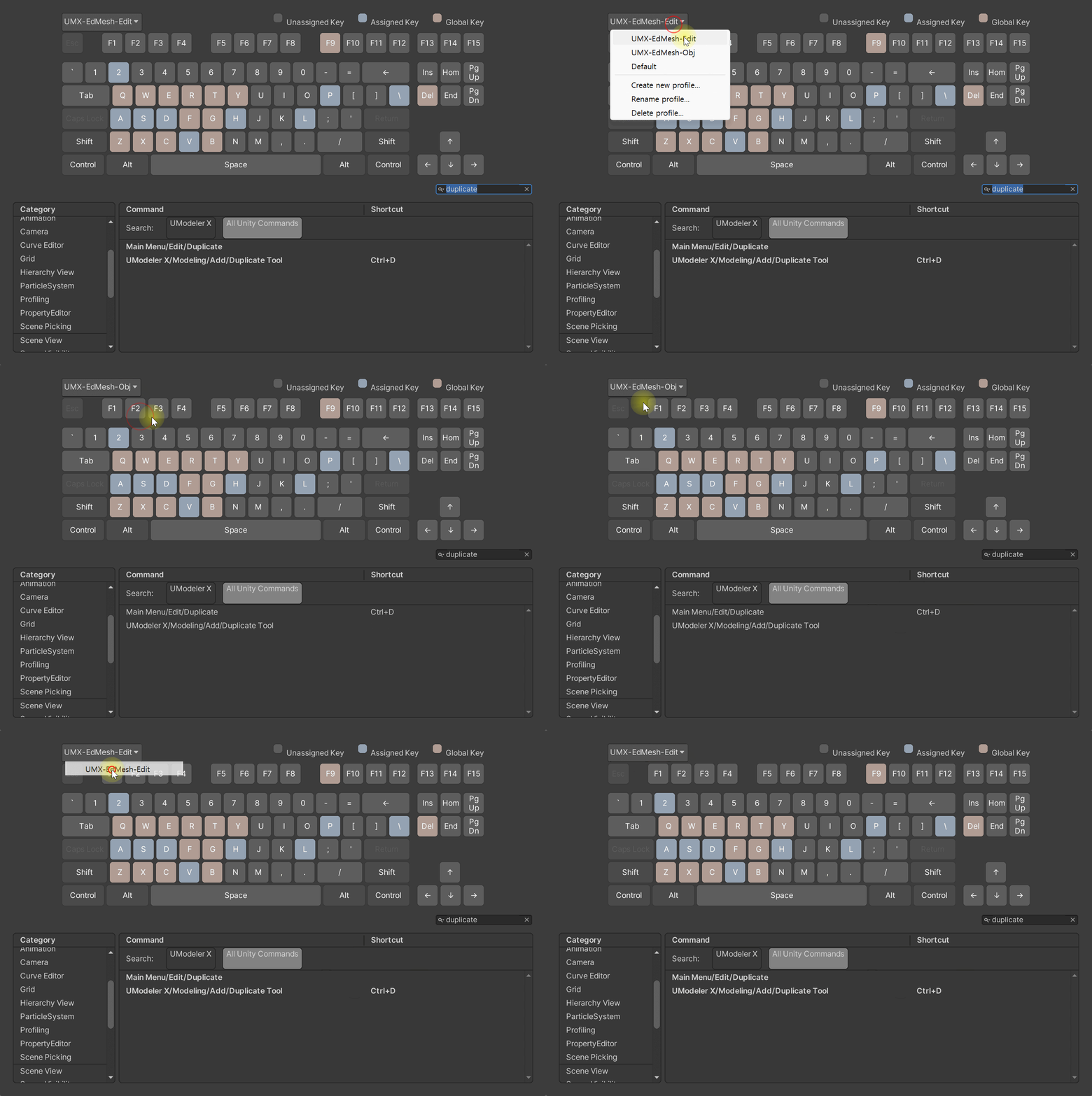
Unity에서는 Delete 키(Del)가 이미 오브젝트 삭제를 위해 코드에 등록되어 있습니다. 그래서 UModeler X의 버텍스/엣지/페이스 삭제 툴(Eraser)도 기본적으로 Del 키로 호출할 수 있습니다. Eraser 툴에 다른 키 조합을 사용하고 싶다면 단축키 매니저에서 설정할 수 있습니다.
씬 뷰 기본 단축키
UModeler X 오브젝트를 편집하는 동안 씬 뷰에서 동작합니다. 모두 Preferences > UModeler X > Shortcuts 에서 다시 지정할 수 있습니다.
| 단축키 (Windows) | 단축키 (Mac) | 동작 |
|---|---|---|
Alt + Z | Option + Z | 엘리먼트 오버레이 순환: 없음 → 버텍스 → 엣지 → 버텍스와 엣지 |
Alt + V / Alt + X | Option + V / Option + X | 다음 / 이전 표시 모드 (Default → X-Ray → Checkered → Ruler) |
Shift + Z | Shift + Z | 뒷면 선택 켜기/끄기 |
F | F | 선택 영역으로 카메라 포커스 |
; | ; | Repeat 툴 — 마지막으로 실행한 원클릭 모델링 작업 반복 |
Alt + N | Option + N | UMX Object 생성 |
특정 툴을 쓰는 동안에만 동작하는 단축키:
| 단축키 (Windows) | 단축키 (Mac) | 툴 | 동작 |
|---|---|---|---|
Shift + S | Shift + S | 엘리먼트 툴 | 스냅 회전 켜기/끄기 |
Shift + E | Shift + E | Face 툴 | 다음 돌출(Extrude) 모드로 전환 |
Shift + A | Shift + A | 쉐이프 툴 | Create Shape as a New Object 켜기/끄기 |
Painting 2D / 3D 주요 단축키
| 단축키 (Windows) | 단축키 (Mac) | 동작 |
|---|---|---|
V | V | Painting 2D — Move Tool |
Ctrl + T | Cmd + T | Painting 2D — Free Transform Tool |
G | G | Painting 3D — Gradient Tool |
Ctrl + J | Cmd + J | Painting 2D — 활성 선택 영역을 새 레이어로 복사 |
Shift + X | Shift + X | Painting 2D — 브러시 Opacity 반전 (100 − 현재값) |
Shift + Alt + 우클릭 | Shift + Option + 우클릭 | Painting 3D — 빠른 색상 팔레트 HUD |
방향키 / Shift + 방향키 | 동일 | 선택 영역 / Free Transform — 1px / 10px 이동 (Grid Snap ON 시 그리드 간격) |
Ctrl + 방향키 | Cmd + 방향키 | Free Transform — 중심 기준 quad-local 스케일 |
Page Up / Page Down | 동일 | Free Transform — 회전 중심 반경 조정 |
Alt (팔레트 밖 0.5초 홀드) | Option | Quick Color Palette — 스포이드 모드 진입 |
단축키 충돌 안내
Preferences → Shortcuts 에서 같은 키를 여러 기능에 할당하면 Shortcut Conflict 경고가 표시됩니다. 충돌이 해결되기 전까지 해당 단축키는 의도한 대로 동작하지 않을 수 있습니다.