
Rect Selection Tool
Translation in progress — showing the English version.
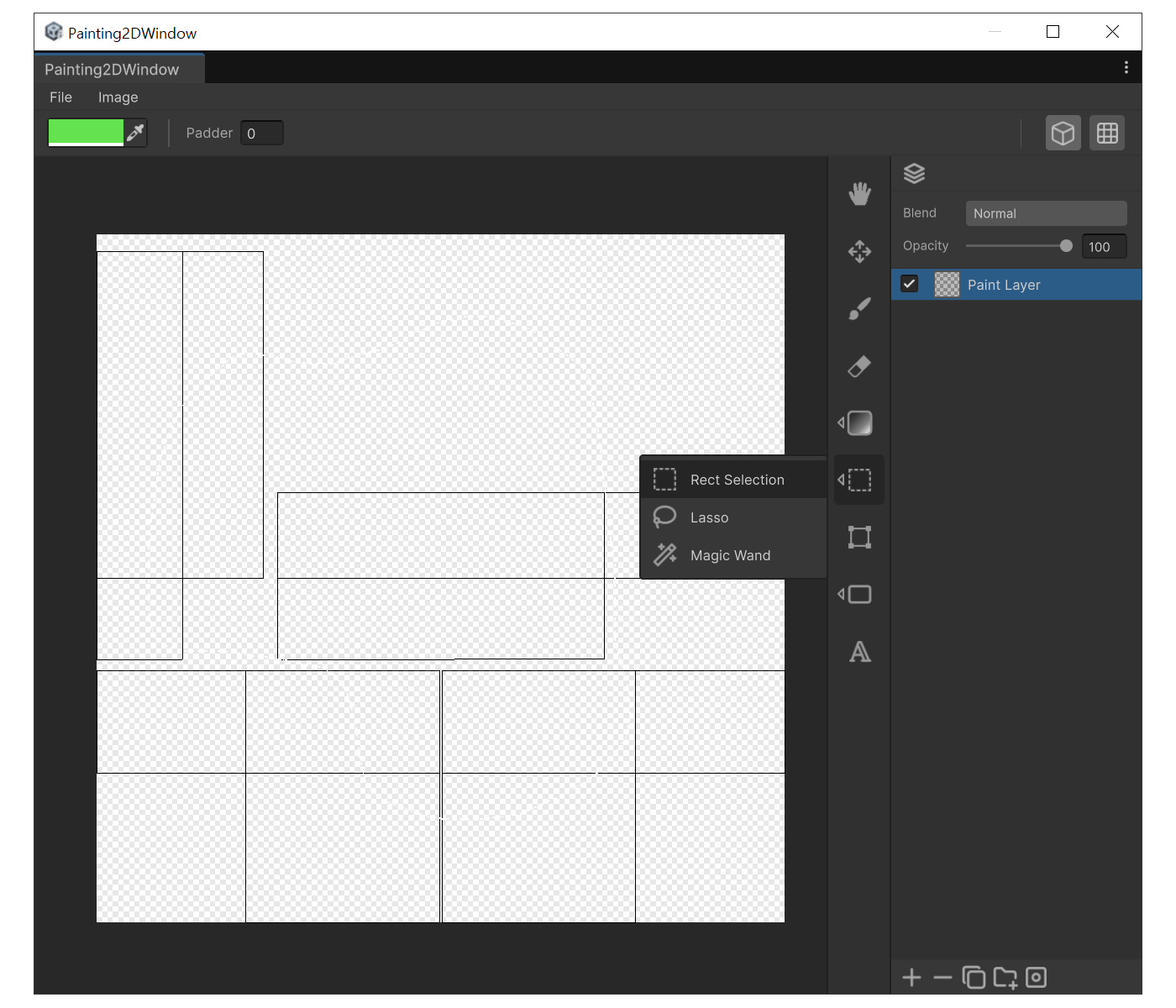
When to use
- To isolate a rectangular region for editing, copying, or moving
- To crop an area before compositing
Selection Operation
- New Selection : drag
- Add : Shift + drag
- Subtract : Ctrl + drag
Edit Shortcuts
- Select All : Ctrl + A
- Deselect : Ctrl + D
- Invert Selection : Ctrl + I
- Delete selected pixels : Delete
- Copy : Ctrl + C
- Cut : Ctrl + X
- Paste : Ctrl + V
How to use
- Press 'M' to switch to Rect Selection.
- Drag to define the rectangle.
- Hold 'Ctrl' to switch into Move mode and drag the inner pixels, or press 'Ctrl+C' -> 'Ctrl+V' to duplicate.
Example
Move Selection with Arrow Keys
After making a selection you can move it with the arrow keys.
| Shortcut | Behavior |
|---|---|
| Arrow keys | Move 1px |
Shift + arrow keys | Move 10px |
| (Grid Snap ON) arrow keys | Move by grid spacing |
Consecutive presses are merged into a single Undo step.