
Color Tool
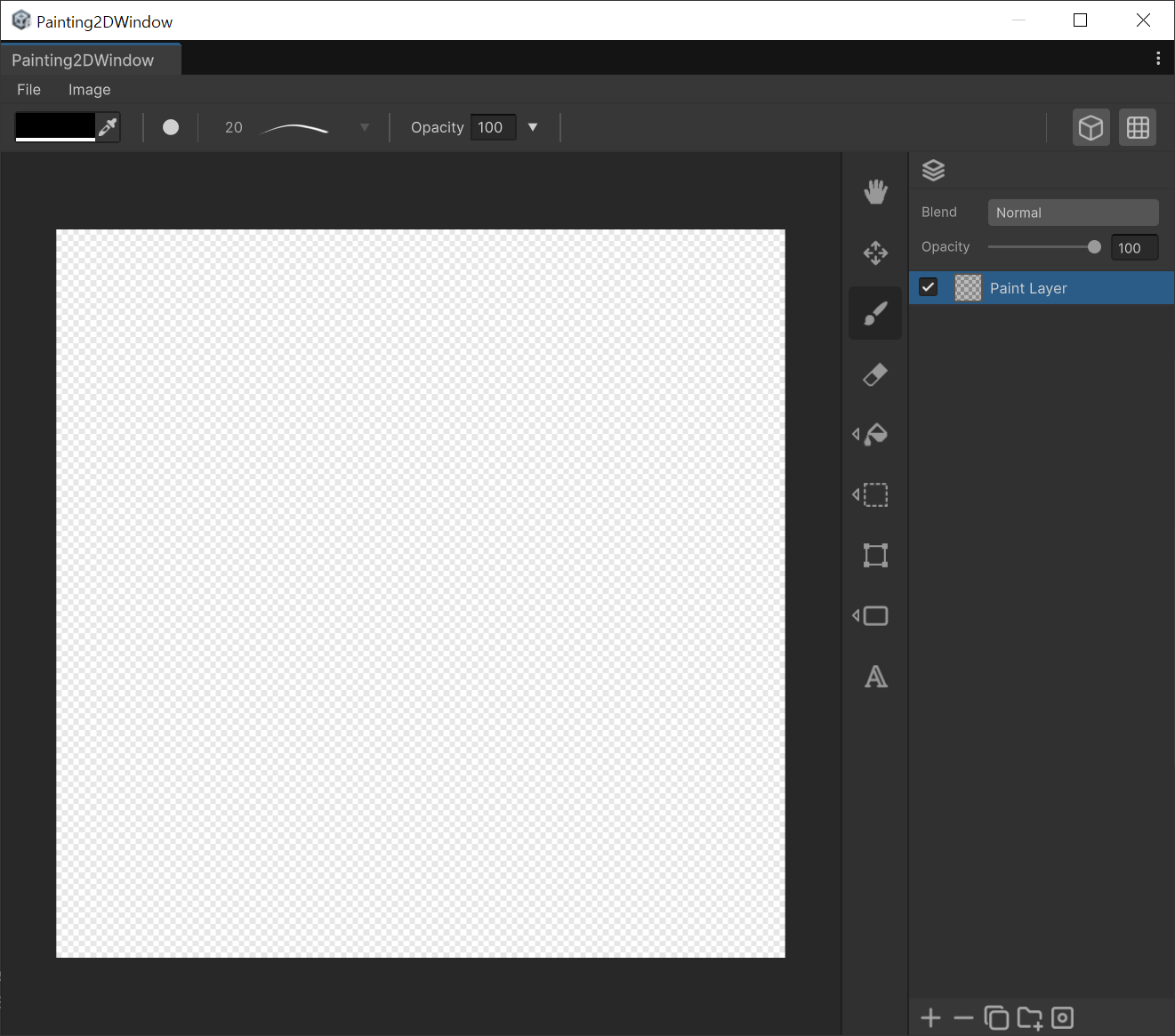
Set the active color for every 2D painting tool in UModeler X: pick from the color UI, save and remove palette colors, and sample from the canvas with the eyedropper (Alt + Click).
Translation in progress — showing the English version.
When to use
- Setting Colors : The Color UI at the top left applies to the colors used by all tools.
How to use
- Select Color : Click the color UI to view current color information and select your desired color.
- Manage Palette : You can also save or remove specific colors.
- Eye Dropper : Activate the EyeDropper to the right of the color UI to pick a color by clicking on the canvas. Also, use Alt + Click to quickly pick a color.