
Troubleshooting
Solutions to common UModeler X issues — installation, the Unity editor, performance, meshes, and AI credits.
Solutions to common issues you may run into while using UModeler X. If your problem isn't listed here, check the FAQ or contact support.
Installation
The UModeler X toolbar doesn't appear in the Scene view after installing
- Make sure the package finished importing in Window > Package Manager.
- Confirm you're on Unity 2022.3 or later — older versions aren't supported.
- If the toolbar is still missing, restart the Unity editor and reopen the project.
See the Installation Guide for the full walkthrough.
Import fails or the package won't import
Re-download the package and import it again through Window > Package Manager. Make sure your Unity version is 2022.3 or later.
Migrating from a hub-installed version (Cleaner)
If you previously installed UModeler X through the UModeler Hub and are switching to the new hub-less Asset Store version, leftover packages and hub files can cause errors. The Cleaner (also called the migrator) walks you through cleaning up the old packages, removing the hub, and installing the new version — step by step.
Quick cleanup with the Cleaner (recommended)
- Import the Cleaner package. Download the
.unitypackagefrom the button below, then drag it into your Unity project — or double-click it — to import. Keep every file selected in the import dialog. - Follow the cleanup wizard. The Cleaner window opens automatically with a four-step checklist:
- Switch to an empty scene.
- Auto-clean leftover Package Manager residue.
- Guide you through removing the hub folder.
- Re-import the new package.
⬇️ Download the Cleaner package
If the Cleaner doesn't work — manual cleanup
- Switch to an empty scene first.
- Remove the UModeler X package — uninstall it from the hub, remove it in Window > Package Manager, or delete its folder directly.
- Delete the hub from your Assets folder.
- Open
Packages/manifest.jsonand remove the UModeler X entry:"com.tripolygon.umodeler.x": "file:com.tripolygon.umodeler.x/com.tripolygon.umodeler.x.tgz" - Install the new version. Import the new
.unitypackageand you are done.
Editor & Performance
The viewport feels slow while editing
Meshes with a very high vertex count reduce viewport responsiveness. Try:
- Hiding objects you aren't actively editing.
- Working on a lower-poly base mesh and adding detail later.
- Applying modifiers only when you need them — the modifier system is non-destructive, so heavy stacks can be toggled off while you work.
A tool or mode isn't available on my object
UModeler X tools operate on a UModeler X mesh. If you're working with a regular imported mesh, convert it first with UModelerize. See Mesh Data Conversion and Mesh Ops.
I can't find the snap ("Use Snap Rotation") or display options in the Vertex / Edge / Face element group
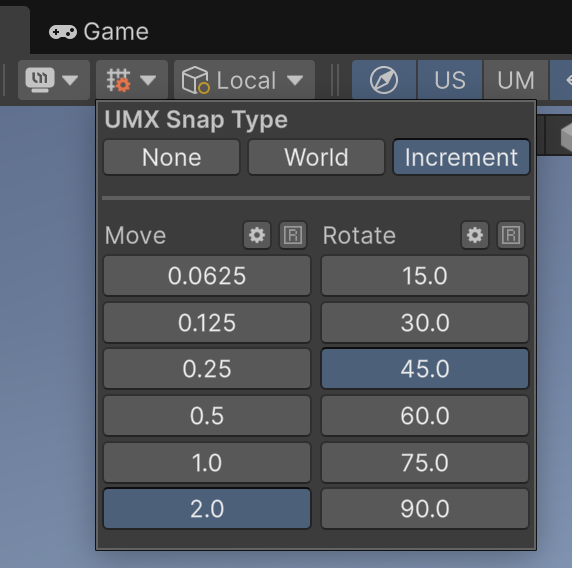
Snap settings are no longer in the Vertex / Edge / Face element inspector. They moved to the Scene view toolbar at the top.
You set the snap rotation angle from the UMX Snap Type dropdown on the toolbar. Choose Increment, then pick the rotation snap angle (15 / 30 / 45 / 60 / 75 / 90 degrees) in the Rotate column, and the move snap step in the Move column.
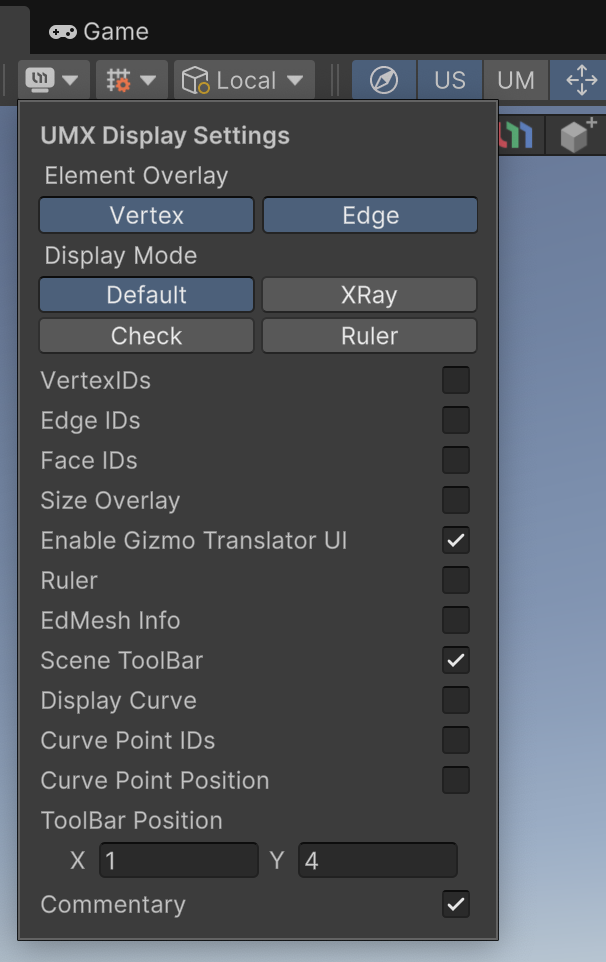
The display (view) options moved to the toolbar the same way, under the UMX Display Settings dropdown. From there you can toggle the element overlay (Vertex/Edge), display mode (Default / XRay / Check / Ruler), vertex/edge/face IDs, the ruler, the scene toolbar, and more.
PicoBerry AI
I've run out of AI credits
PicoBerry AI includes a free monthly credit allocation. If you need more, you can purchase additional credits or upgrade to a paid plan. See PicoBerry AI.