AI Agent Scene Building in Unity —
Describe it, then finish it yourself
Connect an agent like Claude Code or Codex to your Unity project through MCP, describe the scene you want, and UModeler X builds it in the scene you have open. The blockout isn't a frozen mesh: every shape the agent builds stays parametric, so you can keep adjusting it by hand.
How does an AI agent build a Unity scene with UModeler X?
Install UModeler X 1.4.1 and one of the supported MCP packages in your Unity project, connect an MCP client such as Claude Code or Codex to the Editor, and add the AI Agent Skill if you use one of those two. Then describe the scene in text or with a reference image. The agent writes it in UModeler X's scene script, a compact DSL, and sends a whole group of shapes in a single tool call, so a large blockout doesn't cost one call per object. The shapes it builds stay parametric, so you can keep editing them in the Inspector.
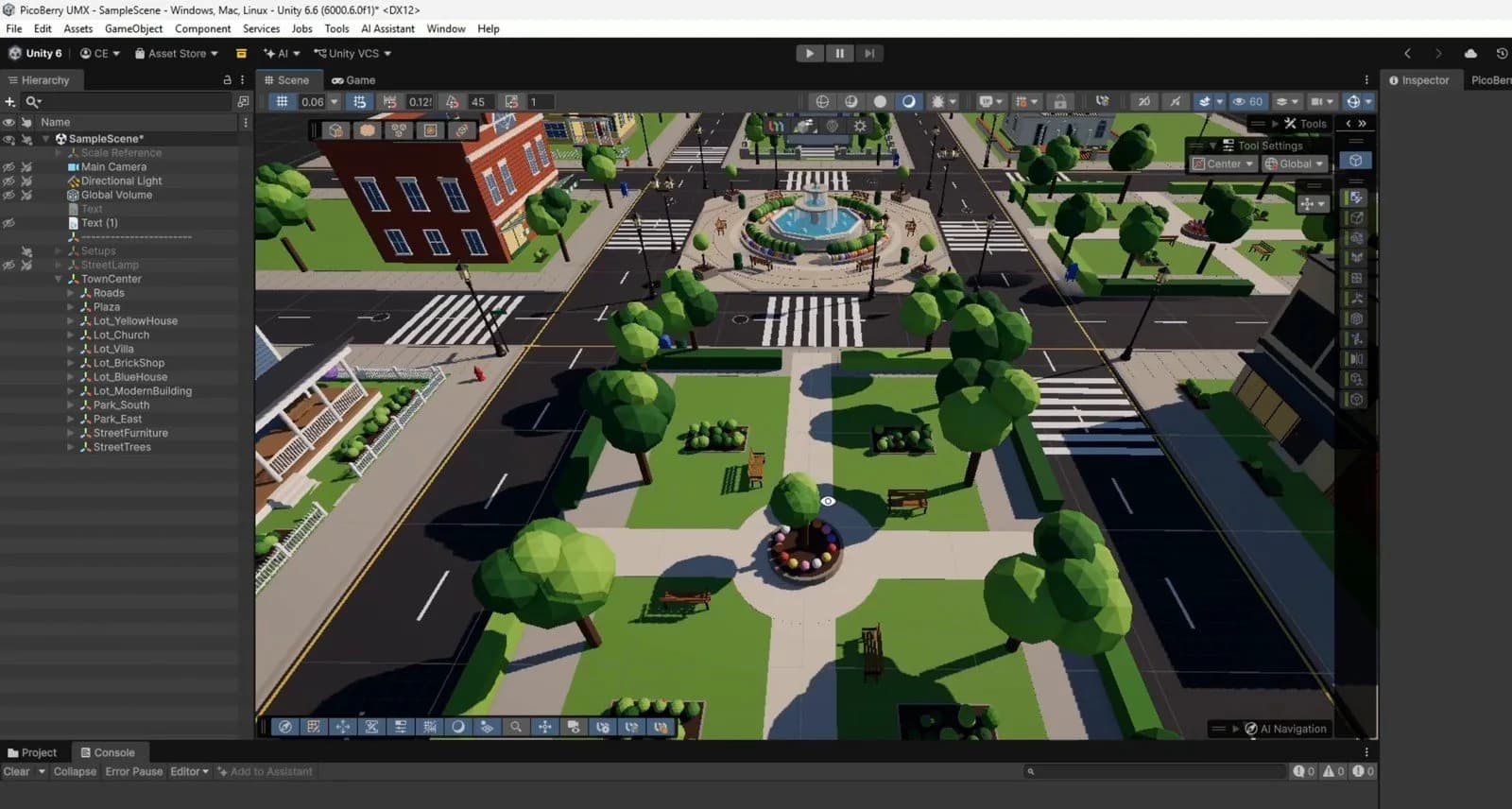
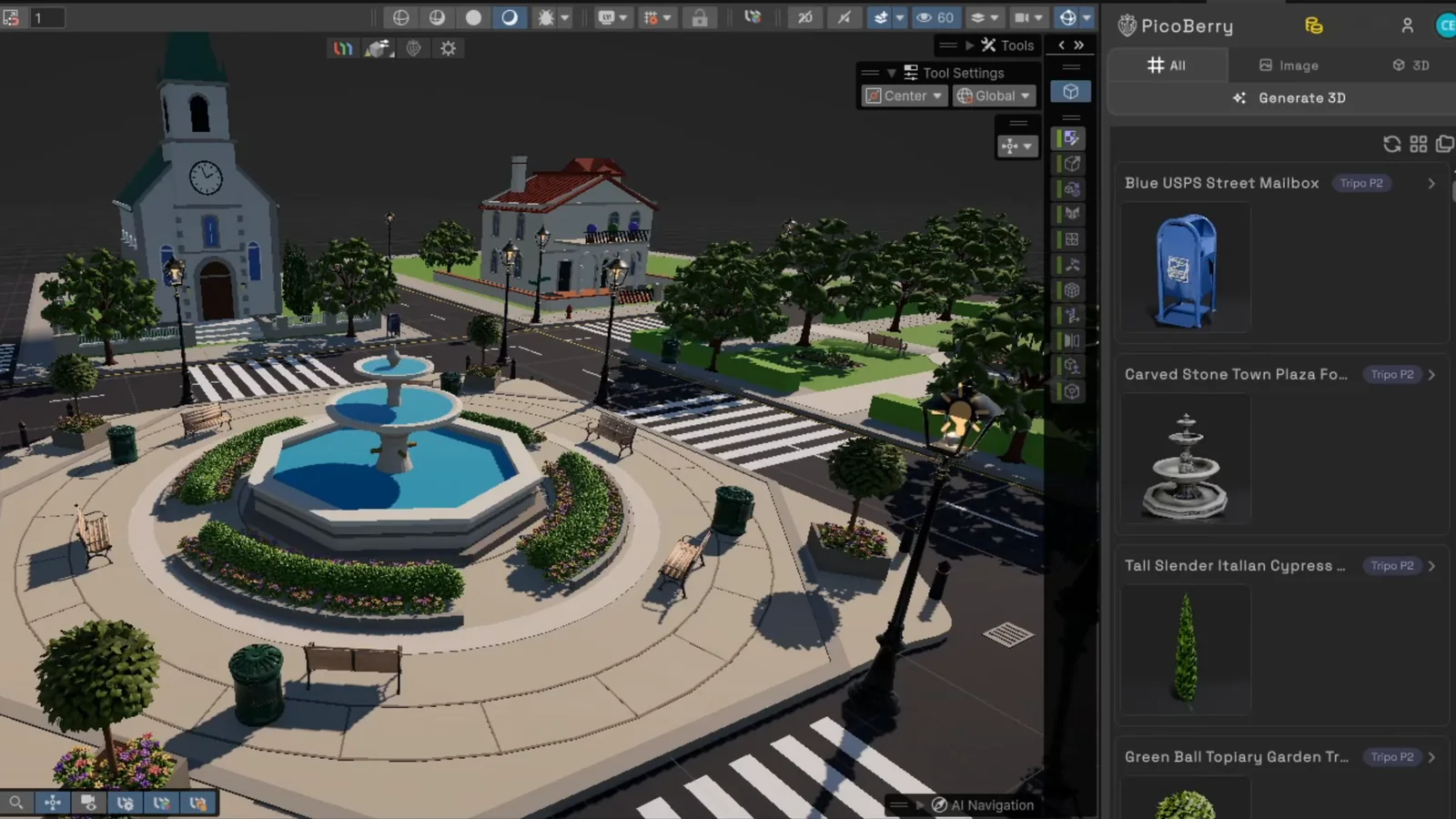
In UModeler's demo video, the blockout of a stylized town took three prompts and about 20 minutes. A later prompt had the agent swap the placeholder props for models generated with PicoBerry and place them in the scene.
What do you need before you start?
An MCP package and an agent, plus the AI Agent Skill if your agent is Claude Code or Codex. UModeler X registers its shape and hotspot tools on its own, so modeling needs no setup; PicoBerry generation stays off until you turn it on (STEP 04).
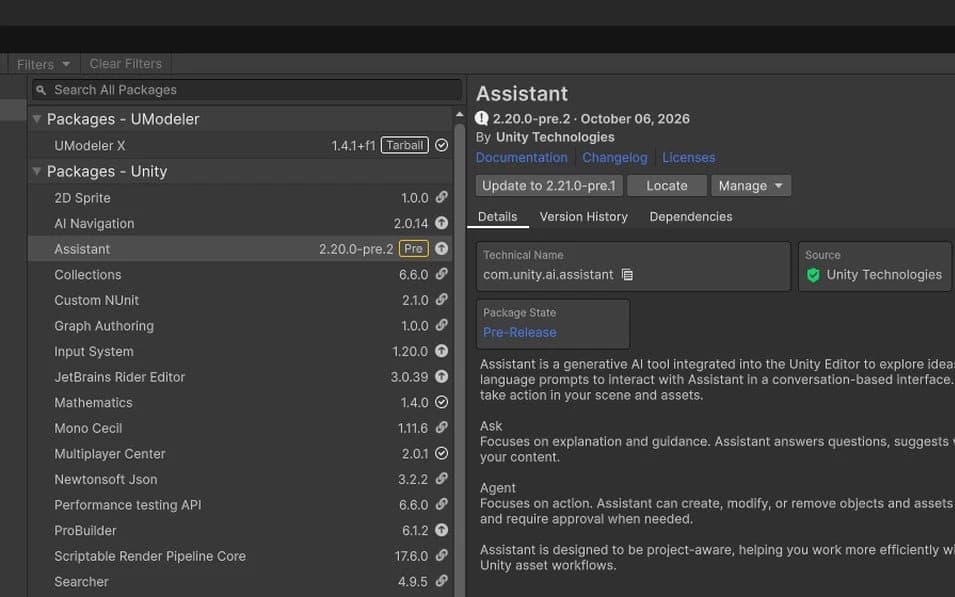
An MCP package in Unity
Any one of: Unity Assistant / Unity MCP (com.unity.ai.assistant), MCP for Unity by Coplay (com.coplaydev.unity-mcp) or Unity-MCP by Ivan Murzak (com.ivanmurzak.unity.mcp).
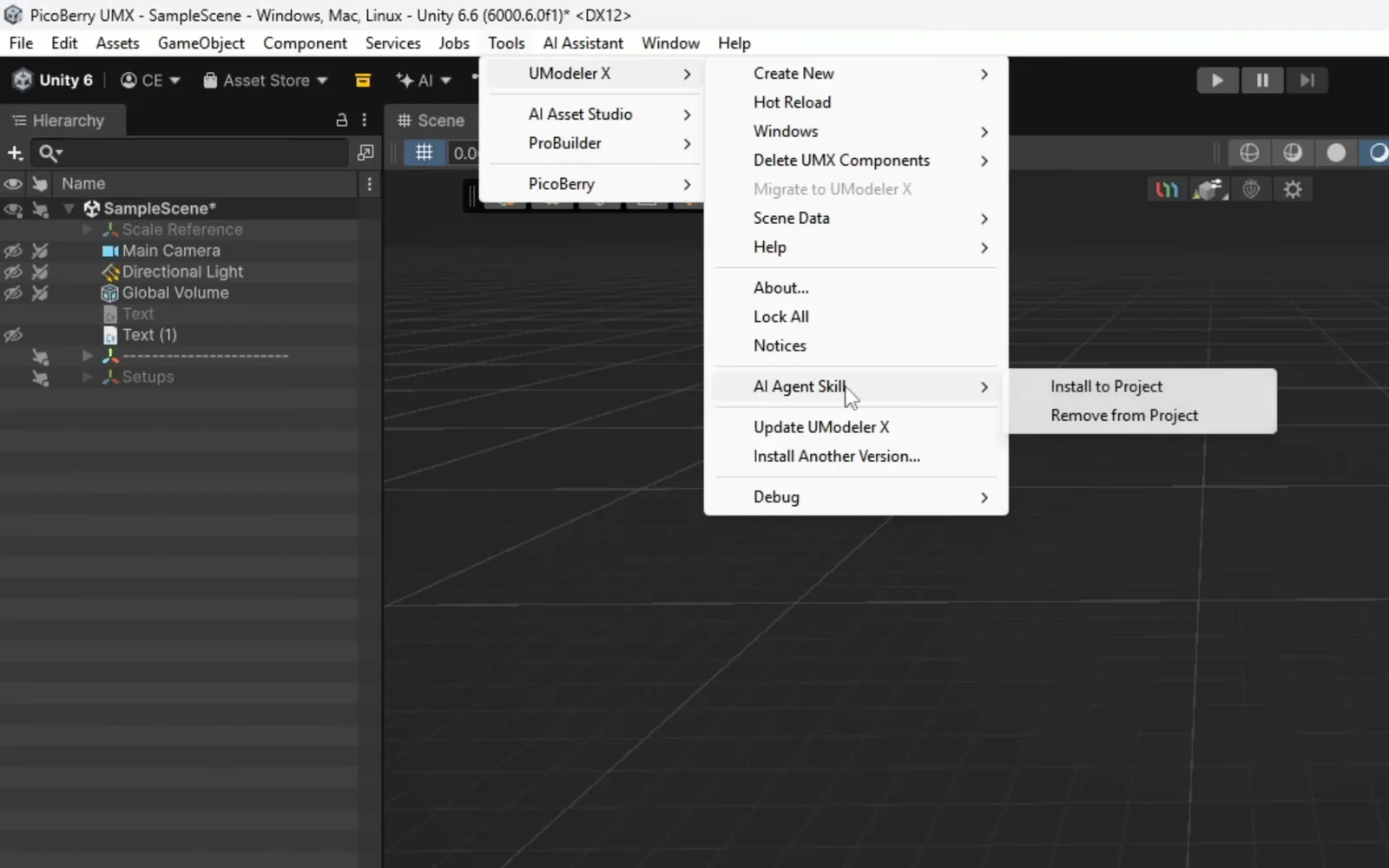
The AI Agent SkillNEW IN 1.4.1
A skill file Claude Code and Codex read to learn how to work with UModeler X through MCP or the Unity Pipeline CLI (com.unity.pipeline). One install writes both .claude/skills/umodelerx and .agents/skills/umodelerx.
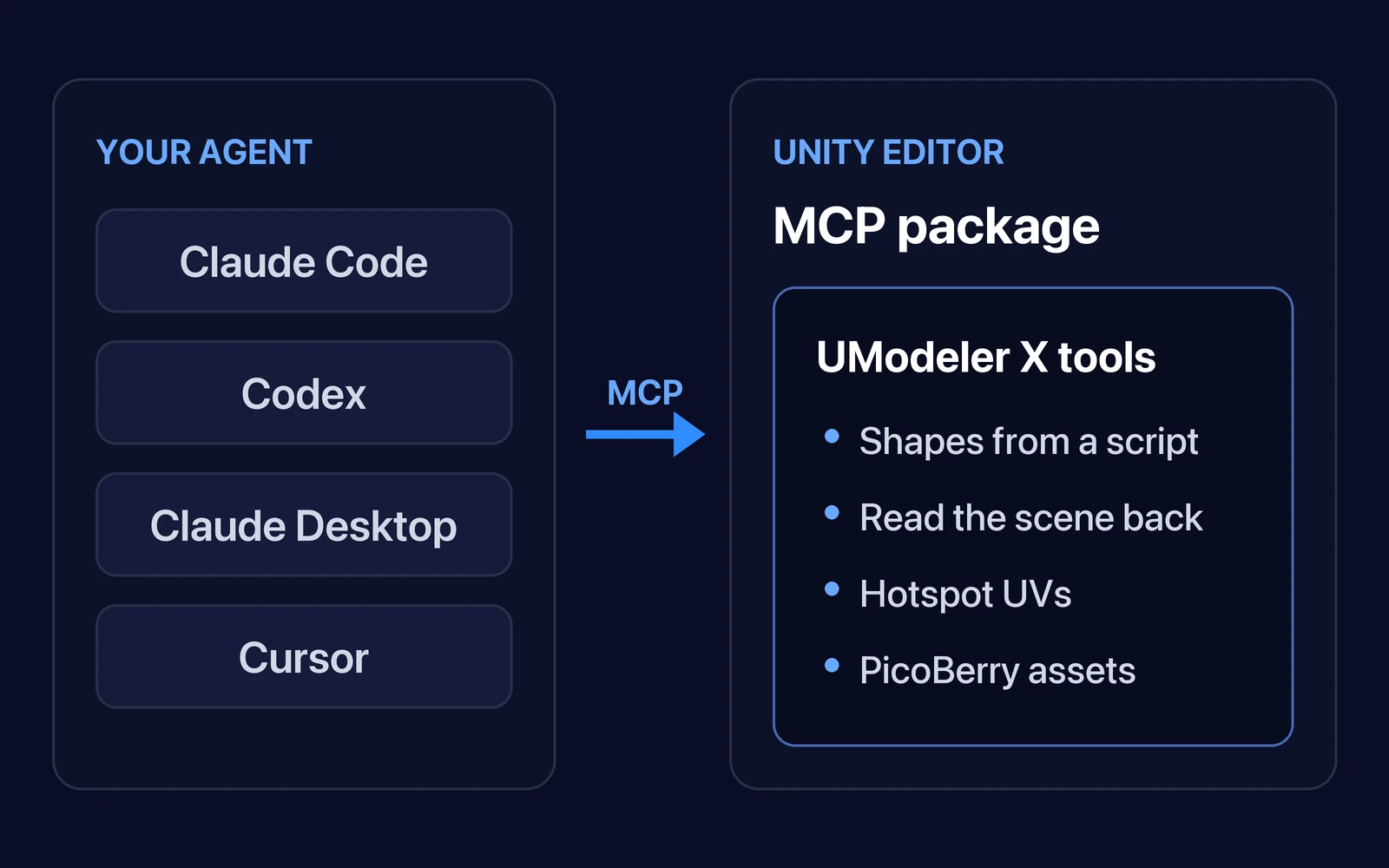
An agent that speaks MCP
Claude Code, Codex, Claude Desktop, Cursor and similar clients. Point the client at your Unity Editor using your MCP package's own instructions, and the UModeler X tools come along with it.
How do you build a scene with an agent, step by step?
Connect the agent (and add the skill)
If you use Claude Code or Codex, run Tools › UModeler X › AI Agent Skill › Install to Project. Then connect your MCP client to the Unity Editor. If the UModeler X tools don't show up, wait for Unity to finish compiling, make sure the Editor isn't in Play mode, and have the client reload its tools.
Describe the scene
Plain language is enough, and a reference image helps more than a long description. Say where the scene should go, too. In the video the prompt was simply to build the town in the image around the world origin.
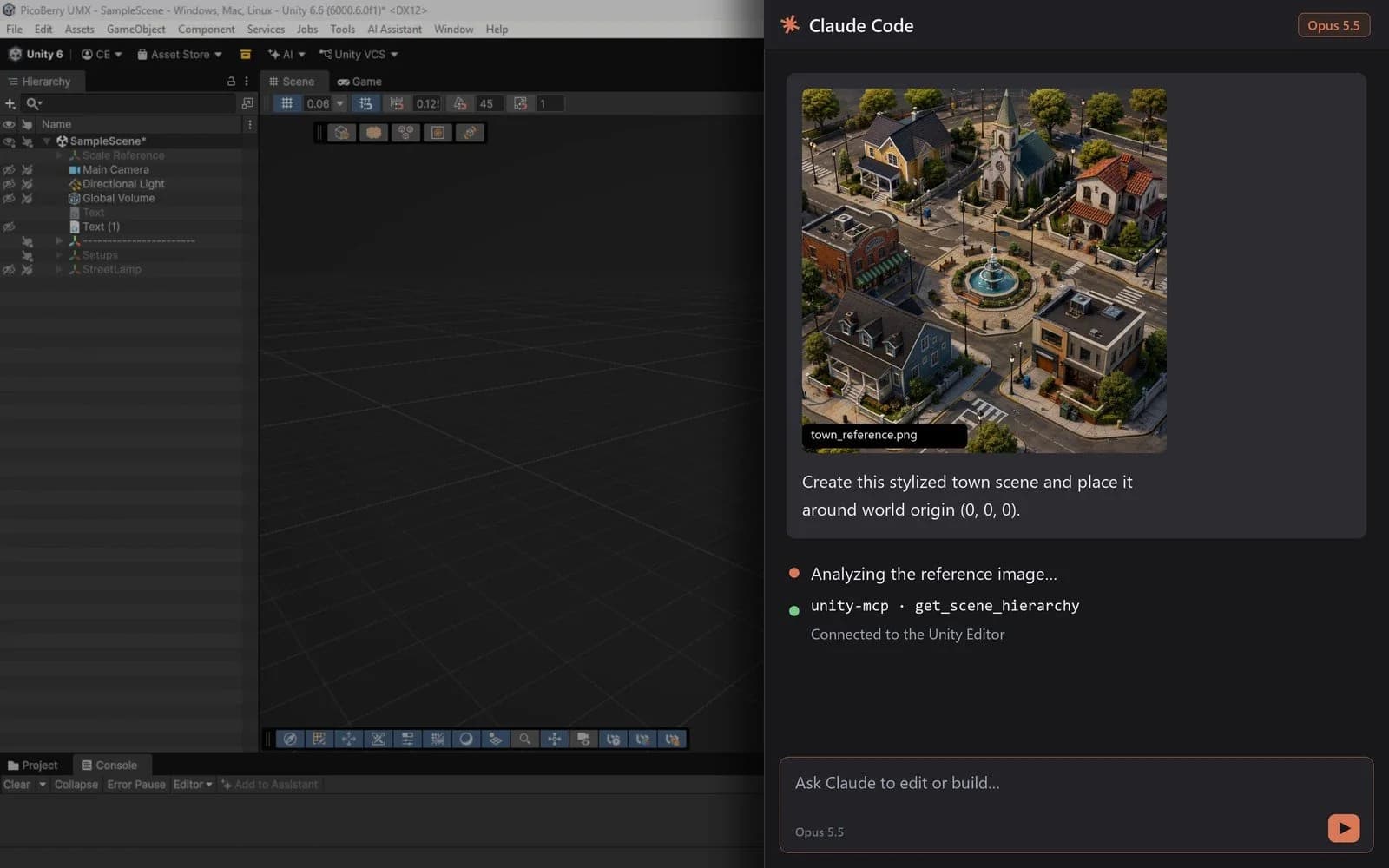
Let the agent block it out
The agent reads the image, then writes the scene as a UModeler X scene script and sends it in one tool call. Ask it to work in several passes and to keep objects in logical groups. Large layouts come out cleaner that way, and the hierarchy stays readable when you take over.
Swap placeholders for PicoBerry assets
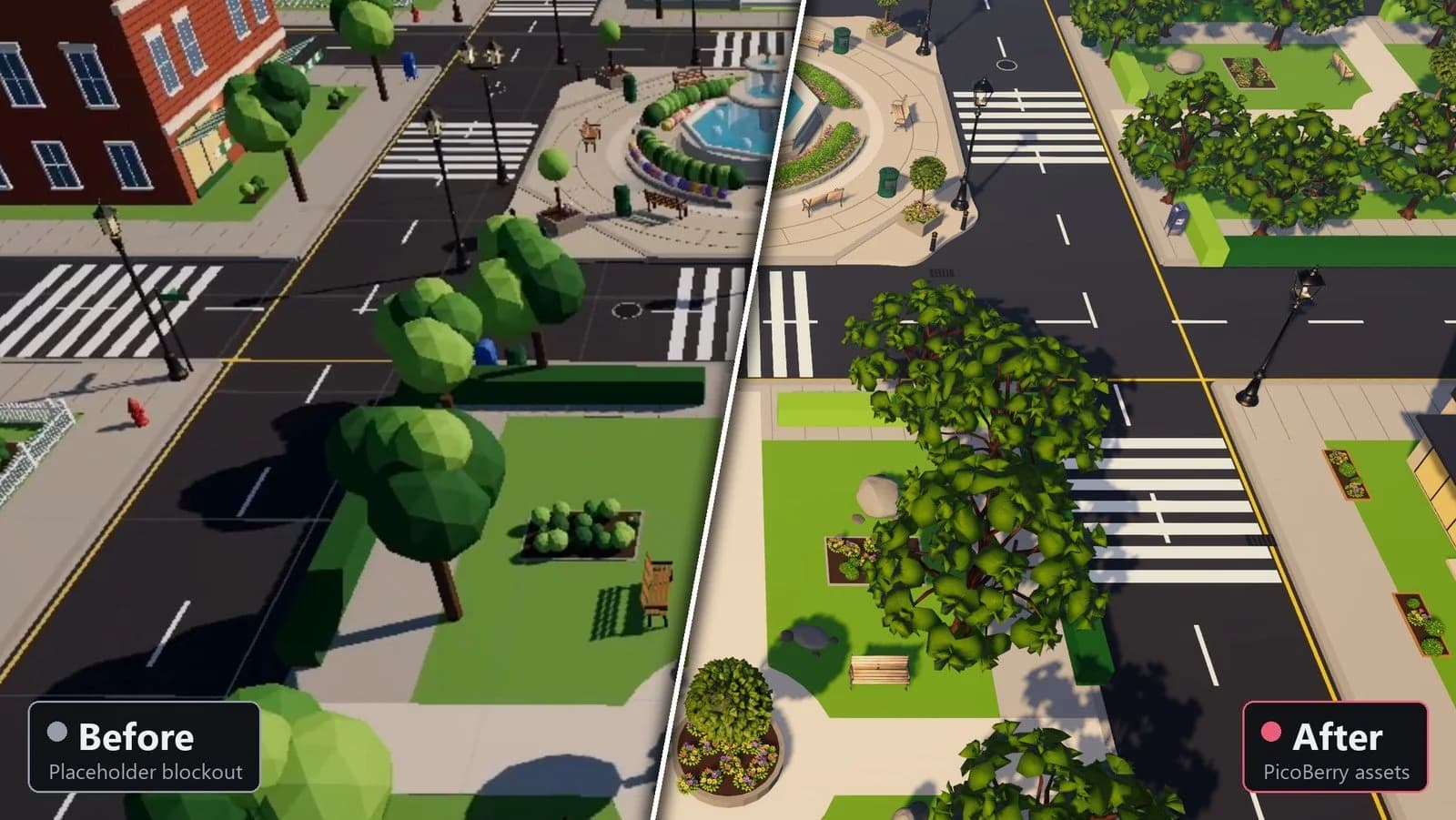
With the PicoBerry MCP tools added in 1.4.1, the agent can generate assets, check and wait on their progress, and place them in the scene. Ask it to replace the trees, lamps or benches, and it finds the placeholders, generates matching models and swaps them in. Generation spends PicoBerry credits, so it's off by default: sign in to PicoBerry inside Unity, then turn on Allow Generation From MCP in Preferences › UModeler X › PicoBerry. Up to three generations run at once by default; you can raise the limit to 20 in the same place.
In this build:
- First replacement pass: 85 placeholders swapped for 6 generated models (36 trees, 20 street lamps, 14 benches, 8 trash cans, 4 mailboxes, 3 fire hydrants)
- Later passes: glass-lantern lamps, bushes, flowers, a fountain and topiary
- About 17 PicoBerry generations in all
Why does the agent write a script instead of placing objects one by one?
Each tool call costs the agent time and tokens. UModeler X gives it a compact scene script, so a whole group of shapes, or a full layout pass, goes over in one call.
| Aspect | One object at a time | UModeler X scene script (DSL) |
|---|---|---|
| Tool calls | One per object | One per script: a group of shapes or a full layout pass |
| Tokens | Grow with every object | Fewer: one call carries the whole script, so large scenes stay fast and cheap |
| Mistakes | Surface object by object | Unknown shapes, keys or modifiers are rejected, with the valid options listed |
# Example from the UModeler X Scene Script manual
group "Table" @0,0,0
  box "Top" w=2 h=.1 d=1 @0,1,0
    mod subdivide
cylinder "Vase" r=.15 h=.4 pivot=bottom @0,1.05,0What can you change after the agent is done?
Everything. The shapes the agent builds are ordinary UModeler X parametric shapes, PicoBerry props come in as regular meshes you can UModelerize and edit, and 1.4 adds new tools worth reaching for when you take over.
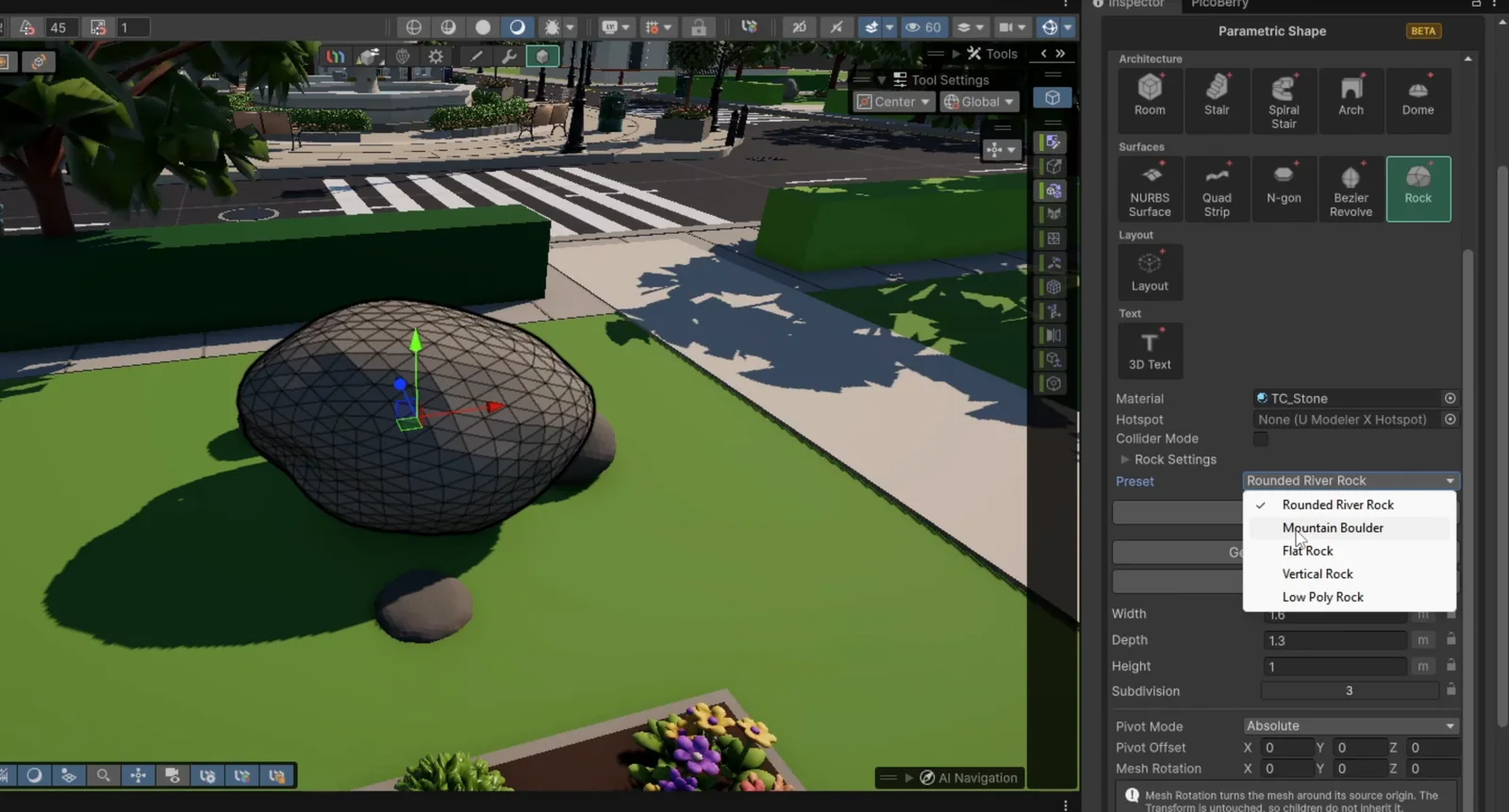
Rock shape1.4.0
Procedural rocks with five presets (Rounded River Rock, Mountain Boulder, Flat Rock, Vertical Rock and Low Poly Rock), noise and facet controls, and an optional collider.
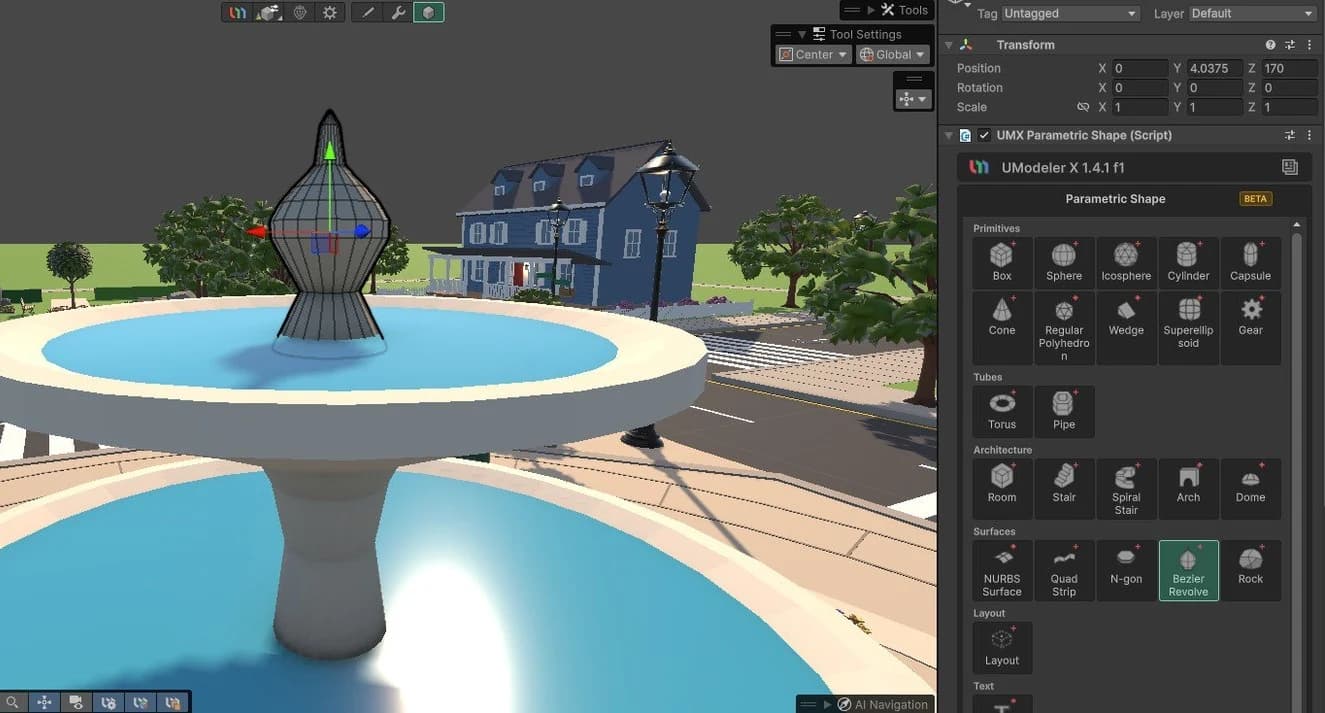
Bezier Revolve1.4.1
Spin a 2D profile around the Y axis for vases, bottles, towers and domes. Mix straight and curved segments and drag the handles right in the Scene view.
FFD modifier1.4.1
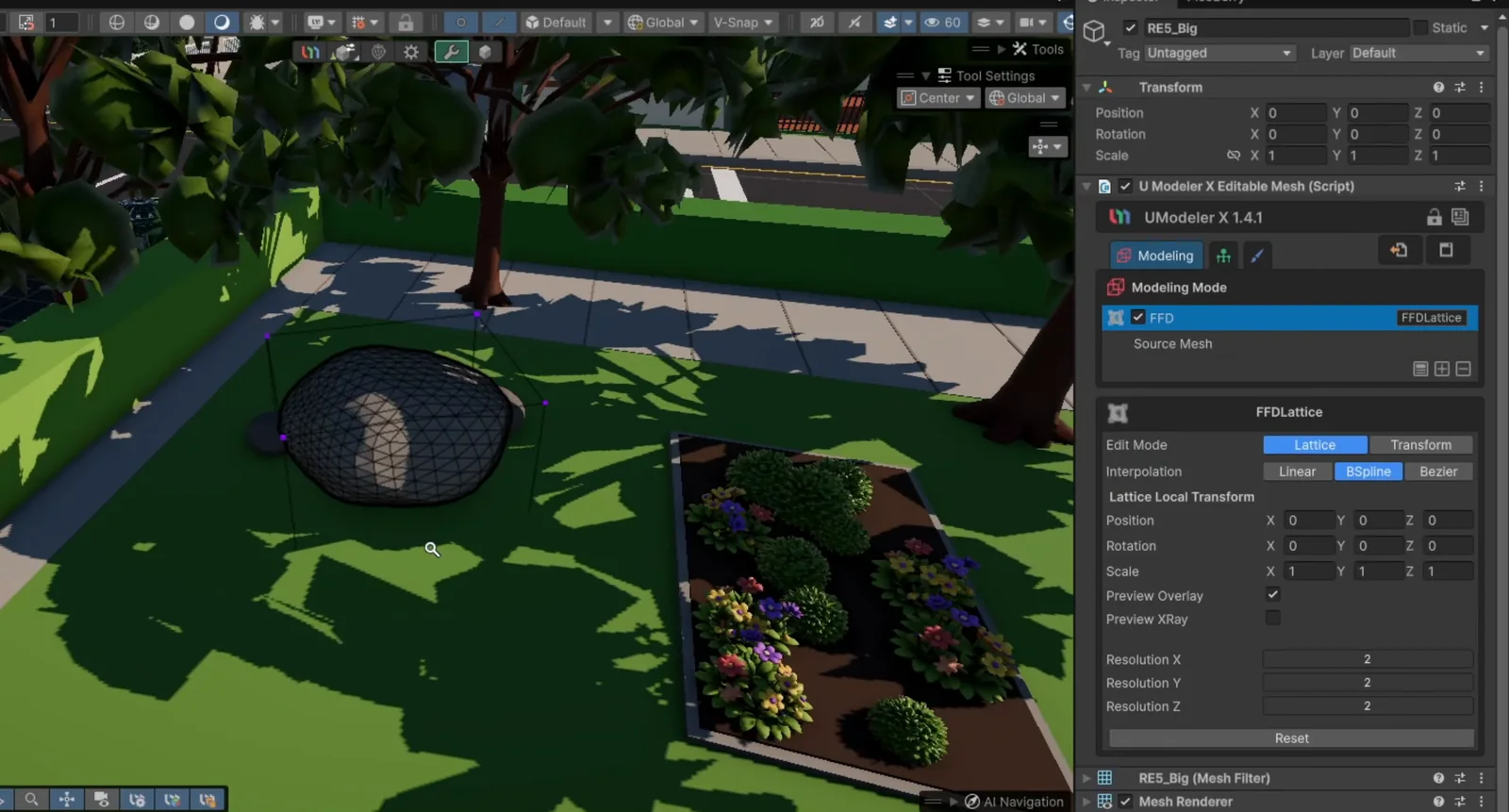
Rebuilt as one lattice deformer: resolution set per axis from 2 to 32, with Linear, Bezier or BSpline interpolation. The old fixed 2×2×2, 3×3×3 and 4×4×4 cages are now legacy.
Burst acceleration1.4.0
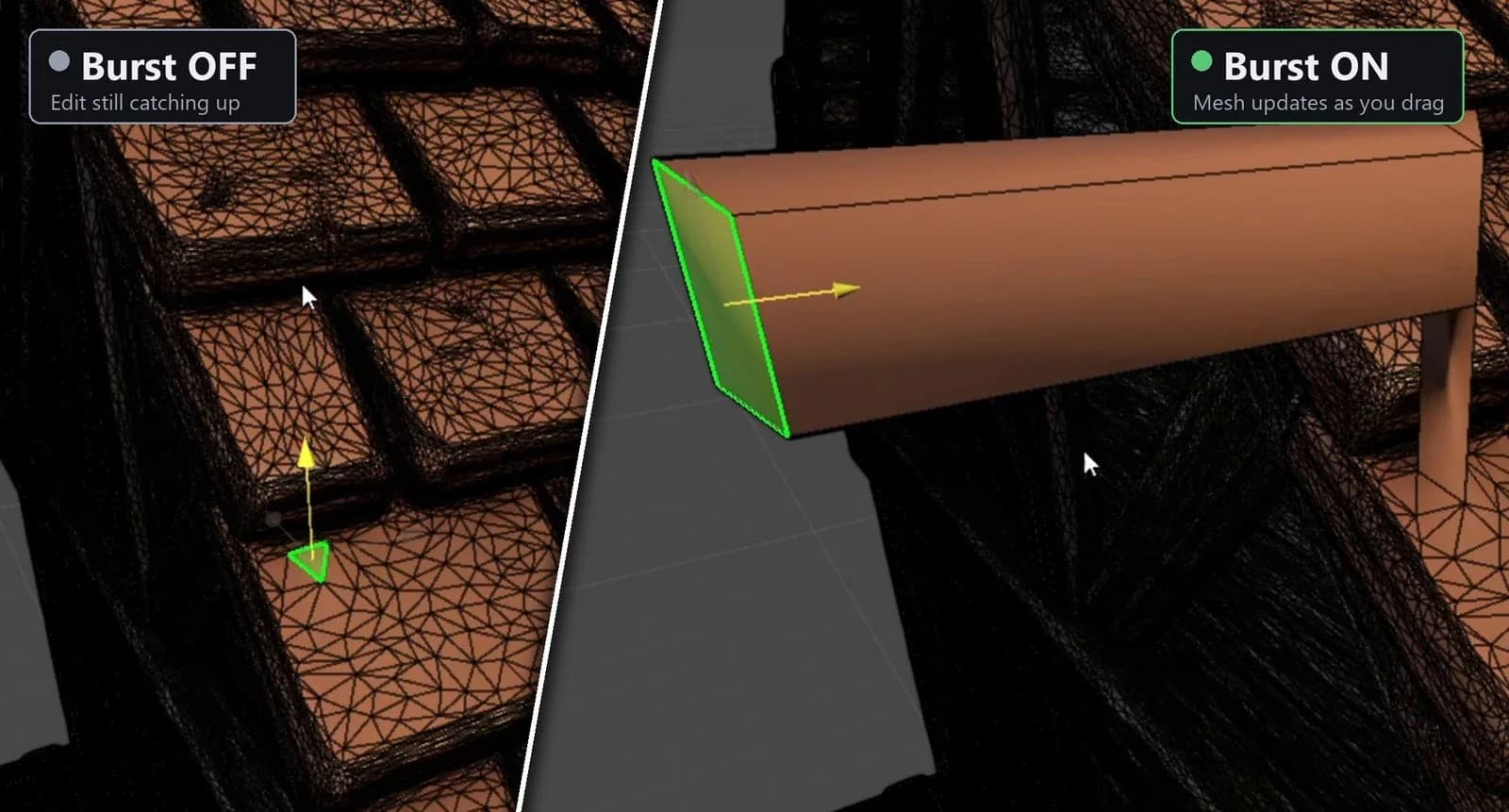
Heavy meshes stay responsive while you edit. It needs Unity's Burst and Mathematics packages, and UModeler X offers to install them if they're missing.
What should you expect from an agent-built scene?
A fast first draft you take over, not a finished level.
It takes more than one prompt
The town's blockout took three prompts and about 20 minutes in the video. Asking for several passes gave a cleaner layout than one long request.
Generation isn't instant
PicoBerry assets take time, and the agent waits for each one, so a scene with many props is a coffee-break job. Several ran past the tool's own 60–120-second estimate, and the detailed fountain took about five minutes.
A timeout isn't a failure
When a wait times out, the job is still running on PicoBerry's side. The agent should wait again on the same session; starting a new generation would spend credits twice. In this build one early check timed out at 60 seconds and went through on a retry.
You still finish it
The agent gets the layout and the props in place. Proportions, details and the final look are yours, using the same shapes it built.
It kept each object in place
The agent gave every swap the placeholder's name, group, position and height and matched its facing, so the plaza benches still faced the fountain.
Some came in wrong and were redone
The first mailbox model sat side-on even at the right facing and had to be turned, and an early bush-and-flower pass came back almost all green until it was redone to a roughly even mix.
How does the agent build the town, pass by pass?


Frequently Asked Questions
Which MCP clients work with UModeler X?+−
Any client that can reach your Unity Editor through one of the supported packages: Unity Assistant / Unity MCP, MCP for Unity (Coplay) or Unity-MCP (Ivan Murzak). That covers Claude Code, Codex, Claude Desktop, Cursor and similar clients. UModeler X registers its shape and hotspot tools on its own; PicoBerry generation stays off until you enable it in Preferences › UModeler X › PicoBerry.
Can Claude Code or Codex build a Unity scene over Unity MCP?+−
Yes. Connect either one to your Unity Editor through a supported MCP package and the UModeler X tools appear in its tool list: umx_parametric_shape builds and edits shapes from a scene script, umx_scene_dump reads the scene back so the agent can change what's already there, umx_hotspot handles hotspot layouts, and five umx_picoberry_* tools generate, track, place and list PicoBerry assets.
What is the UModeler X AI Agent Skill?+−
A skill file, added in UModeler X 1.4.1, that Claude Code and Codex read to learn how to work with UModeler X through MCP or the Unity Pipeline CLI. Install it from Tools › UModeler X › AI Agent Skill › Install to Project and remove it with Remove from Project. One install writes it to .claude/skills/umodelerx for Claude Code and .agents/skills/umodelerx for Codex.
Do I need MCP to try AI scene building in UModeler X?+−
No. Open Window › UModeler X › AI Shape Script (Window), press Copy Prompt, paste it into ChatGPT, Claude or any other chat, and describe what you want. Bring the reply back with Paste, press Validate to check it without touching the scene, then press Run. It's the same script language the agent uses over MCP, just with you carrying the script across.
Why does an AI agent use a script instead of creating objects one by one?+−
Because each tool call costs time and tokens. UModeler X's scene script is a compact language (a DSL), so a whole group of shapes or a full layout pass goes over in a single call. That keeps even large blockouts fast and cheap for the agent.
Can I edit what the AI agent built in Unity?+−
Yes. The shapes the agent builds are regular UModeler X parametric shapes, so you can select any of them and change its parameters in the Inspector, add modifiers, or keep modeling by hand; the agent can also read the scene back as a script to make further changes. Props it generates with PicoBerry are placed as regular meshes, and GameObject › UModeler X › UModelerize turns one into an editable UModeler X object.
Which UModeler X shapes and modifiers can the agent use?+−
Every parametric shape except 3D Text, including Box, Sphere, Cylinder, Capsule, Cone, Torus, Pipe, Stair, Spiral Stair, Room, Wedge, Arch, Dome, Gear and the new Rock and Bezier Revolve shapes, plus groups and layout boxes for structure. Modifiers include Twist, Bend, Mirror, Subdivide, Shell, Linear and Radial Array. The agent can add the new FFD lattice too, but you set its resolution and move its control points by hand. It can also set materials, hotspot UVs, colliders and prefabs.
How does PicoBerry fit into an AI agent's Unity workflow?+−
UModeler X 1.4.1 added PicoBerry MCP tools, so the same agent can generate 3D assets with PicoBerry, check and wait on their progress, place them in the scene, and list your assets. They use the PicoBerry account you're signed in to inside Unity, so no API key is needed, and generation stays off until you turn on Allow Generation From MCP in Preferences › UModeler X › PicoBerry. Each generation uses your PicoBerry credits, and the models come in as regular meshes.
What if the AI agent gets a UModeler X parameter wrong?+−
UModeler X checks the whole script first: an unknown shape, key or modifier rejects it before anything is built, and the error lists the valid options. A key that belongs to a different kind of shape is accepted but has no effect, and the result carries a warning. Agents can usually fix either in the next message.
Explore More
AI Agent Game Level Generation
A different split: the blockout is hand-built in UModeler X, and Fable 5 generates the props through the PicoBerry API and places them for a hand pass to finish.
Explore →PicoBerry to UModeler X Workflow
Generate an asset, then refine it in Unity without leaving the Editor.
Explore →UModeler X vs Unity ProBuilder
Why the blockout the agent builds can keep going past greybox.
Explore →Describe the scene. Then make it yours.
Let an agent lay out the scene with UModeler X, then keep shaping the same parametric objects by hand in Unity.
What's new in UModeler X 1.4.1 →