Image and Text to 3D
Step by step
- Open the Image to 3D workspace.
- Select a 3D model type (example: Tripo P1). Then choose image to 3d or text to 3d.
- Choose whether you want Mesh only or With texture.
- Set your target polygon count (e.g., 5000) and texture resolution (e.g., 4K).
- Upload or select your reference image (character, prop, environment, etc.).
- Generate the model and review it in the main 3D preview (wireframe, shape, and detail).
- Check the topology and face/vertex counts, then decide whether to remesh, texture, or export.
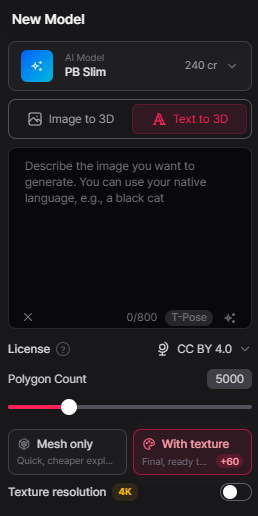
Left‑Side Settings Panel
The left panel shows the core settings used for Image to 3D generation:
- Model type (e.g., Tripo P1)
- Polygon count (e.g., 5000)
- Mesh only / With texture toggle
- Texture resolution (e.g., 4K)
- License information (when applicable)
- Estimated generation time and credit cost
These settings control the complexity, quality, and performance of the resulting 3D model and help you tune it for your target platform (games, VR, mobile, etc.).
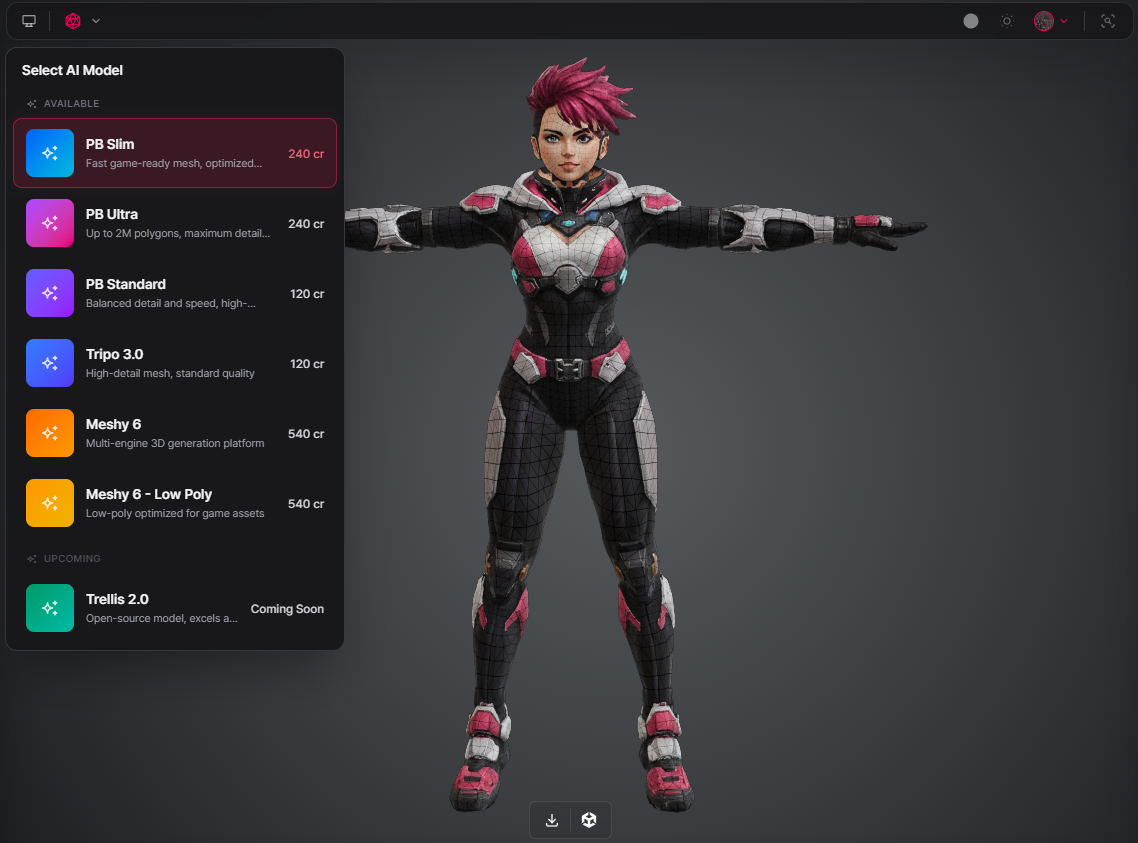
3D AI Models Available
- Tripo P1
- Tripo 3.1 Ultra
- Tripo 3.1
- Tripo 3.0
- Meshy 6 and Meshy 6 - Lowpoly