텍스트로 이미지 생성
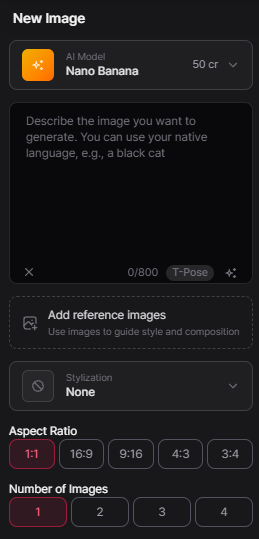
단계별 진행
- Image 워크스페이스를 엽니다.
- 모델을 선택합니다 (예: Nano Banana).
- 설명 상자에 프롬프트를 입력합니다 (예: "검은 고양이").
- 스타일화 정도, 종횡비, 이미지 개수를 선택합니다.
- 생성한 뒤 갤러리에서 결과를 검토합니다. Iterate로 변형을 다듬습니다.
왼쪽 설정 패널
왼쪽 패널은 생성에 사용된 설정을 보여줍니다.
- 선택한 AI 모델
- 텍스트 프롬프트 입력
- 참조 이미지 추가
- 스타일화 정도
- 종횡비
- 생성할 이미지 개수 (1~4)
이 설정들은 구성이 결과에 어떻게 영향을 줬는지 이해하는 데 도움이 됩니다.
결과 이해하기
이미지를 생성하면 PicoBerry는 결과를 구조화된 격자로 표시합니다. 각 행은 서로 다른 프롬프트를 나타내며, 그 행의 프롬프트 텍스트가 이미지 오른쪽에 바로 표시됩니다. 이 레이아웃은 어떤 프롬프트가 어떤 결과를 만들었는지 빠르게 파악하도록 돕습니다.
생성된 행
각 행은 (이 예시에서) 하나의 프롬프트로 생성된 네 가지 변형을 담습니다. 예시 이미지:
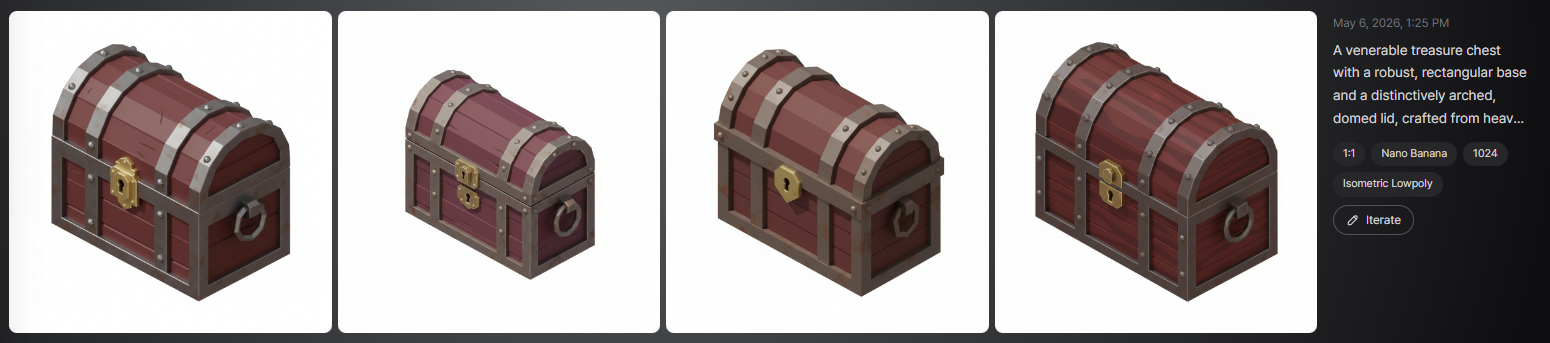
이렇게 하면 각 프롬프트와 결과를 시각적으로 쉽게 연결할 수 있습니다.
결과 카드
생성된 각 이미지는 개별 결과 카드로 표시되며, 다음을 포함합니다.
- 생성된 에셋
- 프롬프트 텍스트 (행과 정렬됨)
- 사용한 모델
- 해상도
- 생성 날짜
- 해당 변형을 다듬는 Iterate 버튼
이 구조는 어떤 변형을 다듬거나 다시 생성할지 빠르게 식별하도록 돕습니다.
이미지에 마우스를 올렸을 때
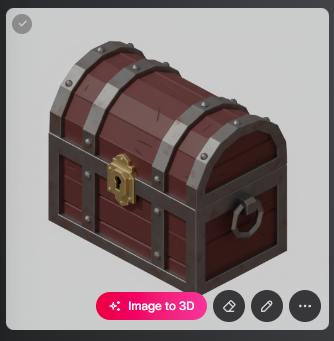
이 이미지로 3D 모델을 만들 준비가 되면, 이미지 위에 마우스를 올려 "Image to 3D"를 빠르게 선택할 수 있습니다.