
디스플레이 설정 (Display Settings)
디스플레이에 관련된 모든 것을 디스플레이 설정 툴바를 통해 설정 할 수 있습니다.
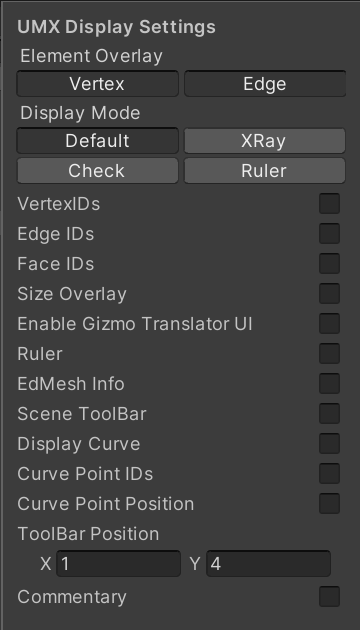
디스플레이에 관련된 모든 것을 디스플레이 설정 툴바를 통해 설정 할 수 있습니다.
씬 상단의 버튼을 통해 간단하게 접근할 수 있습니다.
UModelerX 툴바의 첫 번째 버튼을 클릭하면 팝업이 등장합니다.
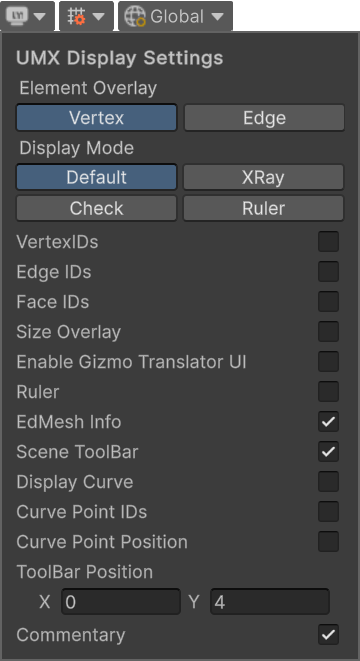
옵션
- Element Overlay : 선택한 메쉬의 버텍스와 엣지 오버레이를 보여줍니다. 씬 뷰에서 Alt+Z (Mac 은 Option+Z) 를 누를 때마다 오버레이가 없음 → 버텍스 → 엣지 → 버텍스와 엣지 순으로 바뀝니다.
- Display Mode : 머테리얼 표시 모드를 설정합니다. Default, XRay, Check, Ruler 모드를 사용 할 수 있습니다. 또한 씬에서 Alt+V (Command+V)(다음 모드)와 Alt+X (Command+X)(이전 모드)키를 눌러 모드를 선택 할 수 있습니다.
- Vertex IDs : 버텍스 ID를 표시합니다.
- Edge IDs : 엣지 ID를 표시합니다.
- Face IDs : 페이스 ID를 표시합니다.
- Size Overlays : 선택된 오브젝트의 사이즈(X, Y, Z 방향의 크기)를 표시합니다.
- Enable Gizmo Translator UI : 기즈모 이동 UI 를 활성화하고 편집가능한 상태가 됩니다.

- Ruler : 엣지의 길이를 표시합니다.
- EdMesh Info : 씬의 왼쪽 상단 구석에 EdMesh의 정보를 보여주는 창을 표시합니다.
- Scene Toolbar : 씬 툴바를 표시합니다.
- Display Curve : 커브 메쉬의 커브를 표시합니다.
- Curve Point IDs : 커브 포인트의 ID를 표시합니다.
- Curve Point Position : 커브 포인트의 위치를 표시합니다.
- Toolbar Position : 씬 툴바의 위치를 설정합니다.
- Commentary : 실행한 동작의 이름, 단축키, 또는 관련 정보를 화면에 시각적으로 표시합니다.