
AI Texturing
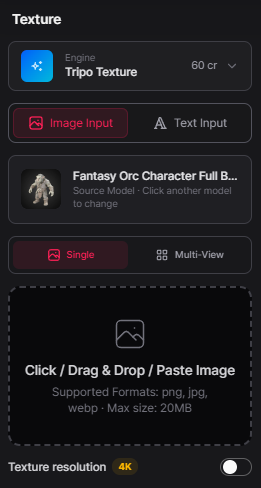
Step by step
- Open the Texture workspace.
- Select a texture engine (e.g., Tripo Texture, 60 cr).
- Choose your input method: - Image Input (upload a reference) - Text Input (describe the material you want)
- Select your source model (e.g., Fantasy Orc Character Full Body).
- Choose between Single‑View or Multi‑View texturing.
- Upload an image or drag‑and‑drop it into the input box (supports png, jpg, webp up to 20MB).
- Set your texture resolution (e.g., 4K).
- Generate the texture and review the results applied to your model.
- Decide whether to keep, regenerate, or adjust your input for better results.
Understanding Your Results
Controls how your texture will be generated.
Texture Engine
- Choose from available engines: available Models are Tripo and Meshy for AI texturing
- Each engine may produce different material styles or detail levels.
Input Type
- Image Input — upload a reference texture or material.
- Text Input — describe the texture you want in words.
Source Model
- Displays the currently selected model from the right side list of generated models.
- Click another model to switch.
Texture Mode
- Single‑View — generates texture from one angle.
- Multi‑View — uses multiple angles for more accurate UV coverage.
Image Upload Box
- Supports png, jpg, webp
- Max file size: 20MB
- Allows click, drag‑and‑drop, or paste.
Texture Resolution
- Toggle between standard resolution and 4K for high‑detail output.
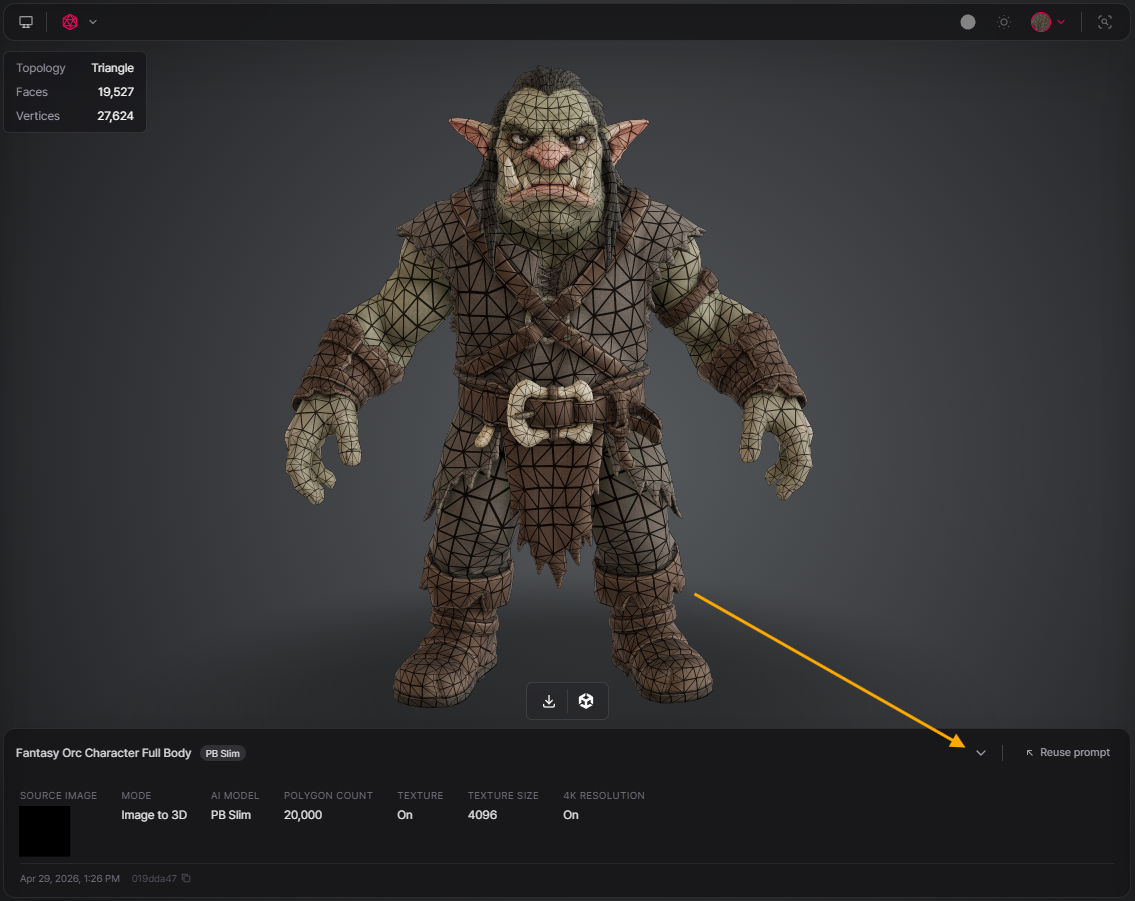
These settings determine how detailed, accurate, and stylized your final texture will be, making this step essential before exporting or sending your model into Unity.