
Preference
The Preference Window is where you can configure various options to make some of the functionality of UModeler X easily accessible and usable.
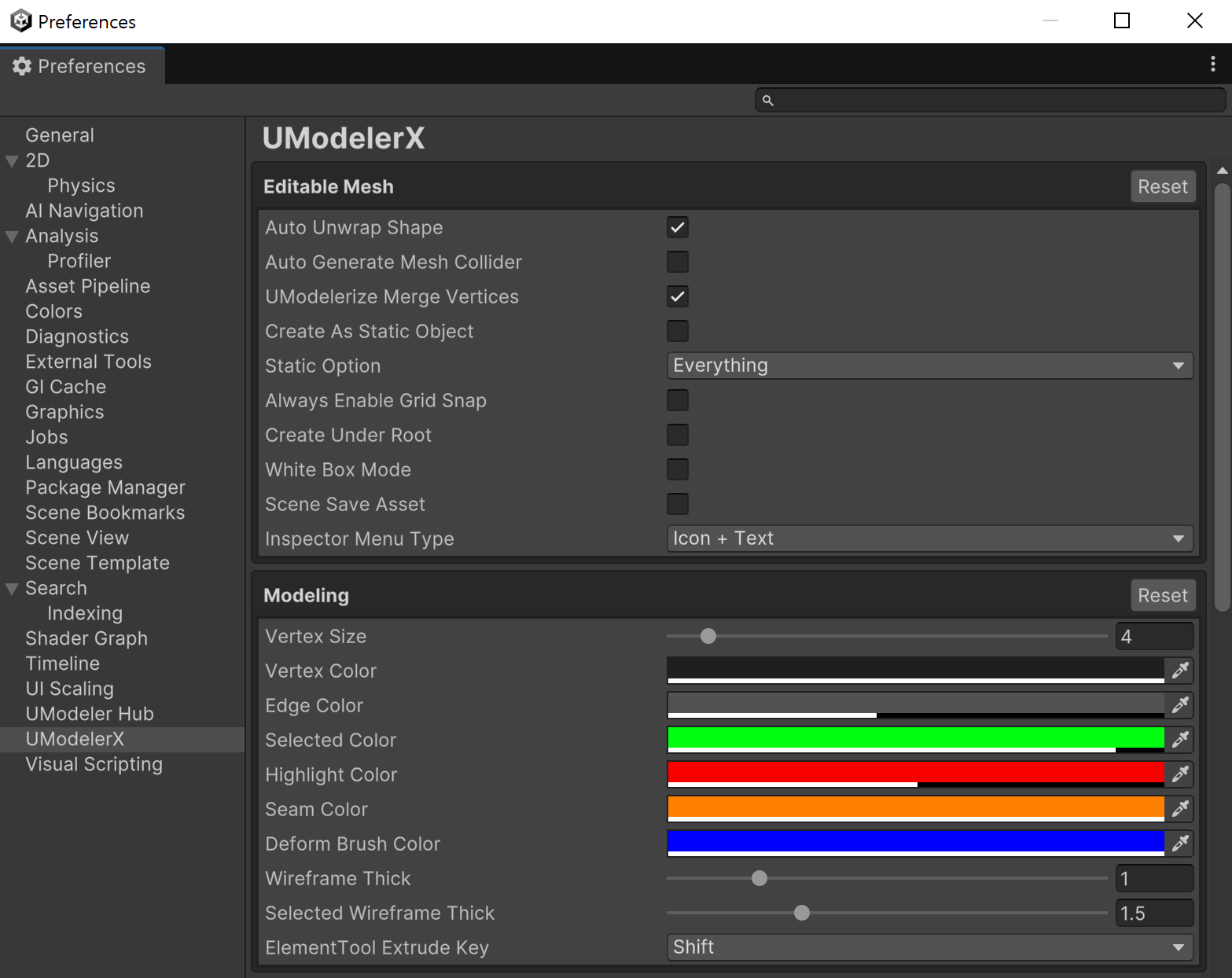
The Preference Window is where you can configure various options to make some of the functionality of UModeler X easily accessible and usable.
How to use
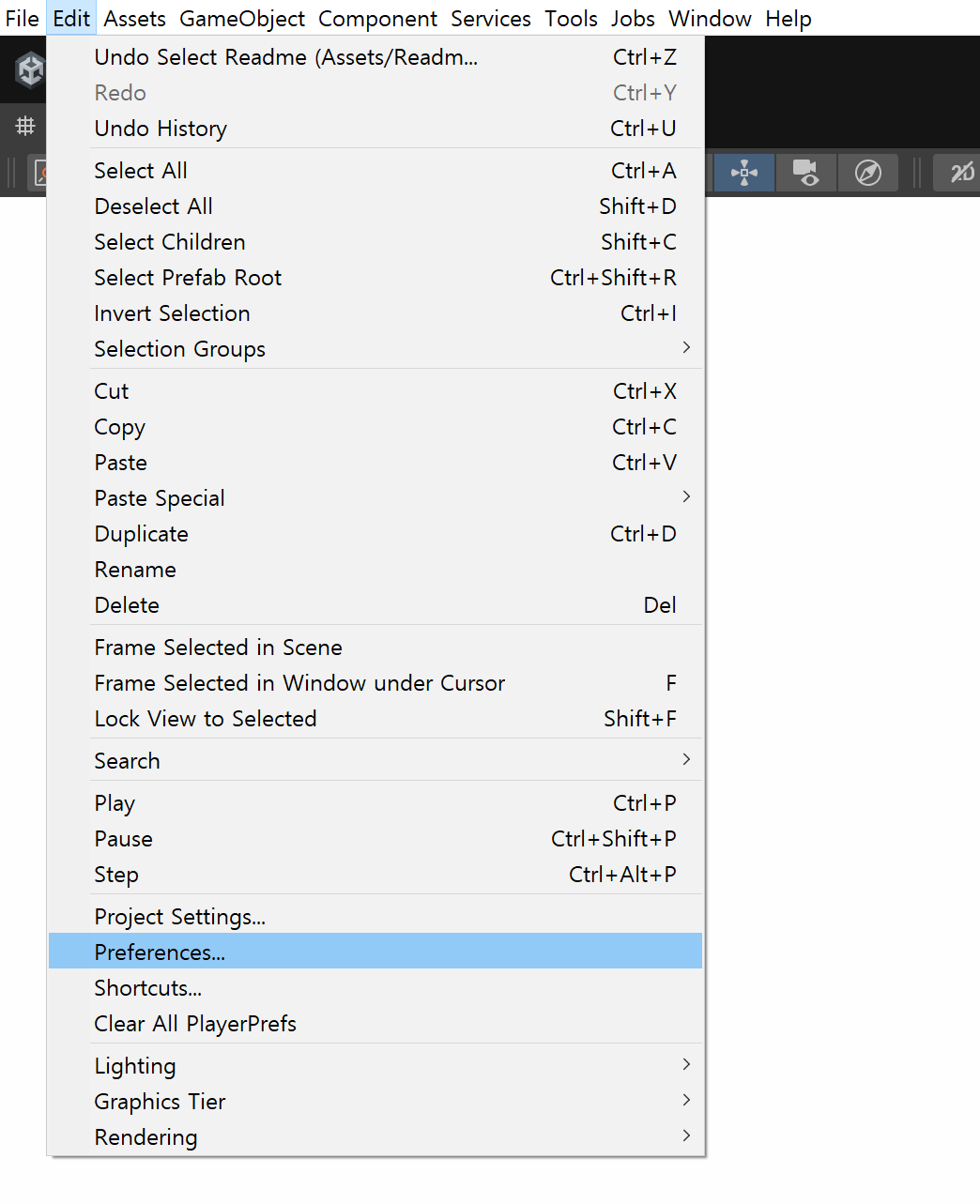
It can be accessed by navigating to Edit > Preferences > UModeler X in the Unity Editor.
Hover over any option in the Preferences window to see the same description as a tooltip.
Properties
Ed Mesh
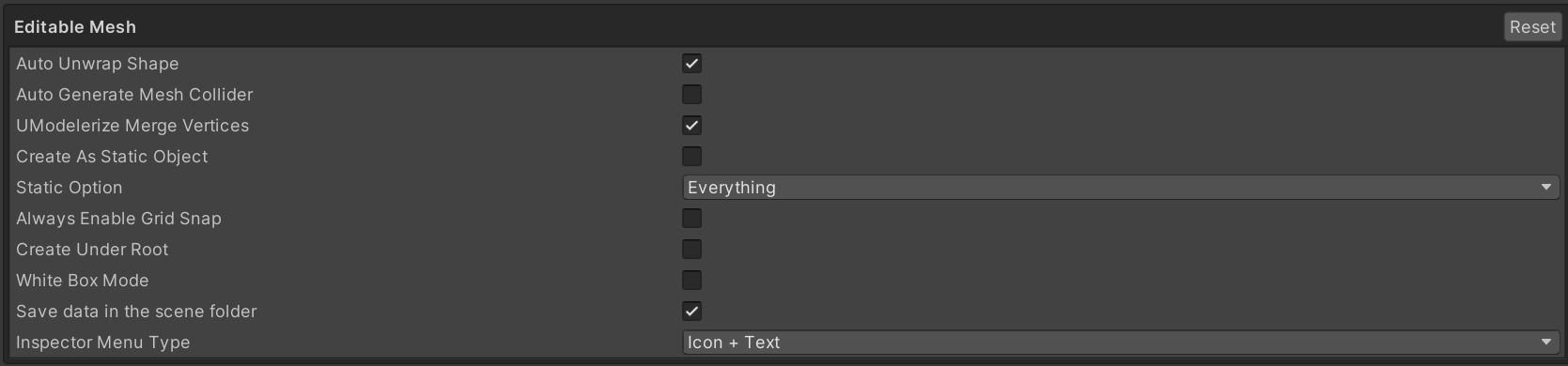
Inspector Menu Type : How the tool buttons in the UModeler X Inspector are drawn
- Both (Icon + Text), Icon, Text
Auto Unwrap Shape : Generates UVs automatically for newly created shapes
Auto Generate Mesh Collider : Adds a Mesh Collider to every UModeler X object and keeps it in step with the mesh
UModelerize Merge Vertices : Welds vertices that sit within the tolerance below while converting an existing mesh, which restores the shared vertices the render mesh had split
UModelerize Merge Tolerance : Distance below which two vertices are treated as one while converting an existing mesh (default 0.00001)
Auto Unpack Model Instance Before UModelerize : Unpacks a model prefab instance before converting it, so the prefab link does not block the conversion
Create As Static Object : Marks newly created objects as static, using the flags set below
Static Option : Static flags applied to newly created objects. Used only while Create As Static Object is on
Always Enable Grid Snap : Keeps grid snapping on all the time, so the snap modifier key no longer has to be held
Tool On Object Enter : Which tool becomes active when you select a UModeler X object. The editor mode tab is always remembered per object, whatever this is set to
- Last Used Tool Per Object, Keep Current Tool, Object Tool
White Box Mode : Switches the options above to a level blockout setup at once — mesh colliders, grid snap, static objects, new objects at the scene root, lightmap UVs, and no auto unwrap
Save data in the scene folder : Writes each object's data asset into a folder beside the scene file instead of the shared UModeler X data folder. For large meshes, saving them in a folder is recommended
Default Recalculate Tangents : Turns Recalculate Tangents on for newly created objects. Normal mapped shaders need tangents, and recalculating them costs time on every rebuild
Modeling
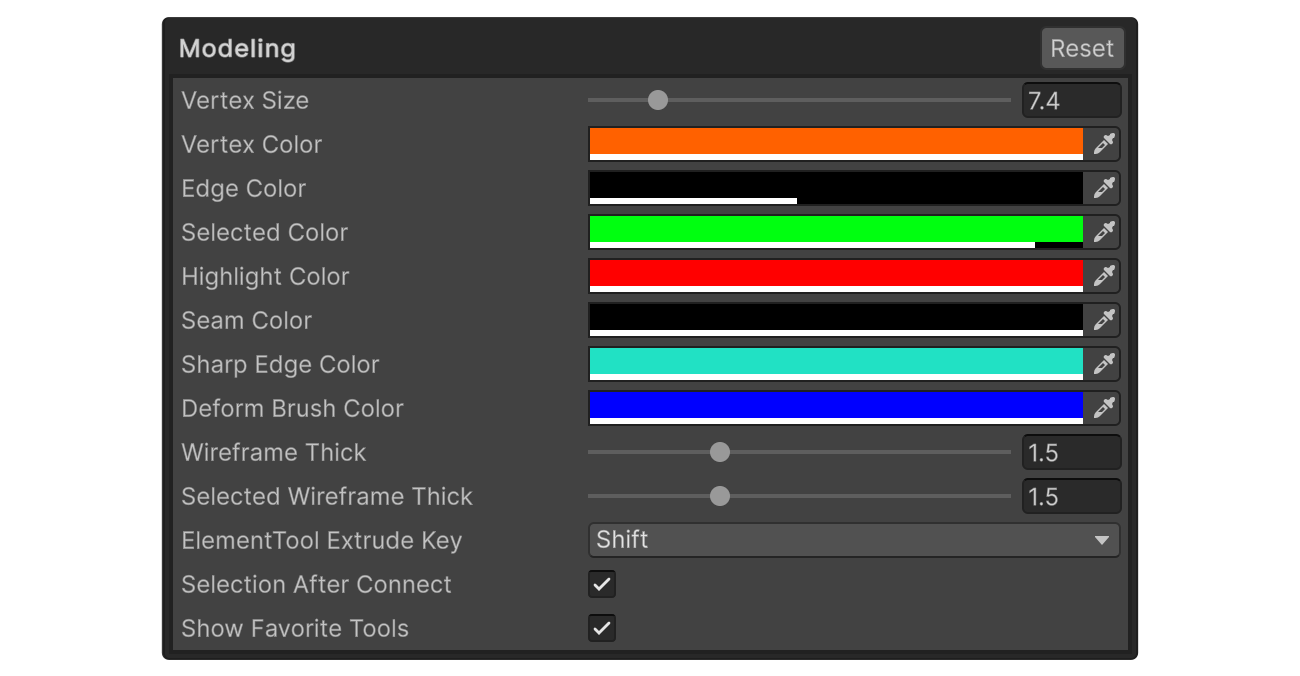
ElementTool Extrude Key : Modifier key held while dragging an element to extrude it instead of moving it
- Shift, Space
Snap To Edge Center : Includes edge midpoints as vertex snap targets while dragging with vertex snapping
Snap To Face Center : Includes face centers as vertex snap targets while dragging with vertex snapping
Apply Animation : Edits a rigged object in its posed state. Tools that change topology are locked while this is on, so only element transforms are allowed
Vertex Picking Range : How close the mouse has to be, in pixels, for a vertex to be picked (default 10)
Edge Picking Range : How close the mouse has to be, in pixels, for an edge to be picked (default 5)
Vertex Size : Radius of the vertex dots drawn in the scene view, in pixels
Vertex Color : Color of unselected vertices in the scene view
Edge Color : Color of unselected edges in the scene view
Selected Color : Color of selected elements in the scene view
Highlight Color : Color of the element under the mouse pointer
Seam Color : Color of edges that are marked as UV seams
Sharp Edge Color : Color of edges that are marked as sharp, so the two sides are not smoothed together
Deform Brush Color : Color of the deform brush circle drawn around the cursor
Edge Constraint Active Direction Color : Color of the edge line that an edge constraint is currently locked to
Edge Constraint Drag Preview Color : Color of the preview line drawn while dragging along an edge constraint
Wireframe Thick : Line thickness of unselected edges in the scene view, in pixels
Selected Wireframe Thick : Line thickness of selected edges in the scene view, in pixels. Never drawn thinner than Wireframe Thick
X-Ray Backfaces : Lets hidden back faces show through the mesh while backface selection is on, so they can be seen before being picked
Selection After Connect : Leaves the edges the Connect tool just created selected, so the next operation can act on them
Text Tool Default Font : Font the Text tool starts with when it builds 3D text
Rigging
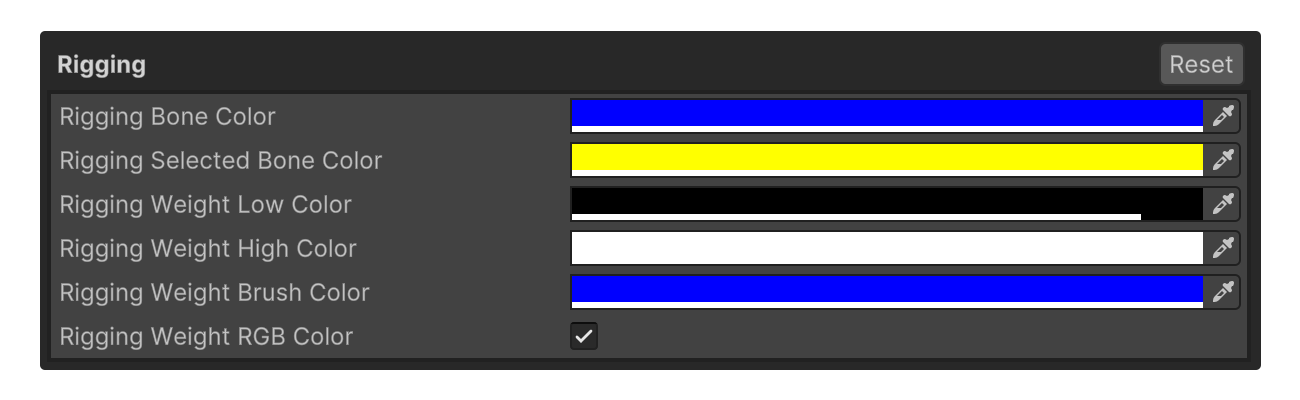
Rigging Bone Color : Sets the color of the rigging bones
Rigging Selected Bone Color : Sets the color of the selected rigging bones
Rigging Weight Low Color : Sets the color for low rigging weights
Rigging Weight High Color : Sets the color for high rigging weights
Rigging Weight Brush Color : Sets the color for brush rigging weights
Rigging Weight RGB Color : Sets the RGB color for rigging weights
Lightmap
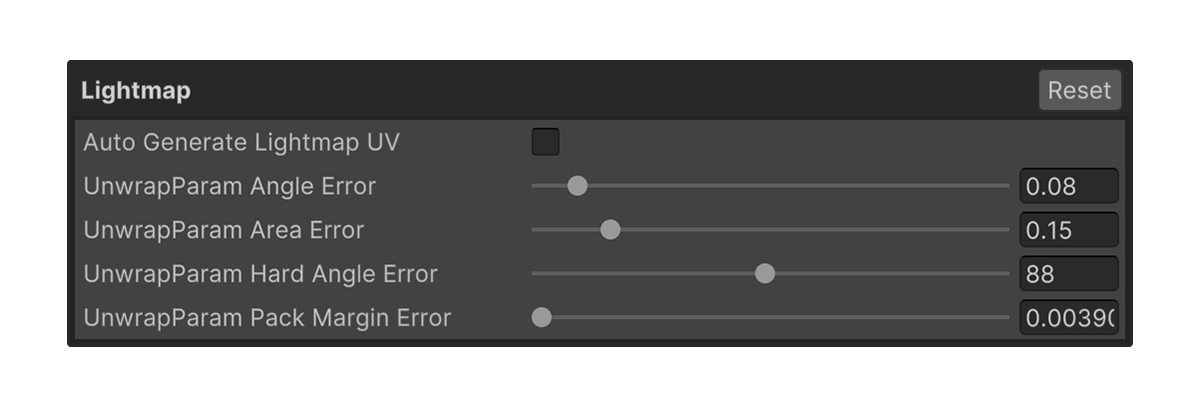
Auto Generate Lightmap UV : Automatically generates lightmap UVs
UnwrapParam Angle Error : Sets the maximum allowable angle distortion during unwrapping
UnwrapParam Area Error : Sets the maximum allowable area distortion during unwrapping
UnwrapParam Hard Angle Error : Sets the angle threshold for creating seams during unwrapping
UnwrapParam Pack Margin Error : Sets the padding between UV islands to prevent overlap
Material
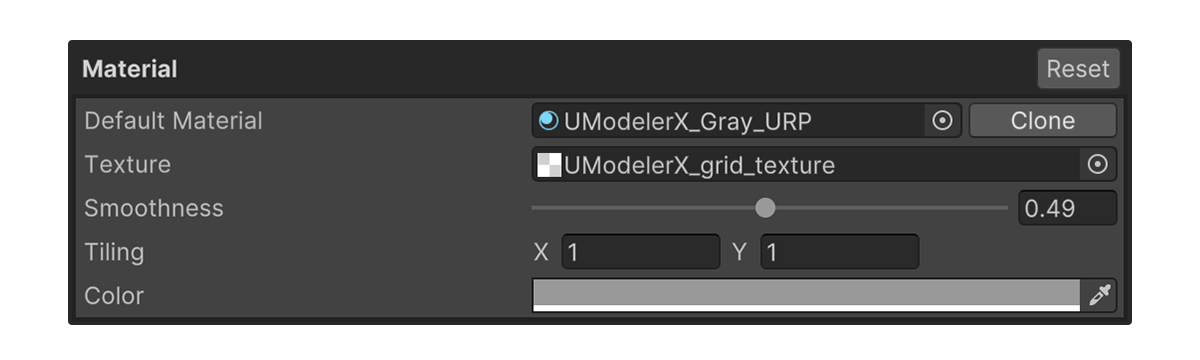
Default Material : Material assigned to newly created UModeler X objects. The settings below only apply while this is the material UModeler X ships with
Texture : Main texture of the default material. Clear it to use Color instead
Smoothness : Smoothness of the default material
Tiling : How many times the default material's texture repeats across the UV range
Color : Color of the default material. Used only while no texture is set
X-Ray Texture : Main texture of the material used by X-Ray display mode
UV Editor
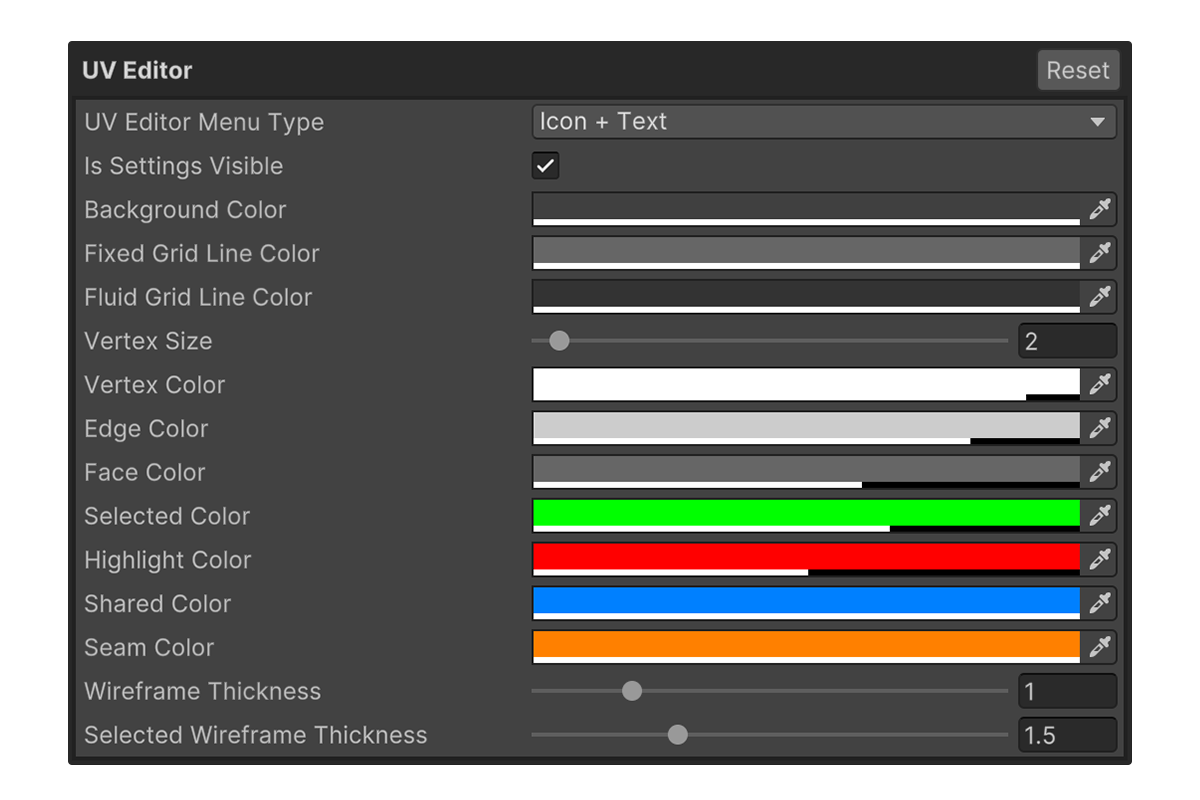
UV Editor Menu Type : How the tool buttons in the UV Editor are drawn
- Both (Icon + Text), Icon, Text
Is Settings Visible : Opens the settings panel inside the UV Editor window
Min Zoom : Lower limit of the UV view zoom. The view cannot be zoomed out past this
Max Zoom : Upper limit of the UV view zoom. The view cannot be zoomed in past this
Background Color : Sets the background color
Fixed Grid Line Color : Color of the fixed grid lines that mark the 0 to 1 UV range
Fluid Grid Line Color : Color of the subdivision grid lines that follow the zoom level
Vertex Size : Sets the size of the vertices
Vertex Color : Sets the color of the vertices
Edge Color : Sets the color of the edges
Face Color : Sets the color of the faces
Selected Color : Sets the color of the selected elements
Highlight Color : Sets the color of the highlighted elements
Shared Color : Sets the color of the shared elements
Seam Color : Sets the color of the seams
Wireframe Thickness : Sets the thickness of the wireframe
Selected Wireframe Thickness : Sets the thickness of the selected wireframe
UV Recent Tools
The list of recently used tools shown in the UV Editor. The fields match Recent Tools for the Scene view.
Show By : How the recently used tool list appears
- None, Space Bar, Always Visible
Count : How many recently used tools are listed (default 5)
Menu Type : How recent tools are displayed — Both (Icon + Text), Icon, Text
Button Size : Whether buttons use the Scene Toolbar or Inspector icon size
Orientation : Whether recent tools are arranged horizontally or vertically
Anchor : Where the pinned list is docked. Used by Always Visible only
Position : Margin from the anchored edges, in pixels. Used by Always Visible only
Exclude Favorites : Leaves out tools already listed in the Favorite Tools group
UV View Favorites
The favorite tools bar pinned inside the UV Editor view.
Orientation : Whether View Favorites are arranged horizontally or vertically
Button Size : Whether buttons use the Scene Toolbar or Inspector icon size
Anchor : Where the View Favorites bar is docked in the viewport (default Top Right)
Position : Margin from the anchored edges, in pixels
Hotspot Editor
Display settings for the Hotspot Editor window used by Hotspot Texturing.
Hotspot Editor Menu Type : How the tool buttons in the Hotspot Editor are drawn
Is Settings Visible : Opens the settings panel inside the Hotspot Editor window
Background Color : Background color of the Hotspot Editor view
Fixed Grid Line Color : Color of the fixed grid lines that mark the 0 to 1 UV range
Fluid Grid Line Color : Color of the subdivision grid lines that follow the zoom level
Vertex Size : Radius of the layout vertex dots, in pixels
Vertex Color : Color of unselected layout vertices
Edge Color : Color of unselected layout edges
Face Color : Fill color of unselected layout faces
Selected Color : Color of selected layout elements
Highlight Color : Color of the layout element under the mouse pointer
Wireframe Thickness : Line thickness of unselected layout edges, in pixels
Selected Wireframe Thickness : Line thickness of selected layout edges, in pixels
Hotspot Recent Tools
The list of recently used tools shown in the Hotspot Editor. The fields are the same as UV Recent Tools.
Hotspot View Favorites
The favorite tools bar pinned inside the Hotspot Editor view. The fields are the same as UV View Favorites; the default Anchor is Top Left.
Painting
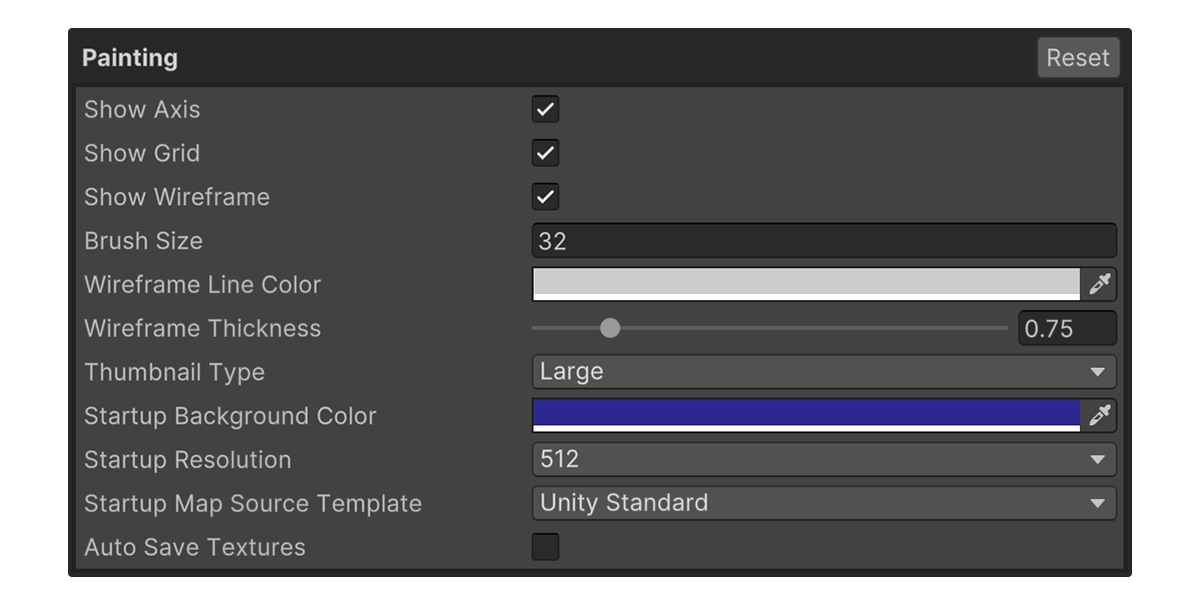
Show Axis : Draws the U and V axis lines in the 2D painting view
Show Wireframe : Draws the UV wireframe over the texture in the 2D painting view, so strokes can be aimed at a face
Texture Repeat : Tiles the texture outside the 0 to 1 UV range in the 2D painting view, which makes seams easier to judge
Show Mask : Shows the selected layer's mask as a grayscale image in the 2D painting view instead of the layer's own texture
Brush Size : Brush diameter used by the 2D painting tools, in pixels
Selection Padder Pixels : Grows the 2D selection by this many pixels on every side, so strokes reach slightly past the UV border and leave no seam gap
Wireframe Line Color : Color of the UV wireframe drawn over the texture
Wireframe Thickness : Line thickness of the UV wireframe drawn over the texture, in pixels
Thumbnail Type : Size of the texture thumbnails shown in the painting layer list
- Large, Small
Startup Resolution : Resolution of the textures created when painting starts on an object that has none yet
Startup Map Source Template : Set of texture maps created when painting starts, matched to the target shader's channels
Auto Save Textures : Writes painted textures to disk automatically instead of waiting for an explicit save
Parametric Shape
Options for Parametric Shapes.
Gizmo Size : Scale of the size handles drawn around a parametric shape in the scene view
Shape Menu Type : How the shape type buttons are drawn — Both (Icon + Text), Icon, Text
Edit Mode After Draw : Enters Edit mode as soon as you leave Draw mode. When off, the mode used before Draw is kept
Keep Children In Place : Keeps child objects at their world position while a resize moves the shape's transform. Parametric children anchored to the parent are excluded
Performance
Fast Rendering : Draws the element overlay (vertices, edges, faces and UVs) through a GPU buffer path that keeps one copy of each coordinate and re-uploads only the blocks that changed. Turn it off to fall back to the legacy Mesh path if the overlay renders incorrectly on your graphics driver.
Burst Acceleration : Runs mesh building, overlay building, element selection, snapping and transform routines as Burst-compiled jobs, and switches vertex, edge and face picking to a CPU BVH path. Editing heavy meshes stays responsive and scenes load faster.
Burst Acceleration needs Unity's Burst and Mathematics packages. Without them UModeler X still works through the existing path, so nothing is lost but the speedup, and a turtle icon appears in the Scene view toolbar. Click it to see why acceleration is not running and to install the packages.
Changing this option reloads scripts, because the acceleration hooks are registered during domain reload.
For the accelerated scope, the requirements and troubleshooting, see Burst Acceleration.
Debug
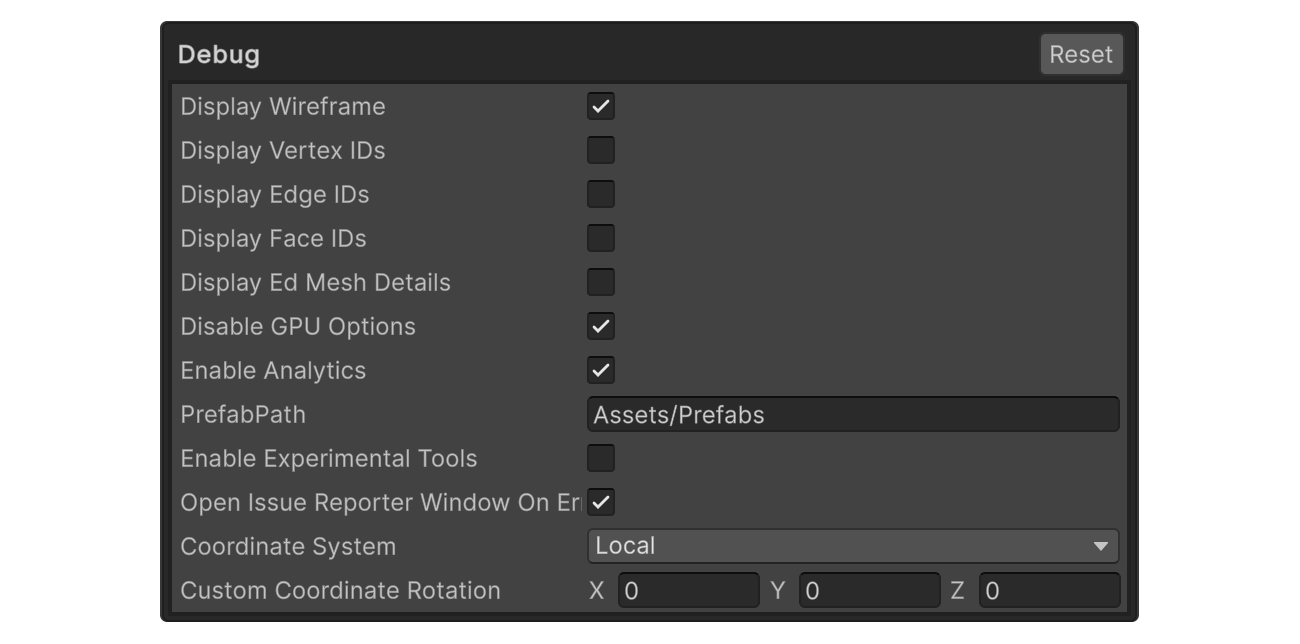
Display Vertex IDs : Draws the ID of every vertex next to it in the scene view
Display Edge IDs : Draws the ID of every edge next to it in the scene view
Display Face IDs : Draws the ID of every face at its center in the scene view
Display Ed Mesh Details : Adds detailed EdMesh element information to the scene view debug overlay
Display Curve Point IDs : Draws the ID of every CurveMesh control point in the scene view
Display Curve Point Position : Draws the local position of every CurveMesh control point in the scene view
Disable GPU Options : Turns off Unity's GPU skinning and flip model swapchain. Try this when the graphics driver causes crashes or rendering artifacts
Enable Analytics : Sends anonymous usage statistics that help decide which features to improve. (UModeler X Plus only)
Prefab Path : Folder the prefab batch menu commands scan, such as Delete UModeler X Script From Prefabs
Enable Experimental Tools : Shows tools that are still experimental. They may change or stop working without notice
Enable Logging : Master switch for UModeler X logging. When off, nothing is recorded, written to a log file, or forwarded to the issue reporter
Min Log Level : Lowest severity that gets logged. Records below this level are dropped
- Log, Warning, Error, Exception
Enable User Detailed Log : Also writes a detailed record of user activity to Logs/umx-user.log
Open Issue Reporter Window On Error : Opens the Issue Reporter window as soon as UModeler X logs an error, so the report can be sent while the context is still fresh
Attach Screenshot To Issue Report : Captures the screen and attaches it to the issue report. The capture covers the whole screen, so leave this off unless you mean to share it
Display Curve : Displays every curve in the scene
Translate
Enable Gizmo Translator UI : Shows the numeric transform panel next to the move, rotate, and scale gizmo, so values can be typed in directly
Display
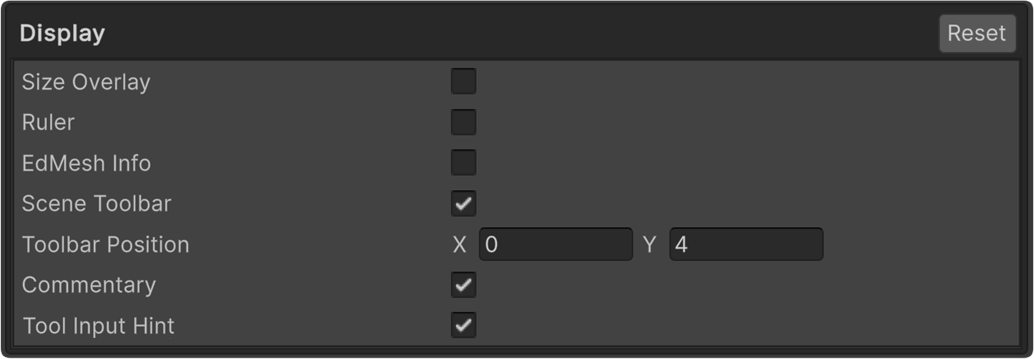
Size Overlay : Shows the size of the selected object (X, Y, Z dimensions)
Ruler : Shows the length of the selected edges
EdMesh Info : Shows the EdMesh information
Commentary : Visually displays the name, shortcut key, or related information of the executed action
Tool Input Hint : Displays the available input shortcuts for the tool
Scene Toolbar
The UModeler X toolbar at the top of the Scene view. See Toolbar.
Visible : Shows the toolbar at the top of the Scene view
Position : Offset of the toolbar from the top center of the Scene view, in pixels
Home (Hub/Logo) : Shows the UModeler X logo button that opens the hub
UMX Object : Shows the UMX Object button group
CurveMesh : Shows the CurveMesh button
PicoBerry : Shows the PicoBerry button
Preference : Shows the button that opens UModeler X preferences
Export
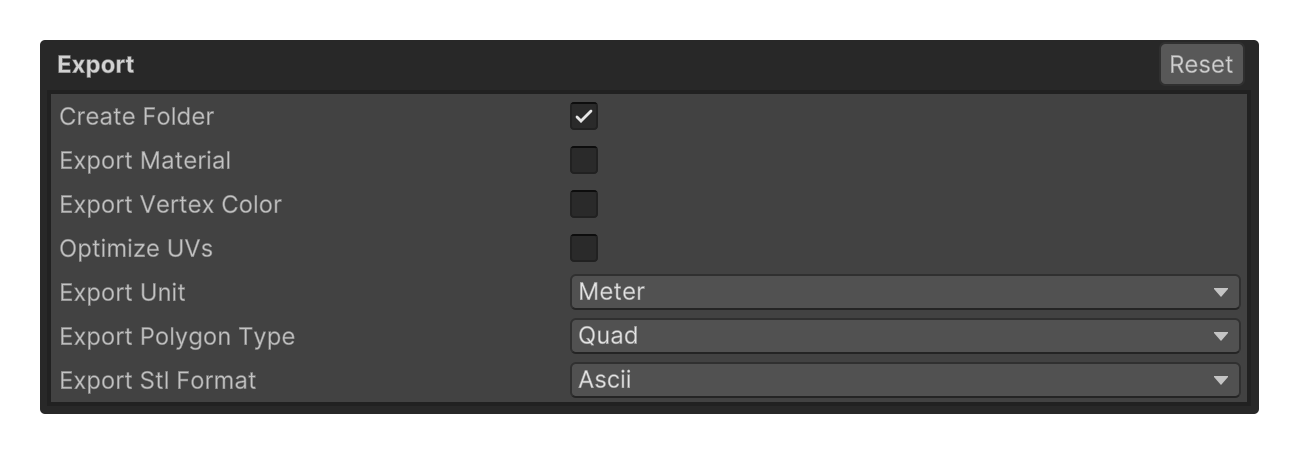
Create Folder : Creates a folder
Export Material : Exports the material
Export Vertex Color : Exports the vertex color
Optimize UVs : Optimizes the UVs
Export Unit : Sets the unit for export
- Meter, Centi Meter, Milli Meter
Export Polygon Type : Sets the polygon type for export
- Triangles, Quad, Polygons
Export Stl Format : Exports in STL format
- Ascii, Binary
Recent Tools
The list of recently used tools shown in the Scene view.
Show By : How the recently used tool list appears
- None — never shown
- Space Bar — pops up next to the mouse cursor when you press the Space Bar
- Always Visible — stays pinned in the Scene view
Tool Count : How many recently used tools are listed (default 5)
Menu Type : How recent tools are displayed — Both (Icon + Text), Icon, Text
Button Size : Whether buttons use the Scene Toolbar or Inspector icon size
Orientation : Whether recent tools are arranged horizontally or vertically
Anchor : Where the pinned list is docked. Used by Always Visible only
- Top Left, Top Center, Top Right, Middle Left, Middle Right, Bottom Left, Bottom Center, Bottom Right
Position : Margin from the anchored edges, in pixels. Used by Always Visible only
Exclude Element Tools : Leaves out tools the Scene toolbar already shows as element buttons
Exclude Favorite Tools : Leaves out tools already listed in the Favorite Tools group
Exclude Scene View Favorites : Leaves out tools already shown in the Scene View Favorites bar
Scene View Favorites
The bar of favorite tools pinned in the Scene view.
Orientation : Whether Scene View Favorites are arranged horizontally or vertically
Position : Where Scene View Favorites are displayed in the Scene view
- Below Scene Toolbar, Top Left
Offset : Additional X and Y position adjustment, in pixels
Button Size : Whether buttons use the Scene Toolbar or Inspector icon size
Import(.obj)
Use UMX Importer : Imports .obj files with the UModeler X importer instead of Unity's built-in one, so polygon faces survive the import
Enable Logging : Logs what the .obj importer read, which helps track down malformed files
Keep Quads : Keeps quad faces from the file instead of splitting them into triangles
Normal : How normals are produced for the imported mesh
Tangent : How tangents are produced for the imported mesh. Normal mapped shaders need them
Hierarchy
New Object Parent : Where a newly created UModeler X, CurveMesh or PicoBerry object is placed relative to the currently selected object
- Root — at the scene root
- Sibling — next to the selected object, under the same parent
- Child — under the selected object (default)
Save Data
A separate page under Preferences > UModeler X > Save Data that controls where UModeler X writes its data.
Save Data Folder : Base folder for UModeler X save data (under Assets). Data is stored in per-type subfolders, such as EditableMesh (default Assets/UModelerXData/Editor)
Mesh Folder (Scene) : Folder where the Mesh .asset of scene objects is saved (default Assets/UModelerXData/Runtime/Mesh)
Mesh Folder (Prefab) : Folder where the Mesh .asset of prefab objects is saved, separate from the scene mesh folder (default Assets/UModelerXData/Runtime/PrefabMesh)
Paint Runtime Folder : Folder where painted Material (.mat) and Texture (.png) assets are saved. These are included in runtime builds (default Assets/UModelerXData/Runtime/PaintData)
Prefab Editor AutoSave Sync Delay (sec) : After an edit in the prefab editor, UModeler X waits this many seconds of inactivity before writing the prefab's mesh and save data to disk, so rapid edits trigger only one write. 0 turns auto sync off (0 ~ 30, default 3)
Disable Read/Write on Save : Turns off the Read/Write flag of the saved mesh, which roughly halves its memory footprint at runtime and in builds. Leave it off if you need CPU access to the mesh at runtime — reading vertices, runtime mesh modification, raycasting against a MeshCollider, or baking. Objects whose MeshCollider uses the mesh are skipped automatically. Each object can override this in the Local Settings Tool
Duplicated Scene Handling : How a scene file duplicated outside of Save As (Ctrl+D in the Project window, copying the file in Explorer) is separated from the original, so edits in one scene do not overwrite the other
- Ask When Detected — show a confirmation dialog when a duplicated scene is detected (default)
- Always Convert — separate the data automatically without asking
- Convert On Scene Open — do nothing at import time; separate the data when the duplicated scene is opened
Saving a duplicated scene always separates its data, whatever this is set to.
Move Unused Assets to Trash on Save : When saving a scene, moves its SaveData and Mesh .asset files that no object references any more into a Trash folder under Save Data Folder (default on). Files are moved, not deleted, so bringing objects back with Undo keeps their data intact. Nothing is deleted for good until you run Tools > UModeler X > Scene Data > Empty Trash
Reset to Defaults : Resets every Save Data option to its default value
Shortcuts
A separate page under Preferences > UModeler X > Shortcuts where every UModeler X shortcut is listed and can be rebound. See Shortcuts.
PicoBerry
A separate page under Preferences > UModeler X > PicoBerry.
Theme : Color theme of the AI UI. Unity uses the default editor colors; PicoBerry uses the website color scheme
PicoBerry Website : Open Workspace opens the PicoBerry web workspace, and Credits & Plan opens the billing page