
Settings and Interface
Screen Pan, Transform Gizmo, UV Element Selector, Cursor, and Pivot Toggle are listed in this order.
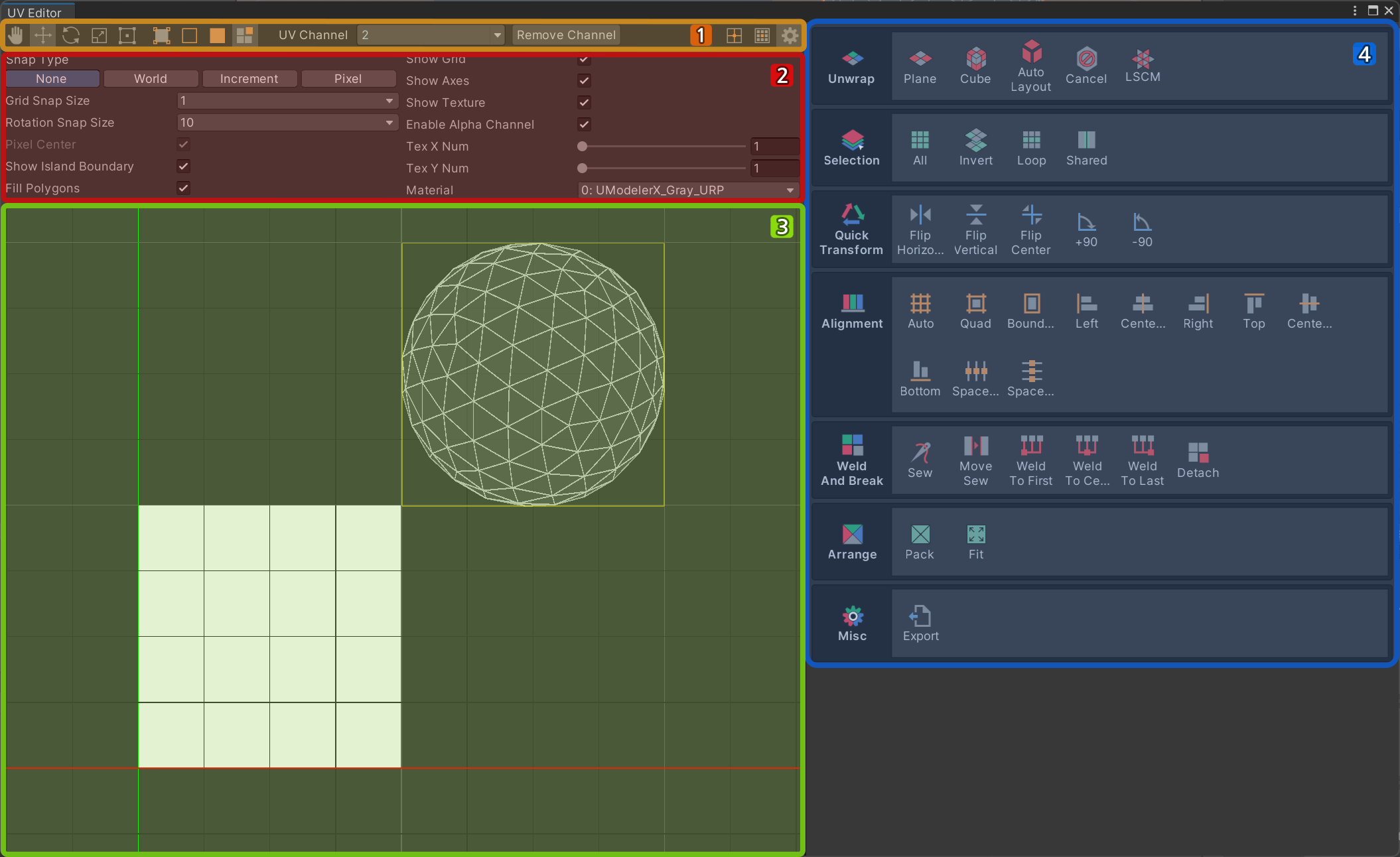
1. Toolbar
Screen Pan, Transform Gizmo, UV Element Selector, Cursor, and Pivot Toggle are listed in this order.
The Pan and Transform Gizmos
It consists of the Hand tool and the Transform Gizmo.
You can transform the selected UV element by first selecting the desired UV element and then pressing one of the gizmos to manipulate the resulting Gizmo.
Hand Tool
This tool is used to move around the screen. After launching the Hand Tool, you can move the screen by click-dragging around the UV Editor workspace. The keyboard shortcut is Q
Move Tool
This tool is used to move selected UV elements. The keyboard shortcut is W
Rotation Tool
This tool is used to rotate the selected UV element. The hotkey is E
Scale Tool
This tool is used to scale the selected UV element. Keyboard shortcut is R
Rectangle Tool
This tool is used to resize the selected UV element. Keyboard shortcut is T
Selecting a UV Element
Tools for selecting UV elements for editing.
You must select a UV element before you can use the Transform Gizmo Tool and the Tools that work on specific UV elements.
Select UV Vertex
This tool selects a UV vertex.
Select UV Edge
This tool selects a UV edge.
Select UV Face
This tool selects a UV face.
Select UV Island
This tool selects a UV island.
Settings and Pivots
Cursor Tool
The Cursor tool is a point-like cursor used in the UV Editor when you want to use a tool relative to a specific location.
It is most commonly used as the location of gizmos in the Rotation tool, Scale tool, and other tools related to UVs. You can move the center point of the cursor by clicking and dragging it.
Gizmo Transition Tool
This is a tool to switch the base of the gizmo position, which switches the Pivot property and Center property each time it is pressed.
Pivot
The Pivot property is a property that uses the position of the last selected UV element as the position of the gizmo.
Center
The Center property uses the center of the selected UV element as the position of the gizmo.
If multiple UV elements are selected, the average position of the selected UV elements will be used as the gizmo position.
Settings
Buttons to display the settings area of the UV Editor.
2. Settings Area
This is the area where you can make settings related to the UV Editor.
Snap Type
When manipulating the movement, rotation, and size of a UV element, the position of the element is snapped according to the SnapType property and other properties related to snapping.
SnapType: None
Properties when no snapping is applied.
SnapType: World
Property by which UV vertices are snapped to the grid in the UV Editor workspace.
GridSnapSize Property
Property that sets the spacing of the grid that UV vertices are snapped to when the UV element is moved, rotated, or scaled.
SnapType: Increment
A property that causes the selected UV element to be moved and rotated without snapping the UV vertices by the value set in the SnapSize property.
GridSnapSize Property
Property that sets the snap size to be applied when moving UV elements.
RotationSnapSize Property
Property that sets the snap angle to be applied when rotating the UV element.
SnapType: Pixel
This property causes UV vertices to snap to the pixels of the applied texture.
PixelCenter
This property causes the vertices to snap to the center of the pixels in the texture.
- If disabled, it will snap to the pixel edge of the texture.
ShowIslandBoundary
Property to show the bounding box of the UV island.
FillPolygons
Property that makes the UV faces translucent.
ShowGrid
Property that displays a grid in the UV Editor workspace.
ShowAxes
Property that shows the U and V axes corresponding to the X and Y axes in the UV Editor workspace.
ShowTexture
Property that displays the material's texture, as set in the UV Editor's Material property.
EnableAlphaChannel
This property displays the material's texture alpha channel, excluding the portion set in the UV Editor's Material properties.
TexXNum
Property to display the material's texture as a left-right repeat, as set in the UV Editor's Material properties.
TexYNum
Property that displays the material's texture, as set in the UV Editor's Material property, as an up and down repeat.
Material
A property that shows the materials applied with the Material tool, displaying only the UV elements that have that material assigned to them.
All
A property that shows all UV elements regardless of material assignment.
3. Workspace
The area where you edit UV elements, allowing you to see the texture along with the grid.
4. UV Tool Area
This is a collection of tools for editing UV elements, such as expanding, selecting, and placing UV elements.
Unwrap Group
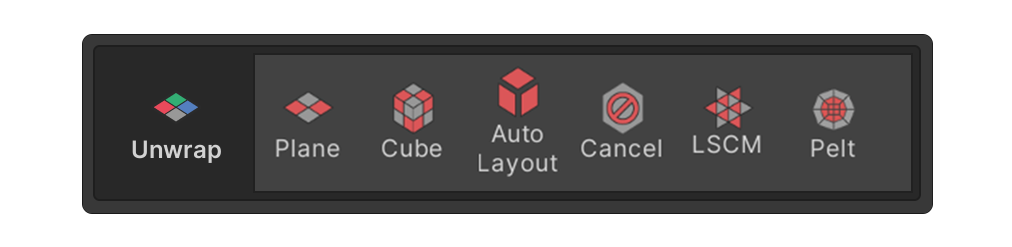
This group contains tools for unwrapping UV elements.
Selection group
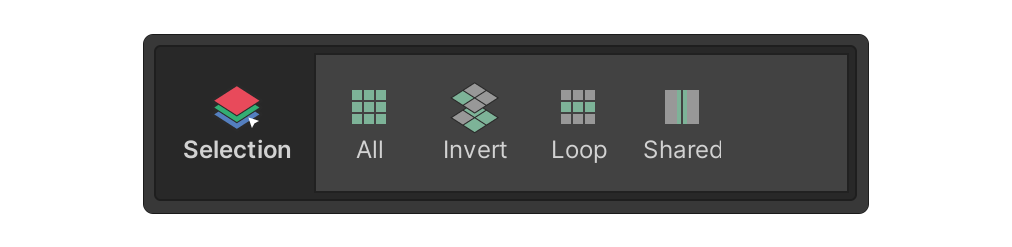
This group contains tools for selecting UV elements.
Selection Group
Quick Transform group
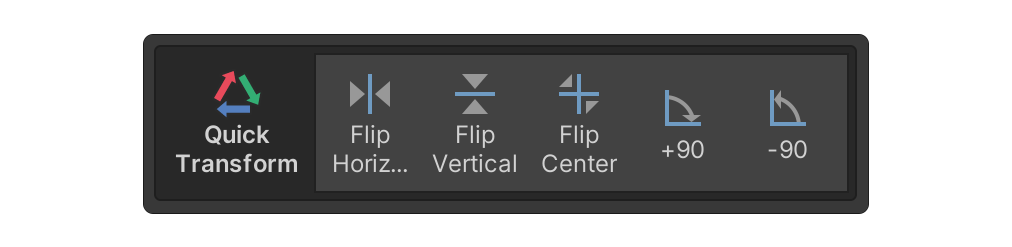
This group contains tools that allow you to easily flip and rotate the position of UV elements.
Alignment group
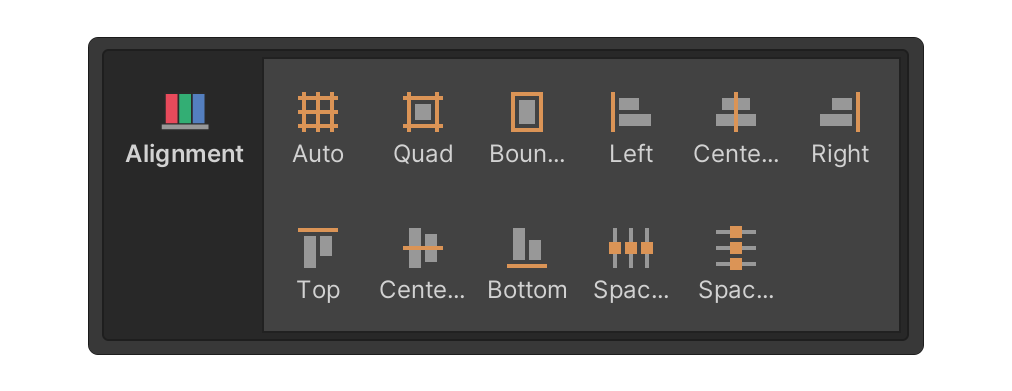
This group contains tools for aligning the position of UV elements.
Weld And Break group
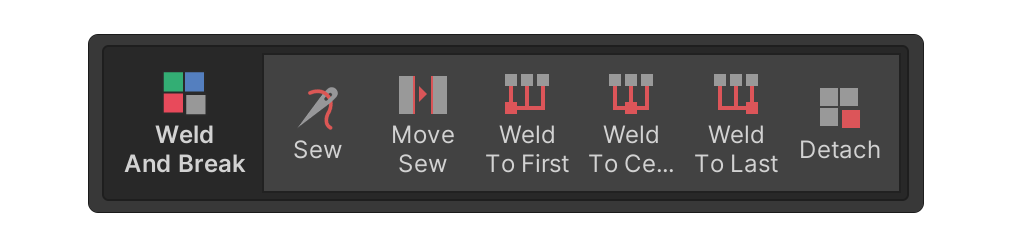
This group contains tools used to break and weld UV elements together.
Arrange group
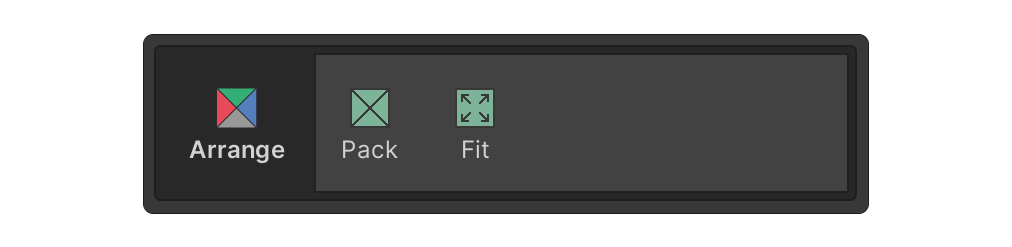
This group contains tools for placing UV elements in texture space in bulk.
Misc group
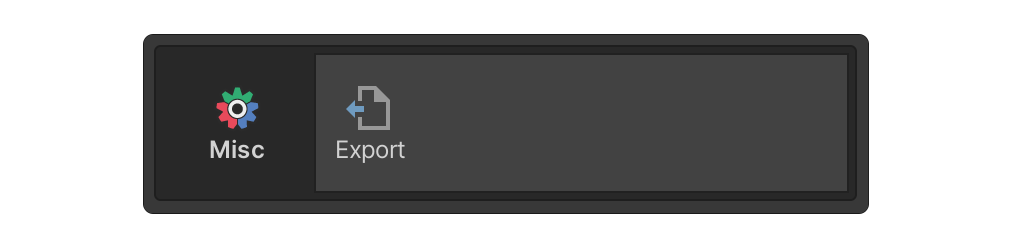
This group contains tools that do not belong in any other group.
Misc Group