
Free Transfrom Tool
Translation in progress — showing the English version.
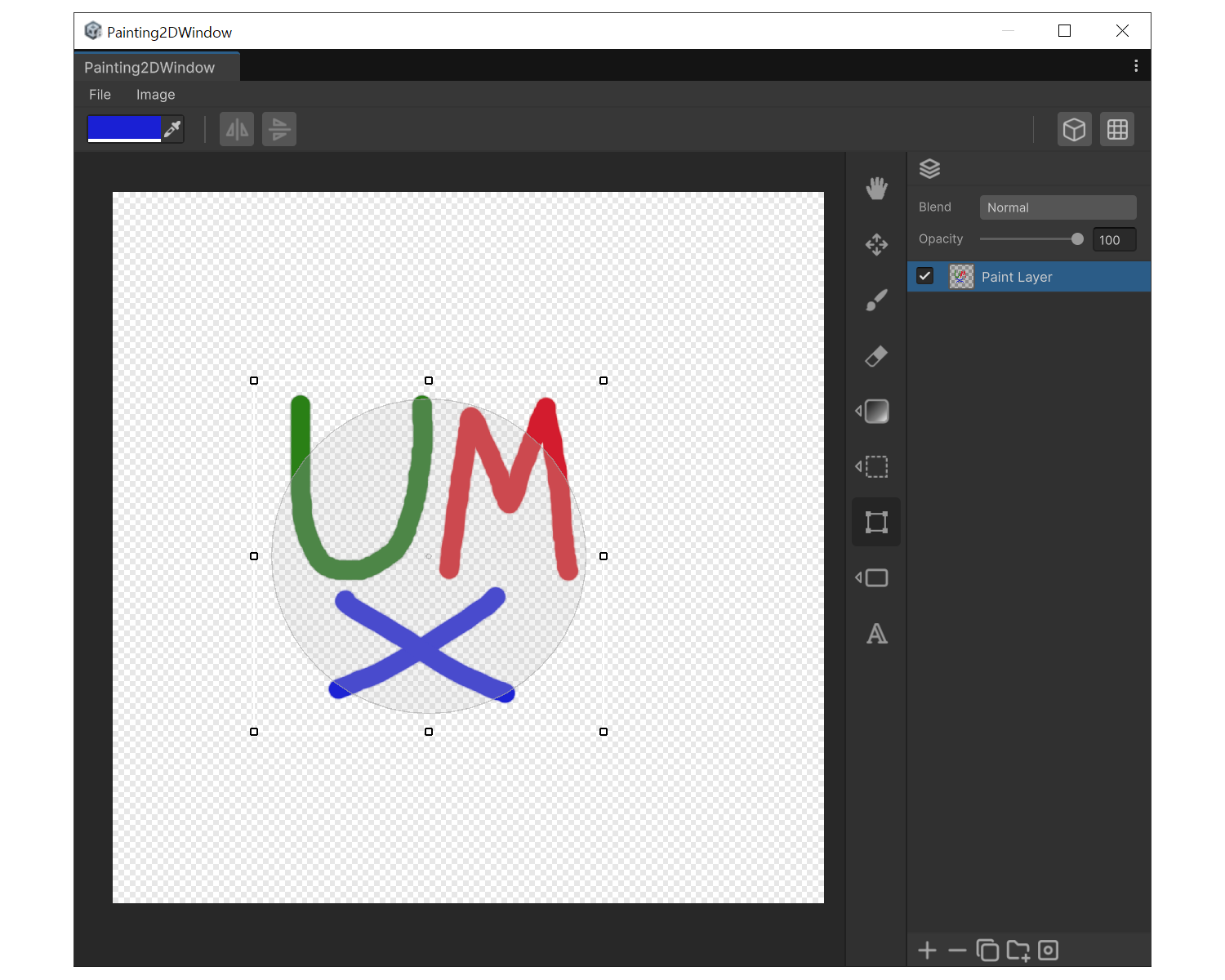
When to use
To scale, rotate, skew, or distort a selection, a Text layer, or a Shape layer.
Drag actions
- Scale : Corner handle drag.
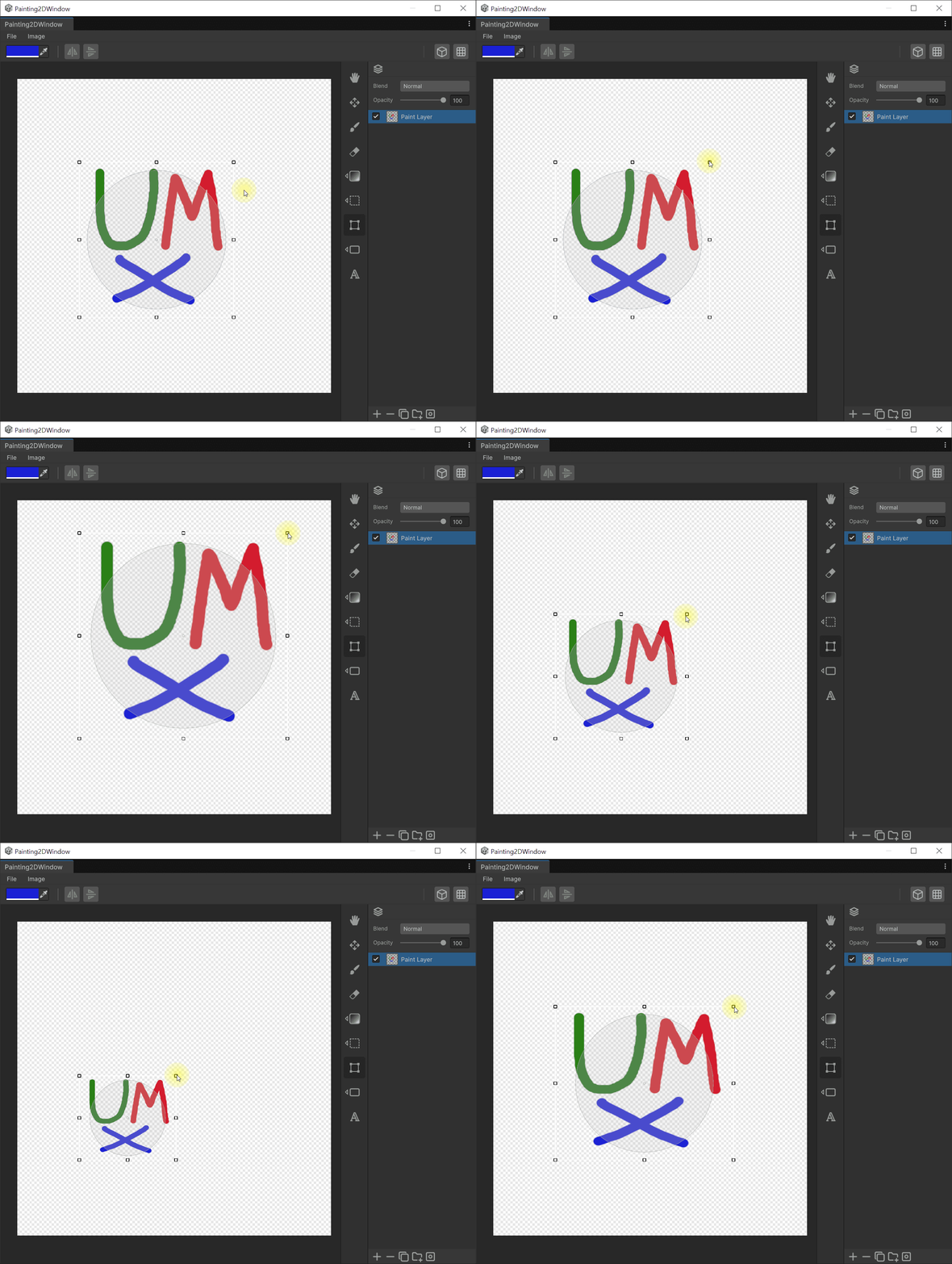
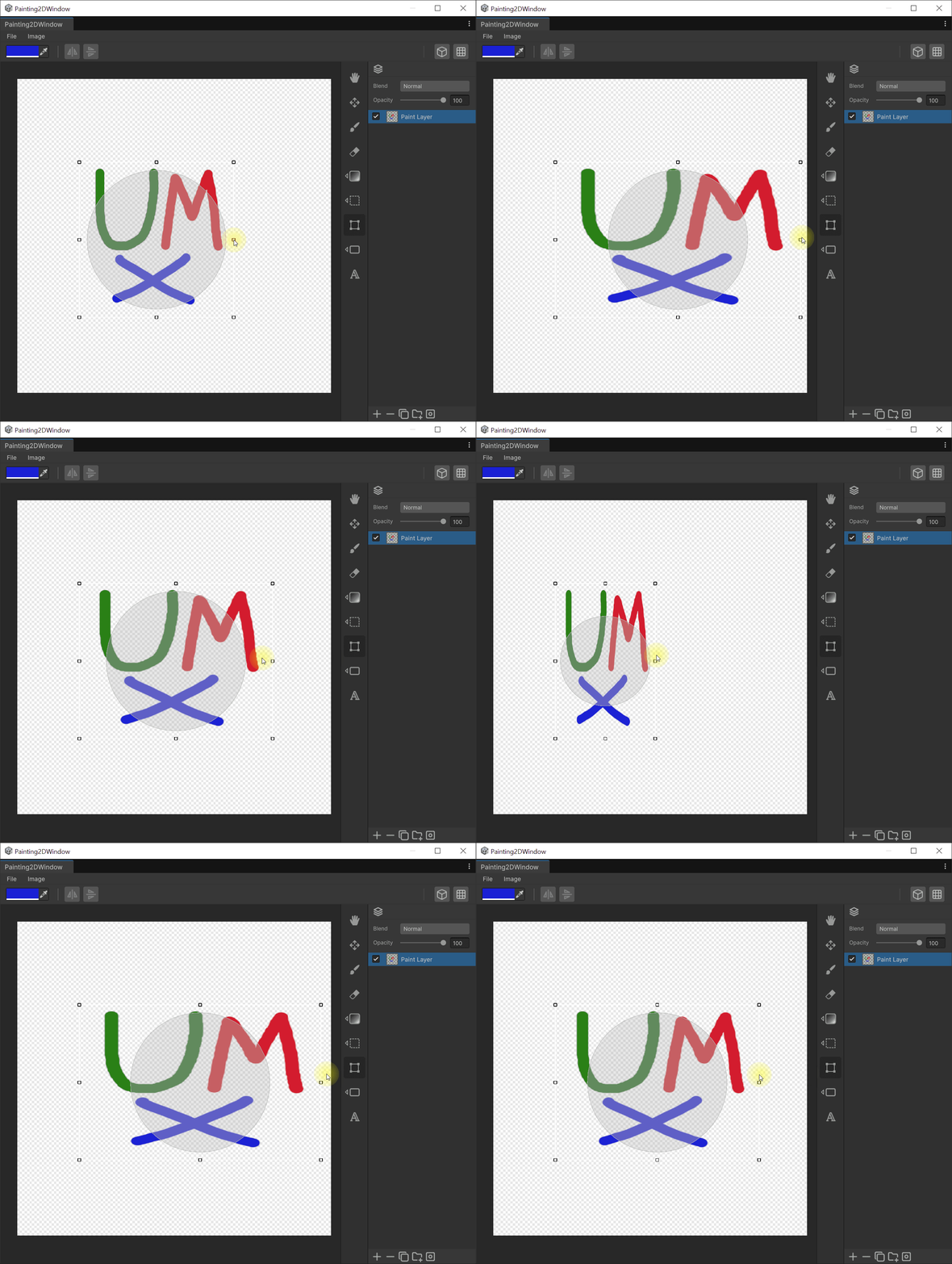
- One-axis scale : Side handle drag.
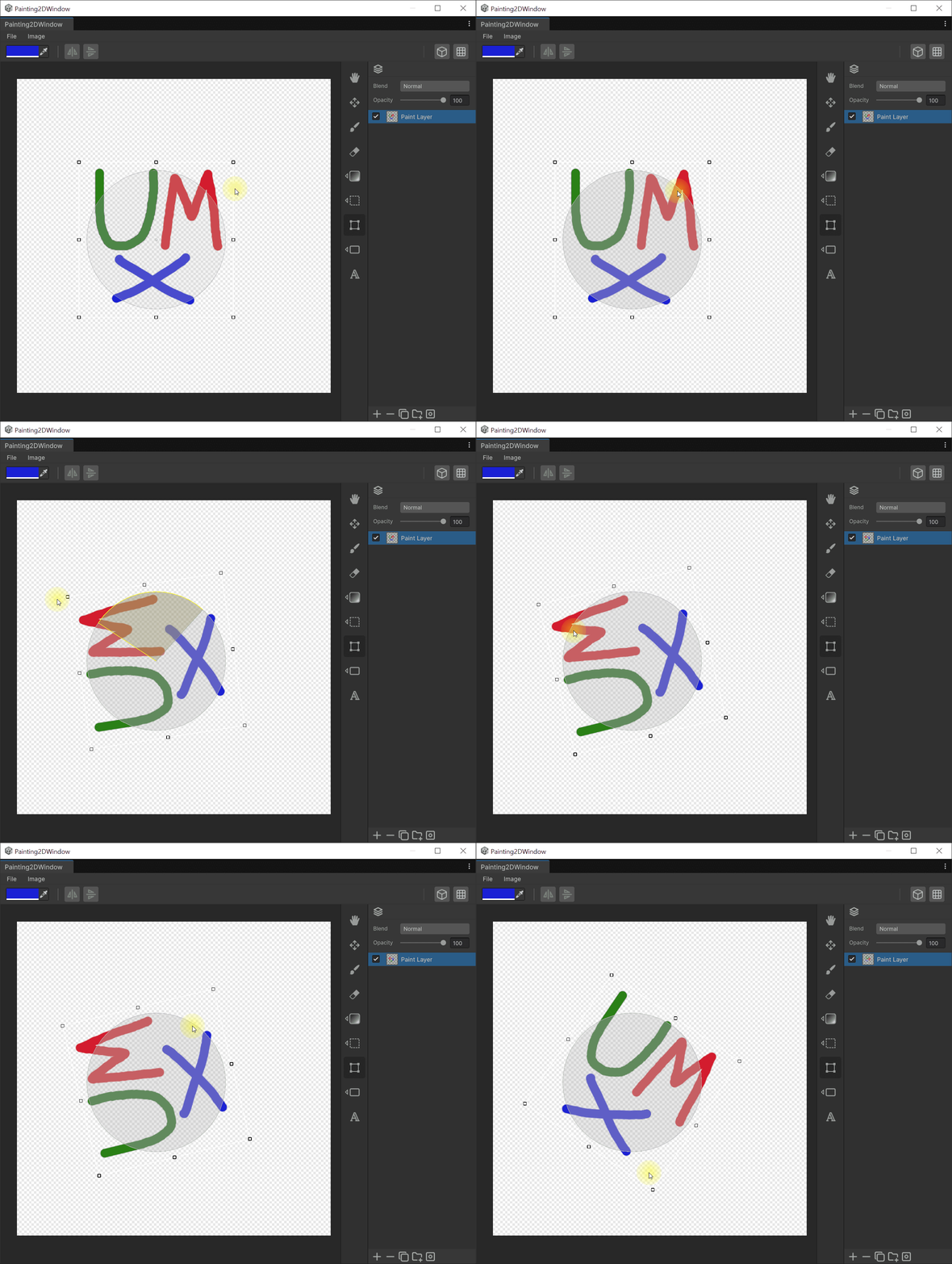
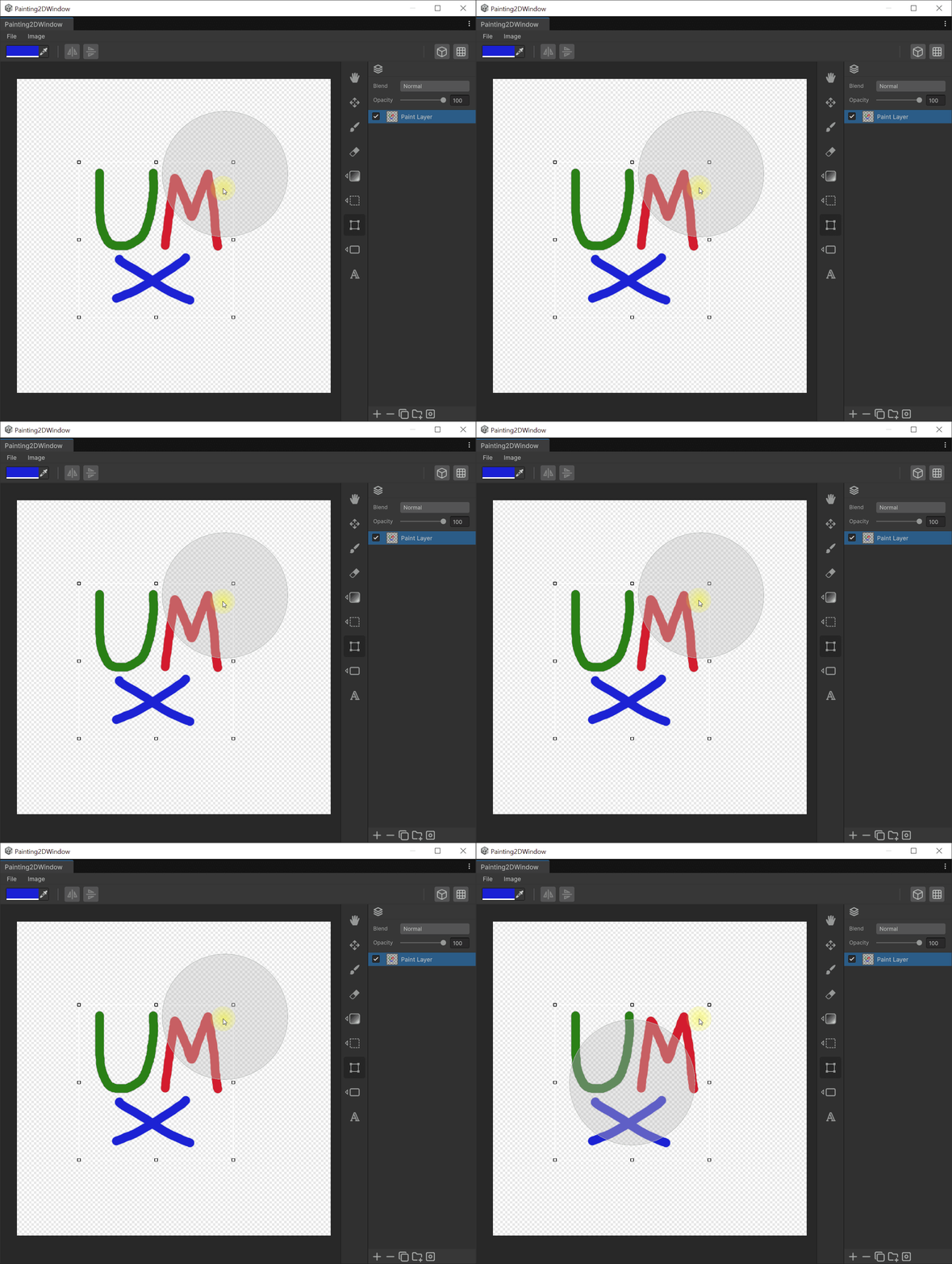
- Rotate : Drag the disc outside the bounding box.
- Skew : Ctrl + side handle.
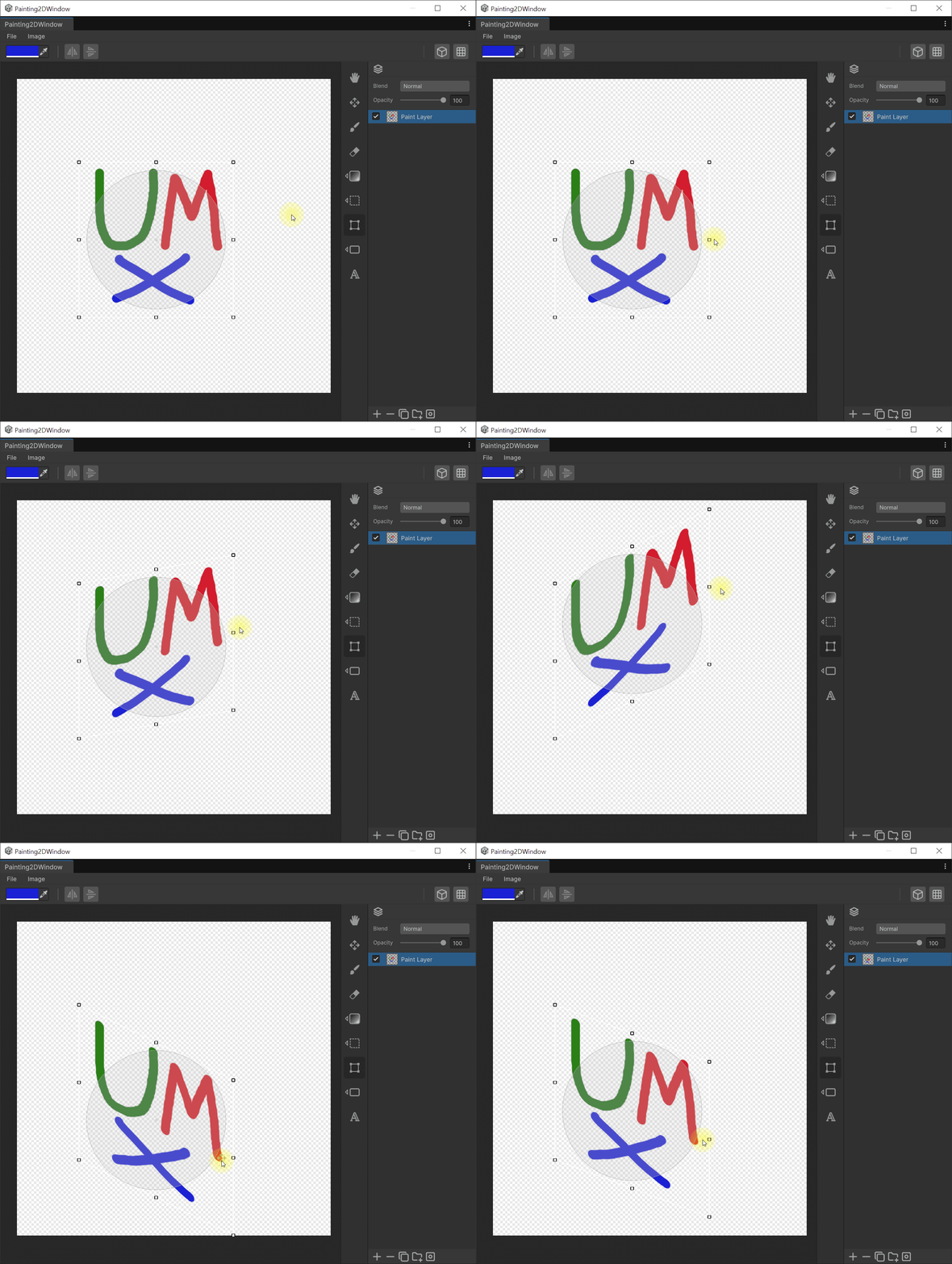
- Distort : Ctrl + corner handle.
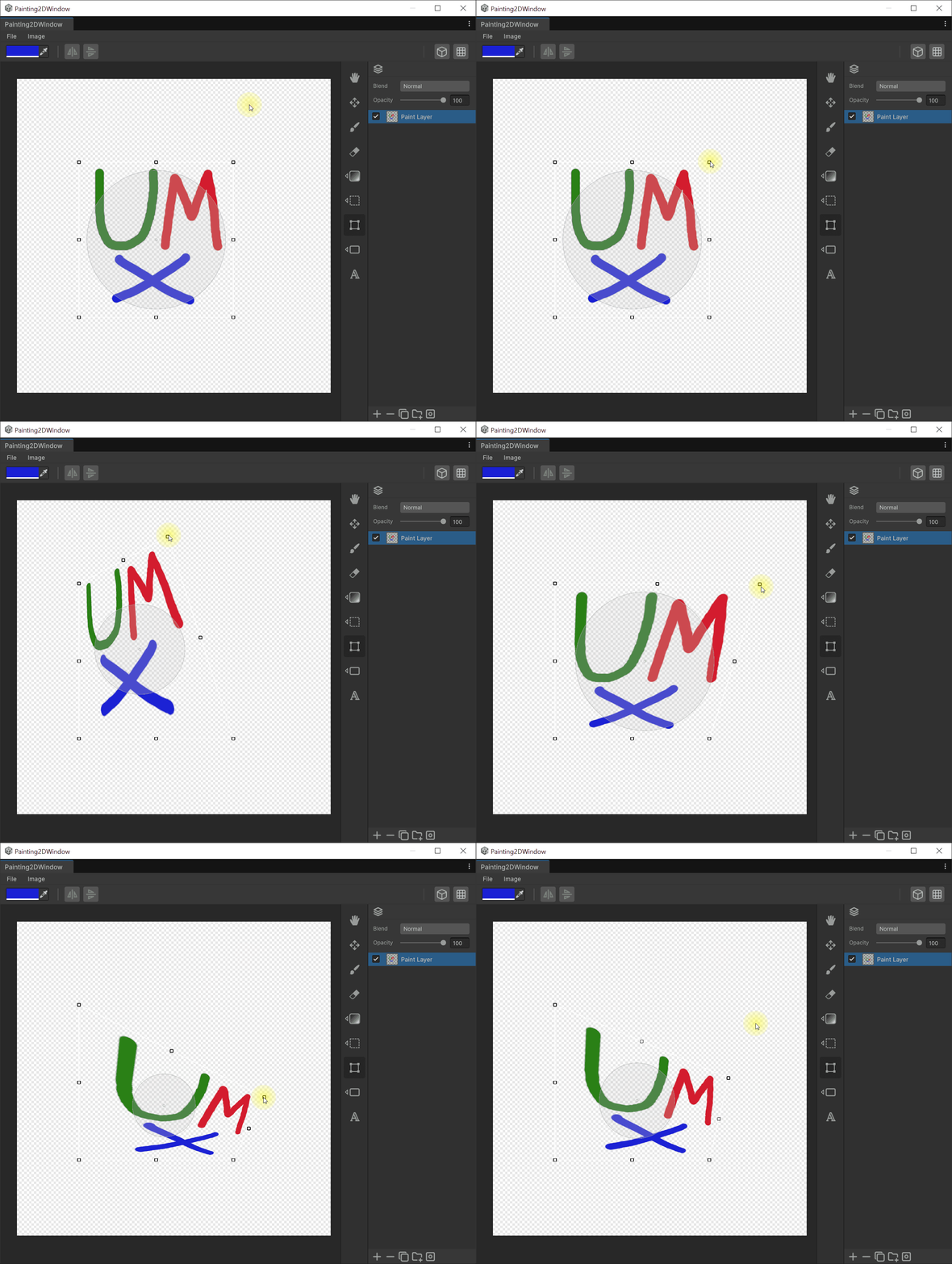
- Symmetric distort : Ctrl + Shift + corner.
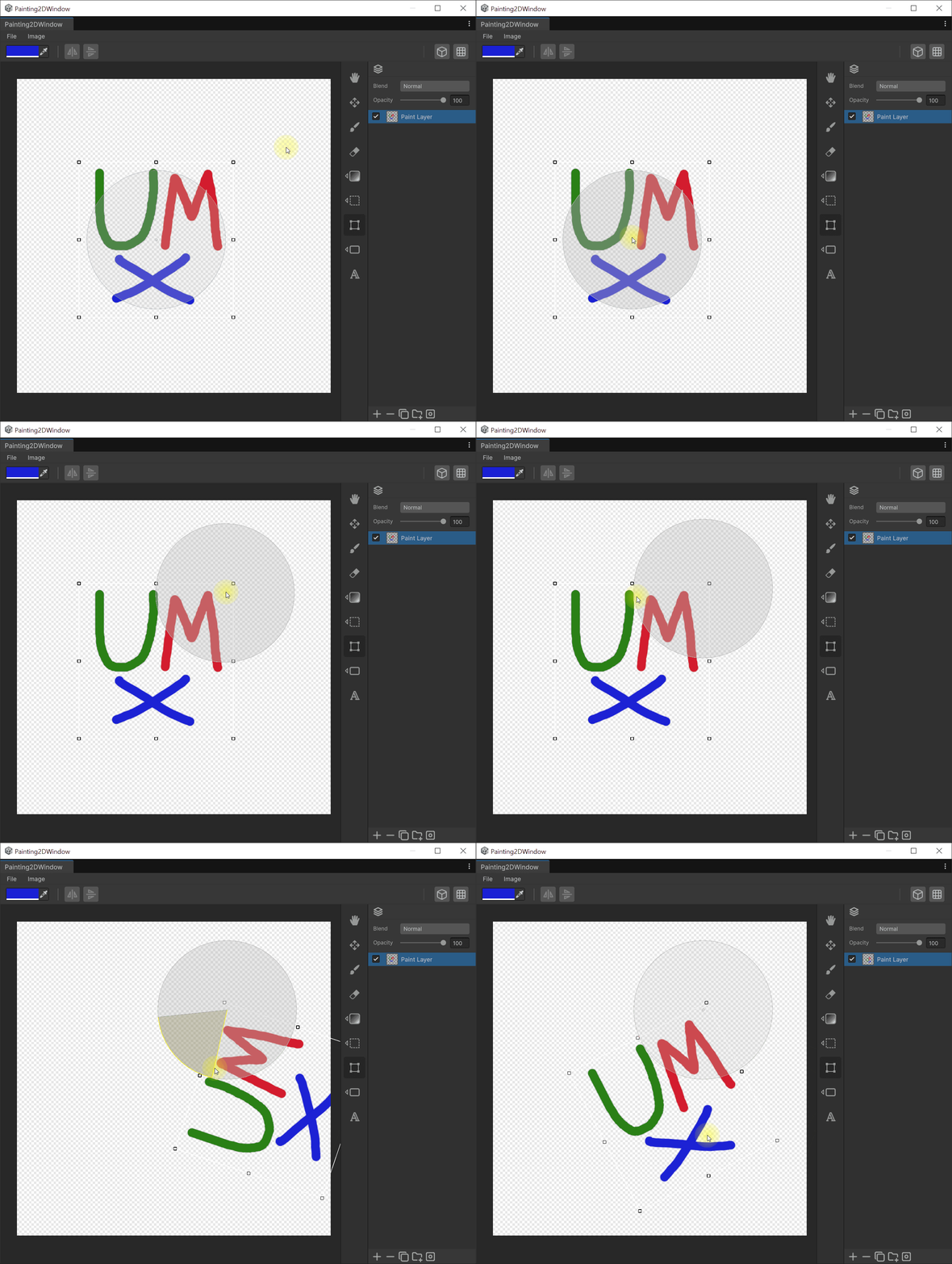
- Move the rotation pivot : Drag the disc center.
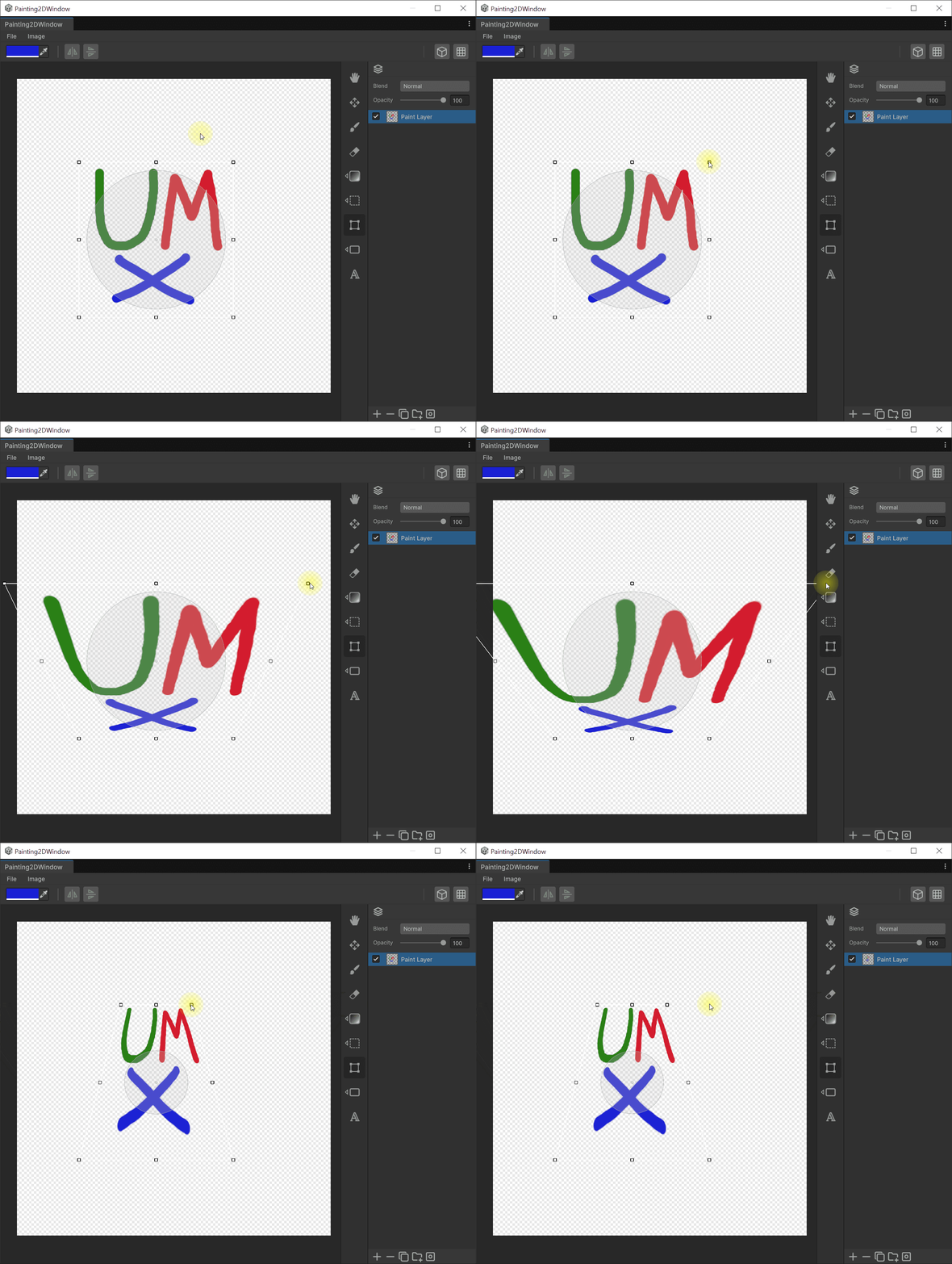
- Increase the rotation handle size : page up button.
- Decrease the rotation handle size : page down button.
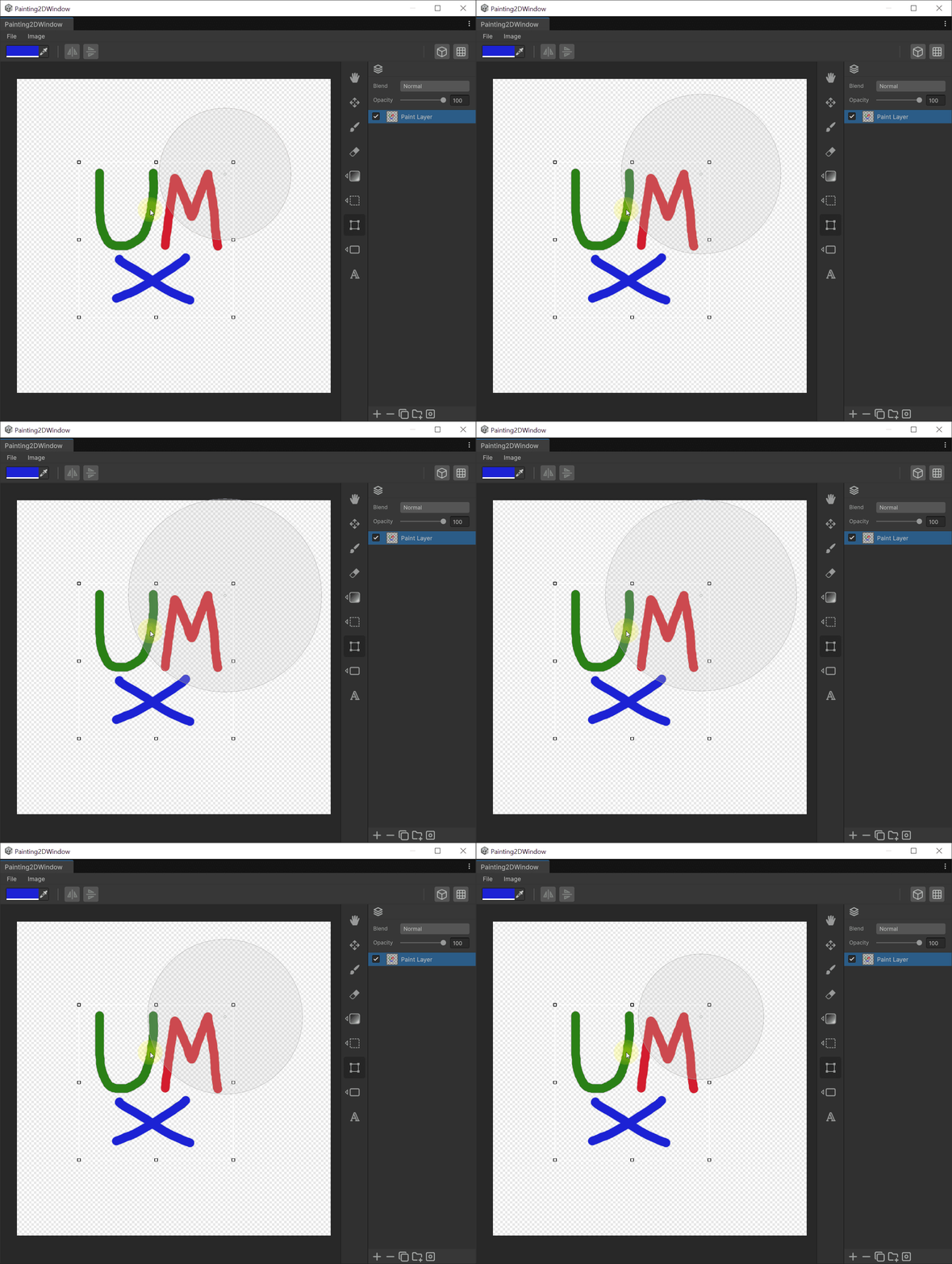
- Reset the rotation pivot : Double click the disc center.
How to use
- Make a selection, or select a Text / Shape layer.
- Press 'Ctrl+T' to invoke Free transform. For Text/Shape layers, you can use free transform function directly without having to select the Free Transform tool.
- The bounding box and rotation disc appear. Drag any handle to transform.
Numeric Input (Position · Size · Rotation)
When Free Transform is active, the toolbar exposes the center coordinates (X, Y), size (W, H), and rotation (°) of the selection. Each field accepts direct keyboard input for precise adjustment, and any value entered is recorded in the Undo history.
Keyboard Shortcuts
| Shortcut | Behavior |
|---|---|
| Arrow keys | Move 1px (Grid Snap ON → move by grid spacing) |
Shift + arrow keys | Move 10px |
Ctrl + arrow keys | Center-anchored quad-local scale |
Page Up / Page Down | Resize the rotation pivot disc |
Consecutive arrow-key presses are merged into a single Undo step.
Auto Bounding-Box Detection
Just like the Move Tool, hovering over the canvas highlights the layer's bounding box, and left-clicking switches Free Transform to that layer.