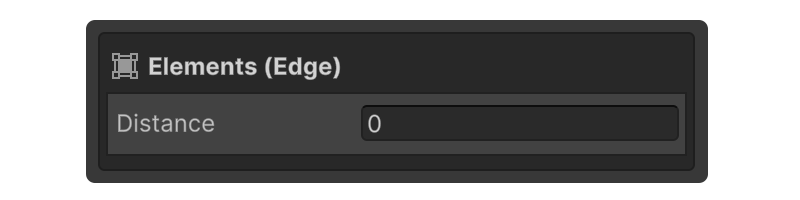
Edge
Edges are the lines that make up a mesh, and moving or editing an edge affects the elements associated with it.
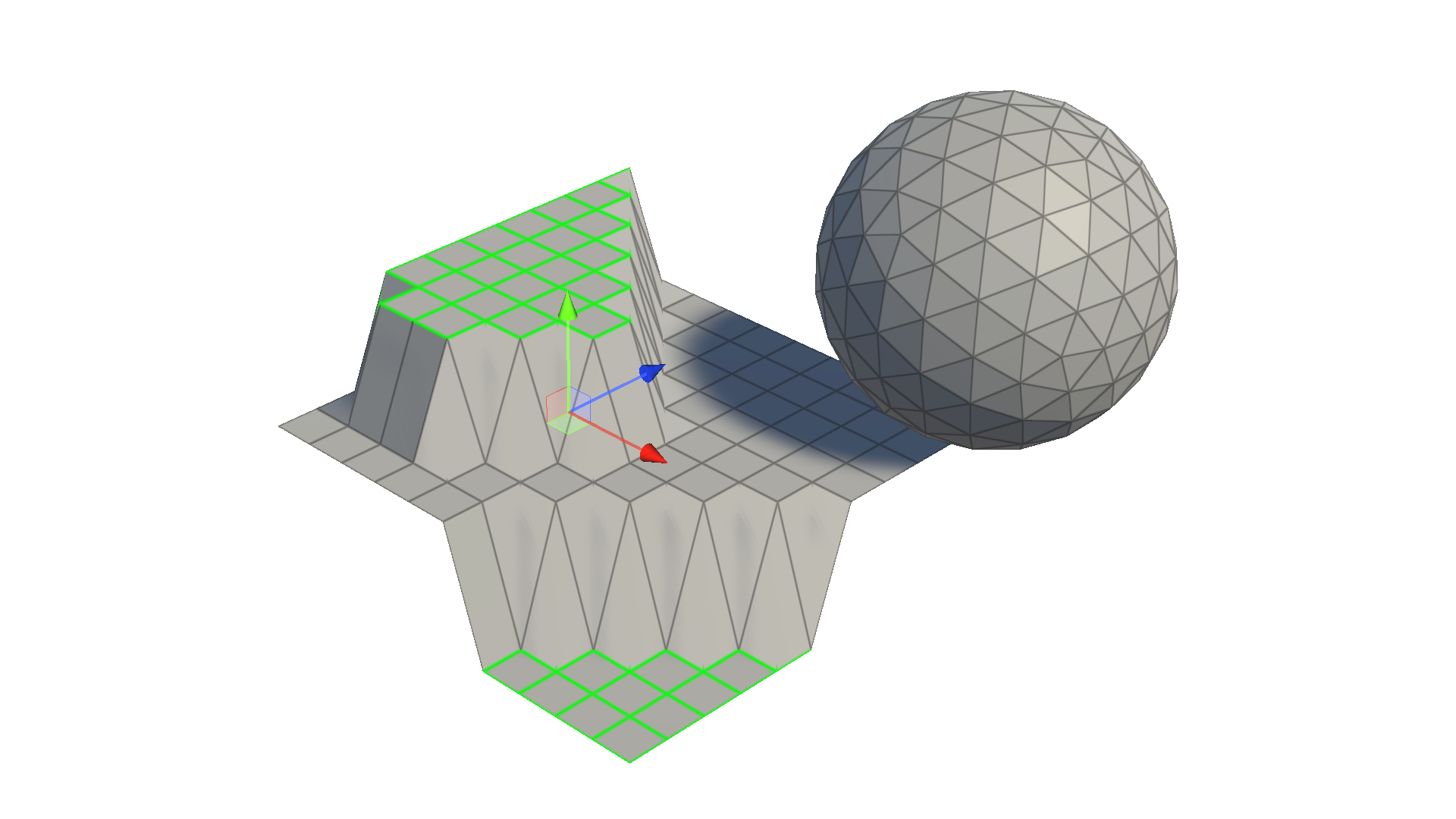
Edges are the lines that make up a mesh, and moving or editing an edge affects the elements associated with it.

You can view properties related to Edges by pressing the keyboard shortcutShift+2, or by using the scene top buttons.
Edge Element Group Properties
These are the properties that are displayed for the Element group when an edge is selected.
Control
Edge Constraint
Edge Constraint is a function that restricts the movement of selected edges along the edge direction only. This allows for natural adjustments while maintaining the shape during modeling.
How to Use
1.Check Edge Constraint.
2.Select the edge you want to move.
3.The selected edge will move while maintaining its shape.
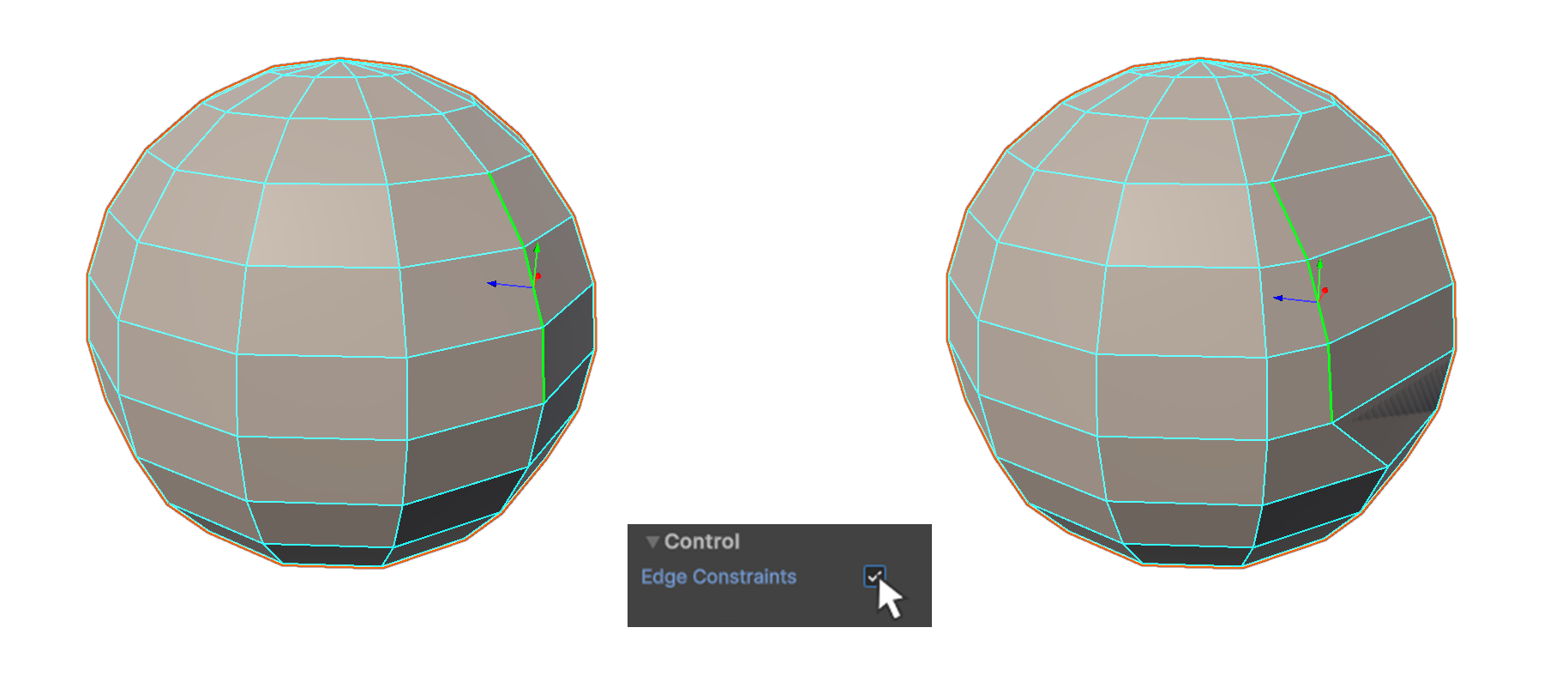
Example Usage
Preserve UVs
Preserve UVs is a feature that maintains the proportional relationship of UV coordinates when moving previously unwrapped elements. This means that as you move an element in 3D space, its UVs are automatically adjusted to follow the movement proportionally, preserving their original layout relative to the geometry.
How to Use
1.Enable Preserve UVs by checking the option.
2.Move the element.
3.The UVs will be updated accordingly.
Display
Properties that allow you to choose how the mesh is displayed.
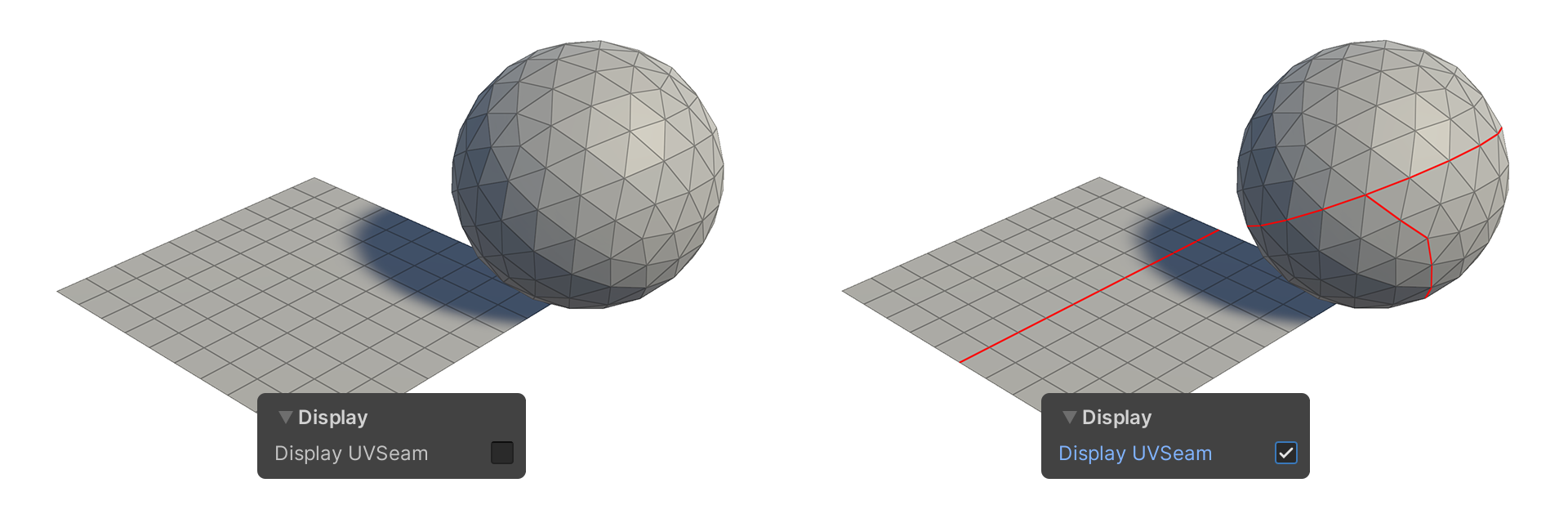
Display UVSeam
Shows or hides the edge set by the Mark Seam tool.
Sharp Edge
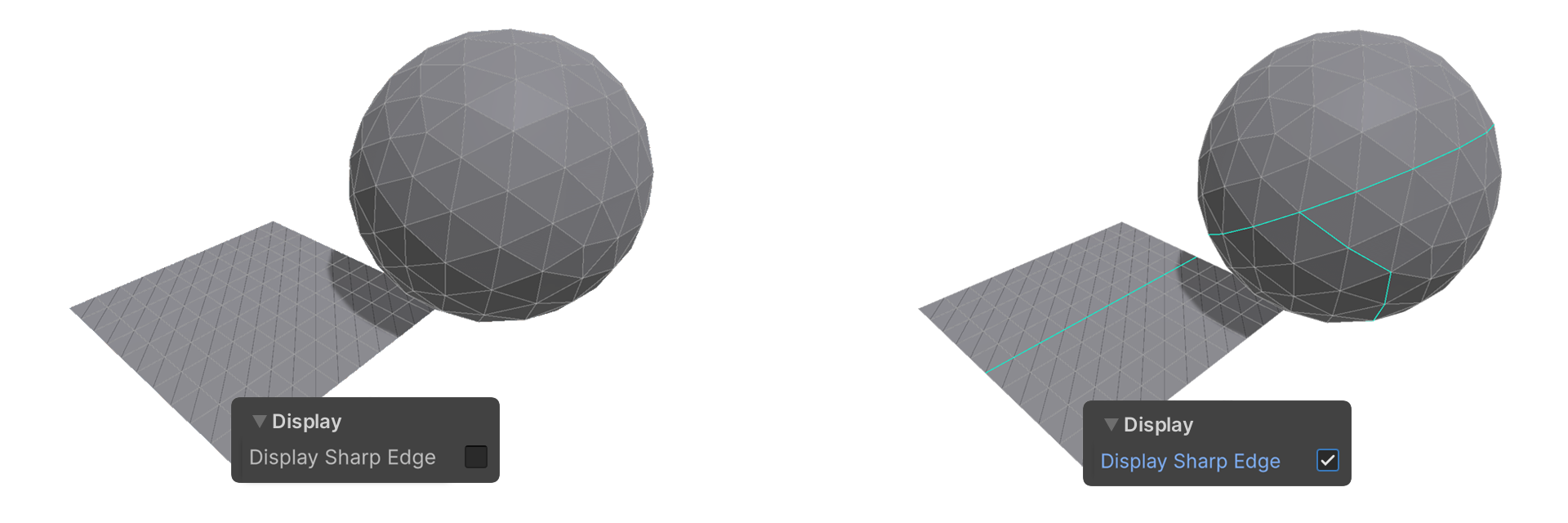
You can use the smoothing sharp edge in edge tool.
Display Sharp Edge
Shows or hides the sharp edge display.
Mark Sharp Seam

Mark the selected edges as sharp seams.
Unmark Sharp Seam

Unmark the selected edges as sharp seams.
Example Usage
Select
Property that allows you to set how the edge is selected.
Backface Select
Allows you to set whether opposite facing edges are selected.
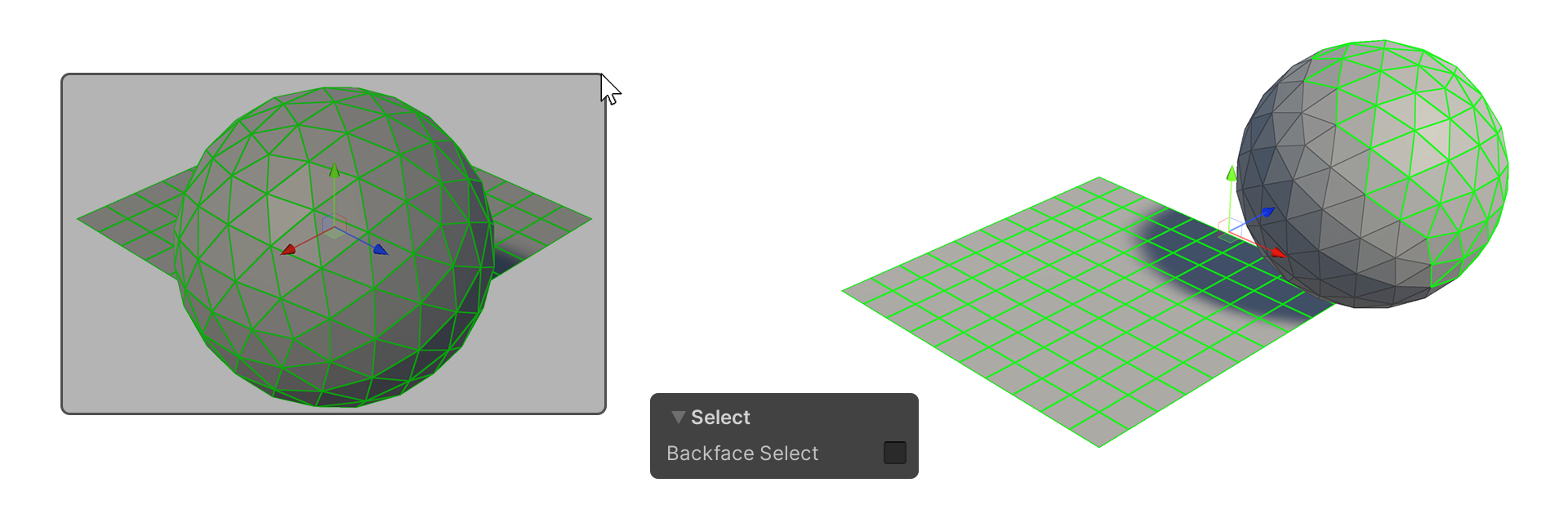
When the Backface Select property is off, opposite facing edges are not selected.
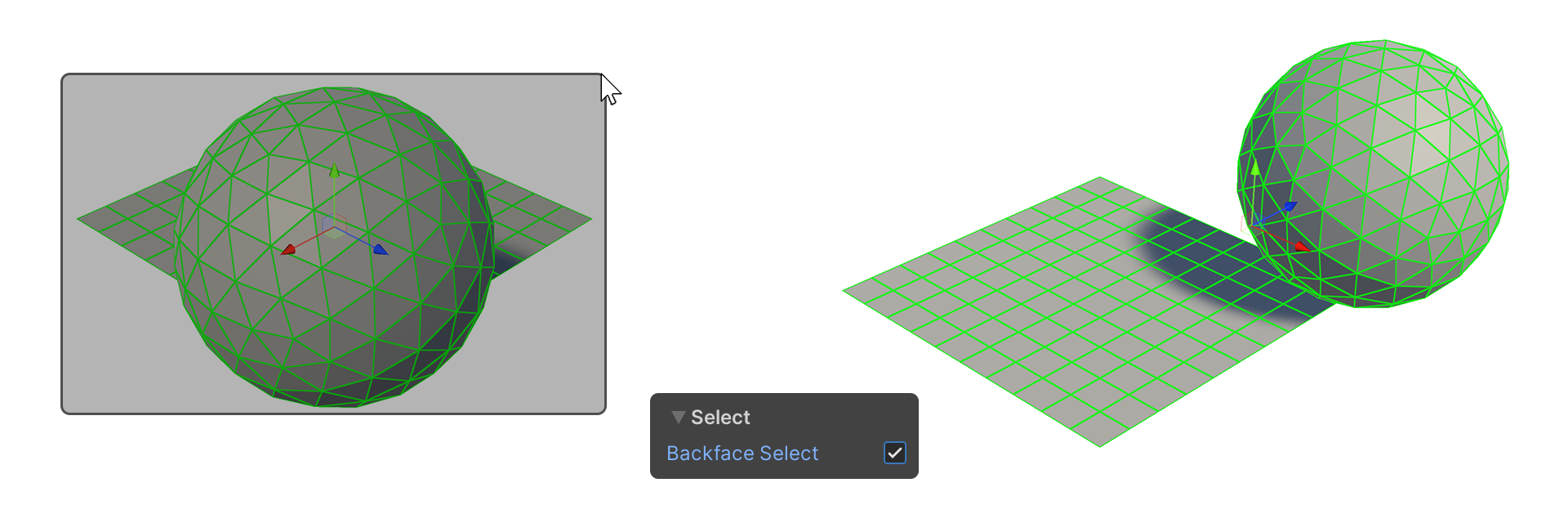
When the Backface Select property is on, opposite edges are selected as well.
Camera Based Select
This property selects only the currently visible edges based on the camera.
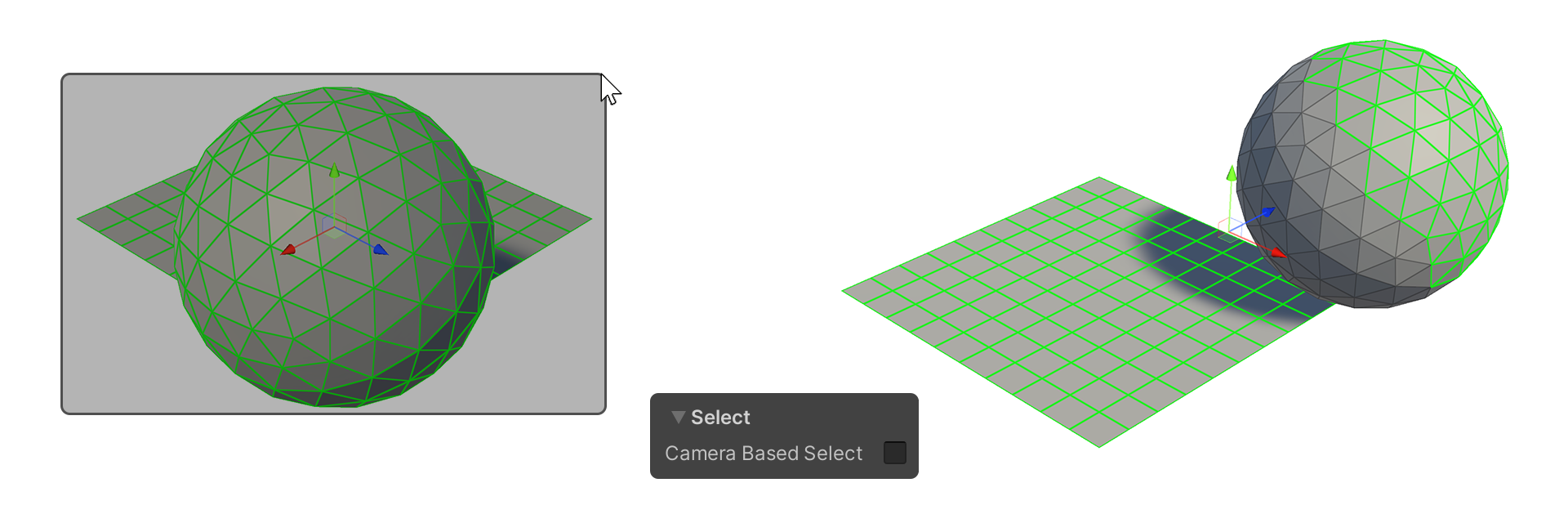
When the Camera Based Select property is off, edges that are hidden by the camera are also selected.
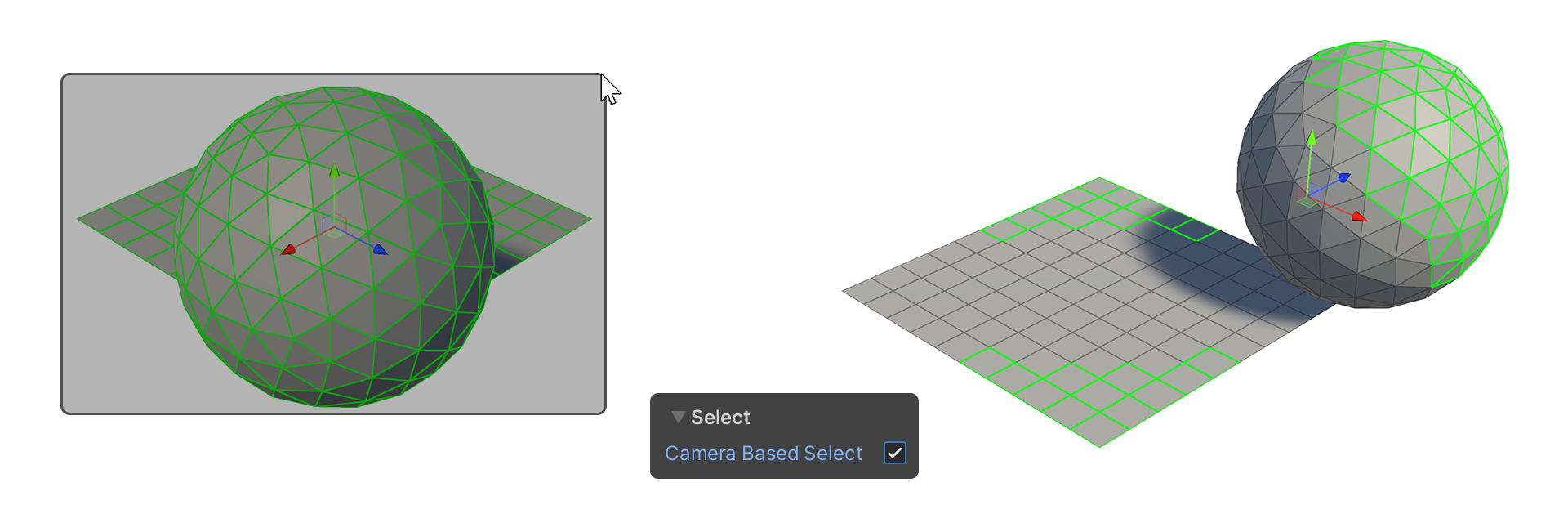
When the Camera Based Select property is on, edges that are hidden by the camera are not selected.
Border Rect Select
This property selects only face edge edges.
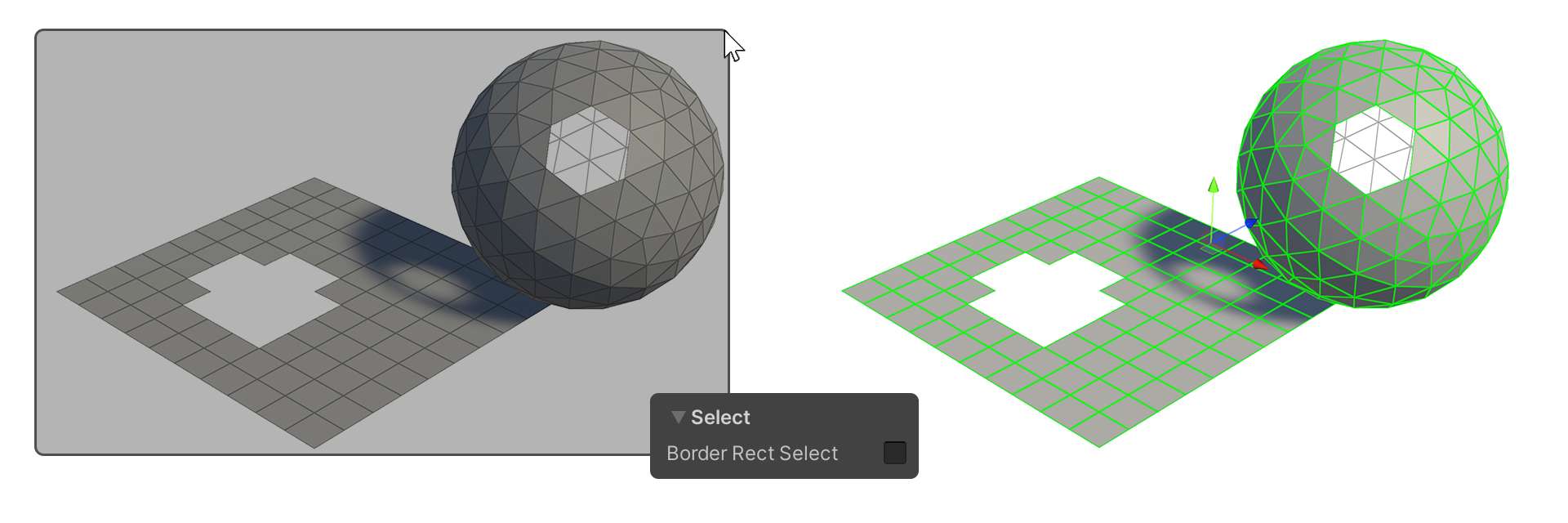
When the Border Rect Select property is off, all edges are selected.
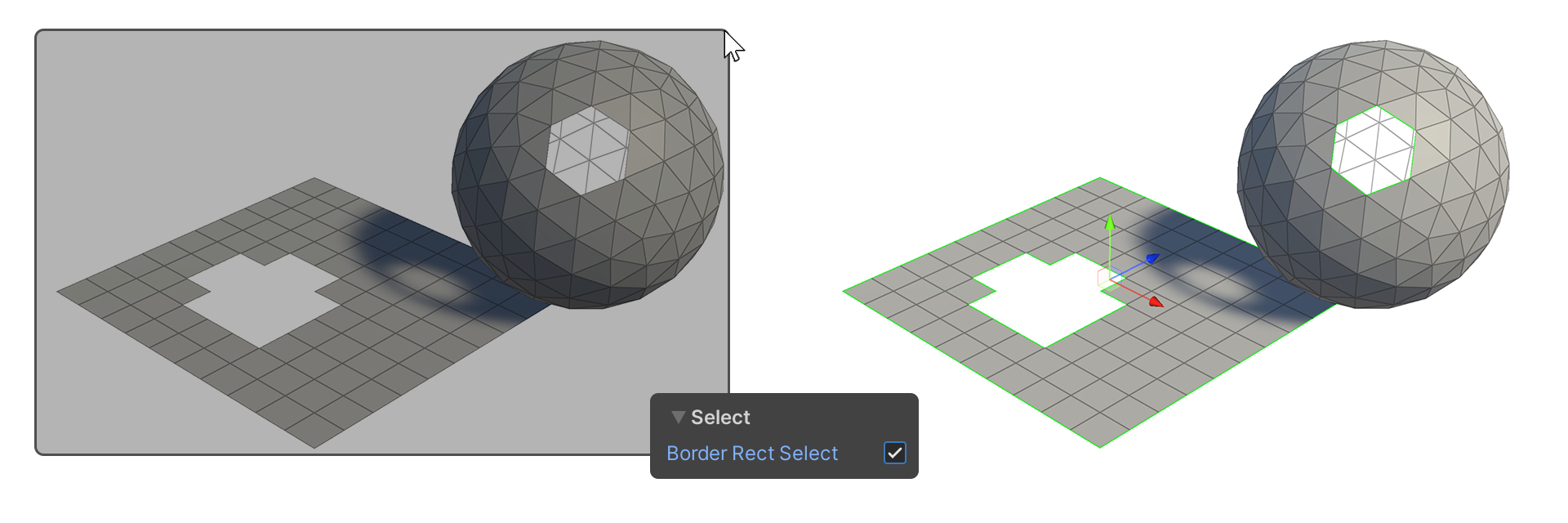
When the Border Rect Select property is on, only the edges of the face and any openings are selected.
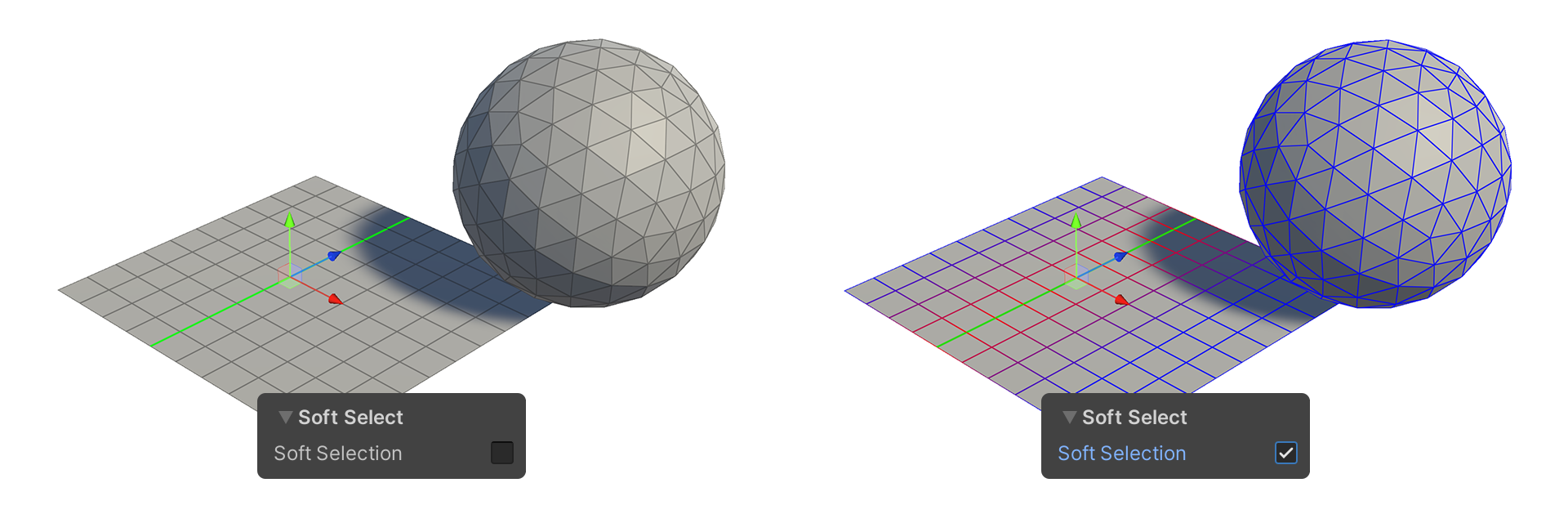
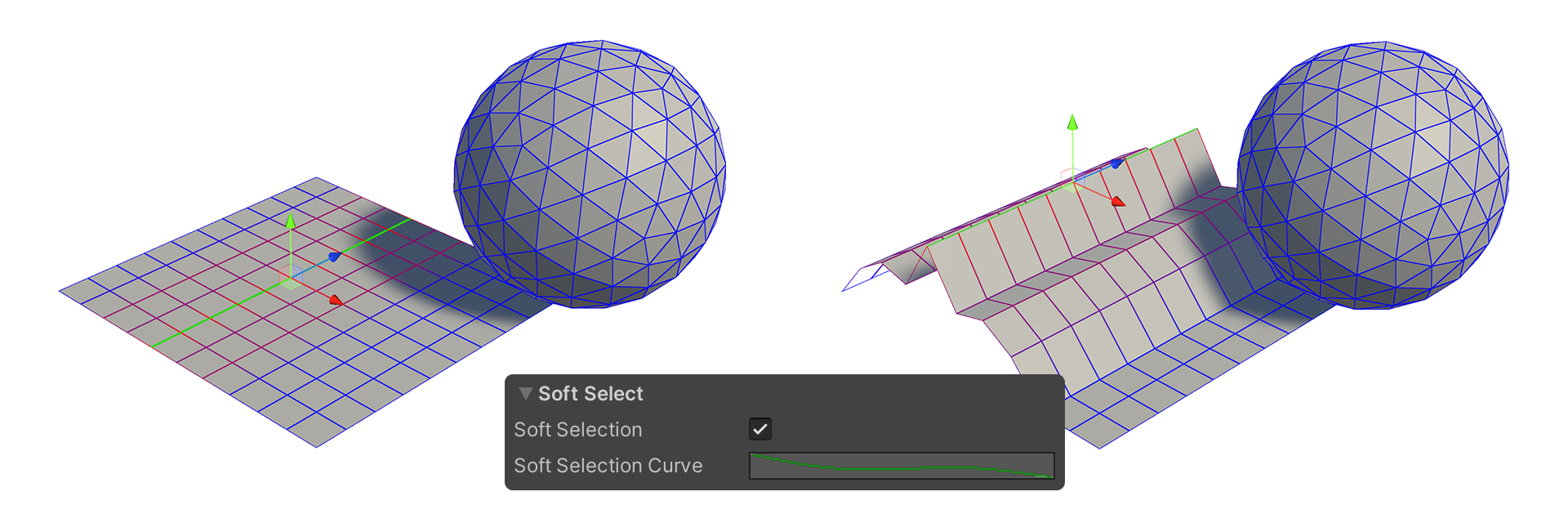
Soft Select
This property will select based on weight edges that are adjacent to the selected edge in the Scene.
The selected edges and the range you set based on the weight are displayed in color, usually as a soft circle.
Soft Selection
Properties that use Soft Selection.
Soft Selection Curve
A graph-like property that determines the shape of the Soft Selection. Tap the graph next to the Soft Selection Curve property to edit it.
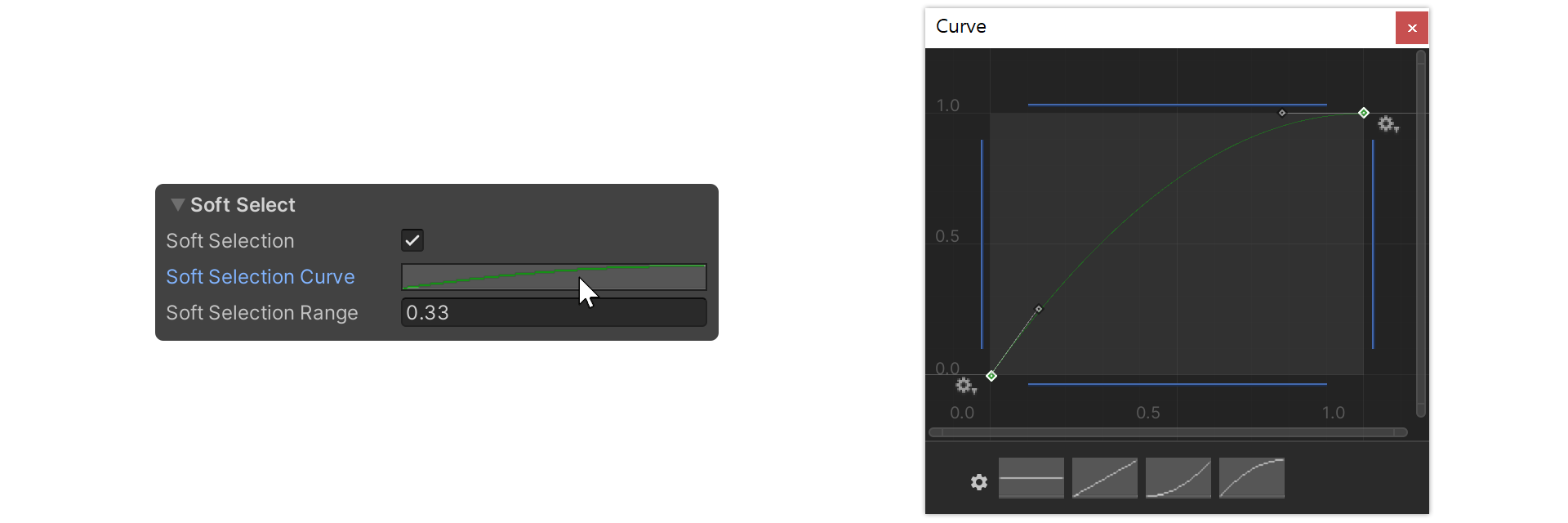
Example of Curve shape
Examples of selection shape changes by Curve shape.
Example 1
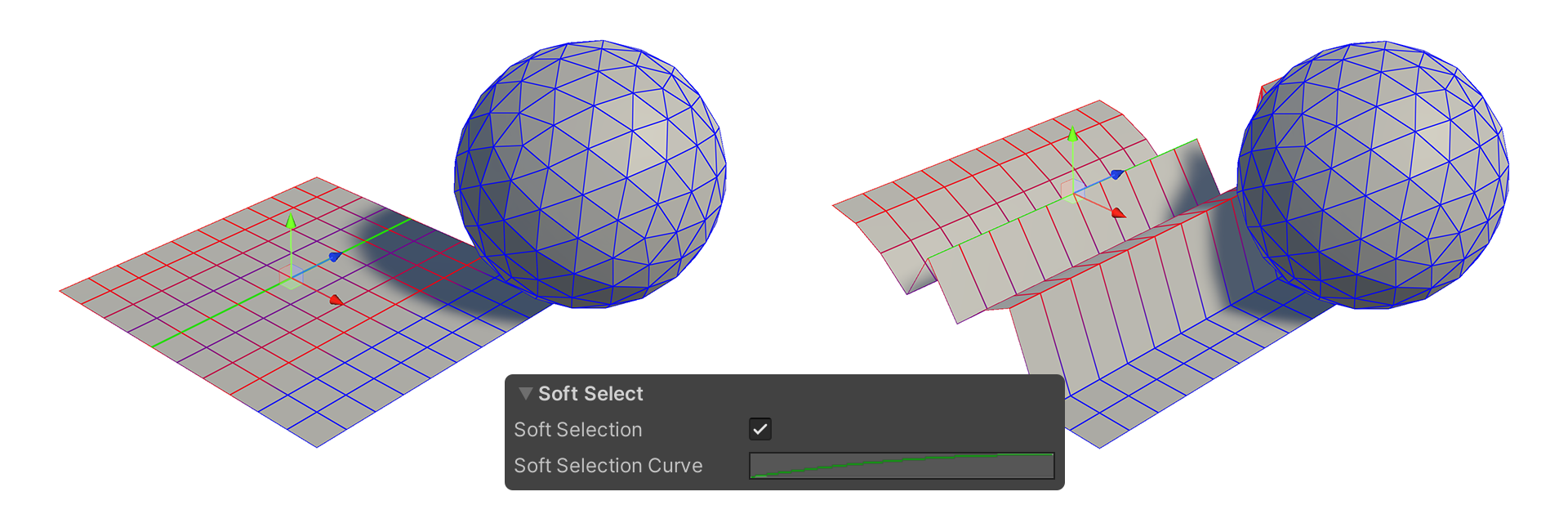
Example 2
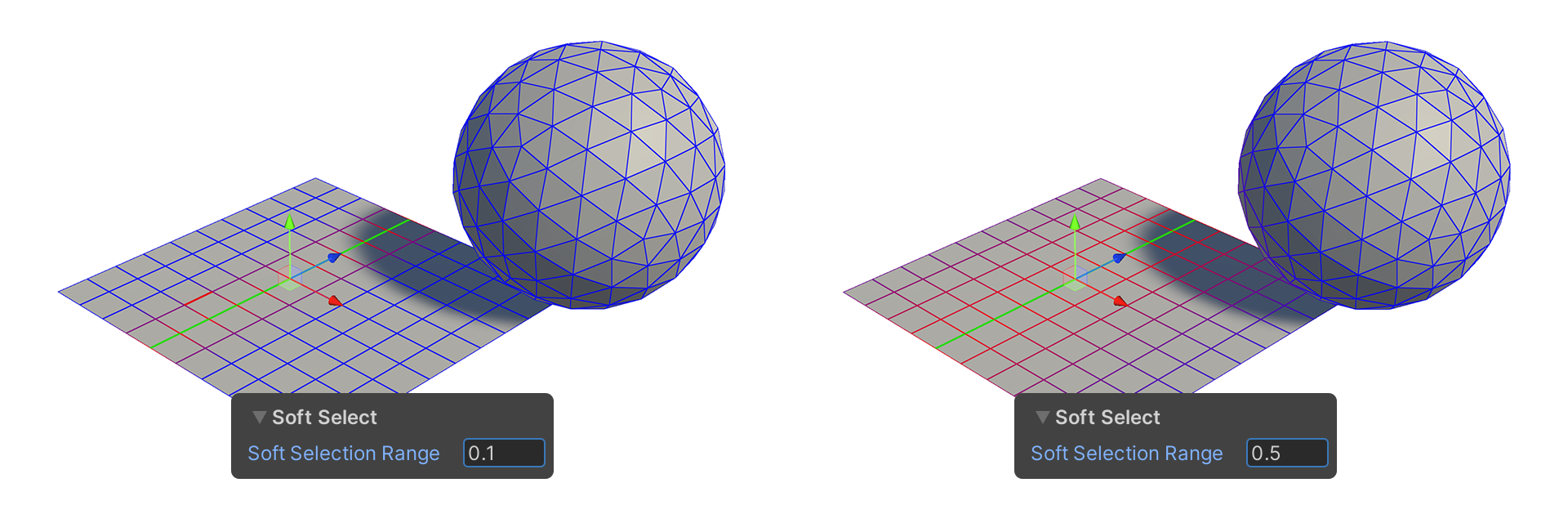
Soft Selection Range
A property that sets the range over which soft selection is applied from the selected edge.
In Unity, 1m = 1.0, so for 0.5, it will select up to 50cm from the selected edge.
Distance
A Property that is displayed when an element is moved indicates the distance traveled.