
Toolbar
UModelerX features a toolbar integrated with the Unity UI. Use this toolbar when you want to quickly adjust settings and check the results while working.
UModelerX features a toolbar integrated with the Unity UI. Use this toolbar when you want to quickly adjust settings and check the results while working.

Display Settings
All display settings can be easily configured by this toolbar. For more details, see Display Settings
Snap Setting
Use this toolbar to adjust the Snap Intervals for translation and rotation. For more details, see Snap Setting
Coordinate System
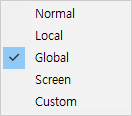
UModelerX includes a total of Five Coordinate Systems, including Unity's coordinate system. For more details, see Coordinate System
Apply Animation (Anim)
The Anim button toggles the posed state straight from the Scene view, without opening the Inspector. It appears only on objects that have rigging data and bone weights.
What it switches depends on the editor you are in:
- Modeling and Multiple Objects — elements are edited in the posed state. Topology-changing tools are disabled while this is on.
- Rigging — the overlay is drawn in the posed state.
The button and the matching Inspector toggle always show the same value, so you can use whichever is closer to hand. For the weight workflow, see Weight Tool.
Burst Acceleration Status
When Burst acceleration is not running, a turtle icon appears on the Scene view toolbar. Click it and a dialog explains the cause — most often Unity's Burst and Mathematics packages are missing — and offers to install them.
The icon stays hidden while acceleration runs normally. UModeler X works either way; without acceleration you simply do not get the speedup. See Burst Acceleration for what is accelerated and every cause the dialog can report, and Preference for the on/off switch.