Inset Tool
The Inset tool is a tool that creates new faces based on the selected faces as if they were inset.
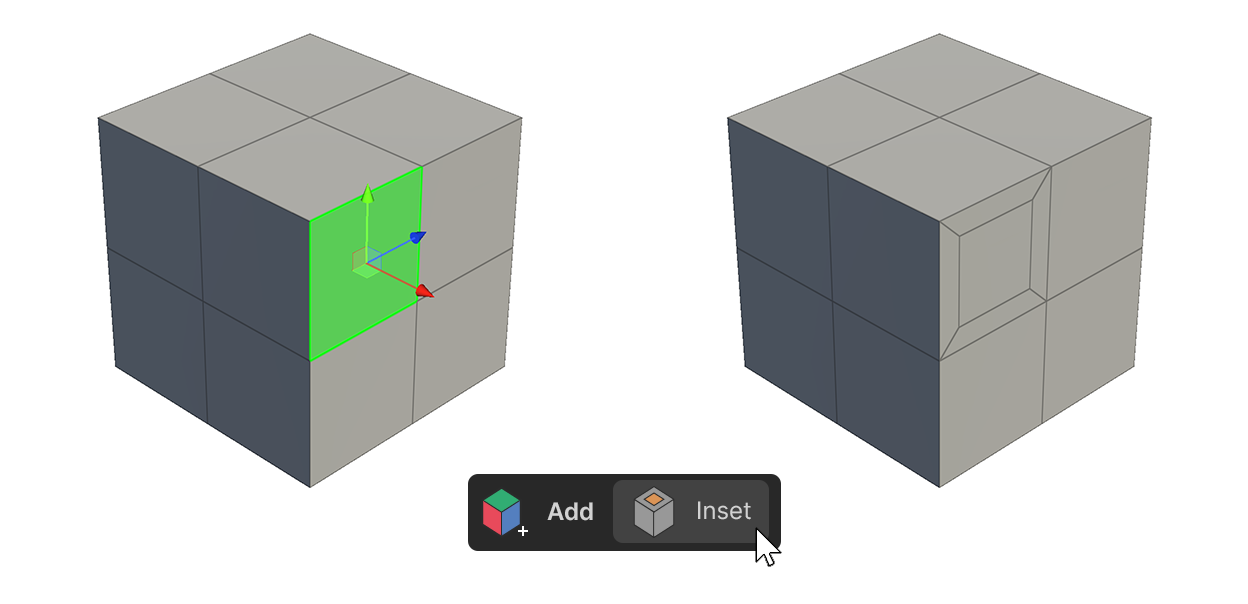
The Inset tool is a tool that creates new faces based on the selected faces as if they were inset.
How to Use.
Select a face and apply via properties
1.select a face.
2.Run the Inset Tool.
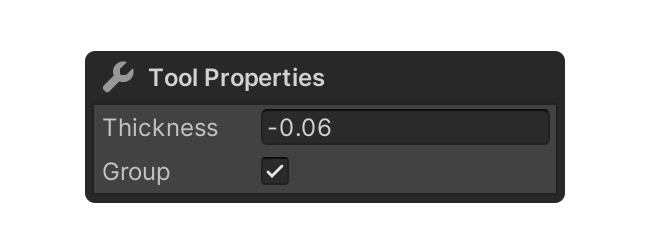
3.Adjust the properties to the appropriate values.
4.After adjusting the properties, select the element, or use another tool to finalize.
Selecting a Tool and Choosing a Face
1.Launch the Inset Tool.
2.Select Face.
3.If you want to select multiple faces, simply hold down Shift and additionally select the desired faces.
4.Adjust the properties to the appropriate values.
5.After adjusting the properties, select the element, or use another tool to finalize.
Adjusting Thickness via Click-Drag
1.Launch the Inset Tool.
2.Select the face you want to apply the Inset Tool to.
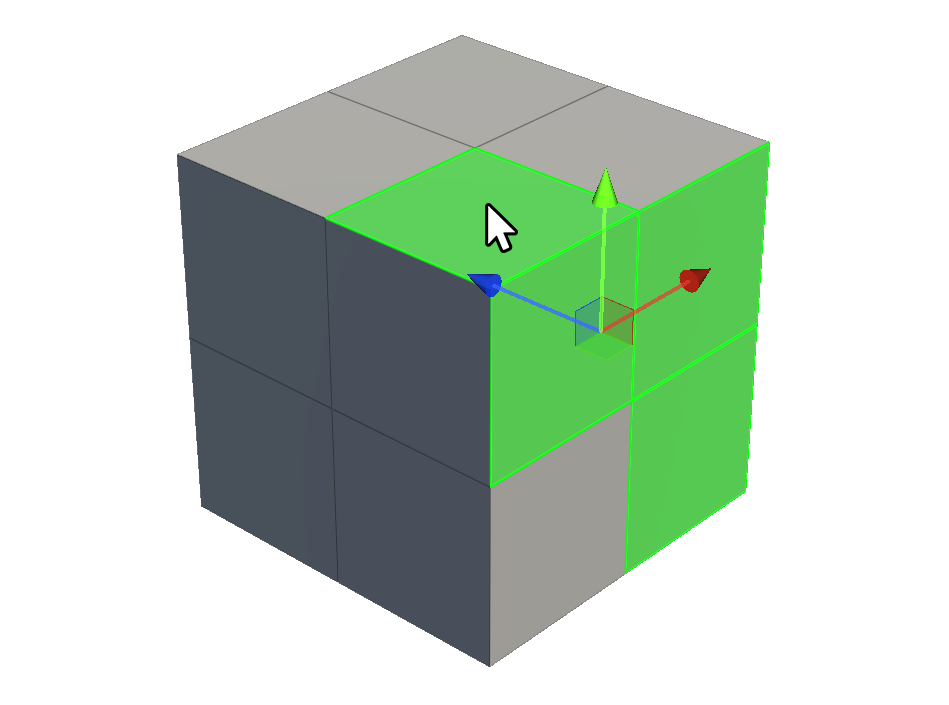
3.If you want to apply it to multiple faces, you can hold downShiftand select additional faces.
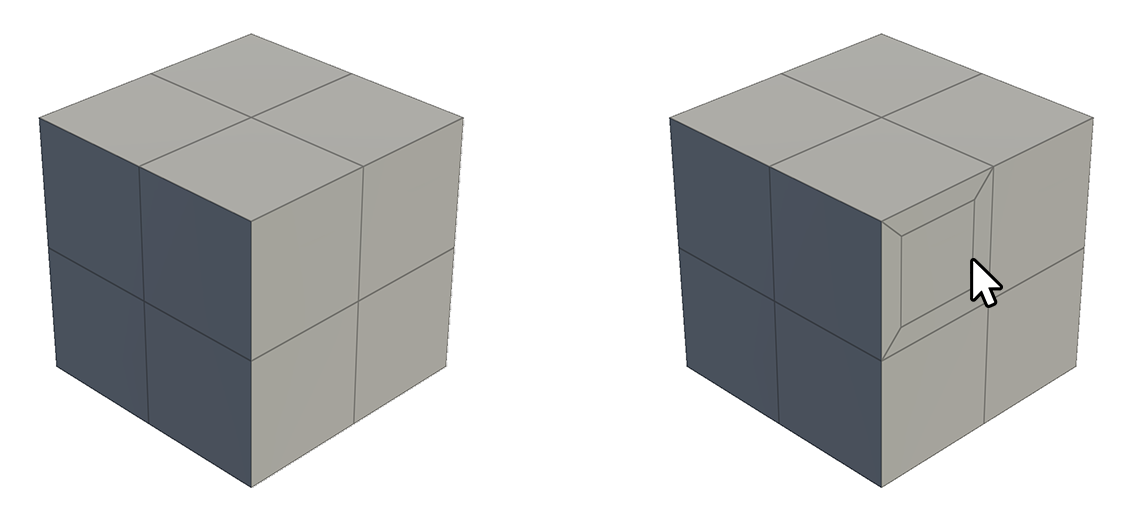
4.Click and drag the selected face to adjust the Thickness property.
5.When you are finished adjusting, select the element, or use another tool to finalize.
Properties
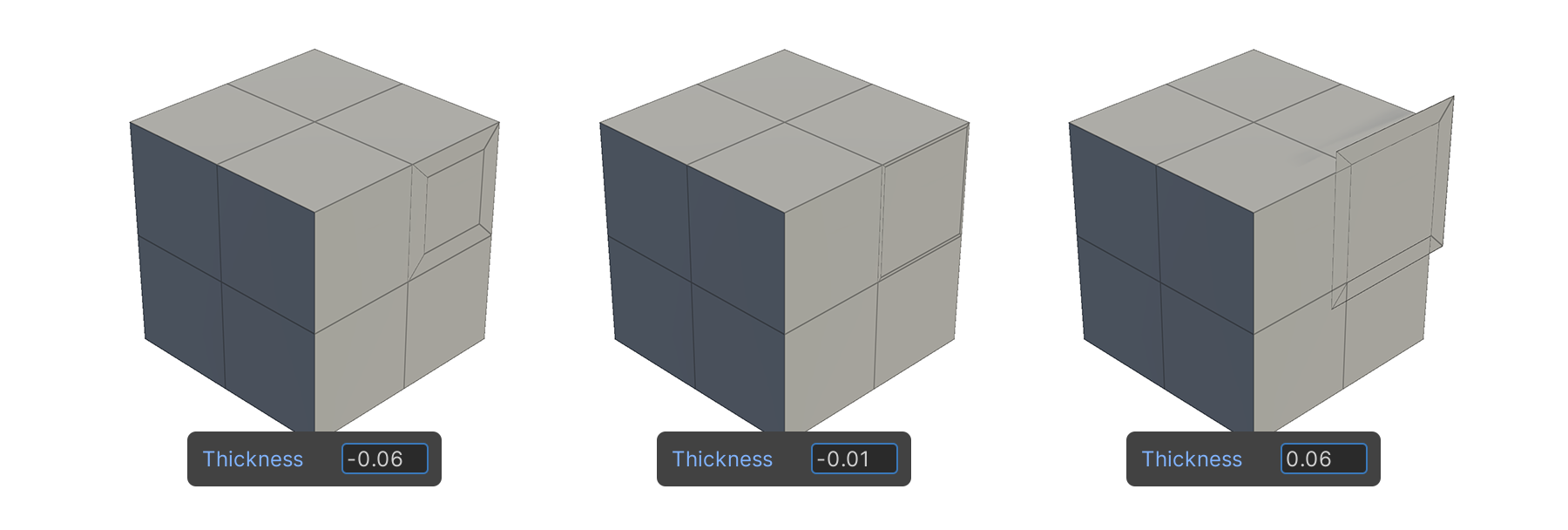
Thickness
This property controls the size of the face generated by the Inset Tool.
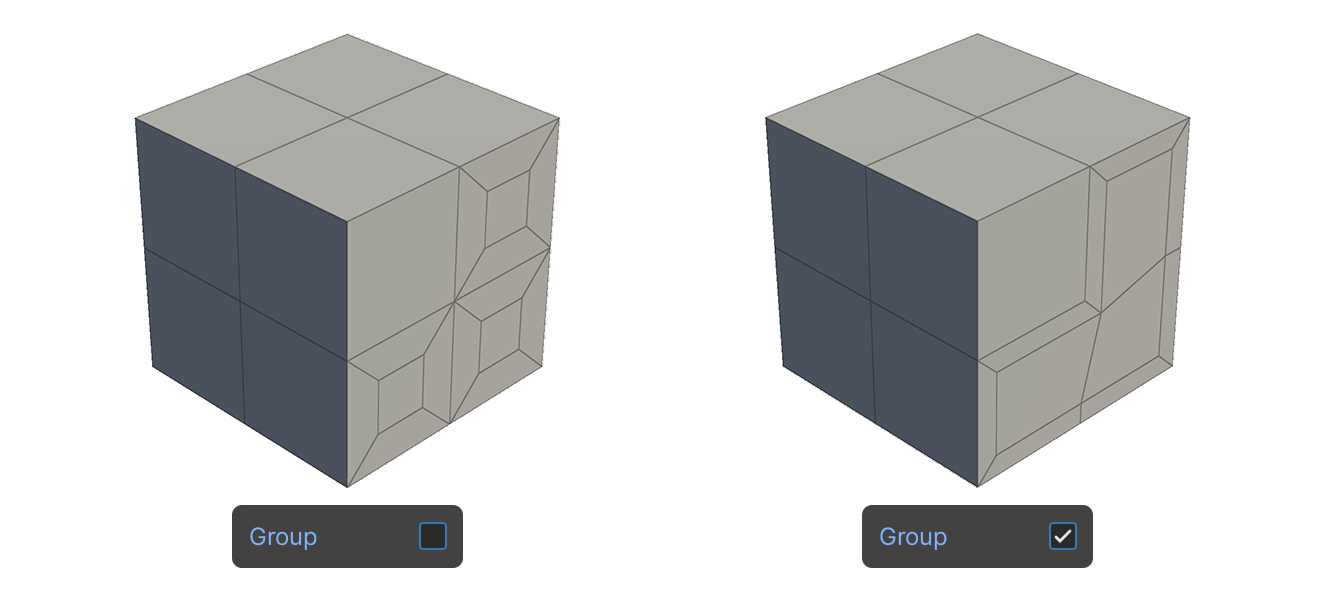
Group
A property that selects whether the selected faces should be applied as one group or each independent face when the Inset tool is applied.